GravityImport
- “Row #[x] ID does not exist for form” error
- Allow for non-standard imported values for checkbox fields
- Can I import a CSV file on the front-end of my website?
- Can I import passwords with the GravityImport plugin?
- Capabilities necessary to import entries
- Configure screen in Entry Importer
- Create a new form in Gravity Forms from a CSV
- Does GravityImport limit the number of entries I can import?
- Does GravityImport process calculations during import?
- Does GravityImport support importing Nested Form fields?
- Error: Arguments not allowed here: rest_route
- Error: CSV file failed to upload
- Error: Import has finished with errors – HTTP 404
- Error: Server returned an empty response
- Exporting a CSV from Apple Numbers
- Exporting a CSV from Google Sheets
- Exporting a CSV from LibreOffice
- Exporting a CSV from Microsoft Excel
- Exporting List fields as JSON
- Formatting Dates for Gravity Forms in Microsoft Excel
- Getting Started with GravityImport: How to Import Entries into Gravity Forms
- GravityImport Developer Hooks
- GravityImport Support for Gravity Forms Add-Ons
- GravityImport: “The importer encountered an error that prevents it from continuing”
- How to add new fields to an existing form during import
- How to assign entries to users during import
- How to change the CSV delimiter
- How to Clean Up GravityImport Database Tables
- How to enable pre-release versions of GravityImport
- How to import data from a MySQL database
- How to restrict access to Import Entries
- How to trigger notifications for imported entries
- Import CSV to Gravity Forms with Import Entries 2.0
- Import Option: Skip Field Validation
- Import Step: Choose a form for this import
- Import Step: Continue Processing if Error Occurs
- Import Step: Upload CSV
- Import Step: Where would you like to import the entries?
- Importing dates in UTC timezone
- Importing Gravity Forms Post Fields from CSV
- Importing List fields into a new form
- Importing List fields into existing foms
- Naming Your Field Columns
- Restarting a Gravity Flow workflow after import
- Updating existing entries with the GravityImport plugin
- Home
- Docs
- GravityImport
- How to assign entries to users during import
How to assign entries to users during import
Estimated reading: < 1 minutes
Updated on April 23, 2026
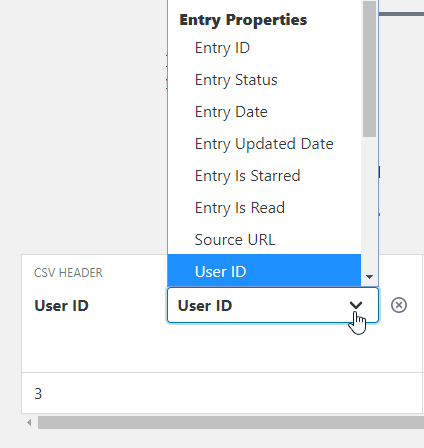
By default, imported entries are assigned to the entry creator, i.e. the user doing the import. You can assign an entry to another user during import by including an existing WordPress User ID in your CSV file then mapping it to the User ID field under Entry Properties:
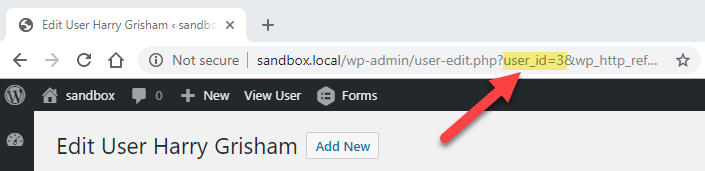
If you need to find a user’s ID, go to Users – All Users and click on a user’s name to open the user’s profile page. You can get the user ID from your browser’s address bar: