

Filtering entries included in a GravityExport download
By default, a form’s download link includes all of the form’s entries. Parameters added to the end of the link narrow it down to one entry, a date range, or the entries whose fields match a value. The link itself is on the form’s GravityExport tab: in your WordPress dashboard, go to Forms, hover over the form, click Settings, and open GravityExport.
The examples below use a volunteer application form whose download link is https://example.com/gravityexport/ab63c5f110e5ff71f738efb68618313b. Start the parameters with ? and join them with &.
Download one entry #
Add entry with the entry’s ID:
https://example.com/gravityexport/ab63c5f110e5ff71f738efb68618313b?entry=20000Download a date range #
Add start_date, end_date, or both, as YYYY-MM-DD. The dates are compared with each entry’s submission date, and both days are included. With only start_date, the link includes everything from that day on.
https://example.com/gravityexport/ab63c5f110e5ff71f738efb68618313b?start_date=2026-01-01&end_date=2026-03-31To download a range once without changing the link, enter the Start and End dates in the Instant Download section of the GravityExport tab and click Download.
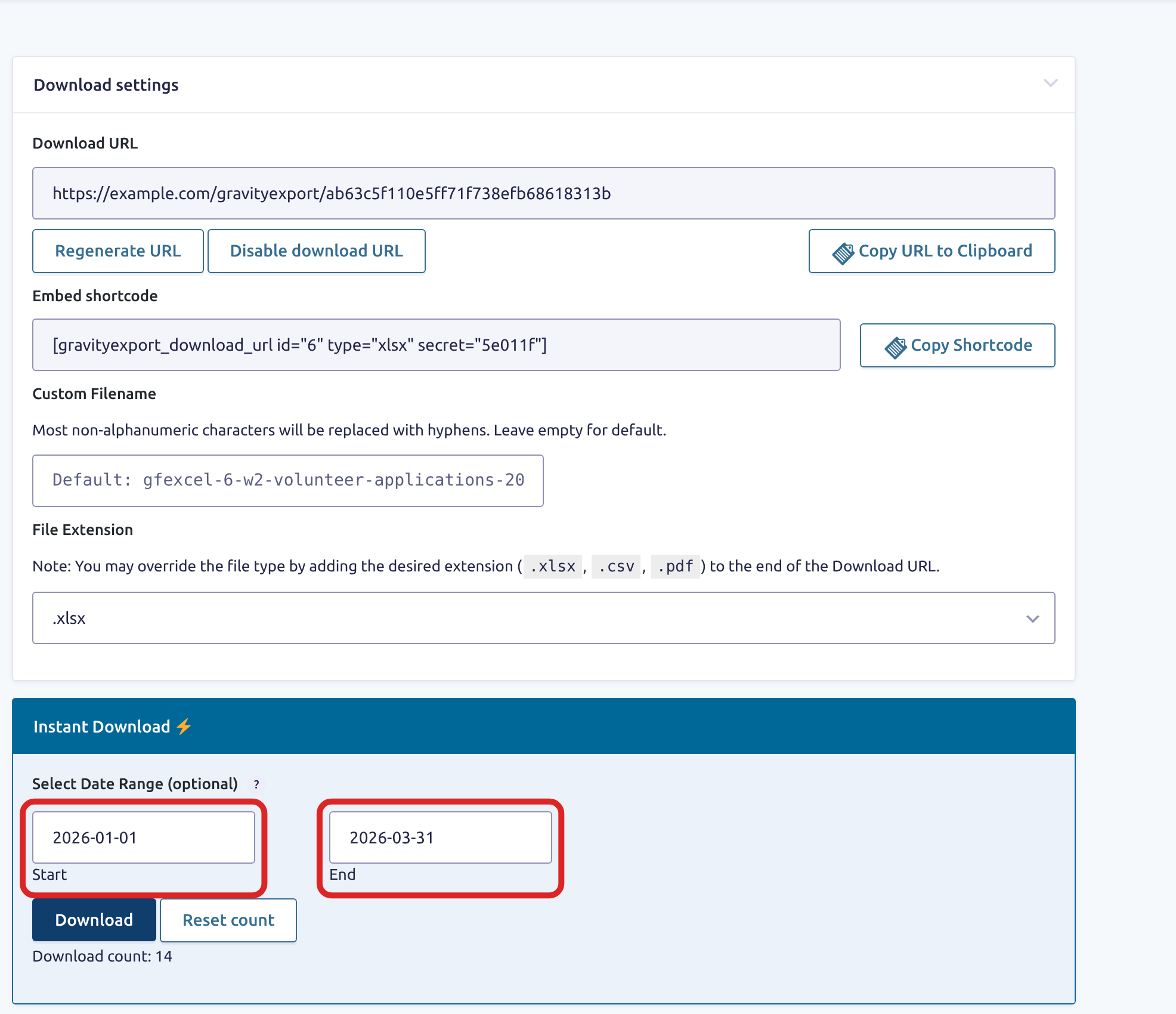
A date range also keeps a large export within the server’s memory. See Error: “Allowed memory size exhausted” when exporting entries.
Filter by field value #
Add filter with a field ID, an operator, and a value, separated by colons: filter=<field ID>:<operator>:<value>. To find a field’s ID, open the form in the form editor and click the field. The ID shows at the top of the Field Settings panel.
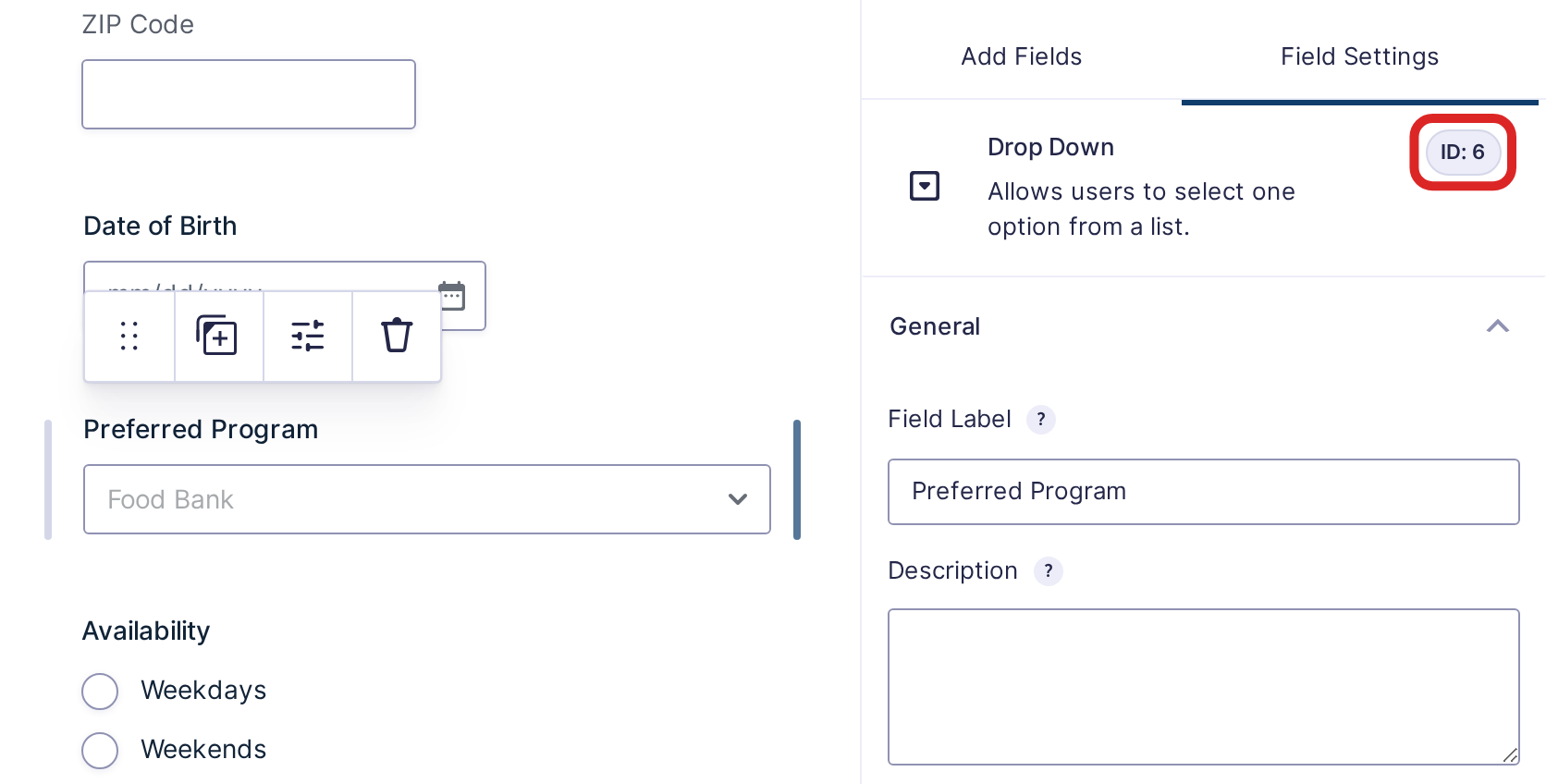
On the example form, field 6 is Preferred Program, field 7 is Availability and field 8 is Hours per Month:
| Parameter | Exports the entries where |
|---|---|
?filter=6 | Preferred Program isn’t empty |
?filter=6:Food Bank | Preferred Program is Food Bank |
?filter=6:is not:Food Bank | Preferred Program is anything except Food Bank |
?filter=6:contains:Senior | Preferred Program contains Senior |
?filter=6:in:Food Bank,Park Cleanup | Preferred Program is Food Bank or Park Cleanup |
?filter=8:>=:35 | Hours per Month is 35 or more |
?filter=6:Food Bank;7:Weekends | Preferred Program is Food Bank and Availability is Weekends |
?filter=any;6:Food Bank;6:Park Cleanup | either condition matches |
With only a field ID, the filter keeps the entries where that field has a value. With a field ID and a value, it keeps the entries where the field equals the value.
These operators work: = (the same as is), is not (the same as <>), contains, in, not in, >, >=, < and <=. For in and not in, separate the values with commas.
Separate several filters with a semicolon. An entry has to match all of them, unless the filter starts with any;, which keeps the entries that match at least one.
Fields with several inputs, such as Name and Address, take the input’s ID: 1.3 is the first name of a Name field with ID 1, and 1.6 is its last name. ?filter=1.3:Maria exports the entries where the first name is Maria.
You can use filter, start_date and end_date together in one link, for example ?filter=6:Food Bank&start_date=2026-10-01&end_date=2026-10-31.
Characters to watch for #
A value can’t contain a colon or a semicolon, because those separate the parts of a filter. Spaces are fine when you type the link in a browser, which encodes them for you. In a link you build elsewhere, write a space as %20 and & as %26.
Saved filters with GravityExport #
With GravityExport, a Filter feed saves the fields and conditions with its own download link, so nobody has to edit a link by hand. Its conditions also take relative dates, such as the past week. See GravityExport Filters.