
How to schedule automated exports
A scheduled export runs a GravityExport Save feed at a set interval and sends the result to a storage destination: an Excel, CSV or PDF file on your server, an FTP server, Dropbox or Box, or a tab in a Google Sheets spreadsheet. This article walks through setting one up from start to finish.
Prefer to watch the video? #
How scheduled exports work #
A scheduled export is built from one required part and one optional part:
- A GravityExport Save feed decides when the export runs and where it goes: the trigger, the interval, the storage destination and the file format.
- An export filter (optional) decides which fields and which entries go into the export. Without one, the Save feed exports the form’s default fields, and you can still limit entries on the Save feed’s own Conditional Logic tab.
Note: On GravityExport 1.15 and 1.16, the GravityExport Filters and GravityExport Save tabs appear in a form’s settings only once the form’s download URL is enabled, or once the form already has an active feed of that type. GravityExport 1.17.0 and newer always list them. If you don’t see them, update GravityExport, or open the form’s Settings > GravityExport and click Enable download URL. That also creates a download link for the form’s entries, which anyone who has it can use unless you change Download Permissions on the same tab.
Scheduled exports can’t be sent by email. To share entries with someone, send them the form’s download link from its GravityExport tab, or the Download URL of an export filter. Both links build the file when they’re opened, so they always have the latest entries. An export filter’s link works only for logged-in users with Export Entries access until you set its Download Permissions to Everyone can download.
1. Create an export filter (optional) #
Export filters let you control which fields and entries a report contains, and one form can have several filters for different audiences. Skip this step if the form’s default fields are what you want to export.
- In your WordPress admin, go to Forms, hover over your form and click Settings.
- Open the GravityExport Filters tab.
- Click Add New to create a filter, or open an existing one, and give it a Feed Title on the Export Settings tab.
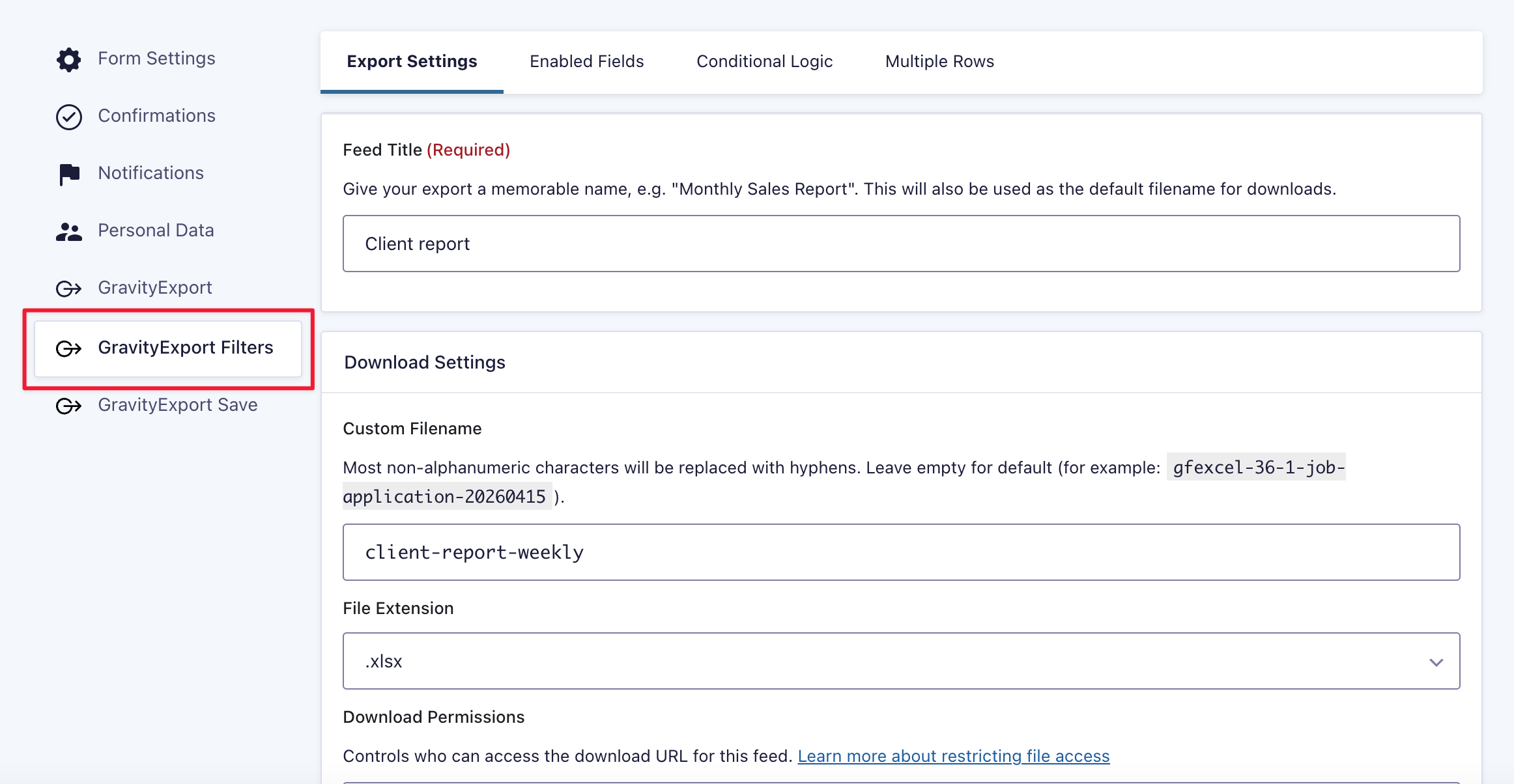
Choose the fields
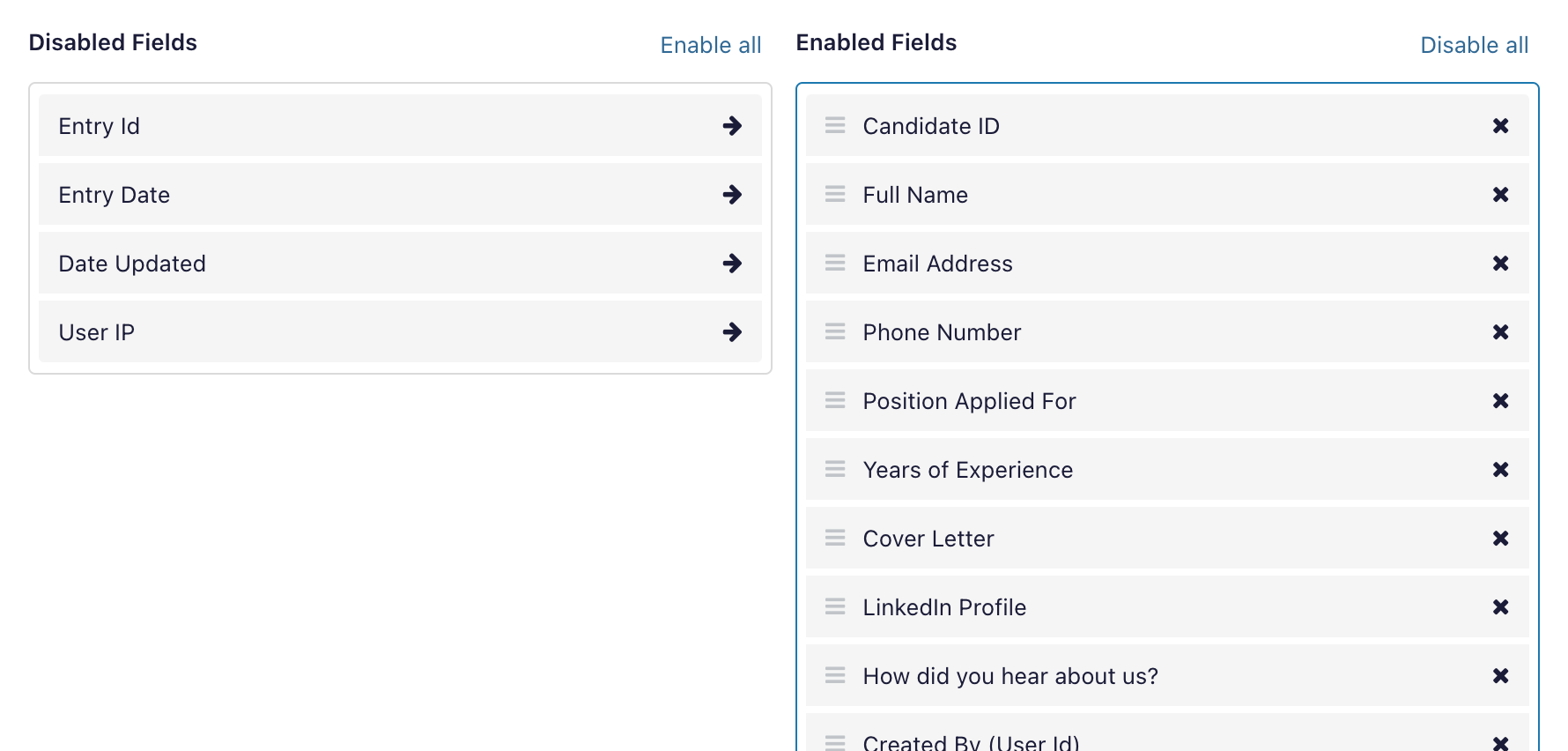
On the Enabled Fields tab, move fields between Disabled Fields and Enabled Fields, or use Enable all and Disable all. Only enabled fields go into the file. The same tab has Header Position, which puts the headers across the top row or down the left column, and Sort Order.
Limit the entries by date
To include only recent entries, open the Conditional Logic tab, click + Condition, and choose Entry Date, is after, Past week. Each export then covers the 7 days before it runs. To send exactly the entries that arrived since the last export instead, use Entries to Include on the Save feed (step 4). You can add conditions on field values and other entry properties too.
Split multi-value fields into rows
If the form has List fields or GP Nested Forms fields, the Multiple Rows tab can give each item its own row: set Enable multi-row splitting to Yes, split fields with multiple values into multiple rows. Click Save Settings when the filter is ready.
2. Create the Save feed #
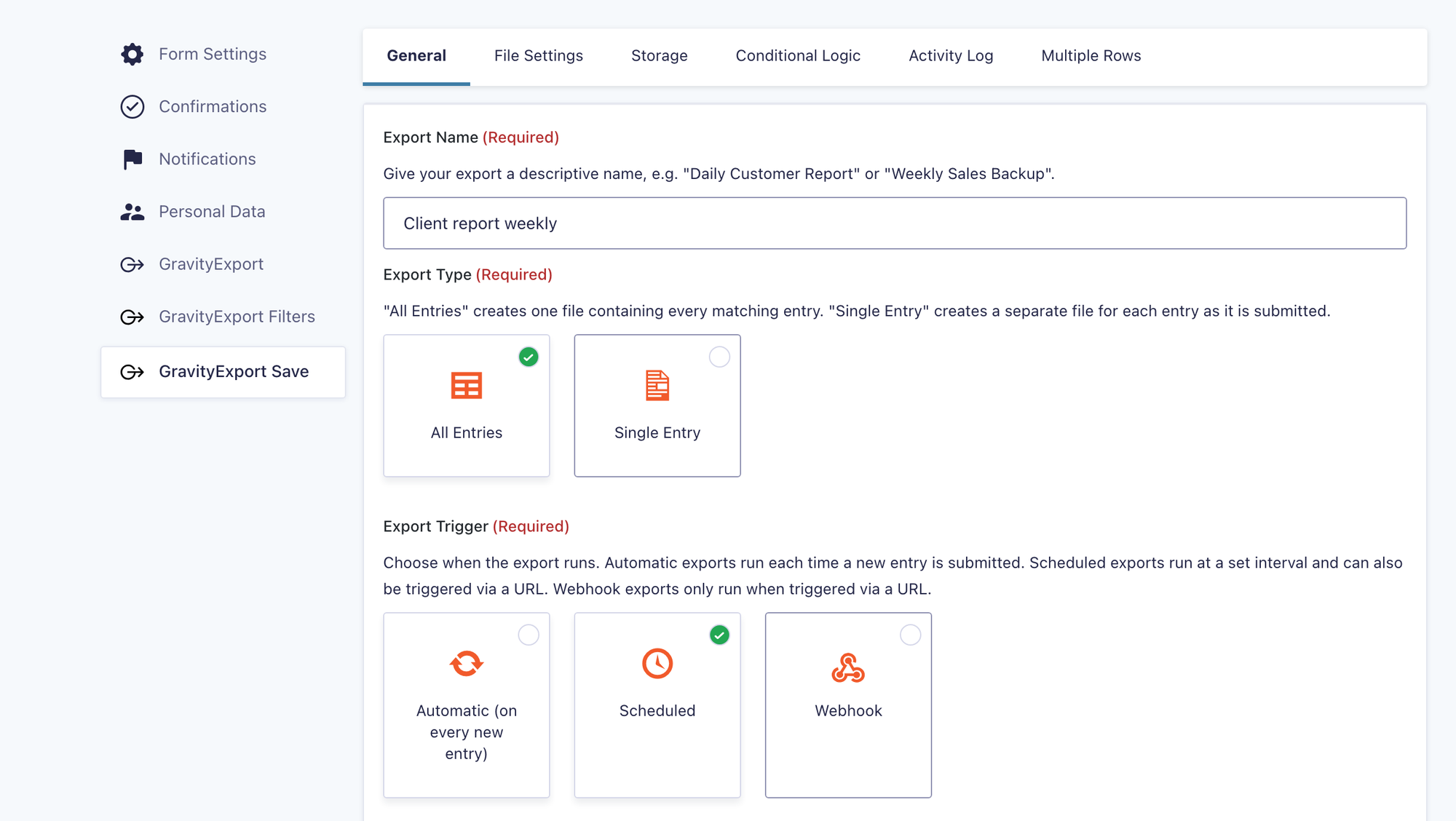
In the same form’s settings, open the GravityExport Save tab, click Add New, and enter a descriptive Export Name, such as Client report weekly. The feed’s settings are spread over the General, File Settings, Storage, Conditional Logic, Activity Log and Multiple Rows tabs.
3. Choose a storage destination #
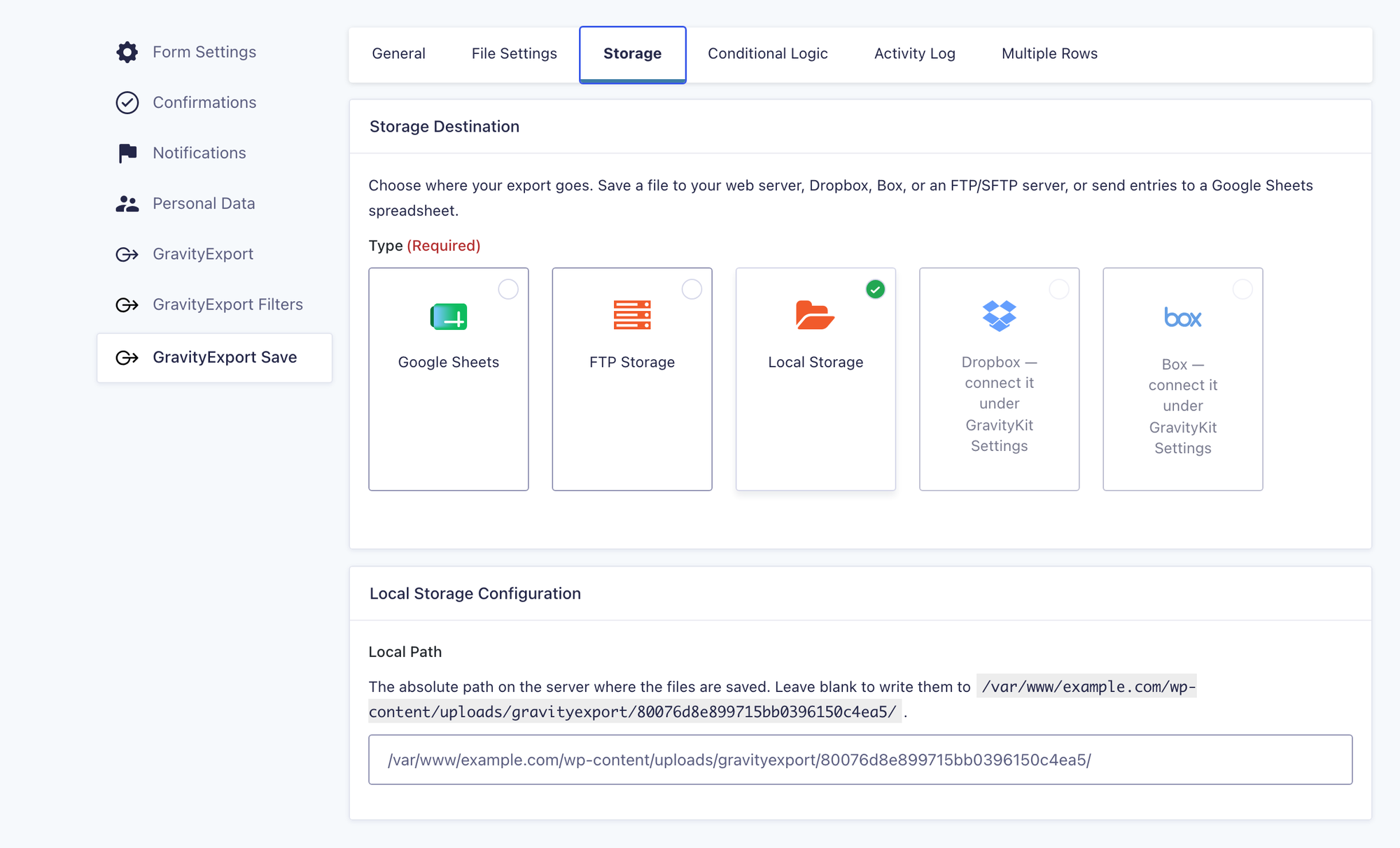
Start on the Storage tab, because the destination decides which settings the other tabs show. Under Storage Destination, choose where the export goes:
- Google Sheets: sends the entries to a tab in a Google Sheets spreadsheet that GravityExport keeps in step with the form, so each run rewrites the tab instead of creating a file. It needs a connected Google account; see Export Gravity Forms entries to Google Sheets.
- FTP Storage: sends the file to another server over FTP or SFTP. See Connecting FTP to GravityExport.
- Local Storage: saves the file to a folder on your site’s server. Enter the folder in the Local Path field, or leave it blank to use the default folder it names.
- Dropbox: sends the file to a connected Dropbox account. See Connecting Dropbox to GravityExport.
- Box: sends the file to a connected Box account.
4. Set the export type, trigger and interval #
Back on the General tab, set Export Type to All Entries, because scheduling is only available for All Entries feeds. Google Sheets feeds don’t show this setting. Then, under Export Trigger, select Scheduled. New feeds start on Automatic, which exports every time a new entry is submitted.
Choose a Schedule Interval:
| Interval | How often it runs |
|---|---|
| Every Hour | Once an hour |
| Twice Daily | Every 12 hours |
| Daily | Once a day |
| Weekly | Once a week |
| Every 30 Days | Once every 30 days |
| Custom | Every so many hours, set in Custom Interval (hours) |
The custom interval starts at 6 hours and accepts anything from 1 hour to a year, so 48 runs the export every two days. The interval counts from when you save the feed, and the first scheduled run happens one interval after that: a Daily feed saved at 10:00 first runs at 10:00 the next day. Times on the page use your site’s timezone. To export straight away, use Export Now on the feed list.
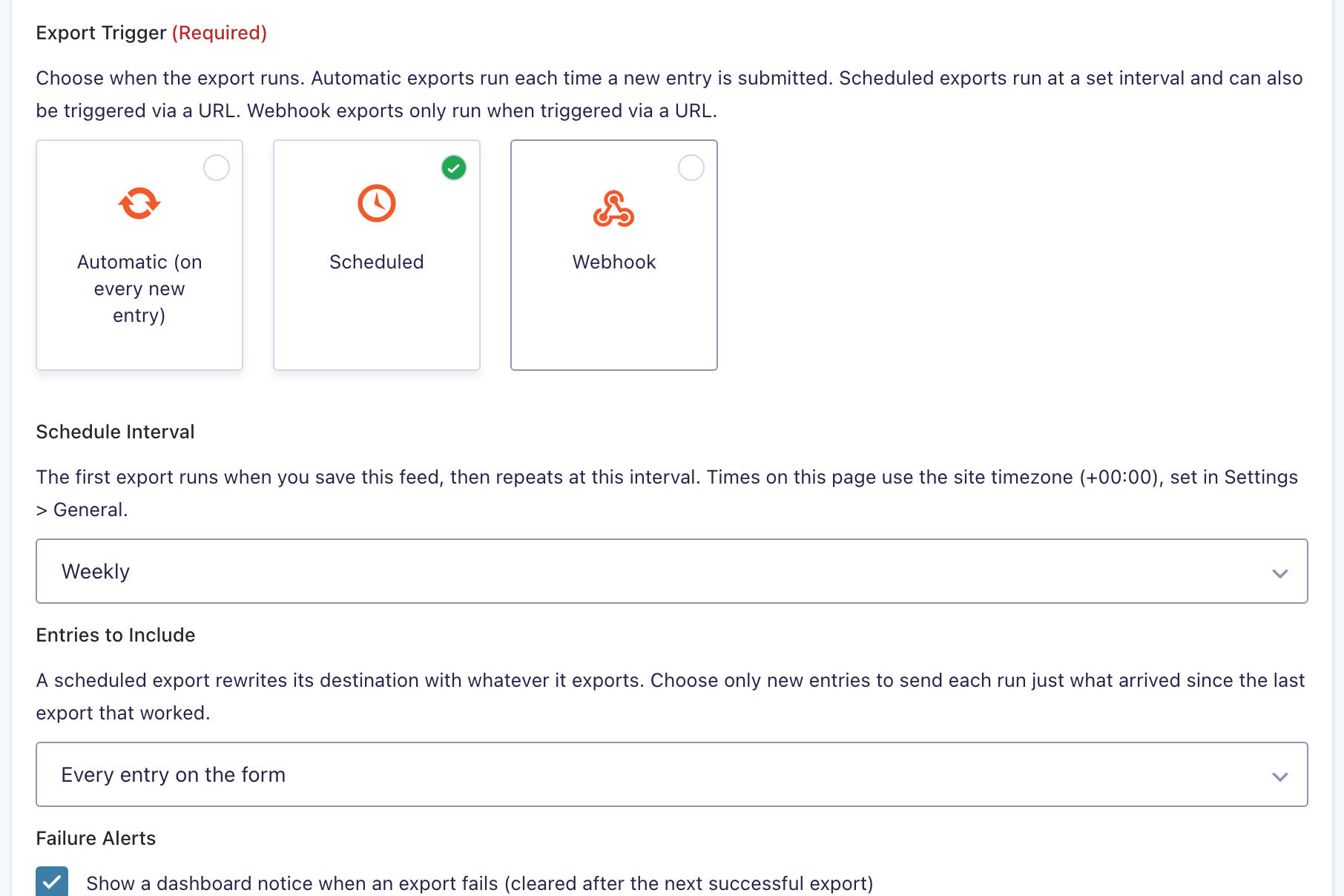
For file destinations, Entries to Include decides what each scheduled run sends: Every entry on the form (the default) or Only entries since the last export. The second option counts from the last export that worked, so a failed run doesn’t move the starting point and nothing is skipped. Any successful run moves it, including Export Now and the trigger URL. Google Sheets feeds don’t show this option, because the tab always mirrors the whole form.
Failure Alerts is on by default. When a scheduled export fails, a notice appears on the WordPress Dashboard until the next successful export, which helps you catch a problem before your team or clients notice a missing report.
5. Configure the file #
On the File Settings tab, choose the File Extension: .xlsx for Excel, .csv for a lightweight file most tools can read, or .pdf for a read-only report. Google Sheets feeds don’t have this tab.
Filename Format sets each file’s name. Choose a preset, or choose Custom Filename and type your own. A new file overwrites one with the same name. The presets for all entries include the date, so a daily or slower schedule gets a new file each day. For Every Hour or Twice Daily, add {TIMESTAMP} to a custom filename so each run gets its own file. Merge tags for a field’s value, such as {Name:1}, only work on Single Entry feeds.
If the form has List fields or GP Nested Forms fields, the Save feed’s own Multiple Rows tab works like the one on an export filter: set Enable multi-row splitting to give each item its own row.
6. Apply your export filter #
If you created an export filter in step 1, open the Conditional Logic tab and choose it under Export Filters. The list only appears when the form has an active export filter, and choosing one replaces the Save feed’s own conditional logic. Without a filter, you can add conditions on this tab directly.
7. Save and check #
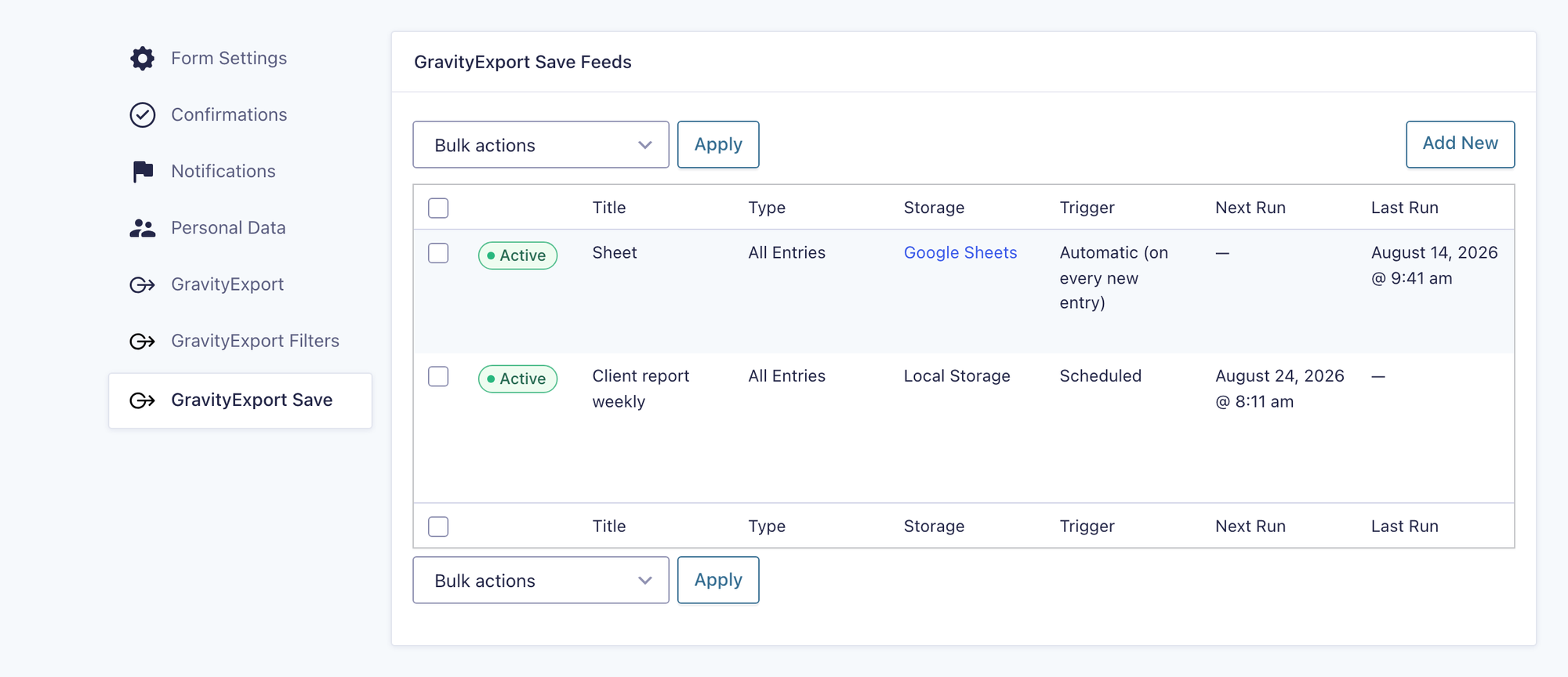
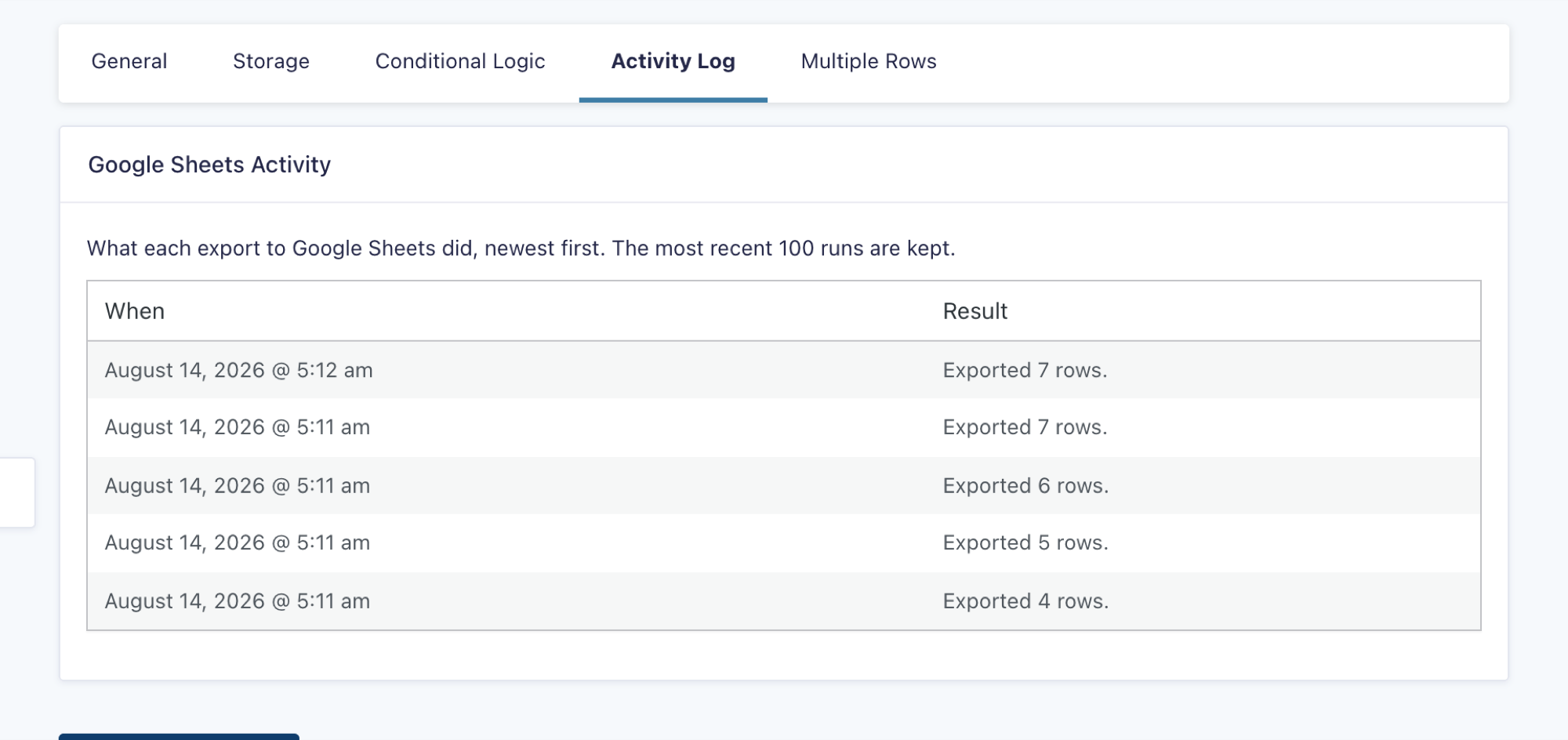
Click Save Settings. The feed list then shows each feed’s Next Run and Last Run, and its Storage column names the destination, with a link to the spreadsheet for Google Sheets feeds. After the first run, open the feed’s Activity Log tab to see what the export wrote, or why it failed.
Keeping scheduled exports on time #
Scheduled exports run through GravityKit’s background processing, which starts when WordPress cron runs during a site visit or when someone loads an admin page. On a quiet site, or on a site that disables WP-Cron, an export can run later than planned. To keep exports on time, have a cron service request https://example.com/wp-cron.php?doing_wp_cron (with your own domain) every 5 to 15 minutes. Background processing explains the details.
Scheduling tips #
- Avoid duplicates across reports. For a file destination, set Entries to Include to Only entries since the last export, or give your export filter a date condition that matches the interval.
- Use descriptive export names. With several Save feeds on one form, such as one for a client and one for internal use, clear names keep the feed list readable.
- Check the first run. Last Run on the feed list and the feed’s Activity Log tab confirm that the export finished.
- Use the custom interval for unusual cadences, such as every 6 hours or every 3 days (
72). - Reuse a feed across forms. The Copy to Other Forms bulk action on the feed list copies one feed’s settings, storage included, to other forms. Scheduled copies get staggered start times so they don’t all reach the destination at once.
Other trigger options #
Besides Scheduled, a Save feed can use Automatic, which exports every time a new entry is submitted, or Webhook, which exports whenever its trigger URL is requested. A webhook lets a cron service or an automation platform run the export on a schedule the built-in intervals can’t express, such as every Tuesday and Thursday at 9:27 AM. See How to trigger a GravityExport Save Feed and How to use FastCron to trigger exports on a custom schedule.
Was this page helpful?


- Prefer to watch the video?
- How scheduled exports work
- 1. Create an export filter (optional)
- 2. Create the Save feed
- 3. Choose a storage destination
- 4. Set the export type, trigger and interval
- 5. Configure the file
- 6. Apply your export filter
- 7. Save and check
- Keeping scheduled exports on time
- Scheduling tips
- Other trigger options