
How to trigger a GravityExport Save Feed
A GravityExport Save feed’s Export Trigger decides when it runs. Open the feed in the form’s Settings > GravityExport Save, and choose one of three options under Export Trigger:
- Automatic (on every new entry), the default: the feed exports each time a new entry is submitted.
- Scheduled: the feed runs at a set interval.
- Webhook: the feed runs only when its trigger URL is requested.
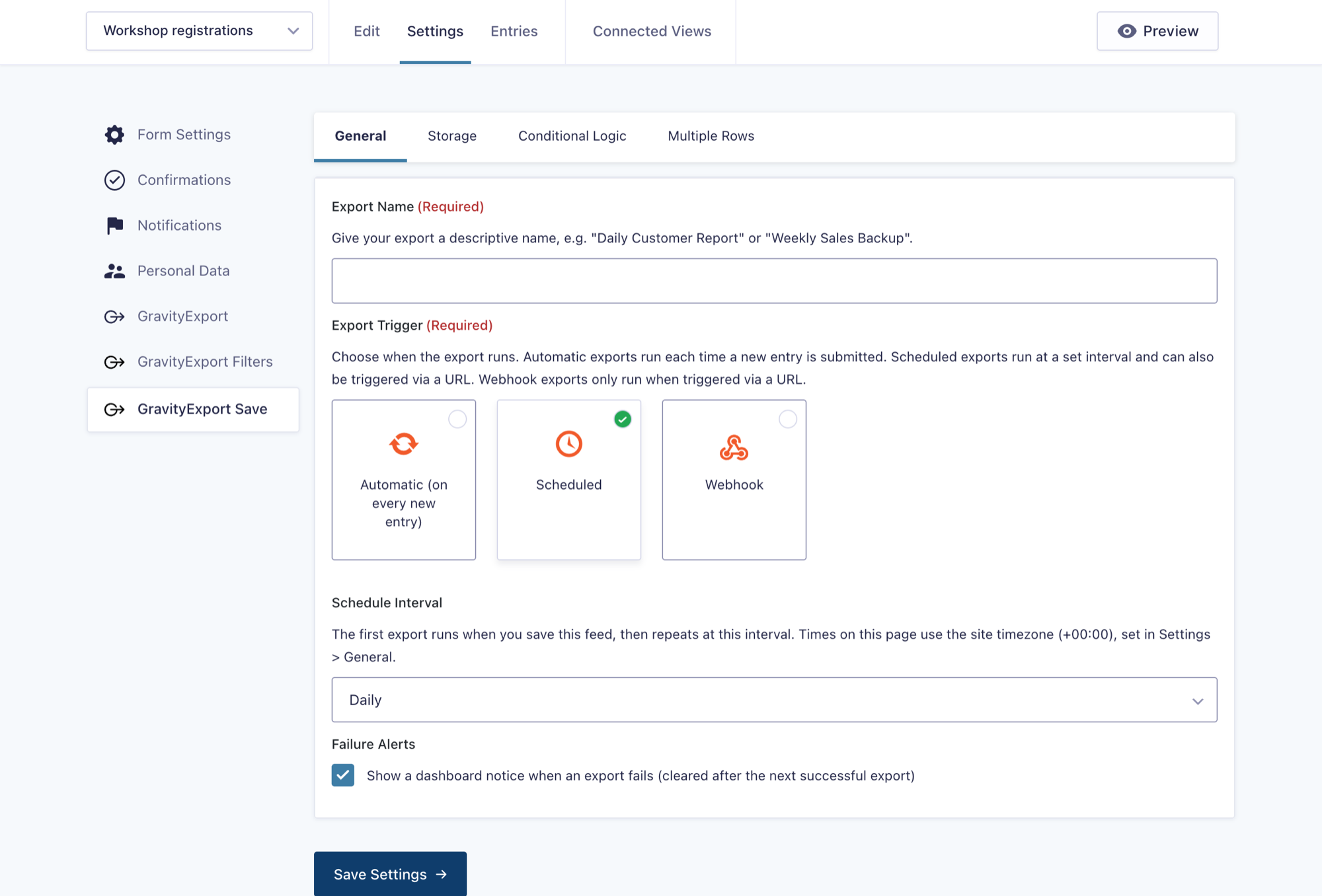
Export Trigger only appears when the feed’s Export Type is All Entries. A Single Entry feed exports each entry as it is submitted. You can also run an All Entries feed straight away with Export Now.
Note: On GravityExport 1.15 and 1.16, the GravityExport Save tab appears in a form’s settings only once the form’s download URL is enabled (Settings > GravityExport > Enable download URL), or once the form already has an active Save feed. GravityExport 1.17.0 and newer always list it.
Automatic #
New feeds start with this trigger. Each new entry submitted to the form runs the export and sends the result to the feed’s storage destination, with nothing else to set up. Google Sheets feeds also react to edited and deleted entries by default; Export Gravity Forms entries to Google Sheets explains when a sheet is rewritten.
Scheduled #
Choose Scheduled, then pick a Schedule Interval: Every Hour, Twice Daily, Daily, Weekly, Every 30 Days, or Custom for a number of hours. The interval counts from when you save the feed, and the first scheduled run happens one interval after that. A Daily feed saved at 10:00, for example, first runs at 10:00 the next day.
The feed list shows each feed’s Next Run and Last Run, and the feed’s Activity Log tab shows what each recent export did and why any of them failed. Failure Alerts is on by default: when a scheduled export fails, a notice appears on the WordPress Dashboard until the next successful export. A scheduled feed also gets an On-Demand Trigger URL, which runs the export whenever it is requested, the same way a webhook does.
For a full walkthrough, see How to schedule automated exports.
Keeping scheduled exports on time
Scheduled exports run through GravityKit’s background processing, which starts when WordPress cron runs during a site visit or when someone loads an admin page. On a quiet site, or on a site that disables WP-Cron, an export can run later than planned. To keep exports on time, have a cron service request https://example.com/wp-cron.php?doing_wp_cron (with your own domain) every 5 to 15 minutes. Background processing explains the details.
Webhook #
Choose Webhook and save the feed. A Webhook URL then appears below the trigger setting; click Copy URL to Clipboard to copy it. Each time the URL is requested, GravityExport runs the export and saves the file as the feed is configured, as long as the feed is active. The page answers “Export finished” or “Export failed”, so opening the URL in a browser is a quick way to test it.
Anything that can request a URL can run the export:
- An automation platform such as Zapier, Make or n8n, through its webhook or HTTP request step, so an event elsewhere (a payment, a CRM update) can start an export.
- A cron service, for schedules the built-in intervals can’t express. See How to use FastCron to trigger exports on a custom schedule.
- A browser bookmark, to run the export by hand.
A webhook export runs while the request waits and is not split into smaller batches, so on a large form it can take a while to answer.
Warning: Anyone who has a feed’s trigger URL can run its export, and there is no setting to change the URL, so keep it private. If it leaks, delete the feed and create a new one, which gets a new URL.
Best practices #
- Test once before you rely on it. Run the feed with Export Now or its trigger URL. It is a real export, so it replaces what is at the destination.
- Check the results. Next Run and Last Run on the feed list, and the feed’s Activity Log tab, show what happened.
- Keep Failure Alerts on for scheduled feeds, so a failed export shows up on the Dashboard.
- Keep background processing running on quiet sites, as described in Keeping scheduled exports on time.

