

GravityKit icon

Black Friday Pro

Take 25% off GravityView Pro, All Access and Lifetime with code BFPRO25.

Shop the Sale
Skip to content
GravityKit
Buy
Sign in
0 items
  • Plugins

    GravityKit All Access

    Our complete Kit of essential tools for extending and enhancing Gravity Forms—everything you need to build powerful web apps and workflows.

    Learn more
    • GravityView Pro

      GravityView Pro

      Bestseller

      Get Live Filters, Maps, DataTables, the Advanced Elementor Widget and every other Pro feature to build the app your process needs.

    • GravityView

      GravityView

      Trending

      Display Gravity Forms entries on the frontend of your site and build powerful web applications.

    • GravityImport

      GravityImport

      Trending

      Import entries from CSV files into Gravity Forms to transfer data, create new forms, or update existing entries.

    • GravityEdit

      GravityEdit

      Quickly edit Gravity Forms entries inline to save time, reduce clicks, and streamline your workflow.

    • GravityCharts

      GravityCharts

      Trending

      Turn Gravity Forms entries into interactive charts and graphs.

    • GravityActions

      GravityActions

      Update multiple Gravity Forms entries at once, send bulk emails, and streamline your workflow.

    • GravityCalendar

      GravityCalendar

      Turn Gravity Forms entries into dynamic calendars to showcase events, schedules, appointments, and more.

    • GravityExport

      GravityExport

      Export Gravity Forms entries to Excel, CSV, PDF, or Google Sheets, then share them with secure links or deliver them to cloud storage on a schedule.

    • GravityMath

      GravityMath

      Perform advanced calculations on Gravity Forms entries to display totals, averages, or build custom calculators.

    • GravityRevisions

      GravityRevisions

      Track, compare, and restore changes made to Gravity Forms forms and entries with a full version history.

    • GravityMigrate

      GravityMigrate

      Migrate all Gravity Forms data between sites, including forms, entries, settings, Views, feeds, and file uploads, and import forms from other form plugins.

    • GravityBoard

      GravityBoard

      Manage projects with collaborative project management. Coordinate with your team and streamline your workflows.

    • GravitySearch

      GravitySearch

      Search Gravity Forms entries across every form from one screen.

  • Ideal For

    • Nonprofits
    • Web Agencies
    • Education
    • Developers
    • Small Businesses
    • Startups
    Explore All Use Cases

    Case studies

    • Be There Local
    • Killer Shorts
    • West Fork Schools
    • Princeton University
    • BrightLeaf Giving
    • Jacksonville Port Authority
    • National Severe Storms Lab
    • Leadpal
    View All Case Studies
  • Resources

    • Blog
    • Case studies
    • Newsletter
    • GravityKit vs competitors
    • Live Demos
    • Documentation
    • Developer docs
    • GravityKit Academy

    Ultimate guides

    • How to use Gravity Forms
    • Editing Gravity Forms entries
    • Importing Gravity Forms entries
    • Exporting Gravity Forms entries
    • Displaying Gravity Forms entries
    • Gravity Forms conditional logic
    • Gravity Forms calculations
    View More Articles
  • Support
  • Pricing
  • Plugins

    • GravityView Pro

      GravityView Pro

      Bestseller

      Get Live Filters, Maps, DataTables, the Advanced Elementor Widget and every other Pro feature to build the app your process needs.

    • GravityView

      GravityView

      Trending

      Display Gravity Forms entries on the frontend of your site and build powerful web applications.

    • GravityImport

      GravityImport

      Trending

      Import entries from CSV files into Gravity Forms to transfer data, create new forms, or update existing entries.

    • GravityEdit

      GravityEdit

      Quickly edit Gravity Forms entries inline to save time, reduce clicks, and streamline your workflow.

    • GravityCharts

      GravityCharts

      Trending

      Turn Gravity Forms entries into interactive charts and graphs.

    • GravityActions

      GravityActions

      Update multiple Gravity Forms entries at once, send bulk emails, and streamline your workflow.

    • GravityCalendar

      GravityCalendar

      Turn Gravity Forms entries into dynamic calendars to showcase events, schedules, appointments, and more.

    • GravityExport

      GravityExport

      Export Gravity Forms entries to Excel, CSV, PDF, or Google Sheets, then share them with secure links or deliver them to cloud storage on a schedule.

    • GravityMath

      GravityMath

      Perform advanced calculations on Gravity Forms entries to display totals, averages, or build custom calculators.

    • GravityRevisions

      GravityRevisions

      Track, compare, and restore changes made to Gravity Forms forms and entries with a full version history.

    • GravityMigrate

      GravityMigrate

      Migrate all Gravity Forms data between sites, including forms, entries, settings, Views, feeds, and file uploads, and import forms from other form plugins.

    • GravityBoard

      GravityBoard

      Manage projects with collaborative project management. Coordinate with your team and streamline your workflows.

    • GravitySearch

      GravitySearch

      Search Gravity Forms entries across every form from one screen.

    View All Products

    GravityKit All Access

    Our complete Kit of essential tools for extending and enhancing Gravity Forms—everything you need to build powerful web apps and workflows.

    Learn more
  • Ideal For

    • Nonprofits
    • Web Agencies
    • Education
    • Developers
    • Small Businesses
    • Startups
    Explore All Use Cases

    Case studies

    • Be There Local
    • Killer Shorts
    • West Fork Schools
    • Princeton University
    • BrightLeaf Giving
    • Jacksonville Port Authority
    • National Severe Storms Lab
    • Leadpal
    View All Case Studies

    How to build...

    • Client Portal
    • AI-Built Directory
    • Conference Website
    • WordPress CRM
    • Admin Dashboard
    • Inventory Management
    • Vendor Portal
    • Document Library
    View All Guides
  • Resources

    • Blog
    • Case studies
    • Newsletter
    • GravityKit vs competitors
    • Live Demos
    • Documentation
    • Developer docs
    • GravityKit Academy

    ultimate guides

    • How to use Gravity Forms
    • Editing Gravity Forms entries
    • Importing Gravity Forms entries
    • Exporting Gravity Forms entries
    • Displaying Gravity Forms entries
    • Gravity Forms conditional logic
    • Gravity Forms calculations
    View More Articles
  • Support
  • Pricing
0 items

Search

Results appear automatically as you type.
Loading results…

results found matching

    Sign in
    Buy

    Docs

    • Docs Home

    Gravity Forms Add-Ons

    • GravityView
    • GravityActions
    • GravityBoard
    • GravityCalendar
    • GravityCharts
    • GravityEdit
    • GravityExport
    • GravityImport
    • GravityMath
    • GravityRevisions
    • GravitySearch
    • GF Widget for Elementor
    • GF Dynamic Lookup
    • GF Entry Tags
    • GF Event Field
    • GravityExport Lite
    • GF Zero Spam
    • GravityMigrate

    GravityView

    • Getting Started
    • View Setup
    • FAQ
    • Pre-Sale
    • Advanced
    • Common Problems
    • Customizing Your Views
    • Edit Entry
    • Entry Approval
    • Filter and Sort Results
    • Gravity Forms
    • Merge Tags
    • Roles and Capabilities
    • Search
    • Shortcodes
    • View Settings
    • WordPress Posts

    General Help

    • Account, Invoices, and Billing
    • License Related
    • Plugins and Settings
    • Agency accounts
    • Contact
    • Docs Home
    • Gravity Forms Add-Ons

      • GravityView
      • GravityActions
      • GravityBoard
      • GravityCalendar
      • GravityCharts
      • GravityEdit
      • GravityExport
      • GravityImport
      • GravityMath
      • GravityRevisions
      • GravitySearch
      • GF Widget for Elementor
      • GF Dynamic Lookup
      • GF Entry Tags
      • GF Event Field
      • GravityExport Lite
      • GF Zero Spam
      • GravityMigrate
    • GravityView

      • Getting Started
      • View Setup
      • FAQ
      • Pre-Sale
      • Advanced
      • Common Problems
      • Customizing Your Views
      • Edit Entry
      • Entry Approval
      • Filter and Sort Results
      • Gravity Forms
      • Merge Tags
      • Roles and Capabilities
      • Search
      • Shortcodes
      • View Settings
      • WordPress Posts
    • General Help

      • Account, Invoices, and Billing
      • License Related
      • Plugins and Settings
      • Agency accounts
    • Contact

    GravityExport

    • Checkbox values are missing from exports after a choice is deleted
    • Connecting Box to GravityExport
    • Error: “Allowed memory size exhausted” when exporting entries
    • Export Gravity Forms entries to Google Sheets
    • Exporting GP Nested Forms entries with GravityExport
    • Adding a download button for entries in GravityView using GravityExport
    • Attaching all entries to an email in GravityExport
    • Attaching an entry export to a notification using GravityExport Lite
    • Changing labels in GravityExport
    • Changing the File Format of a Report by Adding the File Extension to the URL
    • Changing values in GravityExport
    • Connecting Dropbox to GravityExport
    • Connecting FTP to GravityExport
    • Customize Download URLs in GravityExport
    • Exporting a single entry with GravityExport
    • Filtering entries included in a GravityExport download
    • Filtering exports by date in GravityExport
    • Formatting an address in GravityExport
    • Getting started with GravityExport
    • GravityExport and caching plugins
    • GravityExport Developer Hooks
    • GravityExport FAQ
    • GravityExport field: BaseField
    • GravityExport field: DateField
    • GravityExport field: FileUploadField
    • GravityExport field: ListField
    • GravityExport field: MetaField
    • GravityExport field: NotesField
    • GravityExport field: NumberField
    • GravityExport field: ProductField
    • GravityExport field: RepeaterField
    • GravityExport field: SectionField
    • GravityExport field: SeparableField
    • GravityExport Filters
    • GravityExport: How to output dropdown field labels Instead of values
    • GravityExport: Splitting complex fields in Multiple Columns
    • GravityExport: The “Enable multi-row splitting” setting
    • How Is GravityExport Lite Different From GravityExport?
    • How to configure GravityExport to save File Upload fields
    • How to export all forms in bulk to an Excel spreadsheet
    • How to Export Checkbox Fields as Separate Columns in GravityExport
    • How to re-run a GravityExport Save feed
    • How to schedule automated exports
    • How to trigger a GravityExport Save Feed
    • How to use FastCron to trigger exports on a custom schedule
    • PDF export settings and style controls
    • Restricting file access in GravityExport & GravityExport Lite
    • Styling PDF file exports using CSS
    • Home
    • Docs
    • GravityExport
    • Exporting GP Nested Forms entries with GravityExport

    Exporting GP Nested Forms entries with GravityExport

    Estimated reading: 5 minutes

    Updated on November 24, 2026

    GP Nested Forms (Gravity Wiz) saves each child entry in the child form, and the parent entry’s Nested Form field lists the IDs of its child entries. When you export the parent form with GravityExport, each child entry comes out next to the parent entry it belongs to, and child entries whose parent form was never submitted are left out.

    The examples below use a workshop registration form. Its Nested Form field, Attendees, adds one entry per attendee to a separate Attendees form.

    Export the child entries from the parent form #

    Export filters and multi-row splitting need the full version of GravityExport.

    1. Go to Forms, hover over the parent form, and click Settings.
    2. Click GravityExport Filters, then Add New.
    3. On the Export Settings tab, enter a Feed Title.
    4. On the Enabled Fields tab, check that the Nested Form field is under Enabled Fields. A new export filter starts with every field enabled.
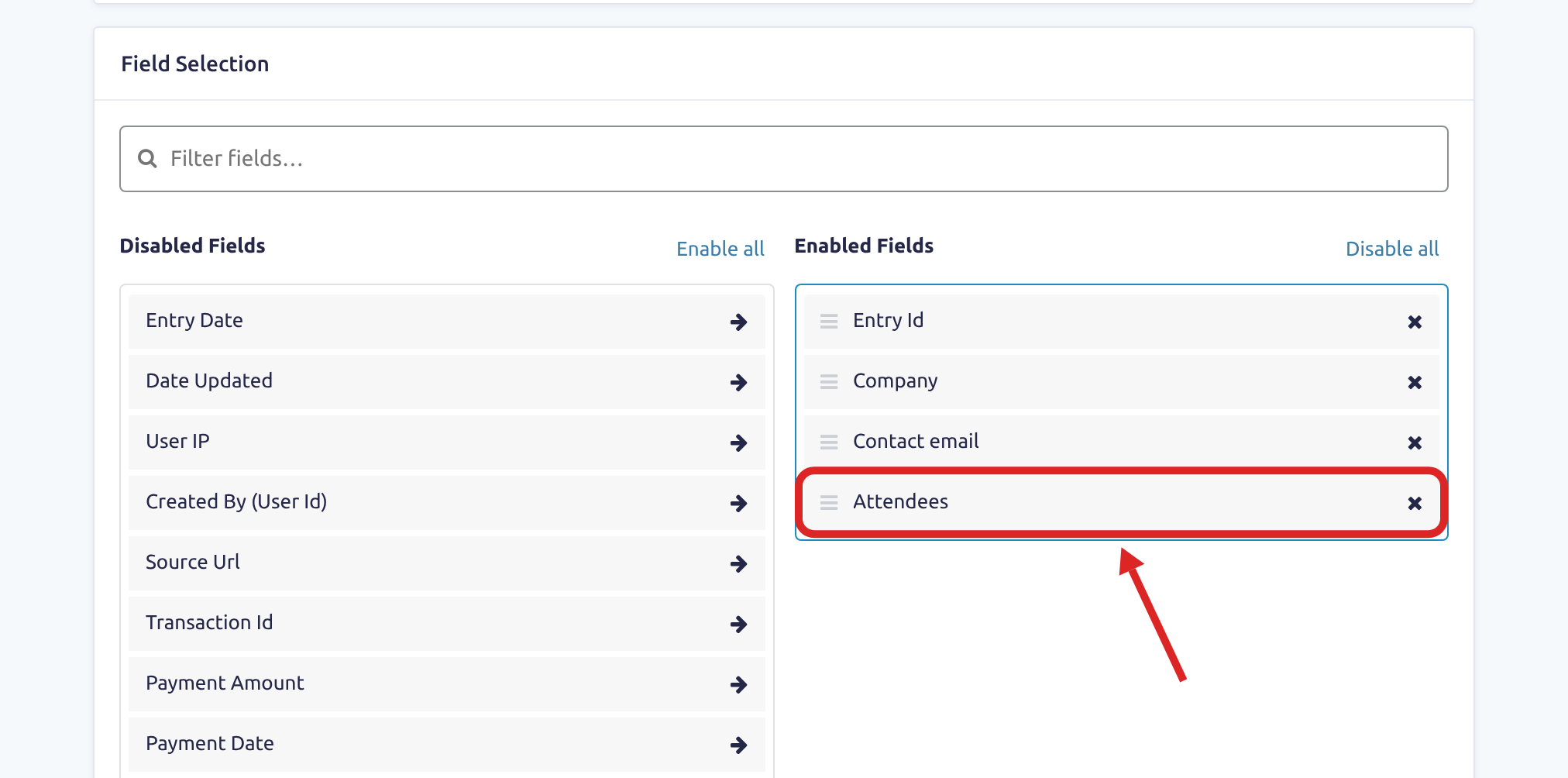
    The Field Selection panel of a GravityExport export filter, with the Attendees field outlined in red under Enabled Fields and an arrow pointing to it
    1. On the Multiple Rows tab, choose Yes, split fields with multiple values into multiple rows.
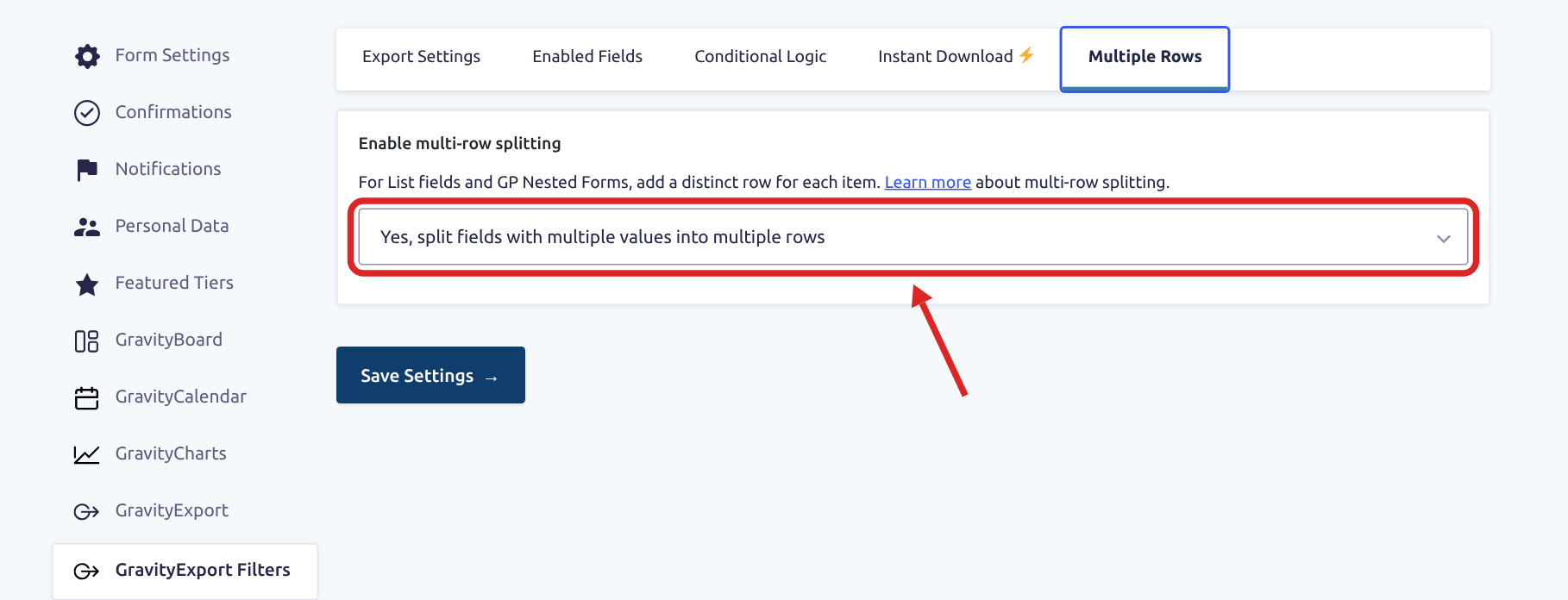
    The Multiple Rows tab of a GravityExport export filter, with the Enable multi-row splitting setting set to Yes, split fields with multiple values into multiple rows, outlined in red
    1. Click Save Settings, then download the file from the Download URL on the Export Settings tab.

    GravityExport Filters explains the rest of the filter’s settings.

    What the export looks like #

    Each child entry gets its own row. The parent entry’s own columns are filled on its first row, and its other rows leave them empty. A parent entry with no child entries takes one row with empty child columns.

    Entry IdCompanyName (Attendees)Email (Attendees)
    29123Brightwater StudioPriya Ramanpriya.raman@brightwater-studio.com
    Marcus Halemarcus.hale@brightwater-studio.com
    29125Kestrel WorksTomás Ortegatomas.ortega@kestrelworks.net
    29126Northfield Library

    The child columns are named after the child form’s field, followed by the Nested Form field’s label in parentheses.

    With Don’t split into multiple rows, each parent entry takes a single row. Its child entries then share each child cell, with a line of three hyphens (---) between them. GravityExport Lite exports a Nested Form field this way too.

    Choose the child columns #

    The child columns are the fields chosen in the Nested Form field’s Summary Fields setting, the same fields the parent form shows in its table of child entries. To change them, edit the parent form, click the Nested Form field, and choose the fields under Summary Fields.
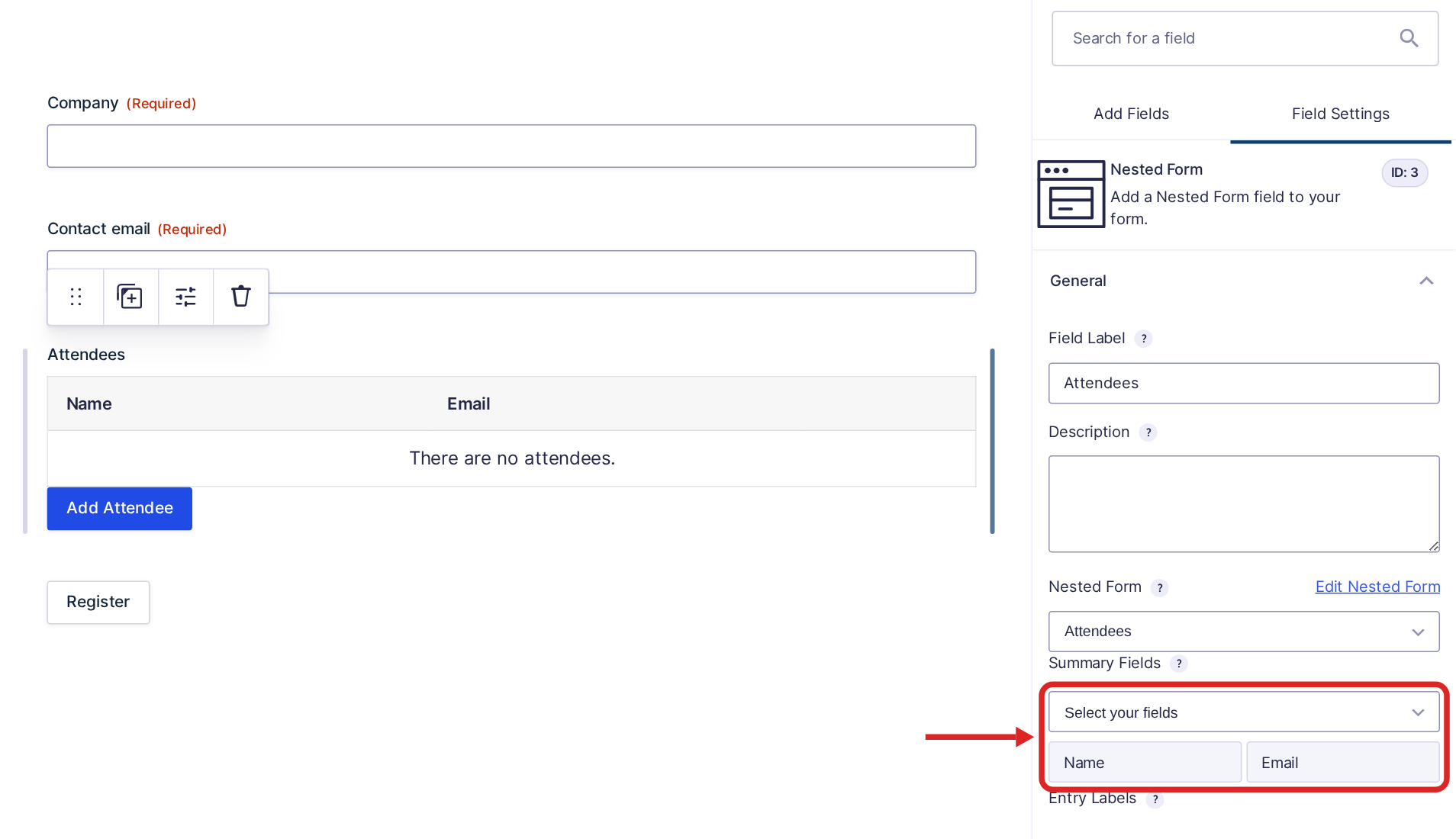
    The form editor with the Attendees Nested Form field selected and its Summary Fields setting, with Name and Email chosen, outlined in red

    To export more child fields without adding them to the form’s table, add them with the gk/gravityexport/field/nested-form/export-field filter. In this snippet, replace 12 with the parent form’s ID, 3 with the Nested Form field’s ID, and 4 with the ID of the child form field to add:

    <?php
    /**
     * Adds child form fields to a Nested Form field's columns in GravityExport.
     *
     * @param array $field_ids IDs of the child form fields to export. Starts with the Summary Fields.
     *
     * @return array The field IDs to export.
     */
    add_filter( 'gk/gravityexport/field/nested-form/export-field_12_3', function ( $field_ids ) {
        $field_ids[] = '4';  // A field of the child form.
        $field_ids[] = 'id'; // The child entry's ID.
    
        return $field_ids;
    } );

    Note: To add this code to your site, see Adding custom PHP code snippets to your website.

    The added columns follow the order of the child form’s fields, and entry details such as the child entry’s ID come after them. The Forms list shows each form’s ID in its ID column, and the form editor shows a field’s ID at the top of its Field Settings.

    Child entries whose parent was never submitted #

    GP Nested Forms saves a child entry as soon as someone adds it in the Nested Form field, before the parent form is submitted. Until then, the child entry’s Parent Entry ID holds a code from the visitor’s session, such as a1250e5ba700.

    When the parent form is submitted, GP Nested Forms replaces the code with the parent entry’s ID. A child entry whose parent form is never submitted keeps the code, and Gravity Wiz calls it an orphaned entry.

    An export of the parent form leaves orphaned entries out, because no submitted parent entry lists them. An export of the child form includes them, with the code in GP Nested Forms’ Parent Entry ID field.

    When GravityView is active, the export’s field list has two fields named Parent Entry ID. GP Nested Forms’ one is listed next to Parent Entry Form ID and Child Form Field ID.

    On the child form, an export filter can’t leave them out: its Parent Entry ID condition offers is, is not, is empty and is not empty, and none of them tells a code from an entry ID.

    GP Nested Forms sets an orphaned entry’s expiry date each time the entry is saved in the Nested Form field, when someone adds it and when someone edits it there. The date is one week after that save. Once a day, GP Nested Forms moves expired entries to the trash, and GravityExport leaves entries in the trash out of its exports.

    The daily move runs as a WordPress scheduled task, so on a site where scheduled tasks don’t run, expired entries stay in the child form.

    Gravity Wiz’s gpnf_expiration_modifier filter sets a different length of time in place of the week. It takes effect at an entry’s next save in the Nested Form field, so an orphaned entry that nobody saves again keeps the date it already has.


    Still stuck? How can we help?

    How can we help?

    "*" indicates required fields

    This field is for validation purposes and should be left unchanged.
    Replies will go to this email.
    How can we help?*
    My pre-sale question is related to...*
    My WordPress skills are....*
    My Gravity Forms skills are...*
    You will be shown articles from our documentation.
    Vous pouvez nous écrire dans votre langue maternelle si c’est plus facile pour vous—nous nous occuperons de la traduction!
    Puedes escribirnos en tu idioma nativo si te resulta más fácil; ¡nosotros nos encargamos de la traducción!
    Sie können uns in Ihrer Muttersprache schreiben, wenn das für Sie einfacher ist – wir kümmern uns um die Übersetzung!
    U kunt ons in uw moedertaal schrijven als dat gemakkelijker voor u is — wij zorgen voor de vertaling!
    Du kan skrive til oss på ditt morsmål hvis det er enklere for deg — vi tar oss av oversettelsen!
    Du kan skriva till oss på ditt modersmål om det är lättare för dig — vi tar hand om översättningen!
    Você pode nos escrever em seu idioma nativo se for mais fácil para você — nós cuidaremos da tradução!
    Puoi scriverci nella tua lingua madre se ti è più facile — penseremo noi alla traduzione!
    Please provide as much detail as you're able; this helps us provide you with faster support.
    Drop files here or
    Accepted file types: jpg, jpeg, gif, png, tiff, pdf, bmp, zip, json, csv, xls, xlsx, Max. file size: 256 MB.
      Get better at Gravity Forms every Friday

      Was this page helpful?

      Table Of Contents
      • Export the child entries from the parent form
      • What the export looks like
      • Choose the child columns
      • Child entries whose parent was never submitted
      GravityKit
      • How to Build It
      • GravityKit vs competitors
      • Pricing
      • Products
      • Our Team
      • Our Values
      • Work With Us
      • Partner Directory
      • Coupons
      Support
      • Support
      • Contact
      • Documentation
      • Scope of Support
      • Brand Guidelines
      • Brand Kit
      • Privacy Policy
      • Terms of Service (“Terms”)
      I am a...
      • Nonprofit
      • Web agency
      • Small business owner
      • Web developer
      • Educational institution
      • WordPress freelancer
      • Startup founder
      • One-person agency
      Get notified of updates.

      We’re constantly improving GravityKit. Fill out your email below and we’ll notify you anytime major updates drop.

      See past editions
      • Facebook
      • Twitter
      • Mastodon
      GravityKit is a Gravity Forms Certified Developer.

      Copyright © 2026, Katz Web Services, Inc.

      GravityKit and GravityView are registered trademarks of Katz Web Services, Inc.

      Before you go

      Take 25% off

      Our Black Friday sale covers GravityView Pro, the All Access Pass and the Lifetime All Access Pass, and ends December 1.

      See the Deals