
Connecting Box to GravityExport
Note: GravityExport Lite does not support Box export. This feature is only available in the full version of GravityExport.
GravityExport connects to Box with a secure OAuth link, so you never paste an API key. One Box account is shared by every Save feed on the site: connect it once, then choose Box as the storage destination on any feed. Connecting requires an active GravityKit license that covers GravityExport.
Connect your Box account #
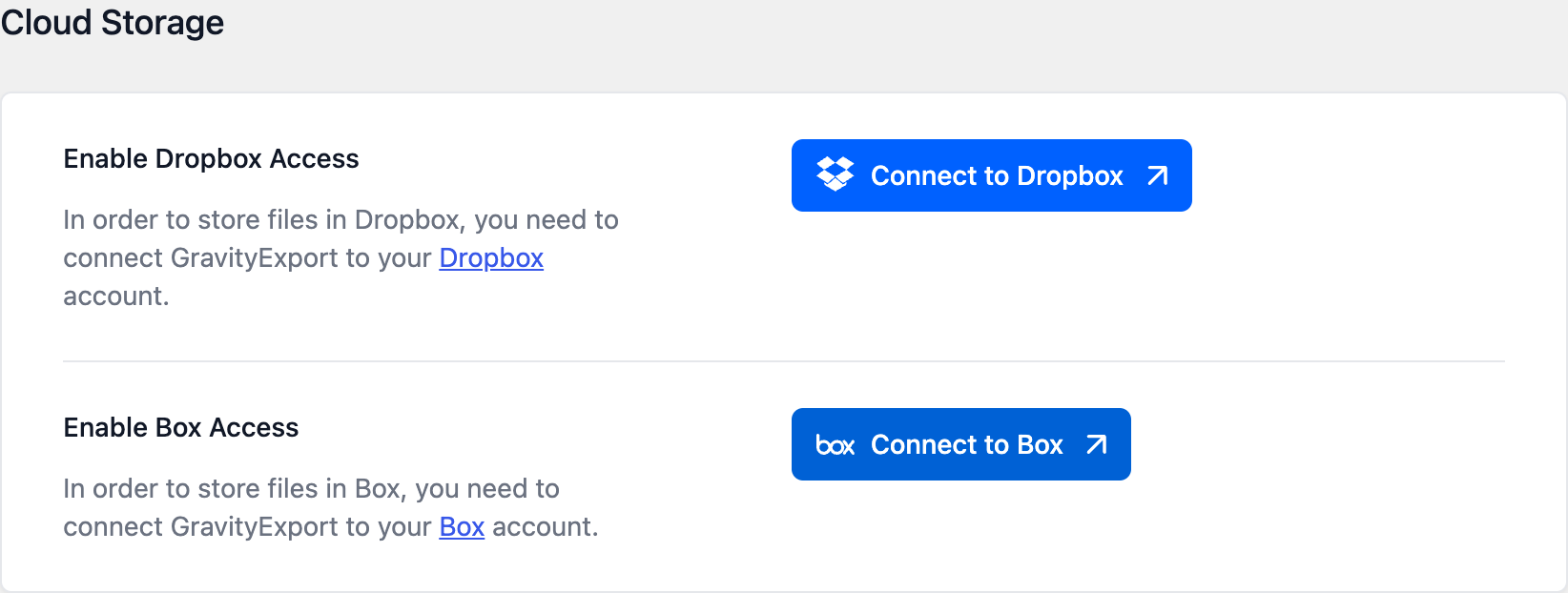
In your WordPress admin, go to GravityKit, then Settings, and open the GravityExport tab. In the Cloud Storage section, click Connect to Box. Box then asks you to grant GravityExport access to your account; approve it, and you are returned to WordPress with the account connected.
Send a Save feed to Box #
Open the Save feed you want to deliver to Box (or create one), and choose Box as the storage destination. The feed then shows a Path field.
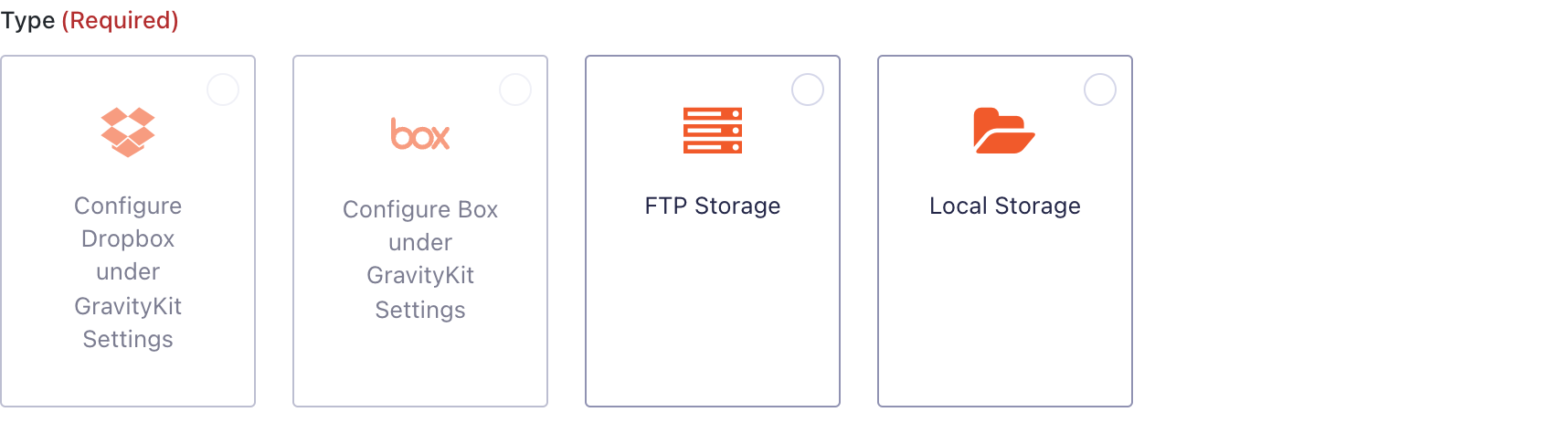
Until an account is connected, the Box card reads Configure Box under GravityKit Settings. Connect the account first and the card becomes selectable.
What to put in the Path field #
Path is a folder path inside the connected Box account, written with forward slashes and starting at the account root. It defaults to /GravityExport. Folders are created automatically if they do not already exist, so you can name a folder that is not there yet and GravityExport will make it on the first run.
It is not a path on your web server, and it is not a Box shared link. /Exports/Registrations writes into the Registrations folder inside Exports at the root of the account you connected.
Including file uploads #
When a Save feed is set to a single entry and its destination is Box, you can turn on Copy File Uploads to save each entry’s uploaded files alongside the export. See How to configure GravityExport to save File Upload fields.
Disconnecting, and staying connected #
You can remove the connection at any time by clicking Disconnect on the Box row in the GravityExport settings. While you’re there, consider enabling Monitor connections: it checks your cloud connections about every twelve hours and shows a dashboard notice if Box stops accepting the connection, so you find out before scheduled exports quietly stop. If that happens, reconnect Box on the same screen.
Other destinations: Dropbox, FTP, and Google Sheets.

