Adding a download button for entries in GravityView using GravityExport
A download button in a View is a link to the form’s GravityExport download URL. Add ?entry={entry_id} to that URL and each entry’s button downloads just that entry, as an Excel, CSV or PDF file.
1. Get the download URL #
Go to the form’s Settings and open the GravityExport tab, which is called GravityExport Lite when only the free plugin is installed. If the tab shows Activate GravityExport, click Enable download URL. The Download URL then appears at the top of the tab; click Copy URL to Clipboard to copy it.
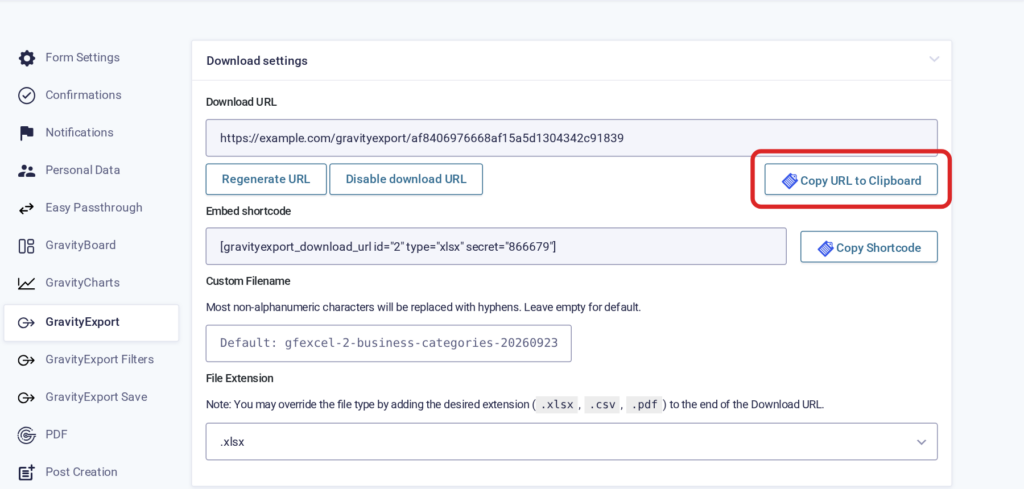
On the same tab, choose the File Extension: .xlsx or .csv, or .pdf with the full version of GravityExport. As the note under that setting says, you can also force a file type by adding the extension to the end of the download URL.
To export a different set of fields or entries than the form’s main export, create a Filter feed and use its download URL instead. It is on the feed’s Export Settings tab once you save the feed.
2. Add the link to your View #
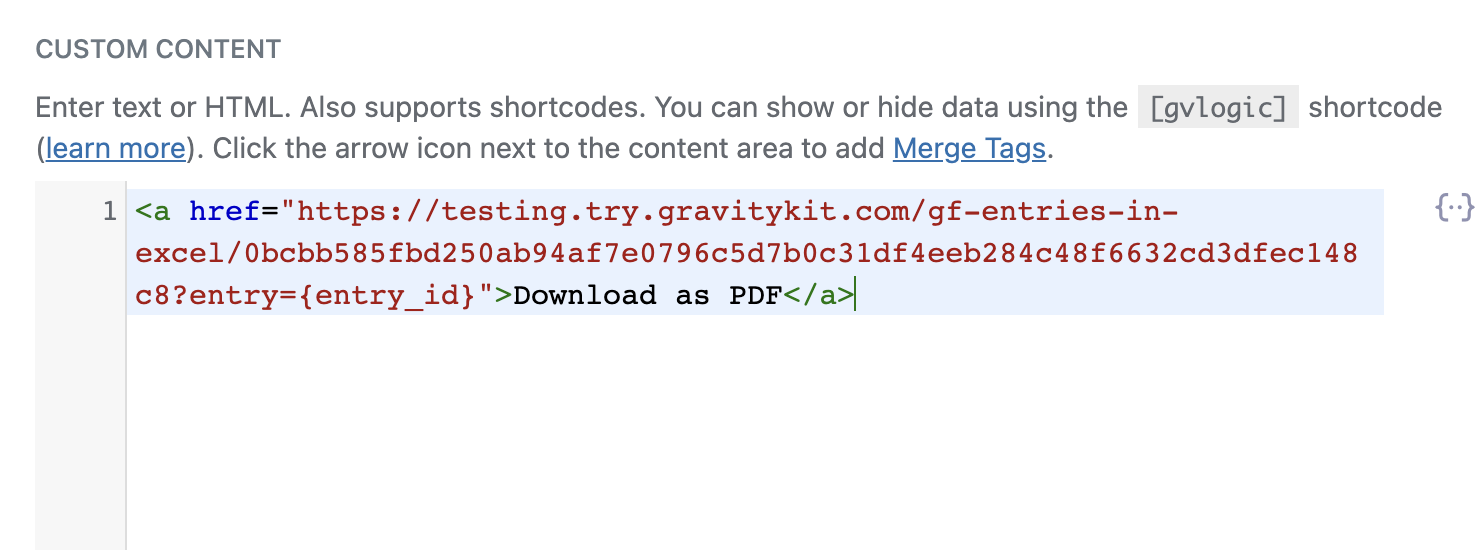
Edit your View and add a Custom Content field where the button should appear. In it, add a link to your download URL with ?entry={entry_id} at the end. {entry_id} is a Gravity Forms merge tag that outputs the ID of each entry, so each link downloads its own entry; without it, the link downloads every entry the export includes.
<a href="YOUR-DOWNLOAD-URL?entry={entry_id}">Download Entry</a>Replace YOUR-DOWNLOAD-URL with the URL you copied. GravityExport: Exporting only one entry has more on the entry parameter.
Warning: Visitors can only use the button when Download Permissions on the GravityExport tab is set to Everyone can download. With that setting, anyone who has the link can change the entry ID in it, or remove it, and download other entries too. If the entries aren’t public, keep Logged-in users who have “Export Entries” access and show the button only to those users. A Filter feed’s link also has its own Download Permissions.
3. Style the button #
To make the link look like a button, give it a CSS class:
<a class="gk-download-button" href="YOUR-DOWNLOAD-URL?entry={entry_id}">Download as PDF</a>Then add styles for that class. In the same Custom Content field, you can put them below the link, between <style> and </style> tags:
.gk-download-button {
    display: inline-block;
    padding: 15px 32px;
    color: #fff;
    background-color: #808080;
    border-radius: 9px;
    font-size: 18px;
    text-decoration: none;
}
.gk-download-button:hover {
    color: #fff;
    background-color: #595959;
}Here’s what it looks like on the front end:
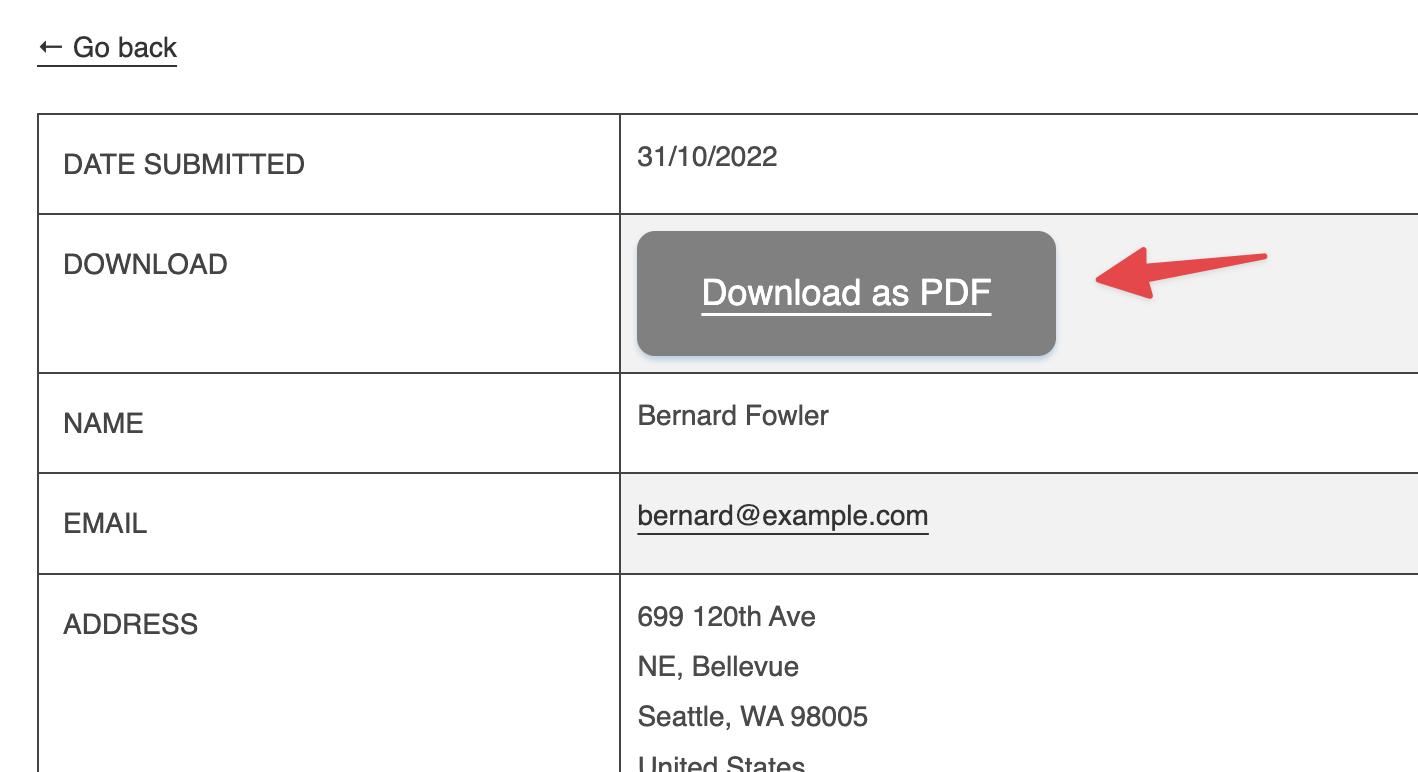
Clicking the button downloads that entry with the settings you chose on the GravityExport tab, or on the Filter feed.