
Connecting Dropbox to GravityExport
Note: Dropbox export needs the full version of GravityExport. GravityExport Lite does not include it.
GravityExport connects to Dropbox with a secure OAuth link, so you never paste an API key. One Dropbox account is shared by every Save feed on the site: connect it once, then choose Dropbox as the storage destination on any feed.
To connect, your site must use HTTPS and be activated on a GravityKit license that includes GravityExport. If something is missing, the connect button is disabled and GravityExport shows what is needed.
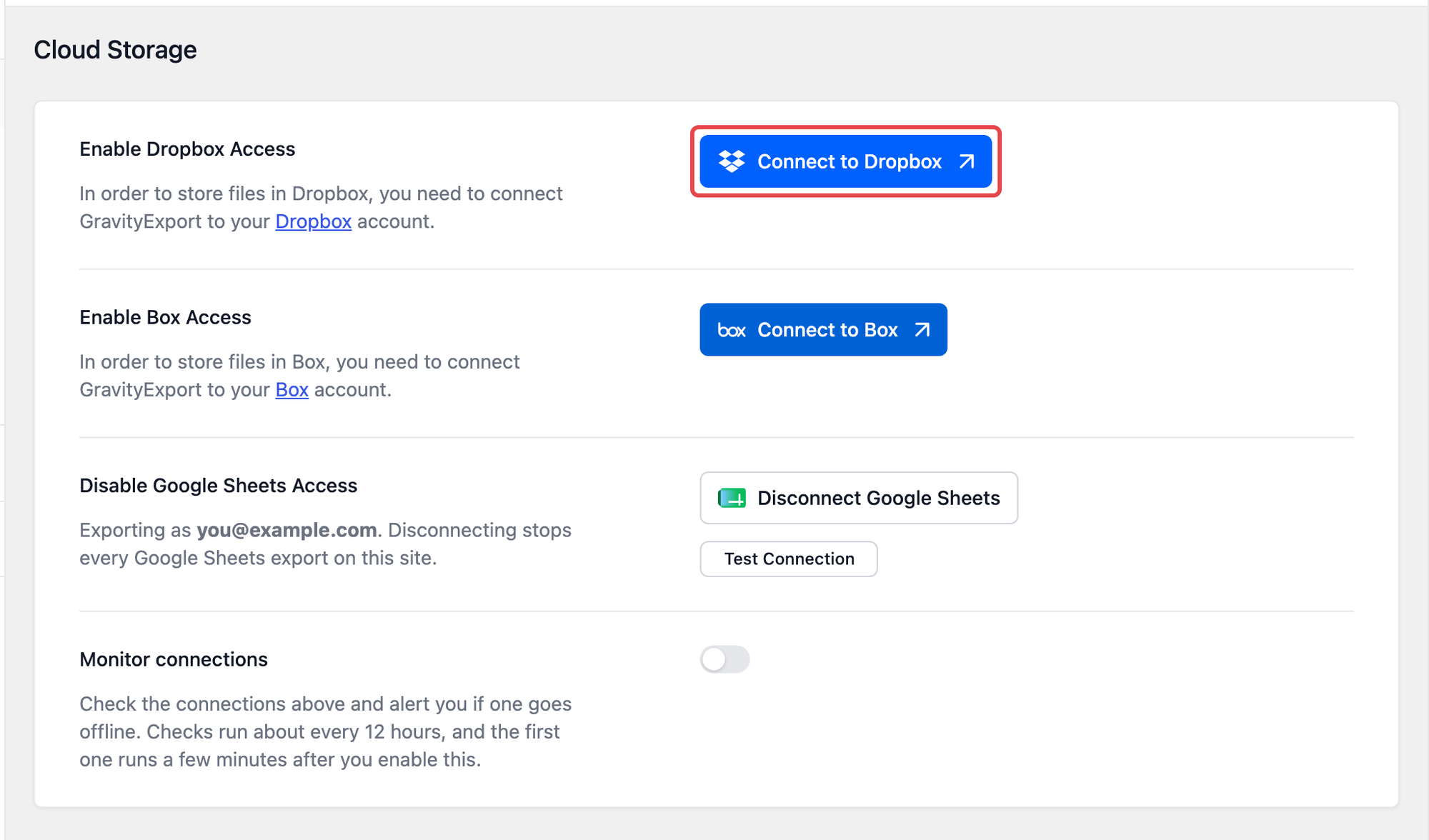
In your WordPress admin, go to GravityKit > Settings and click GravityExport in the settings menu. In the Cloud Storage section, click Connect to Dropbox. You’ll be taken to Dropbox to complete the connection.
Dropbox will display a notice asking if you’re sure you want to proceed. Click “Continue”.

To finalize the connection, click “Allow”.

Back in WordPress, a notice confirms that Dropbox is successfully connected. You can now choose Dropbox under Storage Destination on a Save feed, in the form’s Settings > GravityExport Save. GravityExport 1.17.0 and newer always list that tab. On 1.15 and 1.16, it appears only once the form’s download URL is enabled on its GravityExport tab, or once the form already has an active Save feed. To check the connection, click Test Connection on the feed’s Storage tab once Dropbox is selected.

To remove the connection, click Revoke Dropbox connection in the same Cloud Storage section. While you’re there, consider turning on Monitor connections. It checks your cloud connections about every 12 hours, starting a few minutes after you turn it on, and can alert you by email and with a notice on the WordPress Dashboard when a connection goes offline, so you find out before exports quietly stop. If that happens, click Reconnect to Dropbox on the same screen.

