GravityExport
- Adding a download button for entries in GravityView using GravityExport
- Attaching all entries to an e-mail in GravityExport
- Attaching an entry export to a notification using GravityExport Lite
- Changing labels in GravityExport
- Changing the File Format of a Report by Adding the File Extension to the URL
- Changing values in GravityExport
- Connecting Dropbox to GravityExport
- Connecting FTP to GravityExport
- Customize Download URLs in GravityExport
- Filtering entries included in a GravityExport download
- Filtering GravityExport with conditional logic and relative dates
- Formatting an address in GravityExport
- Getting started with GravityExport
- GravityExport and caching plugins
- GravityExport Developer Hooks
- GravityExport FAQ
- GravityExport field: BaseField
- GravityExport field: DateField
- GravityExport field: FileUploadField
- GravityExport field: ListField
- GravityExport field: MetaField
- GravityExport field: NotesField
- GravityExport field: NumberField
- GravityExport field: ProductField
- GravityExport field: RepeaterField
- GravityExport field: SectionField
- GravityExport field: SeparableField
- GravityExport Filters
- GravityExport: Exporting only one entry
- GravityExport: How to output dropdown field labels Instead of values
- GravityExport: Splitting complex fields in Multiple Columns
- GravityExport: The “Enable multi-row splitting” setting
- How Is GravityExport Lite Different From GravityExport?
- How to configure GravityExport to save File Upload fields
- How to export all forms in bulk to an Excel spreadsheet
- How to Export Checkbox Fields as Separate Columns in GravityExport
- How to re-run a GravityExport Save feed
- How to schedule automated exports
- How to trigger a GravityExport Save Feed
- How to use FastCron to trigger exports on a custom schedule
- PDF export settings and style controls
- Restricting file access in GravityExport & GravityExport Lite
- Styling PDF file exports using CSS
- Home
- Docs
- GravityExport
- How to configure GravityExport to save File Upload fields
How to configure GravityExport to save File Upload fields
Estimated reading: < 1 minutes
Updated on April 23, 2026
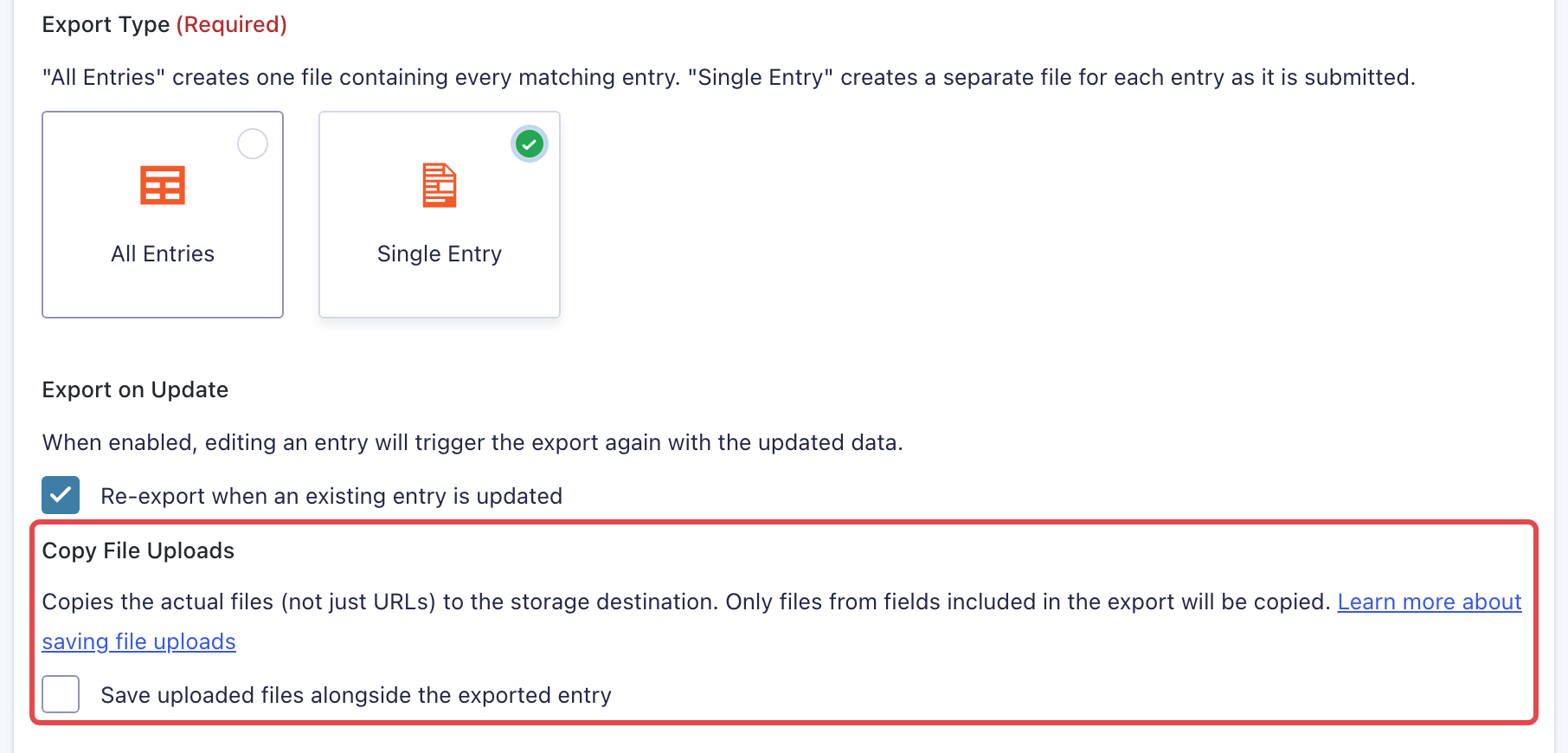
With GravityExport, when setting up a save feed, you can also upload the contents of the File Upload fields on your form.
This functionality only works for newly submitted entries. It’s not possible to upload files from existing entries.
Prefer to watch the video?
This option is only available when the save feed is set to Single Entry, and the Storage Type is either Dropbox or FTP Storage.