
Published
•
Updated
Feature Highlight: The [gvlogic] Shortcode
In this edition of Feature Highlights, we’re homing in on GravityView’s powerful shortcode. The shortcode allows you to show/hide content based on user inputs, restrict content on your site to logged-in users, and much more! If you’re new to GravityView, you’ll soon discover that it’s packed full of little gems that help to add new…

![Feature Highlight: The GravityView [gvlogic] Shortcode](https://www.gravitykit.com/wp-content/uploads/2022/05/image-17-672x372.png)
In this edition of Feature Highlights, we’re homing in on GravityView’s powerful [gvlogic] shortcode. The [gvlogic] shortcode allows you to show/hide content based on user inputs, restrict content on your site to logged-in users, and much more!
If you’re new to GravityView, you’ll soon discover that it’s packed full of little gems that help to add new dimensions to your web applications. The [gvlogic] shortcode is one such gem, and we’re super excited to explore it with you here 💎
Wanna try it?
Spin up a demo
See what you can build with GravityView — explore the live demo.

What Is the Shortcode Used for?
The [gvlogic] shortcode allows you to construct conditional logic statements for displaying or hiding content on your website or within a View. (The shortcode works anywhere on your site!).
This allows you to:
- Personalize email notifications and confirmation messages
- Make your content “members only” by restricting it to logged-in users
- Add dynamic content to your View layouts
Here’s an example of a basic conditional logic statement:
If {user_name} is "James", display "Hi, James!".Now here’s the same statement but written using the [gvlogic] shortcode:
[gvlogic if="{user_name}" is="James"]
Hi, James!
[/gvlogic]
As you can see, the content we want to display goes between the opening and closing shortcode tags.
Shortcode Parameters
The [gvlogic] shortcode requires the following parameters:
if- (Required, unless you’re using thelogged_inparameter. Accepts Gravity Forms Merge Tags)logged_in- (Required, unless you’re using theifparameter)isorequals- (Required if you’re using theifparameter)else(What to display if the condition is not met)
The shortcode also accepts a range of comparison parameters such as greater-than, less_than, starts_with, ends_with, and much more.
When it comes to [gvlogic], there’s SO much you can do! We’ll briefly go through some of the most common uses cases below 👇
Showing/Hiding Content Based on User Inputs
The most common use case for [gvlogic] is showing/hiding content based on the values in a user’s submission. Here’s an example:
[gvlogic if="{favorite_food}" is="Pizza"]

Did you know that pizza was first invented in Naples, Italy as a fast and affordable snack for workers on the go? 🍕

[else if="{favorite_food}" is="Salad"]

The origin of salad can be traced back to the Romans, ancient Greeks and Persians, who all ate mixed greens with dressing 🥗

[else]

You need to choose a favorite food.

[/gvlogic]
As you can see, we can use the [else if] clause to string together various conditions based on certain criteria. This is helpful if you want to display different content depending on a user’s choice from a Select field.
Pro tipGravity Forms has its own conditional shortcode. However, unlike the Gravity Forms shortcode, [gvlogic] supports AND/OR logic, nested shortcodes to check multiple conditions, and it integrates with GravityView.
Restricting Content on Your Website
You can use [gvlogic] to restrict content to logged-in users. This is handy if you run a member directory or a community site, and you want to hide certain content from regular site visitors.
To check if a user is logged in, use the logged_in parameter and set it to either “true” or “false”, like this:
[gvlogic logged_in="true"]
You are logged in, here’s some content!
[else]
Please log in first to view this content.
[/gvlogic]So, what if you want to add [gvlogic] to GravityView?
Displaying Content Conditionally Inside a View
Lastly, [gvlogic] also integrates with GravityView, allowing you to extend your web applications with content that displays dynamically depending on other data in your View.
To use [gvlogic] inside a View, simply add the shortcode to a Custom Content field. Here’s an example:
[gvlogic if="{Grade}" greater_than="75" else="Fail"]
Pass
[/gvlogic]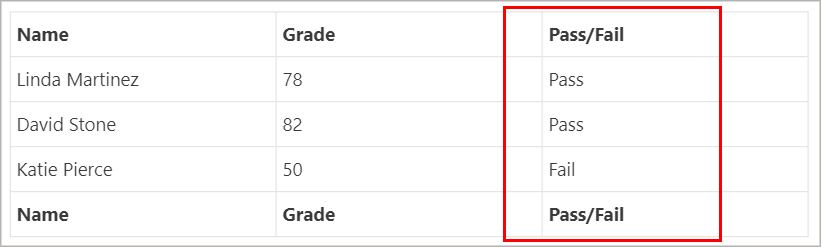
As you can see, the shortcode checks to see if the number in the "grade" column is greater or less than 75 and displays either “Pass” or “Fail”.
Start Exploring the Shortcode
In this edition of Feature Highlights, we explored GravityView’s powerful [gvlogic] shortcode. Using [gvlogic], you can use conditional logic to show/hide content based on conditions that you set.
To learn more about the [gvlogic] shortcode, read our in-depth guide. To see more from our blog, subscribe to our newsletter below (we send out an email every two weeks packed full of our most helpful Gravity Forms content!).

Get better at Gravity Forms, one email a week
New GravityKit releases, practical Gravity Forms tutorials, and subscriber-only discounts. One short email every week, unsubscribe anytime.
More articles

Launch Log: A range slider for search, AI-managed calendars, and security updates in ten products
GravityView adds a Slider search input, GravityCalendar lets AI assistants manage calendars, and ten GravityKit products get security fixes. Here’s what shipped.

9 nonprofit apps you can build with Gravity Forms and GravityKit
Nine apps nonprofits build on WordPress from Gravity Forms data: volunteer databases, member directories, client portals, donation pages, grant review and more.
How to migrate from Fluent Forms to Gravity Forms without rebuilding your forms
Move your Fluent Forms forms into Gravity Forms with GravityMigrate, then bring your entries across with GravityImport. Every step was tested on the free version of Fluent Forms.