
Published
•
Updated
9 ways to automate client work with the GravityKit MCP
Nine client jobs you can hand to the free GravityKit MCP, from auditing broken Views to cloning a finished build. Every one verified on a live site.

GravityKit MCP turns many agency jobs into a sentence. It is a free, open source MCP server that connects an AI assistant like Claude to Gravity Forms and GravityView on your actual site, so you can describe the outcome instead of clicking your way to it.
A lot of the work that fills an agency afternoon isn’t hard, but it is time-consuming: a client wants an extra column in a directory; someone deleted a field from a form and nobody knows what it broke; a site you inherited last month has eleven Views on it and no documentation.
I’m a marketer at GravityKit, not an agency owner, but I build a lot with GravityKit, and most of it now runs through the MCP: the demo sites behind the screenshots on this blog, the test setups I throw together when a new GravityView feature needs testing, and a partner directory I’m setting up for our website.
Here are nine agency workflows you can automate with GravityKit MCP. I ran every one of them against a live site before writing this post, so you can be sure they all work.
What is GravityKit MCP?
- Free and open source connector that links Claude, ChatGPT, Cursor, or any MCP client to a WordPress site
- Reads and manages Gravity Forms: forms, entries, feeds, and notifications
- Builds and edits GravityView Views: layouts, fields, widgets, search bars, styling, and previews
- Runs as the WordPress user you authenticate as, so it can only do what that account can do
Setup takes a few minutes. Our docs walk through every step: Creating Views with AI using the GravityKit MCP.
1. Find the Views that broke when someone changed a form
Delete a field from a Gravity Forms form and every View using that field keeps rendering. It just drops the column, with no error. Nobody notices until a client asks where that field went.
GravityKit MCP includes a scan tool built for exactly this. It goes through every View on a site looking for configuration that no longer holds up: fields that have been deleted, forms that are gone, layouts whose add-on has been deactivated, and templates that are missing entirely.
You get the View title, the exact field reference it is still trying to render, the area of the layout that field sits in, and a link straight to the editor.
We pointed the scan tool at gravitykit.com while writing this post, on a site we maintain daily, and it found two Views still rendering a field that no longer exists. On our demo site it found five, one of them carrying eight dead field references left over from a form that had been rebuilt months earlier!
This is a good first ask on any site you have just taken over. The scan tool is read-only, so it cannot change anything, and it tells you more about the state of a site in ten seconds than an afternoon of clicking will.
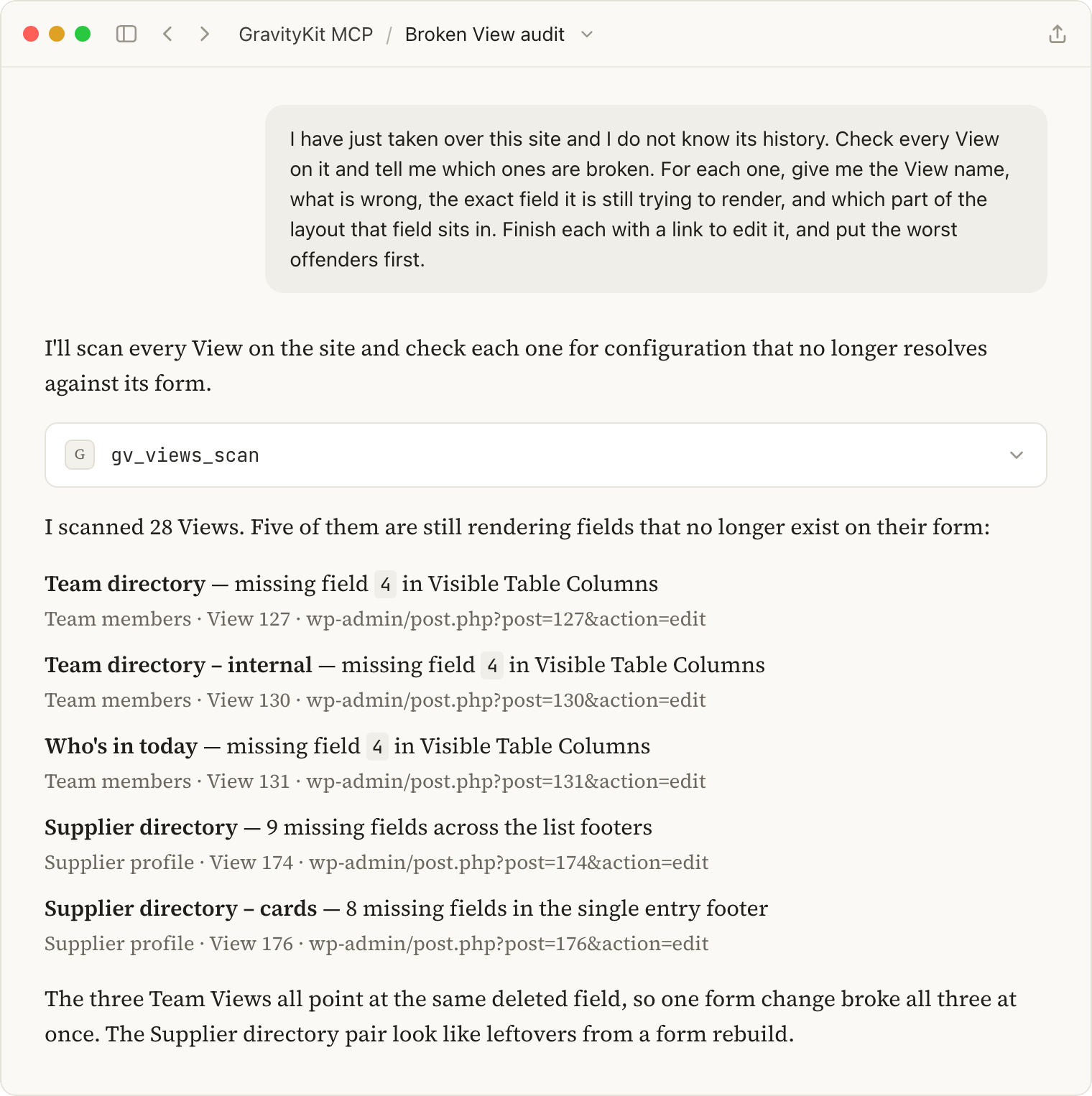

Sample prompt
I have just taken over this site and I do not know its history. Check every View on it and tell me which ones are broken. For each one, give me the View name, what is wrong, the exact field it is still trying to render, and which part of the layout that field sits in. Finish each with a link to edit it, and put the worst offenders first.
2. See which add-ons a client’s site is actually using
Inherited sites arrive with a license nobody on your team chose and a list of Views that may or may not still be in use. Before a renewal comes up, or before you quote for a rebuild, it helps to know what is genuinely in use rather than just installed.
The same scan tool filters by add-on. You can ask which Views use Maps, which use DataTables, which use Multiple Forms to pull from more than one form, and which are joined together.
The answer comes back as a straight inventory: View by View, the add-on features each one has configured, the form behind it, and its status.
That turns a renewal conversation into a factual one. If nine Views depend on DataTables, that license is not optional. If the Maps add-on is active and nothing uses it, you have found something to cut.
It is also a useful reminder for your own team about which extensions a project actually depends on, which is easy to lose track of when a site has passed between three developers. The scan filters the other way too, by layout or by field type, so “which Views show file uploads” or “which ones still use the old table layout” are the same kind of question.
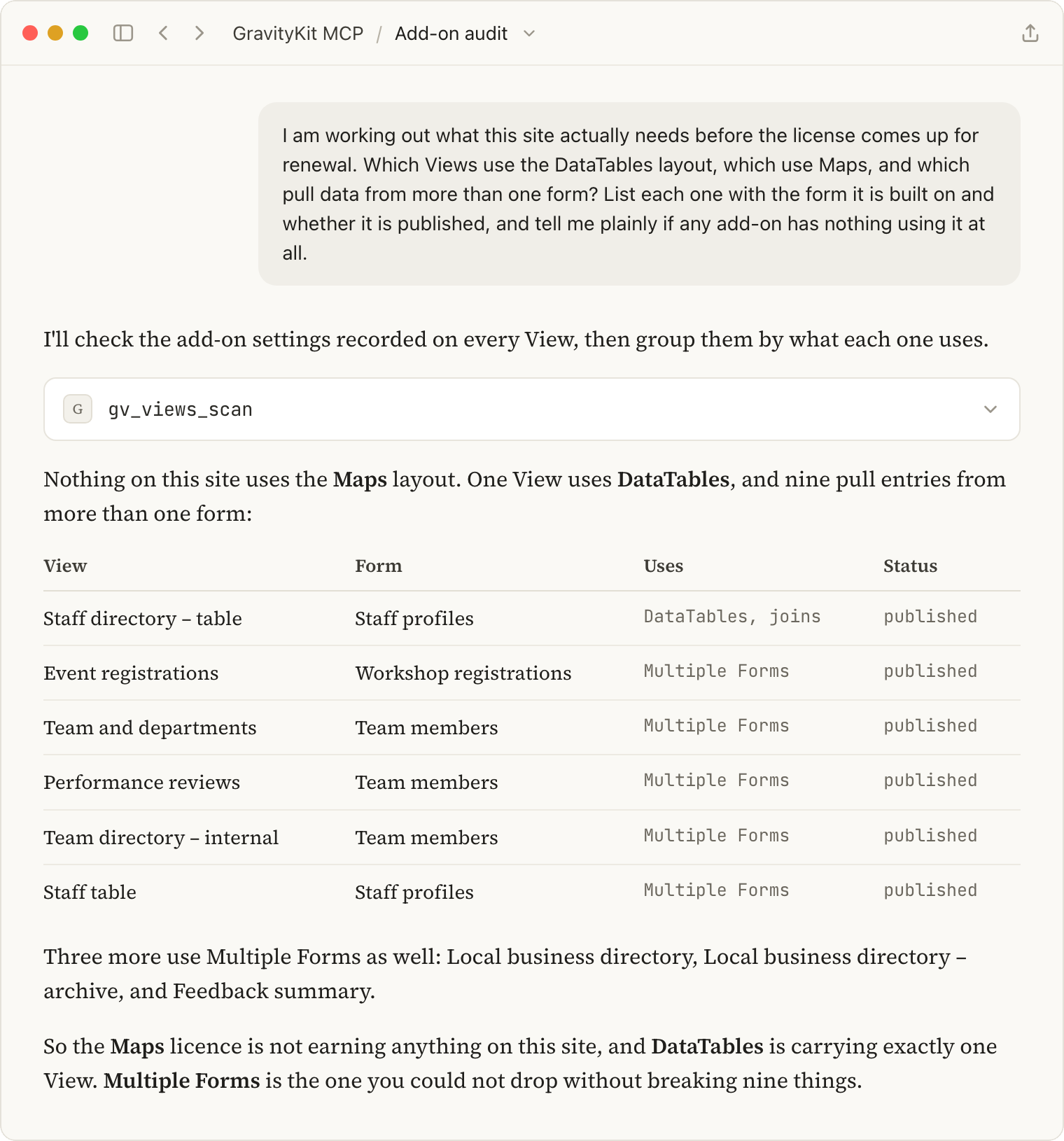
Sample prompt
I am working out what this site actually needs before the license comes up for renewal. Which Views use the DataTables layout, which use Maps, and which pull data from more than one form? List each one with the form it is built on and whether it is published, and tell me plainly if any add-on has nothing using it at all.
3. Write the handover document you keep putting off
Every agency owes its clients a document explaining how the thing you built actually works, and almost nobody writes it. It is unbilled, it is boring, and it always loses to the next deadline.
The MCP can describe a whole application:
- The form and its fields
- The entries behind it
- The View: which layout it uses in each zone, every field and the area it sits in, the widgets, and how the search bar is configured
- The notifications that fire on submission, and any feeds hanging off the form, like a Google Sheets export or a calendar sync
What comes back is the document, most of the way written. You will still want to edit it, but the tedious part, the accurate inventory of how the thing is actually put together, is done.
The same ask is useful internally. Before you hand a project to a colleague, or pick one up yourself after six months away, this is a fast way to get up to speed without spending hours in wp-admin.
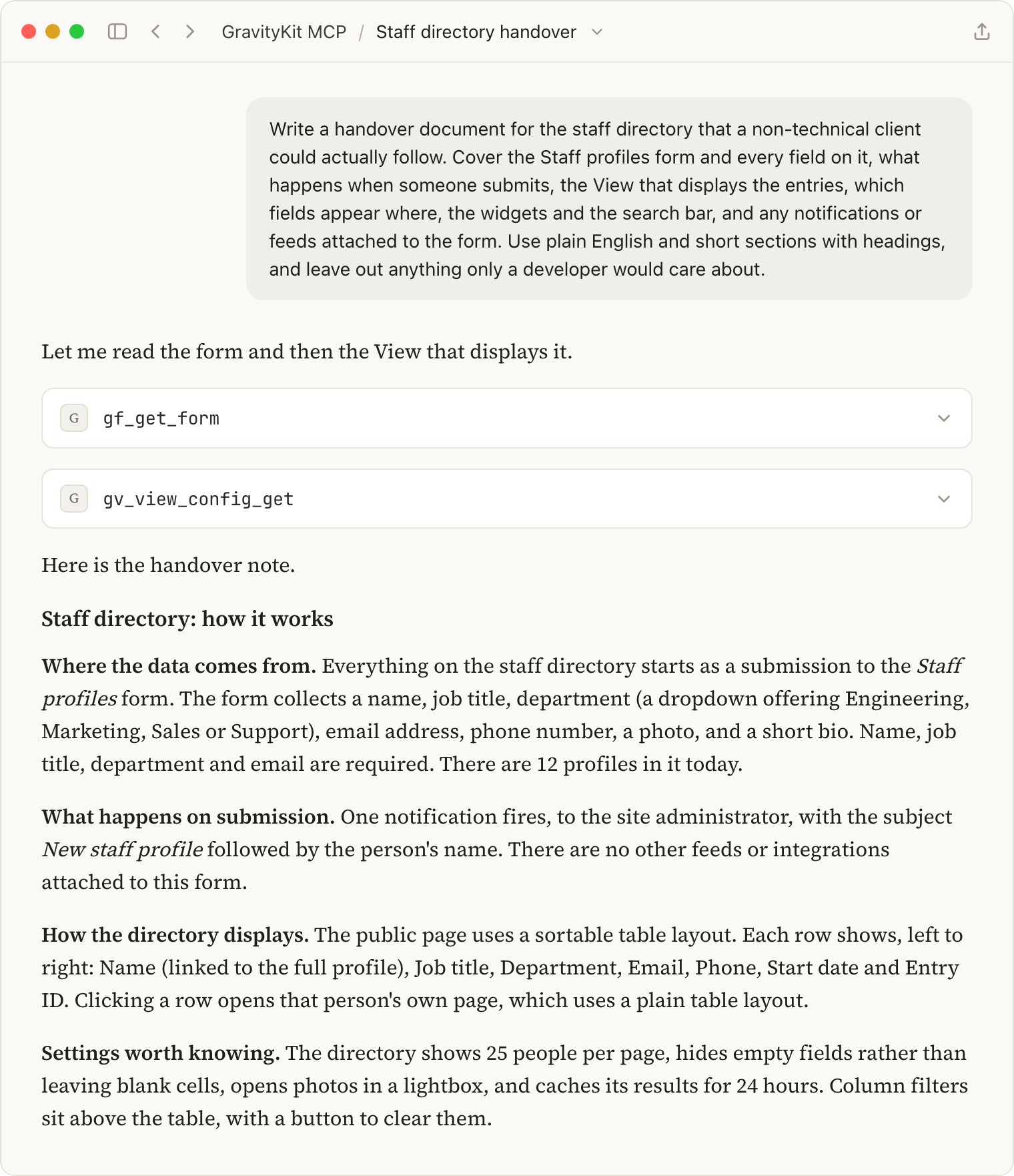
Sample prompt
Write a handover document for the staff directory that a non-technical client could actually follow. Cover the Staff profiles form and every field on it, what happens when someone submits, the View that displays the entries, which fields appear where, the widgets and the search bar, and any notifications or feeds attached to the form. Use plain English and short sections with headings, and leave out anything only a developer would care about.
4. Check what a form change will break, before you make it
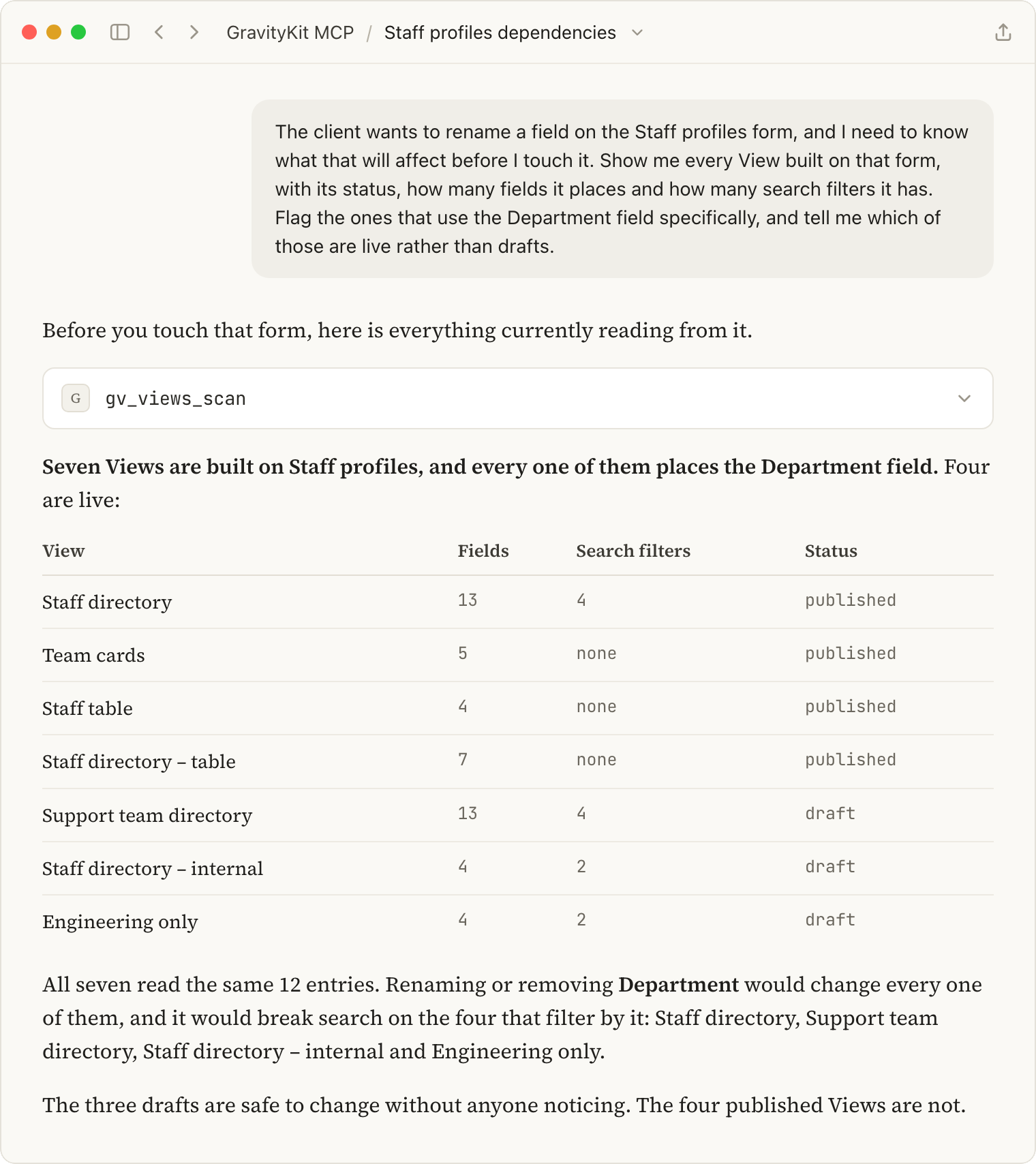
A client asks you to drop a field from a form, or rename one, or change a dropdown’s choices. Somewhere on the site, some number of Views depend on that field. Finding out afterward is a headache.
Simply ask your AI assistant which Views are built on a form and you get every one of them, with its status, its search configuration, and how many entries sit behind it. Ask about a specific field and the list narrows to the Views that actually place it.
On a small site you could work this out by hand. On a site with twenty Views across nine forms, this is the difference between a change that takes ten minutes and one that surfaces two weeks later as an angry email.
Sample prompt
The client wants to rename a field on the Staff profiles form, and I need to know what that will affect before I touch it. Show me every View built on that form, with its status, how many fields it places and how many search filters it has. Flag the ones that use the Department field specifically, and tell me which of those are live rather than drafts.
5. Fill a new build with realistic data, then check it before the client sees it
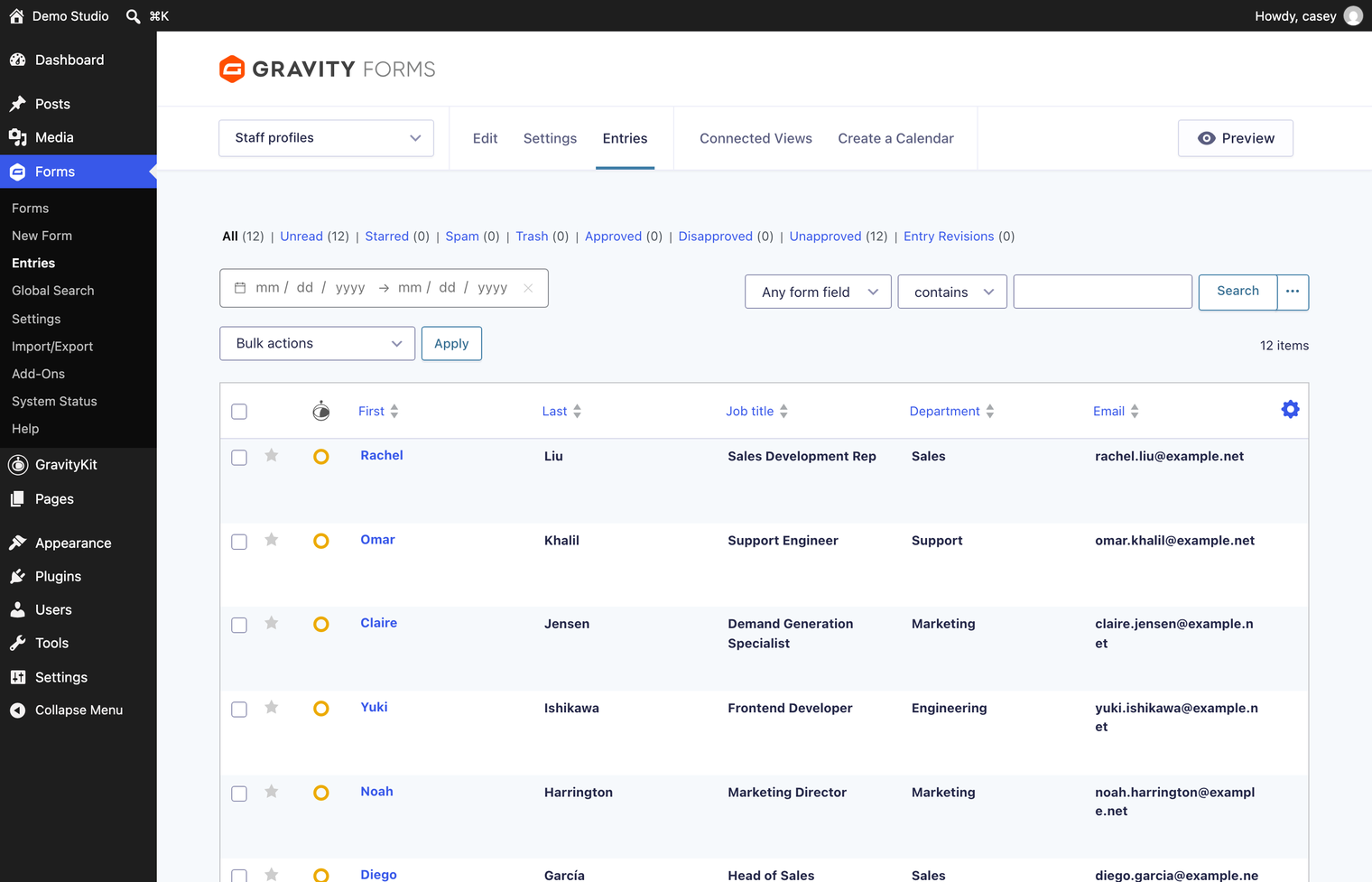
A directory with four entries called “test test” does not sell the build. Ask for data that looks like the client’s actual data.
Once there is believable data in the form, the same conversation can check the front end against it. Ask whether the photos are rendering, whether long job titles break the card layout, whether the search filter actually returns anything. That is real QA on a real build, before a client ever opens the link.
It is also the fastest way to catch the problems that only appear with volume. Four entries will never show you that your search filter returns nothing for a department nobody has been assigned to yet, or that the layout falls apart at thirty rows.
When the demo is done, ask the assistant to trash the test entries. Cleaning up is also one sentence. And if you have not built the View yet, our walkthrough on building a searchable directory by chatting with AI covers that part from scratch.
Sample prompt
This directory is for a UK architecture practice, and the handful of test entries in it look terrible. Add 20 realistic staff profiles to the Staff profiles form: vary the departments, use plausible British names and the job titles you would actually find in a practice that size, and keep each bio to a sentence or two. Once they are in, load the directory and tell me if anything looks wrong.
6. See the change before you save it
Connecting an MCP server to a client’s live WordPress site is a fair thing to be cautious about. We built GravityKit MCP with that in mind, and there are three guardrails worth knowing about before you point it at real work.
It only has the access you give it. The MCP acts as the WordPress user you authenticate as. Give it an account that can edit Views and that is the full extent of what it can reach.
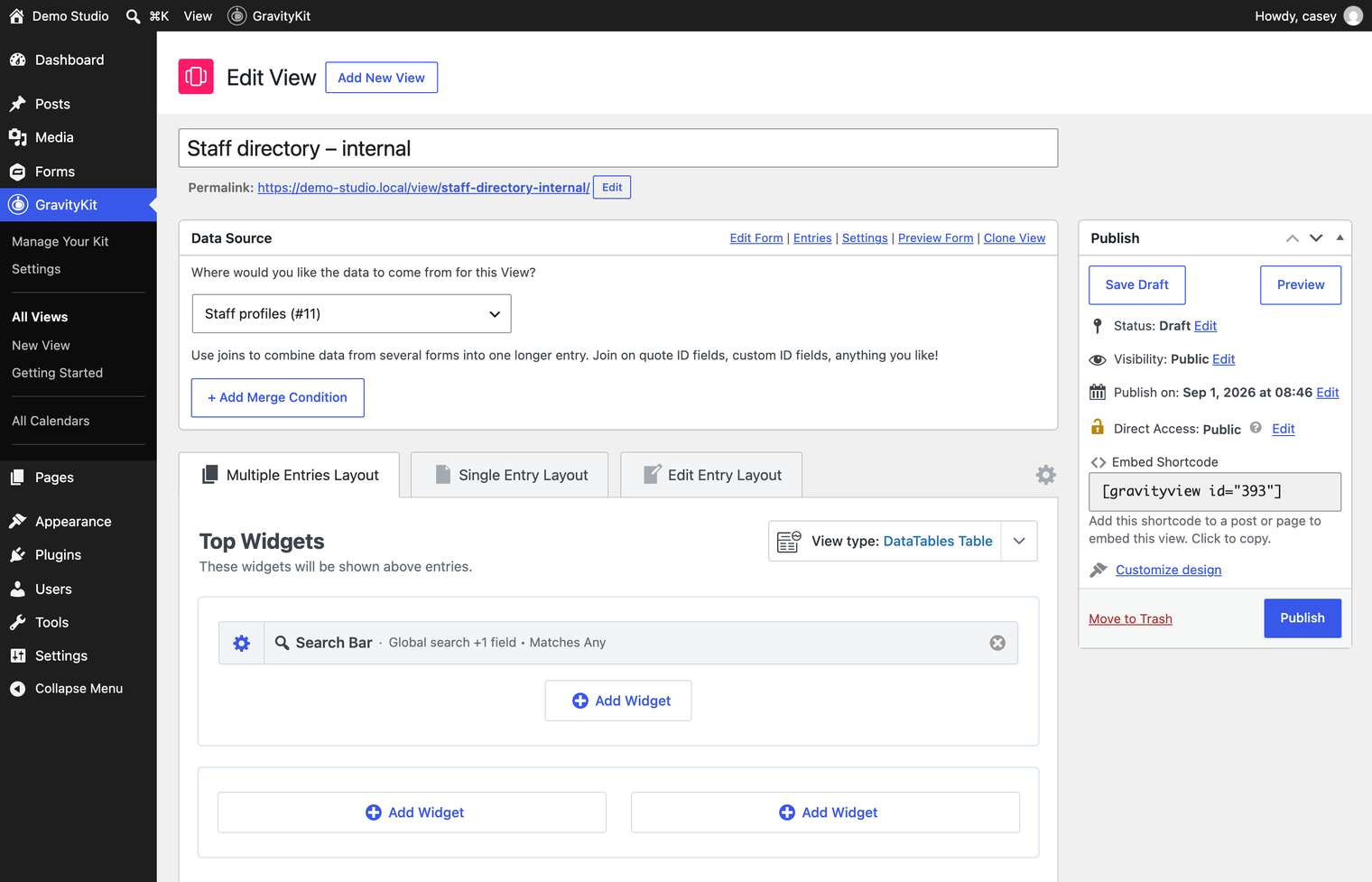
New Views arrive as drafts. Nothing built by AI is public until you publish it yourself. The same is true of anything cloned or duplicated.
You can look before you save. Ask to see a change rather than make it, and the assistant renders what a field would look like with a different label, or how a new column would display, while the saved configuration stays exactly as it was. The MCP also validates against GravityView’s own settings schema, so an invalid value comes back rejected with the list of allowed ones instead of being quietly written to the database.
Everything it does create is standard GravityView configuration. Open the View editor at any point and you will see exactly what was set up, ready to change by hand.
Sample prompt
Before you change anything, show me what the directory would look like with the phone number added underneath the job title and the name field relabeled to “Staff member”. Render it so I can see it, but do not save any of it yet. If either change would not work the way I am expecting, tell me instead of doing it.
7. Make the change they asked for while you are still on the call
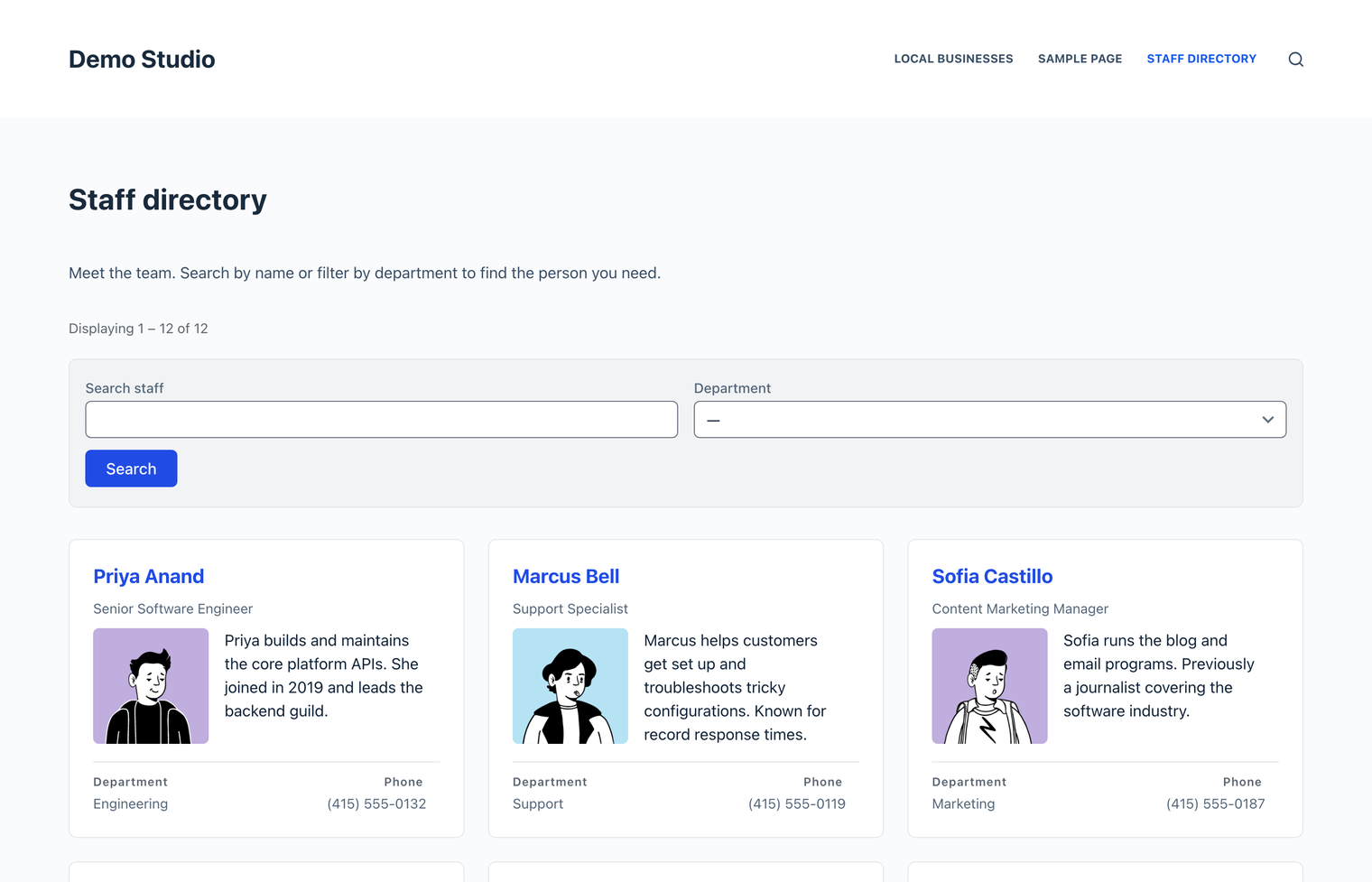
The most common client request in this line of work is small. One more column. One more filter. Move that thing above the other thing. With GravityKit MCP, you can dictate these small tasks to your AI of choice and have them done in minutes.
The field lands in the area you named, the filter appears in the search bar, and the client watches it happen. If they want it somewhere else, that is another sentence.
Styling counts here too. The MCP can set a CSS class on an individual field, and it can write custom CSS and JavaScript into the View’s own Custom Code settings, scoped to that View rather than your theme. “Make the job title larger and add a drop shadow to the card” is the same kind of ask as adding a field.
This all works because the MCP is editing the same View configuration the editor writes to. There is no parallel system and no export step. You can open the View afterward and drag things around exactly as before.
The same pattern covers most of what clients ask for mid-call: relabeling a column, changing the sort order, dropping the page size, hiding a field on the list but keeping it on the single entry page, or adding a keyword search alongside the dropdown filters. None of those are big jobs. The value is in not writing them down to do later.
Sample prompt
I am on a call with the client and they have asked for two changes. Add the phone number field to the staff directory listing, underneath the job title, and add a search filter so visitors can narrow the list by department. Give the department column its own CSS class so I can style it later, and tell me exactly what you changed when you are done.
8. Switch the layout when they change their mind
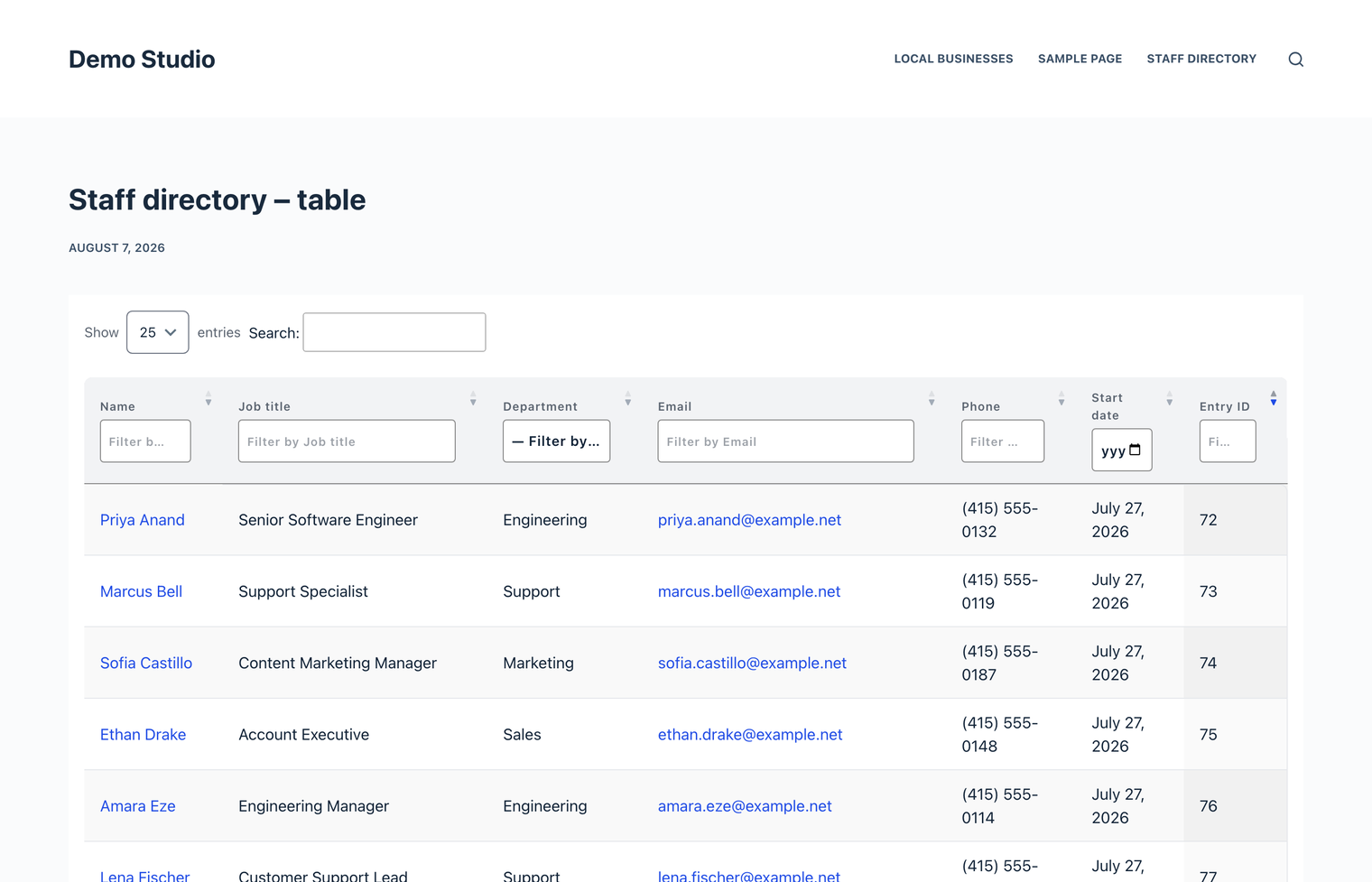
“Can we see it as a table instead?” is a rebuild by hand. It is one sentence here.
The detail that makes this genuinely useful is that you choose what happens to your existing field placements. Keep them, or clear them and start the zone fresh.
Which one you want depends on the layouts involved. If you are moving between two layouts that share the same areas, keeping your placements saves you redoing the work. If you are moving between layouts built differently, a list layout and a table layout for instance, the areas do not match up, so clearing and re-placing the fields is the cleaner path. If you keep placements that the new layout has no area for, they stay in the configuration but will not render until you move them.
If you are only after a different look rather than a different layout, GravityView 3.0‘s themes and column controls will get you there without switching templates at all. Our 10 things you can ask AI to do with Gravity Forms post covers that one.
Sample prompt
The client wants to see the staff directory as a sortable table rather than cards. Switch it from the list layout to a DataTables table, and set the columns to name, job title, department and email, in that order. Clear the old field placements rather than carrying them over, since the two layouts do not share the same areas.
9. Clone a finished build for the next project
The client who asked for a staff directory might also want an internal version with phone numbers and start dates, plus a public one that shows neither. The office in Leeds wants their own.
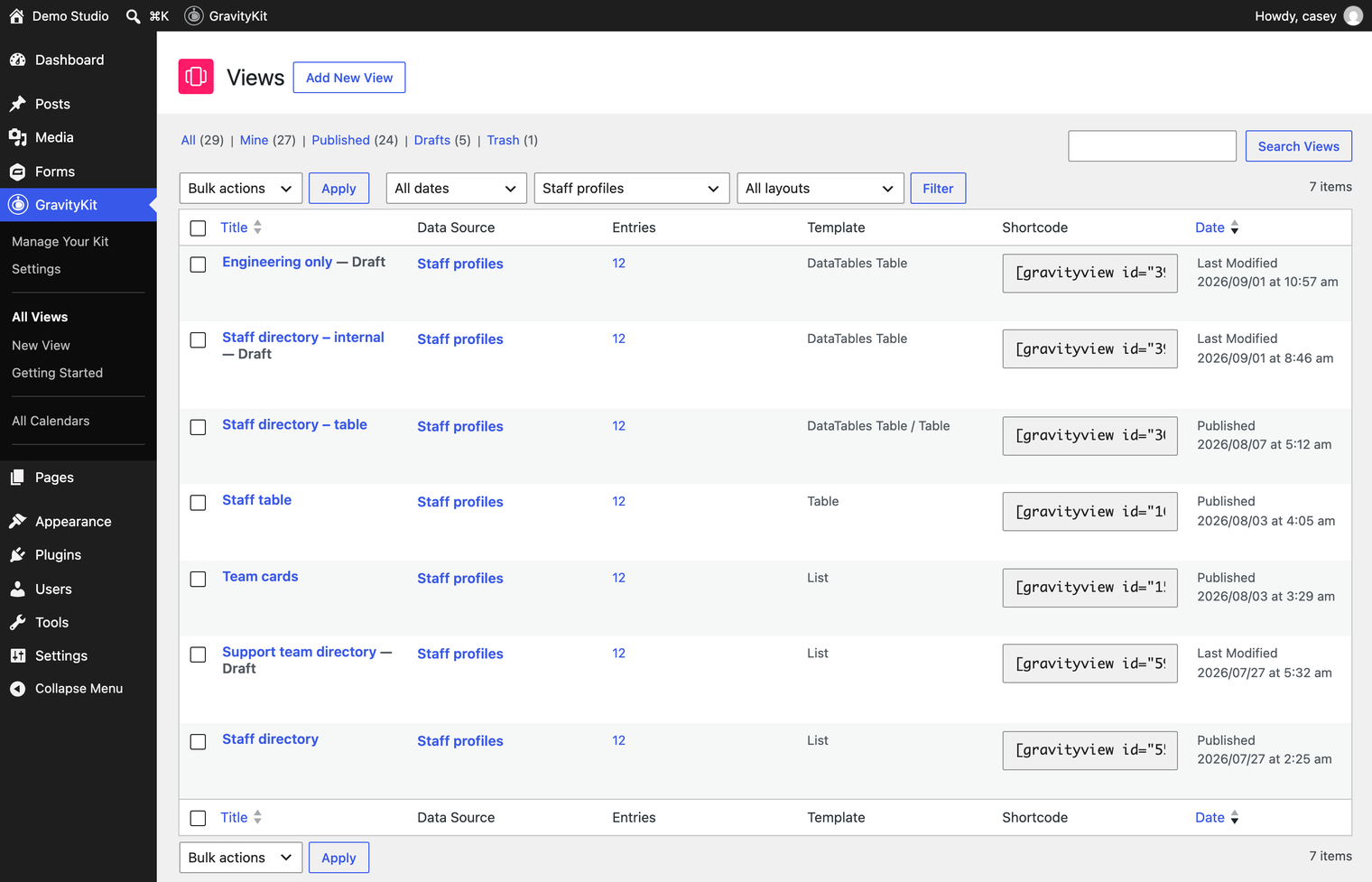
Using GravityKit MCP, you can ask your assistant to clone any View into a new duplicate. The copy arrives as a draft with the layout, the entire field config, the widgets, and the search configuration carried over. It is the same job as cloning a View for a different audience, only here you are doing it to start the next build rather than to serve a second one.
The copy stays bound to the same form as the original, which is what makes it safe to hand to a client. You are duplicating the presentation, not the data, so both Views read from the same entries and neither can drift out of sync with the other.
From there you adapt the copy in the same conversation: filter it to one department or one office, change the sort order and page size, swap the layout, or pull columns out. The original is untouched throughout.
Sample prompt
I need an internal version of the staff directory that only shows the Engineering team. Duplicate the existing View and leave the copy as a draft so nothing goes live by accident, then filter it to Engineering and drop the page size to ten. Leave the original exactly as it is.
Start with the audit
If you want to try one of these, start with the first. It is read-only, it needs nothing beyond the ability to view your Views, and it produces something useful on a real client site in about ten seconds.
GravityKit MCP is free and open source. Connect it to your AI assistant, and pair it with GravityView to put your Gravity Forms data to work on the front end of your clients’ sites. For what to build with it, see the nine client apps you can build with Gravity Forms and GravityKit.
Get better at Gravity Forms, one email a week
New GravityKit releases, practical Gravity Forms tutorials, and subscriber-only discounts. One short email every week, unsubscribe anytime.
More articles

Launch Log: A range slider for search, AI-managed calendars, and security updates in ten products
GravityView adds a Slider search input, GravityCalendar lets AI assistants manage calendars, and ten GravityKit products get security fixes. Here’s what shipped.
9 nonprofit apps you can build with Gravity Forms and GravityKit
Nine apps nonprofits build on WordPress from Gravity Forms data: volunteer databases, member directories, client portals, donation pages, grant review and more.
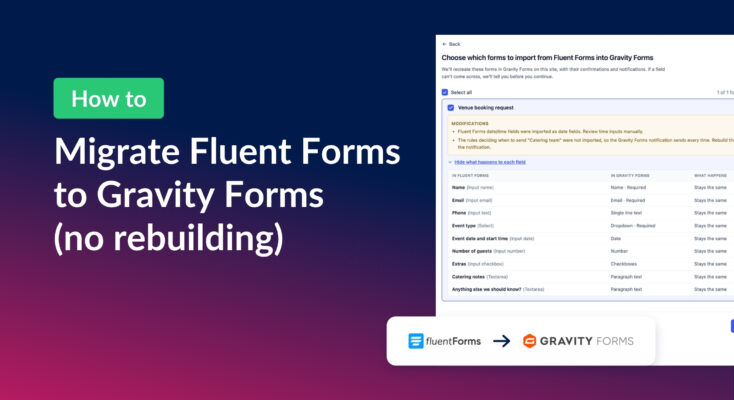
How to migrate from Fluent Forms to Gravity Forms without rebuilding your forms
Move your Fluent Forms forms into Gravity Forms with GravityMigrate, then bring your entries across with GravityImport. Every step was tested on the free version of Fluent Forms.