
The [gravitycharts] shortcode
The [gravitycharts] shortcode places a GravityCharts chart in a post, a page, or anywhere else shortcodes run.
Copying the shortcode #
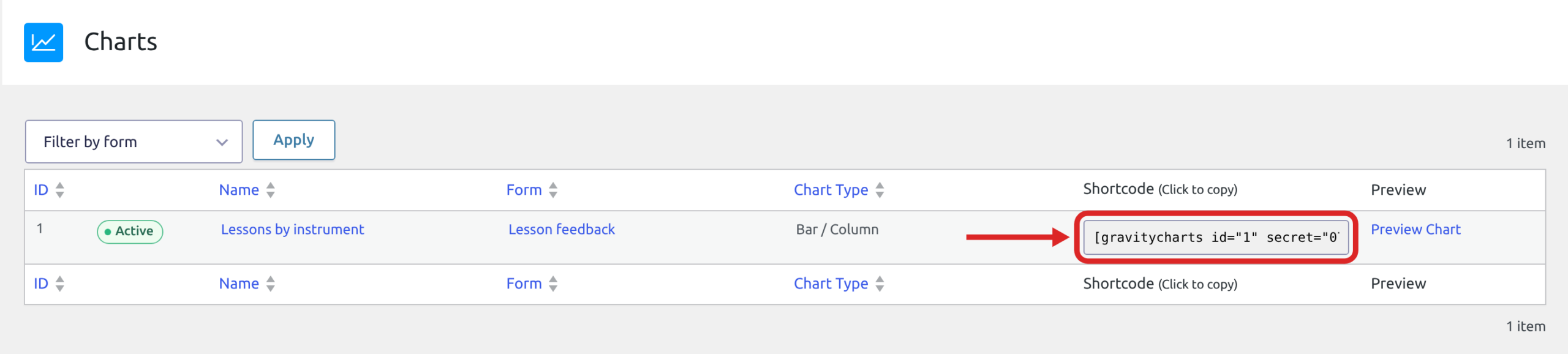
Go to GravityKit, then All Charts. Each chart’s shortcode is in the Shortcode (Click to copy) column: click it to copy it. The ID column shows the chart’s ID. A form’s own list of charts, on the GravityCharts tab of the form’s settings, has the same column.
Enable security for this chart is on for new charts, so their shortcode includes a secret. A shortcode without the secret shows nothing on the page.
Shortcode parameters #
| Parameter | What it does | Required |
|---|---|---|
id | The chart’s ID. | Yes |
secret | The chart’s secret. The chart shows only with it while Enable security for this chart is on. | When security is on |
width | The chart’s maximum width in pixels. On an image chart, the image’s width. | No |
height | The chart’s maximum height in pixels. On an image chart, the image’s height. An image chart needs both width and height. | No |
embed_type | Set to image to show a static image of the chart instead of an interactive chart. Image charts for GravityCharts has the details. | No |
entry | An entry ID, to chart the data of that entry only. | No |
Examples #
Replace 5 and the secret with your chart’s ID and secret.
A chart:
[gravitycharts id="5" secret="a1b2c3d4e5f6"]A chart at most 400 pixels wide:
[gravitycharts id="5" secret="a1b2c3d4e5f6" width="400"]An image of the chart, 400 by 250 pixels:
[gravitycharts id="5" secret="a1b2c3d4e5f6" embed_type="image" width="400" height="250"]A chart of entry 123 only:
[gravitycharts id="5" secret="a1b2c3d4e5f6" entry="123"]If the chart does not show #
- Check the chart’s ID in the ID column on the All Charts screen.
- Check that the shortcode has the chart’s secret. If you’re not sure, copy the shortcode again from the Shortcode (Click to copy) column.
- Check that the chart is turned on. A chart that is turned off doesn’t show.
- For an image chart, set both
widthandheight.
Other ways to place a chart #
The shortcode is one of four ways to place a chart. How to Embed Charts on Your Website covers the others.

