
Published
•
Updated
Dynamic content in WordPress: Use cases, best plugins, and implementation strategies
If you’re looking to make your WordPress site smarter and more engaging, then dynamic content is the key. Unlike static pages that look the same for everyone, dynamic content adapts based on additional data, or user characteristics like who’s visiting, where they are, or what they’re doing. In this comprehensive guide, we’ll break down what…


If you’re looking to make your WordPress site smarter and more engaging, then dynamic content is the key.
Unlike static pages that look the same for everyone, dynamic content adapts based on additional data, or user characteristics like who’s visiting, where they are, or what they’re doing.
In this comprehensive guide, we’ll break down what dynamic content is, why it matters, and how you can start using it today to personalize your site and boost engagement.
Understanding dynamic content and why it matters
The first thing you’re probably wondering is, “Do I need to know how to code?”
Many WordPress users fear that “dynamic” means complex programming. Good news: you can implement dynamic content without writing code, thanks to user-friendly WordPress plugins and tools. In this guide, we’ll focus on no-code or low-code solutions (like page builders and plugins) designed for non-developers.
Dynamic vs static content in WordPress
Static content stays the same for everyone, while dynamic content adapts based on context—like who’s visiting, where they are, or what they’ve done.
WordPress is already designed to serve dynamic pages using data from a database, but with themes and plugins, you can go further by adding personalized messages, conditional content, and user-specific displays. The result? A site that feels more interactive and relevant to each visitor.
Let’s take a look at a few real-world examples of dynamic content:
Example 1: GravityKit’s Build It page
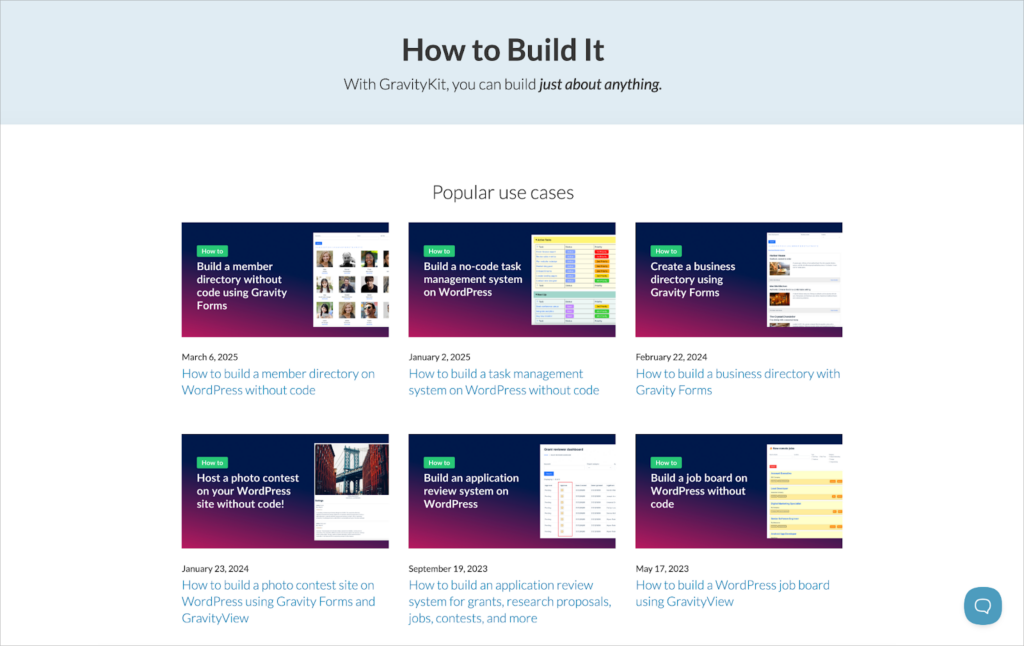
Our Build It page is a great example of dynamic content in action. It automatically displays new blog posts that are tagged with Build It, keeping the page fresh and relevant without any manual updates. This smart setup ensures visitors always see the latest tutorials as soon as they’re published.
Example 2: AirBnB
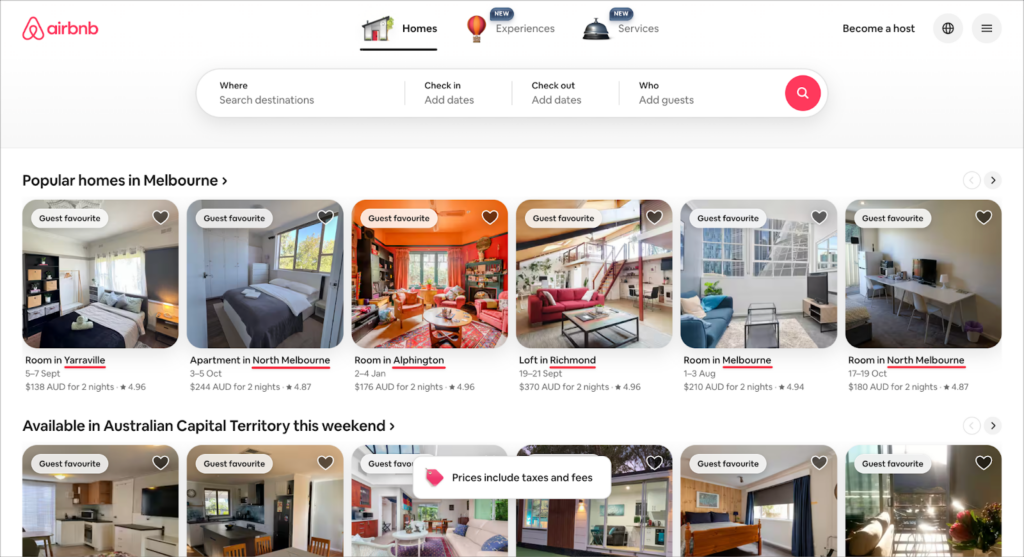
Airbnb uses dynamic content to personalize the browsing experience based on a user’s location. Whether you’re in New York or Tokyo, you’ll see tailored property recommendations and search suggestions relevant to your area. This makes the site feel more helpful and increases engagement.
Example #3: Substack
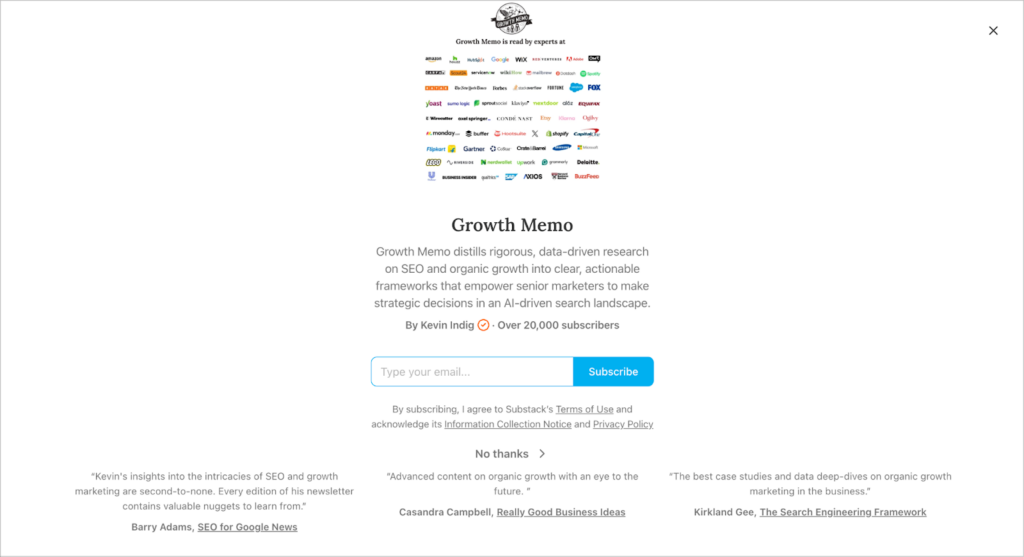
Substack dynamically shows a sign-up form to visitors who haven’t subscribed to a specific newsletter yet. Once subscribed, that form disappears, creating a smoother experience while targeting the right call-to-action to the right audience at the right time.
Practical use cases for dynamic content in WordPress
With dynamic content, your WordPress site can do more than act as a marketing platform or a simple blog, it can function like a web app.
You can have features like user-specific dashboards, interactive maps with live data, or content that responds. This opens up possibilities for more complex sites (directories, marketplaces, etc.) without starting from scratch.
Here are some practical examples to get your creative juices flowing:
1. Personalized marketing
Show tailored messages, offers, or headlines based on a visitor’s location, referral source, or behavior. For example, greet newsletter subscribers by name or display a special promo for users coming from a specific email campaign.
2. Smarter e-commerce
Boost sales with dynamic product elements like real-time stock alerts (“Only 2 left!”), personalized recommendations, or pricing that adjusts based on a user’s location.
3. Enhanced member and e-learning experiences
Display user-specific content such as course progress, recommended lessons, or a dynamic member dashboard. This keeps returning users engaged and creates a more interactive learning environment.
4. Context-aware navigation for blogs and news sites
Use dynamic “related posts,” recently viewed articles, or live filters to help readers find relevant content faster. This improves user experience and keeps people browsing longer.
5. User-generated directories and portals
Build dynamic job boards, business directories, or portfolio galleries where users submit content via forms. Tools like GravityView can display these submissions instantly, removing the need for manual work.
Implementing dynamic content on your WordPress site
While there’s no one-size-fits-all approach to dynamic content, WordPress gives you plenty of options. Whether you prefer no-code tools or more advanced setups, you can start small or go deep depending on your needs.
Below, we’ll break down five of the best methods for adding dynamic content to your WordPress site. From the site editor and page builders to powerful plugin combinations like Gravity Forms and GravityView, we’ll also cover when to use each one.
Method 1: WordPress Block Editor
Difficulty level: Intermediate
Flexibility: Limited
If you’re using a block theme, the WordPress block editor offers built-in tools for adding dynamic content. This approach lets you create templates for posts and pages, keeping your content separate from the design. It’s a clean, efficient way to build a site that’s easy to maintain.
Use WordPress Theme blocks like Post Title, Post Content, Author, Date, Comments, Query Loop, and Latest Posts to automatically pull live content from your database. Even elements like your Site Logo or Navigation Menu are dynamic, updating globally when changed.
This enables you to build a single template for blog posts, product pages, or custom post types and insert dynamic placeholders for elements like the title, featured image, price, or author. When a visitor views the page, those placeholders pull the actual data for that post.
The advantage to using templates? If you want to update the design of multiple pages, you only need to edit the template. Every page using that template will automatically reflect the changes.
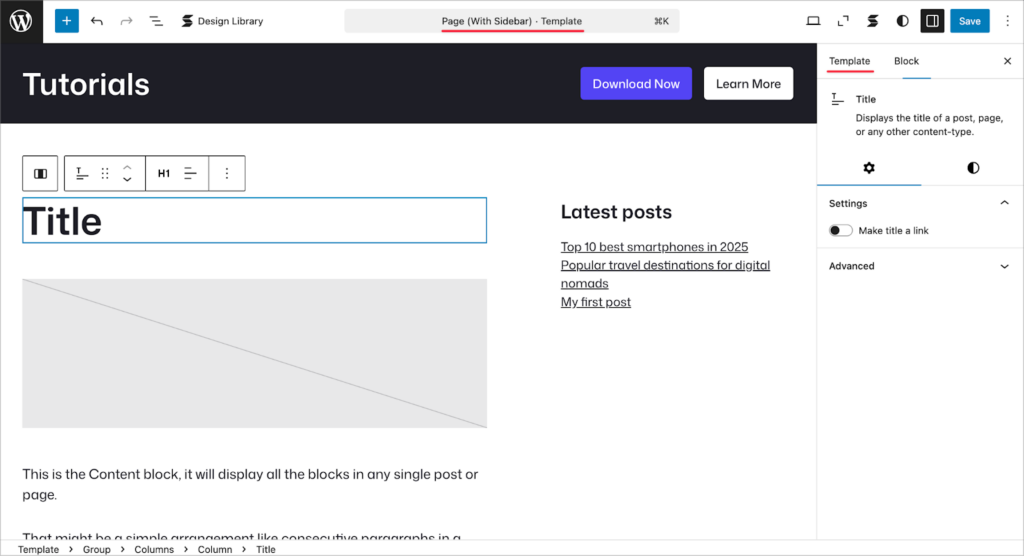
It’s important to distinguish between the Template Editor (used to build templates and site-wide elements) and the regular block editor, which is used to edit individual posts or pages. Dynamic content blocks work in both, but the Template Editor gives you more control over how those blocks appear across your entire site.
When to use this approach:
- You’re using a block theme
- You want to stick with Gutenberg and avoid extra plugins
- You’re aiming for a lightweight, fast-loading site
- You’re already comfortable with the WordPress editor
- You don’t need complex logic or custom content types
If you’re new to WordPress’s Template Editor (part of Full Site Editing, or FSE for short), Gravity Forms has an excellent guide that will get you up to speed.
Method 2: Page builders like Elementor or Divi
Difficulty level: Simple
Flexibility: Moderate
If you’re using a visual builder like Elementor (the most-used WordPress page builder), Divi, or Beaver Builder, you already have access to dynamic content tools. These builders allow you to design visually and insert dynamic elements using special modules or simple text elements.
- Elementor’s Dynamic Tags pull in data such as the site title, post info, author name, or even custom fields.
- Divi’s Dynamic Content Options let you transform any module into a smart, data-driven element by pulling information directly from your site’s database. This includes post meta, page titles, featured images, and more.
Similar to WordPress’s Full Site Editing capabilities, page builders enable you to create templates for different site content (whether blog posts, product pages, etc). The result is one layout that adapts to many pieces of content, and even to different users.
When to use this approach:
- You already use a builder like Elementor or Divi
- You want a simple way to add dynamic elements to your site
- You don’t need complex logic or custom content types
Method 3: Custom post types and fields
Difficulty level: Advanced
Flexibility: High
Custom post types (CPTs) and custom fields are the backbone of dynamic content in WordPress, often powering structured, data-rich websites, like directories, catalogs, or listing sites.
With CPTs, you can create new content types and attach custom data, then display them dynamically throughout your site. Custom post types let you go beyond standard WordPress posts and pages. You can create content types like “Properties,” “Recipes,” or “Portfolio Items,” each with its own layout and taxonomy.
Custom fields (also called post meta) allow you to attach specific data to each content item, such as price, address, rating, or ingredients.
Adding and configuring CPTs, taxonomies and fields can be complicated, especially for more data-rich websites. To help with this you can use plugins like:
These tools help you create CPTs and insert dynamic values into templates using blocks, shortcodes, or page builder integrations.
When to use this approach:
- You’re building a site with structured content like listings, profiles, or product catalogs
- You want to keep content and design separate
- You’re comfortable coding or learning new tools
- You want more flexibility to display and update content across your site
Method 4: Gravity Forms and GravityView
Difficulty level: Simple
Flexibility: High
By combining Gravity Forms with GravityView, you get a complete front-end and back-end system for managing structured content on WordPress.
Gravity Forms handles the content submission part, while GravityView lets you display, edit, and delete that content on the front end. This gives you a complete, no-code way to manage data on your WordPress site.
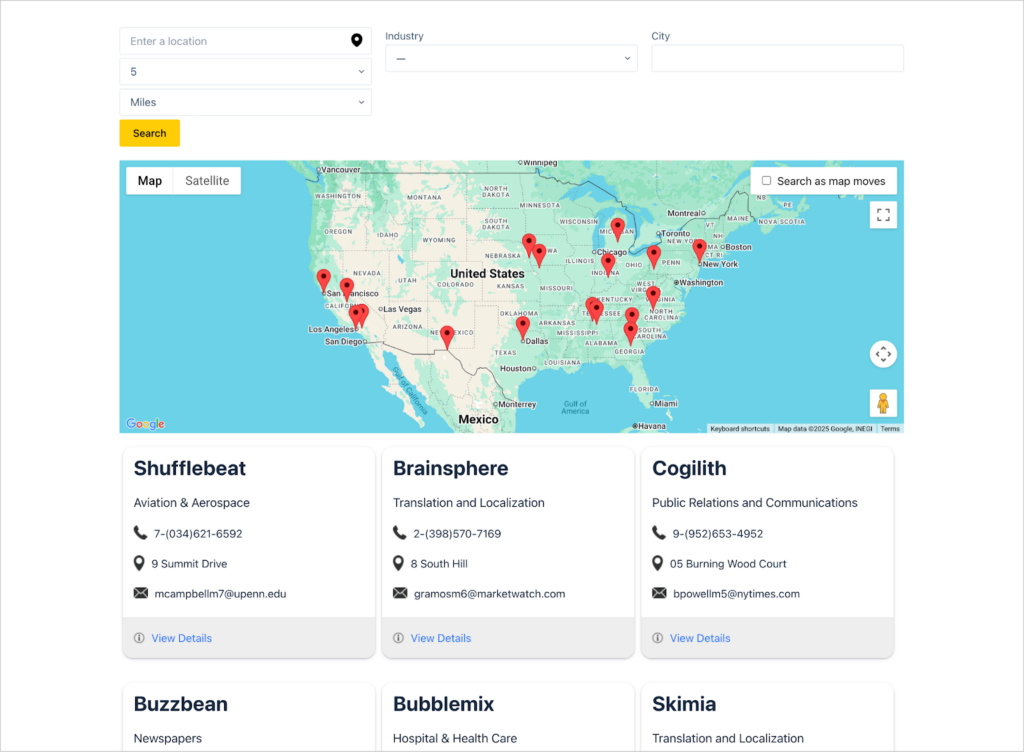
Instead of creating custom post types, GravityView lets you work directly with Gravity Forms entries. You can build searchable directories, interactive maps, user dashboards, public databases, and more—all using a visual, drag-and-drop interface.
Here’s one example: Imagine a directory where users submit listings through a form. With GravityView, those listings can be displayed in a dynamic grid with filters, a map view, and a search bar. As entries are added, updated, or deleted, your directory updates in real time.
When to use this approach
- You’re already using Gravity Forms or want a form-first content model
- You need a fast, flexible way to manage and display structured data
- You want to bypass the complexity of custom post types
- You prefer a no-code or low-code solution that’s still highly customizable
Wanna try it?
Spin up a demo
See what you can build with GravityView — explore the live demo.
Method 5: Personalization plugins
Difficulty level: Simple
Flexibility: Limited
If you want to show different content to different users based on their role, login status, or behavior, personalization plugins make it easy—no coding required. These tools help you control what content appears and when, adding a personal touch that can improve user engagement.
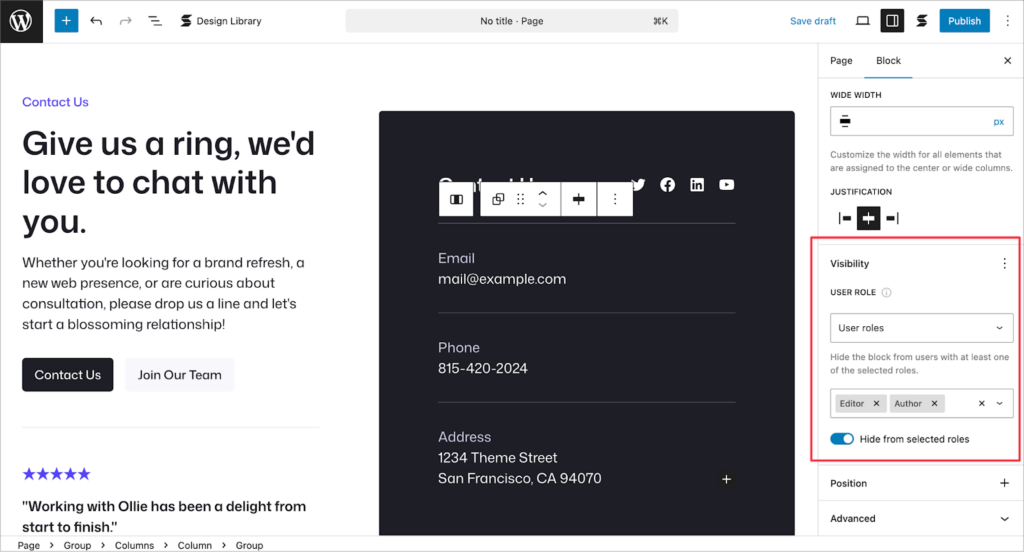
Some plugins focus on block-level visibility, letting you show or hide specific sections of a page. Others provide more advanced targeting based on user role, device, location, or referral source.
Popular plugins for content personalization:
- Membership plugins like Paid Memberships Pro – Great for role-based content and membership access. These plugins also allow you to restrict entire pages, posts, or sections of your website.
- Block Visibility – Adds simple visibility rules to any block in the WordPress editor enabling you to show/hide individual page elements based on user data such as login status or device type.
- PersonalizeWP – Offers granular targeting and dynamic content swapping based on user data.
When to use this approach
- You want to personalize messaging or calls-to-action
- You’re running a membership, subscription, or gated content site
- You don’t need complex data structures or full custom templates
- You prefer working inside the WordPress editor with minimal setup
Easy wins for adding dynamic content to your WordPress site
If you’re just getting started with dynamic content in WordPress, here are some easy wins that you can implement right now to improve the user experience of your site:
- Add a dynamic Latest Posts block to your blog to keep readers browsing.
- Use a dynamic year in your footer (so you never have an outdated copyright date).
- Show a Login/Logout link in your menu based on a user’s login status.
- If you run a nonprofit or charity, create a dashboard that automatically shows the latest donations.
Frequently asked questions
Personalized content means pages aren’t identical for everyone, which can complicate how content is rendered.
However, dynamic content generally won’t slow down your site if it’s implemented properly. For example if you’re using WordPress blocks or recommended plugins to add dynamic content to your site, you won’t have a problem.
The only time you might notice a slowdown is when pulling large amounts of data from the database or making requests to external services/APIs. In these cases, caching and smart optimization can help keep things running smoothly.
Generally, you shouldn’t worry. Dynamic content that changes for users (like personalized greetings or rotating offers) typically doesn’t confuse Google.
It becomes an SEO issue only if you’re generating multiple URLs for variants of a single page or doing something like showing completely different text to search engines vs users. This is called cloaking and is heavily punished by Google.
To keep dynamic content SEO friendly, use one URL per content piece, ensure the core page content remains static, and avoid cramming loads of dynamic elements on a single page.
Some content management systems (WordPress included) generate entire pages dynamically. And while dynamic page generation can present problems for SEO, this doesn’t apply to WordPress.
WordPress generates dynamic pages using PHP on the server, meaning all the content (titles, text, metadata, etc.) is assembled before it’s sent to the browser. So when search engine bots crawl a WordPress page, they receive fully rendered HTML, just like a static page.
This is very different from JavaScript-based dynamic content, which often loads after the page has rendered and can be missed by crawlers.
Dynamic page content can be tricky to maintain if you’re not careful. For example, if you’re using a specific plugin to implement dynamic elements and it’s deactivated, this could negatively affect the user experience and confuse site visitors. Here are some best practices for staying organized when adding dynamic content to your site:
Use well-supported plugins (like the ones mentioned in this guide)
Document what dynamic features you’ve set up so you can keep track of moving parts
Have fallbacks in case a piece of dynamic content fails to render.
It depends on your particular use case. For personalized marketing content (geotargeted messages, user-specific promos), use a conditional plugin like Block Visibility.
For building custom page layouts (like a custom blog template or product page), use page builders with dynamic tags or custom post types.
For creating front-end listings or directories from user submissions, use Gravity Forms and GravityView. It’s the go-to if you want to avoid coding and still build something like a directory, job board, or any interactive database-driven content on your site.
For purely blogging purposes (showing dynamic lists of posts, etc.): WordPress core blocks might suffice (Query Loop block or Latest Posts block) or lightweight plugins.
Knowing how to implement dynamic content can significantly level up your client projects. For example, instead of a static brochure site, you can offer a client a site that automatically showcases their latest work, or a client login area that shows personalized data.
Using tools like Gravity Forms with GravityView, you can even create full-scale web apps like client portals, interactive directories or fundraising dashboards that update in real-time.
Final thoughts
With AI having an increasingly large impact on the web, users may come to expect more personalized content. That’s why it’s important to understand how to implement and leverage dynamic content on your own website and those of your clients.
The beauty of WordPress is its flexibility. With the right combination of tools (custom post types, dynamic data plugins) it’s easier than ever to build interactive websites, all without writing a single line of code.
If you want to go deeper and see how you can create complete web applications on WordPress, read our guide to creating CRUD systems next.

Get better at Gravity Forms, one email a week
New GravityKit releases, practical Gravity Forms tutorials, and subscriber-only discounts. One short email every week, unsubscribe anytime.
More articles

GravityMigrate 2.0: No-sweat WordPress form plugin migrations
Nobody wants to move forms between plugins. They want the site launched, the client onboarded, the referrals to stop falling through the cracks. GravityMigrate 2.0 makes moving forms effortless.

Launch Log: Two-way form migrations, a modernized chart block, and tighter board permissions
GravityMigrate 2.0.0 moves forms between Gravity Forms and seven other form plugins, GravityCharts modernizes its block in the WordPress editor, and GravityBoard tightens how board permissions are enforced.

9 ways to automate client work with the GravityKit MCP
Nine client jobs you can hand to the free GravityKit MCP, from auditing broken Views to cloning a finished build. Every one verified on a live site.