Skip to content
GravityKit
Buy
Sign in
0 items
  • Plugins

    GravityKit All Access

    Our complete Kit of essential tools for extending and enhancing Gravity Forms—everything you need to build powerful web apps and workflows.

    Learn more
    • GravityView

      GravityView

      Bestseller

      Display Gravity Forms entries on the front-end of your site and build powerful web applications.

    • GravityImport

      GravityImport

      Trending

      Import entries from CSV files into Gravity Forms to transfer data, create new forms, or update existing entries.

    • GravityEdit

      GravityEdit

      Quickly edit Gravity Forms entries inline to save time, reduce clicks, and streamline your workflow.

    • GravityCharts

      GravityCharts

      Trending

      Turn Gravity Forms entries into interactive charts and graphs.

    • GravityActions

      GravityActions

      Update multiple Gravity Forms entries at once, send bulk emails, and streamline your workflow.

    • GravityCalendar

      GravityCalendar

      Turn Gravity Forms entries into dynamic calendars to showcase events, schedules, appointments, and more.

    • GravityExport

      GravityExport

      Export Gravity Forms entries to Excel, CSV, or PDF and share them instantly with secure download links.

    • GravityMath

      GravityMath

      Perform advanced calculations on Gravity Forms entries to display totals, averages, or build custom calculators.

    • GravityRevisions

      GravityRevisions

      Track, compare, and restore changes made to Gravity Forms forms and entries with a full version history.

    • GravityMigrate

      GravityMigrate

      Migrate all Gravity Forms data, including forms, entries, Views, feeds, uploads, and more.

    • GravityBoard

      GravityBoard

      Manage projects with collaborative project management. Coordinate with your team and streamline your workflows.

  • Ideal For

    • Nonprofits
    • Startups
    • Education
    • Web Agencies
    • Developers
    • Government iconGovernment
    Explore All Use Cases

    Case studies

    • West Fork Schools
    • Princeton University
    • BrightLeaf Giving
    • Jacksonville Port Authority
    • National Severe Storms Lab
    • Leadpal
    • Mediebruket
    • Dragonfly
    View All Case Studies
  • Resources

    • Blog
    • Case studies
    • Support
    • Live Demos
    • Documentation
    • Developer docs
    • GravityKit Academy
    • GravityKit Live!

    Ultimate guides

    • How to use Gravity Forms
    • Editing Gravity Forms entries
    • Importing Gravity Forms entries
    • Exporting Gravity Forms entries
    • Displaying Gravity Forms entries
    • Gravity Forms conditional logic
    • Gravity Forms calculations
    View More Articles
  • Plugins

    • GravityView

      GravityView

      Bestseller

      Display Gravity Forms entries on the front-end of your site and build powerful web applications.

    • GravityImport

      GravityImport

      Trending

      Import entries from CSV files into Gravity Forms to transfer data, create new forms, or update existing entries.

    • GravityEdit

      GravityEdit

      Quickly edit Gravity Forms entries inline to save time, reduce clicks, and streamline your workflow.

    • GravityCharts

      GravityCharts

      Trending

      Turn Gravity Forms entries into interactive charts and graphs.

    • GravityActions

      GravityActions

      Update multiple Gravity Forms entries at once, send bulk emails, and streamline your workflow.

    • GravityCalendar

      GravityCalendar

      Turn Gravity Forms entries into dynamic calendars to showcase events, schedules, appointments, and more.

    • GravityExport

      GravityExport

      Export Gravity Forms entries to Excel, CSV, or PDF and share them instantly with secure download links.

    • GravityMath

      GravityMath

      Perform advanced calculations on Gravity Forms entries to display totals, averages, or build custom calculators.

    • GravityRevisions

      GravityRevisions

      Track, compare, and restore changes made to Gravity Forms forms and entries with a full version history.

    • GravityMigrate

      GravityMigrate

      Migrate all Gravity Forms data, including forms, entries, Views, feeds, uploads, and more.

    • GravityBoard

      GravityBoard

      Manage projects with collaborative project management. Coordinate with your team and streamline your workflows.

    GravityKit All Access

    Our complete Kit of essential tools for extending and enhancing Gravity Forms—everything you need to build powerful web apps and workflows.

    Learn more
  • Ideal For

    • Nonprofits
    • Startups
    • Education
    • Web Agencies
    • Developers
    • Government iconGovernment
    Explore All Use Cases

    Case studies

    • West Fork Schools
    • Princeton University
    • BrightLeaf Giving
    • Jacksonville Port Authority
    • National Severe Storms Lab
    • Leadpal
    • Mediebruket
    • Dragonfly
    View All Case Studies

    How to build...

    • Property Management
    • Product Catalog
    • Fundraising Dashboard
    • Real Estate Directory
    • Document Library
    • Academic Journal
    • Volunteer Management
    • Meal Tracker
    View All Guides
  • Resources

    • Blog
    • Case studies
    • Support
    • Live Demos
    • Documentation
    • Developer docs
    • GravityKit Academy
    • GravityKit Live!

    ultimate guides

    • How to use Gravity Forms
    • Editing Gravity Forms entries
    • Importing Gravity Forms entries
    • Exporting Gravity Forms entries
    • Displaying Gravity Forms entries
    • Gravity Forms conditional logic
    • Gravity Forms calculations
    View More Articles
  • Pricing
  • About
0 items

Search

Results appear automatically as you type.
Loading results…

results found matching

    Sign in
    Buy

    Docs

    • Docs Home

    Gravity Forms Add-Ons

    • GravityView
    • GravityActions
    • GravityBoard
    • GravityCalendar
    • GravityCharts
    • GravityEdit
    • GravityExport
    • GravityImport
    • GravityMath
    • GravityMigrate
    • GravityRevisions
    • GF Widget for Elementor
    • GF Dynamic Lookup
    • GF Entry Tags
    • GF Event Field
    • GF Zero Spam
    • GravityExport Lite

    GravityView

    • Getting Started
    • View Setup
    • FAQ
    • Pre-Sale
    • Advanced
    • Common Problems
    • Customizing Your Views
    • Edit Entry
    • Entry Approval
    • Filter and Sort Results
    • Gravity Forms
    • Merge Tags
    • Roles and Capabilities
    • Search
    • Shortcodes
    • View Settings
    • WordPress Posts

    General Help

    • Account, Invoices, and Billing
    • License Related
    • Plugins and Settings
    • Contact
    • Docs Home
    • Gravity Forms Add-Ons

      • GravityView
      • GravityActions
      • GravityBoard
      • GravityCalendar
      • GravityCharts
      • GravityEdit
      • GravityExport
      • GravityImport
      • GravityMath
      • GravityMigrate
      • GravityRevisions
      • GF Widget for Elementor
      • GF Dynamic Lookup
      • GF Entry Tags
      • GF Event Field
      • GF Zero Spam
      • GravityExport Lite
    • GravityView

      • Getting Started
      • View Setup
      • FAQ
      • Pre-Sale
      • Advanced
      • Common Problems
      • Customizing Your Views
      • Edit Entry
      • Entry Approval
      • Filter and Sort Results
      • Gravity Forms
      • Merge Tags
      • Roles and Capabilities
      • Search
      • Shortcodes
      • View Settings
      • WordPress Posts
    • General Help

      • Account, Invoices, and Billing
      • License Related
      • Plugins and Settings
    • Contact

    GravityMath

    • Add calculations to blog posts
    • Calculating Survey fields totals based on their scoring
    • Calculations in GravityView
    • Can GravityMath be used inside a Gravity Forms form?
    • Can I use [gravitymath] with [gvlogic]?
    • Can I use [gravitymath] with dates and times?
    • Can I use [gravitymath] with Multiple Forms?
    • Debugging Calculations in GravityM​ath
    • Developer Hooks for GravityMath
    • Does GravityMath support the Polls Add-on?
    • Does GravityMath support the Survey Add-on?
    • GravityMath Calculation field
    • How to add field calculations to the table footer
    • How to Calculate the Sum of a Field in Gravity Forms
    • How to display summaries using a block, widget, or shortcode
    • How to enable duration calculations in Gravity Forms with GravityMath
    • How to perform Gravity Forms time calculations in GravityView using GravityMath
    • Math filters: How to target a specific field value with [gravitymath] filters
    • Nested calculations in GravityMath
    • Pricing fields calculation
    • Sum GravityMath values for today, a custom date range, or a rolling window
    • The [gravitymath] Shortcode
    • The {entry_count} Merge Tag in Math by GravityView
    • Using GravityMath inside a GravityView Custom Content field
    • When to use GravityMath and when to use GP Advanced Calculations
    • Home
    • Docs
    • GravityMath
    • GravityMath Calculation field

    GravityMath Calculation field

    Estimated reading: 6 minutes

    Updated on April 23, 2026

    The GravityMath Calculation field allows you to display calculated values in your Views with professional formatting options. Perform mathematical operations on form field values and present the results as numbers, currency, or percentages.

    Table of contents #

    • Overview
    • Field settings
      • Formula
      • Number Format
      • Decimal Places
      • Show Thousands Separator
      • Prefix
      • Suffix
    • Examples
    • FAQ
    • Screenshots

    Overview #

    The Calculation field is powered by GravityMath and integrates seamlessly with GravityView. It performs entry-scoped calculations—calculating values based on fields within a single entry. It enables you to:

    • Create dynamic calculations using form field values from the current entry
    • Format results as numbers, currency, or percentages
    • Apply number formatting with proper locale support

    💡 For calculations across multiple entries (like totals or averages of all visible entries), use the Custom Content field with GravityMath shortcodes instead.

    How to add the field:

    When configuring your View, the Calculation field is available when adding a field. The field will be named Calculation in the field picker:
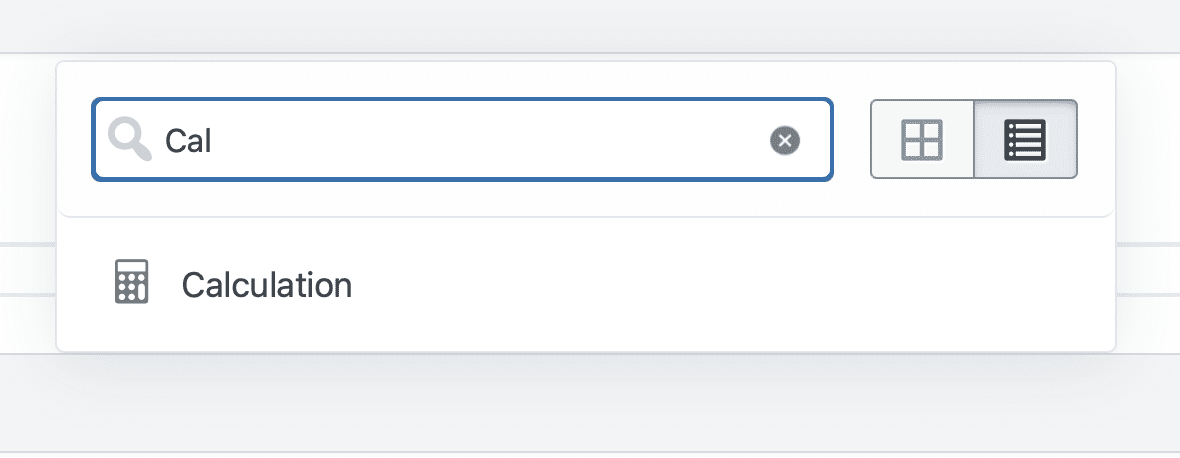
    A screenshot of the field picker with the GravityMath Calculation field shown, with

    Field settings #

    Formula

    The formula defines the mathematical calculation to perform on the current entry. You can use merge tags to reference form field values from the entry and apply mathematical operations.

    The Calculation field performs entry-scoped calculations—it calculates values based only on fields within a single entry, not across multiple entries. For calculations across multiple entries (like sums or averages of all visible entries), use the Custom Content field with GravityMath shortcodes.

    All the formula syntax available in the GravityMath shortcode is available in the Calculation field.

    Syntax

    Use standard mathematical operators:

    • +      Addition
    • -      Subtraction
    • *      Multiplication
    • /      Division
    • ^      Exponentiation
    • %      Modulo
    • Parentheses ()      for operation order

    Merge tags

    Merge tags are placeholders that dynamically pull values from form fields. You can use Gravity Forms merge tags to include values from other fields in an entry (e.g., {Field:1}      references the value of field #1).

    Shortcodes

    Short codes are not allowed in the formula. If you need to use a shortcode, you can use the GravityMath shortcode with a Custom Content field instead.

    Examples

    Basic arithmetic: {Field:1} + {Field:2}     

    Calculate percentage: ({Field:1} / {Field:2}) * 100     

    Complex formula with order of operations: ({Field:1} * 1.0825) + ({Field:2} - {Field:3})    

    Calculate average: ({Field:1} + {Field:2} + {Field:3}) / 3     

    Tax calculation: {Field:1} * 1.0825     

    Discount calculation: {Field:1} * (1 - ({Field:2} / 100))     

    Learn More

    For advanced formula syntax and functions, see the GravityMath shortcode documentation.


    Number Format

    Controls how the calculated result is formatted. The Number Format dropdown includes non-currency formats and all currencies supported by Gravity Forms.

    Options

    Non-Currency Formats:

    • Number – Plain number without formatting
    • Example: 1234.56     
    • Currency – A number that represents  a price
    • Example: $1,234.56     
    • Percent – Displays value with percent symbol
    • Example: 45.5%     

    Currency Formats:

    All currencies supported by Gravity Forms are available.

    Each currency automatically applies the correct:

    • Currency symbol position (before or after the amount)
    • Decimal separator (.      or ,     )
    • Thousands separator (,     , .     , space, or apostrophe)
    • Number of decimal places (e.g., JPY has 0 decimals)

    Examples

    USD formatting: $1,234.56     

    EUR formatting: 1.234,56 €     

    GBP formatting: £ 1,234.56     

    JPY formatting: ¥ 1,235     

    Notes

    • Currency formatting respects the locale-specific conventions of each currency
    • Custom currencies added via the gform_currencies    filter are automatically included
    • When using currency format, the Decimal Places setting may be overridden by the currency’s default decimal configuration

    Decimal Places

    Specifies how many decimal places to display in the result.

    Options

    • Default – Uses 2 decimal places for most formats
    • 0 – No decimal places (rounds to integer values)
    • 1–5 – The number of decimal places displayed

    Examples

    Value: 123.456789

    • Default: 123.46     
    • 0 decimals: 123     
    • 1 decimal: 123.5     
    • 3 decimals: 123.457     
    • 5 decimals: 123.45679     

    Notes

    • Values are rounded, not truncated
    • For currency formats, some currencies may override this setting (e.g., JPY always uses 0 decimals)
    • Applies to Number, Formatted Number, and Percent formats

    Show Thousands Separator

    Type: Checkbox

    Default: Checked (enabled)

    Visibility: Hidden when Number Format = Currency

    Controls whether to include thousands separators (commas or locale-appropriate separator) in the formatted number.

    When enabled (default)

    Large numbers include separators for readability:

    • 1000     displays as 1,000    
    • 1000000     displays as 1,000,000    

    When disabled

    Numbers display without separators:

    • 1000     displays as 1000    
    • 1000000     displays as 1000000    

    Notes

    • Uses locale-aware separators (e.g., .     in some European locales, ,     in US)
    • This setting is hidden when using Currency format (currencies control their own separators)
    • Only affects Number format

    Prefix

    Default: Empty

    Text to display before the calculated number.

    Use cases

    Unit labels:

    • Prefix: “Score: “

    Result: Score: 87.5   

    Labels:

    • Prefix: “Total: “

    Result: Total: 1,234   

    Custom indicators:

    • Prefix: “Remaining: “

    Result: Remaining: 23   

    Examples

    Sales commission with label:

    • Formula: {Sales:5} * 0.15    
    • Number Format: Currency
    • Currency: USD
    • Prefix: “Commission: “

    Result: Commission: $1,875.00    

    Score with label:

    • Formula: ({Test 1:10} + {Test 2:11}) / 2    
    • Number Format: Number
    • Decimals: 1
    • Prefix: “Average: “

    Result: Average: 87.5    

    Notes

    • Prefix appears before currency symbols when using Currency format
    • Can include HTML for styling (e.g., Total:    )
    • Supports merge tags for dynamic prefixes

    Suffix

    Default: Empty

    Text to display after the calculated number.

    Use cases

    Unit labels:

    • Suffix: ” points”

    Result: 87.5 points   

    Percentage indicators:

    • Suffix: “%”

    Result85%  

    Custom units:

    • Suffix: ” hours”

    Result: 4.5 hours   

    Completion labels:

    • Suffix: ” completed”

    Result: 15 completed   

    Examples

    Completion rate with percentage:

    • Formula: ({Completed:5} / {Total:6}) * 100    
    • Number Format: Number
    • Decimals: 1
    • Suffix: “%”

    Result: 75.0%    

    Response time in hours:

    • Formula: {Response Time Minutes:8} / 60    
    • Number Format: Number
    • Decimals: 2
    • Suffix: ” hrs”

    Result: 4.50 hrs    

    Items completed:

    • Formula: {Completed Tasks:5}    
    • Number Format: Number
    • Decimals: 0
    • Suffix: ” of {Total Tasks:6} completed”

    Result: 15 of 20 completed    

    Notes

    • Suffix appears after currency symbols and amounts when using Currency format
    • Can include HTML for styling (e.g., remaining    )
    • Supports merge tags for dynamic suffixes (e.g., of {Field:6} total    )

    Examples #

    Sales tax calculator

    Scenario: Calculate and display sales tax on a purchase.

    Settings:

    • Formula: {Subtotal:15} * 0.0825      
    • Number Format: USD
    • Decimal Places: 2
    • Show As: Number

    Result: For a subtotal with a value of $125.00, the output will be $10.31     


    Multi-field average score

    Scenario: Calculate average of multiple test scores.

    Settings:

    • Formula: ({Test 1:10} + {Test 2:11} + {Test 3:12} + {Test 4:13}) / 4     
    • Number Format: Number
    • Decimal Places: 1
    • Show As: Number

    Result: 87.5     


    Discount calculator

    Scenario: Calculate final price after discount percentage.

    Settings:

    • Formula: {Original Price:5} * (1 - ({Discount Percent:6} / 100))     
    • Number Format: USD
    • Decimal Places: 2
    • Show As: Number

    Input:

    • Original Price: $200.00
    • Discount: 15%

    Result:  $170.00     


    FAQ #

    Can I use conditional logic to show different calculations?

    The Calculation field doesn’t support conditional logic within formulas. However, you have two options:

    Option 1 – Multiple Calculation Fields with Conditional Visibility:

    Create multiple Calculation fields with different formulas, then use Field Conditional Logic to show/hide each field based on conditions.

    Option 2 – Custom Content Field with GravityMath:

    For more complex conditional calculations, use a Custom Content field with GravityMath shortcodes to build conditional logic into your output.

    What happens if a merge tag field is empty?

    Empty fields are treated as zero (0) in calculations. Ensure your formula handles potential zero values appropriately.

    Can I combine multiple currencies?

    While you can calculate with values from multiple currency fields, the Number Format setting determines the display currency. All values in the formula are treated as numeric values regardless of their original currency.

    How do I round to the nearest whole number?

    Set Decimal Places to 0. The value will be rounded (not truncated) to the nearest whole number.

    What’s the difference between “Number” and “Formatted number with thousands separators”?

    • Number: 1234.56      (no thousands separator)
    • Formatted number: 1,234.56      (includes thousands separator)

    Can I hide the calculation from certain users?

    Use GravityView’s standard field Visibility settings (for example, “Make visible only to logged-in users?” and field conditional logic) to control who can see the calculation.

    How do I calculate percentages?

    Method 1 – Display as Percent:

    • Formula: ({Field:1} / {Field:2}) * 100    
    • Number Format: Percent

    Can I reference calculations in other fields?

    No, calculations are performed at display time and cannot be referenced by other fields. Each Calculation field operates independently.

    Can I calculate totals or averages across multiple entries?

    No, the Calculation field is entry-scoped—it only performs calculations on fields within a single entry.

    To calculate across multiple entries (like sum, average, min, max of all visible entries), use the Custom Content field with GravityMath shortcodes with scope="visible"      or scope="form"     .

    What if my formula has an error?

    If the formula cannot be evaluated, the field will display nothing to site visitors. The error is logged for administrators to review.

    To troubleshoot:

    1. Enable logging in GravityKit Settings
    2. Reload the page to trigger the error
    3. Check the error logs to review the error message

    Common causes:

    • Check your formula syntax for mathematical errors
    • Ensure all referenced fields exist and contain numeric values
    • Verify merge tags are formatted correctly (e.g., {Field:1}     )

    Common formula errors:

    • Division by zero
    • Invalid merge tag references
    • Non-numeric field values
    • Mismatched parentheses

    How do I format large numbers?

    Use the “Formatted number with thousands separators” option: 1000000     becomes 1,000,000    

    For currency formatting, large numbers are automatically formatted according to the selected currency’s locale.

    How do I calculate percentages?

    Calculate the percentage in your formula and use a suffix to add the percent symbol:

    • Formula: ({Field:1} / {Field:2}) * 100   
    • Number Format: Number
    • Decimals: 1
    • Suffix: “%”

    This gives you full control over decimal places while displaying the result as a percentage.


    Screenshots #
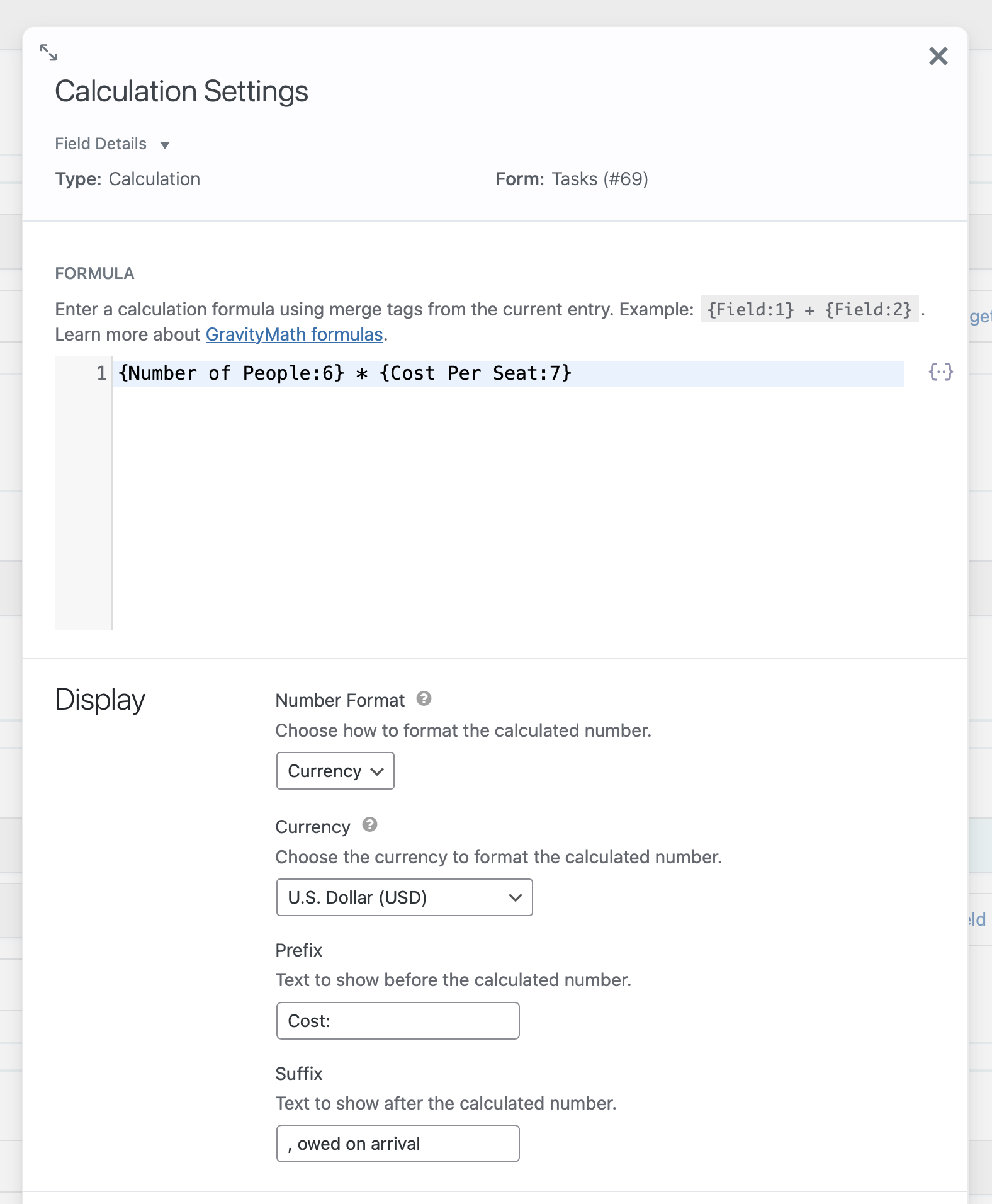
    Calculation settings window with formula, currency, and number format options
    Configuration of a Calculations field
    Cost of $28,382 displayed, owed on arrival
    Sample output from the Calculations field.
    Still stuck? How can we help?

    How can we help?

    "*" indicates required fields

    This field is for validation purposes and should be left unchanged.
    Replies will go to this email.
    How can we help?*
    My pre-sale question is related to...*
    My WordPress skills are....*
    My Gravity Forms skills are...*
    You will be shown articles from our documentation.
    Vous pouvez nous écrire dans votre langue maternelle si c’est plus facile pour vous—nous nous occuperons de la traduction!
    Puedes escribirnos en tu idioma nativo si te resulta más fácil; ¡nosotros nos encargamos de la traducción!
    Sie können uns in Ihrer Muttersprache schreiben, wenn das für Sie einfacher ist – wir kümmern uns um die Übersetzung!
    U kunt ons in uw moedertaal schrijven als dat gemakkelijker voor u is — wij zorgen voor de vertaling!
    Du kan skrive til oss på ditt morsmål hvis det er enklere for deg — vi tar oss av oversettelsen!
    Du kan skriva till oss på ditt modersmål om det är lättare för dig — vi tar hand om översättningen!
    Você pode nos escrever em seu idioma nativo se for mais fácil para você — nós cuidaremos da tradução!
    Puoi scriverci nella tua lingua madre se ti è più facile — penseremo noi alla traduzione!
    Please provide as much detail as you're able; this helps us provide you with faster support.
    Drop files here or
    Accepted file types: jpg, jpeg, gif, png, tiff, pdf, bmp, zip, json, csv, xls, xlsx, Max. file size: 256 MB.
      Stay informed?

      Was this page helpful?

      Table Of Contents
      • Table of contents
      • Overview
      • Field settings
      • Examples
      • FAQ
      • Screenshots
      GravityKit
      • How to Build It
      • Pricing
      • Products
      • Our Team
      • Our Values
      • Work With Us
      • Coupons
      Support
      • Support
      • Contact
      • Documentation
      • Scope of Support
      • Brand Guidelines
      • Privacy Policy
      • Terms of Service (“Terms”)
      About Us
      • GravityKit on Mastodon
      • GravityKit on Twitter
      • GravityKit Training Courses
      • GravityKit on Facebook
      • Join our Facebook Group
      • Facebook
      • Twitter
      Get notified of updates.

      We’re constantly improving GravityKit. Fill out your email below and we’ll notify you anytime major updates drop.

      GravityKit is a Gravity Forms Certified Developer.

      Copyright © 2026, Katz Web Services, Inc.

      GravityKit and GravityView are registered trademarks of Katz Web Services, Inc.