Skip to content
GravityKit
Buy
Sign in
0 items
  • Plugins

    GravityKit All Access

    Our complete Kit of essential tools for extending and enhancing Gravity Formsโ€”everything you need to build powerful web apps and workflows.

    Learn more
    • GravityView

      GravityView

      Bestseller

      Display Gravity Forms entries on the front-end of your site and build powerful web applications.

    • GravityImport

      GravityImport

      Trending

      Import entries from CSV files into Gravity Forms to transfer data, create new forms, or update existing entries.

    • GravityEdit

      GravityEdit

      Quickly edit Gravity Forms entries inline to save time, reduce clicks, and streamline your workflow.

    • GravityCharts

      GravityCharts

      Trending

      Turn Gravity Forms entries into interactive charts and graphs.

    • GravityActions

      GravityActions

      Update multiple Gravity Forms entries at once, send bulk emails, and streamline your workflow.

    • GravityCalendar

      GravityCalendar

      Turn Gravity Forms entries into dynamic calendars to showcase events, schedules, appointments, and more.

    • GravityExport

      GravityExport

      Export Gravity Forms entries to Excel, CSV, or PDF and share them instantly with secure download links.

    • GravityMath

      GravityMath

      Perform advanced calculations on Gravity Forms entries to display totals, averages, or build custom calculators.

    • GravityRevisions

      GravityRevisions

      Track, compare, and restore changes made to Gravity Forms forms and entries with a full version history.

    • GravityMigrate

      GravityMigrate

      Migrate all Gravity Forms data, including forms, entries, Views, feeds, uploads, and more.

    • GravityBoard

      GravityBoard

      Manage projects with collaborative project management. Coordinate with your team and streamline your workflows.

  • Ideal For

    • Nonprofits
    • Startups
    • Education
    • Web Agencies
    • Developers
    • Government iconGovernment
    Explore All Use Cases

    Case studies

    • West Fork Schools
    • Princeton University
    • BrightLeaf Giving
    • Jacksonville Port Authority
    • National Severe Storms Lab
    • Leadpal
    • Mediebruket
    • Dragonfly
    View All Case Studies
  • Resources

    • Blog
    • Case studies
    • Support
    • Live Demos
    • Documentation
    • Developer docs
    • GravityKit Academy
    • GravityKit Live!

    Ultimate guides

    • How to use Gravity Forms
    • Editing Gravity Forms entries
    • Importing Gravity Forms entries
    • Exporting Gravity Forms entries
    • Displaying Gravity Forms entries
    • Gravity Forms conditional logic
    • Gravity Forms calculations
    View More Articles
  • Plugins

    • GravityView

      GravityView

      Bestseller

      Display Gravity Forms entries on the front-end of your site and build powerful web applications.

    • GravityImport

      GravityImport

      Trending

      Import entries from CSV files into Gravity Forms to transfer data, create new forms, or update existing entries.

    • GravityEdit

      GravityEdit

      Quickly edit Gravity Forms entries inline to save time, reduce clicks, and streamline your workflow.

    • GravityCharts

      GravityCharts

      Trending

      Turn Gravity Forms entries into interactive charts and graphs.

    • GravityActions

      GravityActions

      Update multiple Gravity Forms entries at once, send bulk emails, and streamline your workflow.

    • GravityCalendar

      GravityCalendar

      Turn Gravity Forms entries into dynamic calendars to showcase events, schedules, appointments, and more.

    • GravityExport

      GravityExport

      Export Gravity Forms entries to Excel, CSV, or PDF and share them instantly with secure download links.

    • GravityMath

      GravityMath

      Perform advanced calculations on Gravity Forms entries to display totals, averages, or build custom calculators.

    • GravityRevisions

      GravityRevisions

      Track, compare, and restore changes made to Gravity Forms forms and entries with a full version history.

    • GravityMigrate

      GravityMigrate

      Migrate all Gravity Forms data, including forms, entries, Views, feeds, uploads, and more.

    • GravityBoard

      GravityBoard

      Manage projects with collaborative project management. Coordinate with your team and streamline your workflows.

    GravityKit All Access

    Our complete Kit of essential tools for extending and enhancing Gravity Formsโ€”everything you need to build powerful web apps and workflows.

    Learn more
  • Ideal For

    • Nonprofits
    • Startups
    • Education
    • Web Agencies
    • Developers
    • Government iconGovernment
    Explore All Use Cases

    Case studies

    • West Fork Schools
    • Princeton University
    • BrightLeaf Giving
    • Jacksonville Port Authority
    • National Severe Storms Lab
    • Leadpal
    • Mediebruket
    • Dragonfly
    View All Case Studies

    How to build...

    • Property Management
    • Product Catalog
    • Fundraising Dashboard
    • Real Estate Directory
    • Document Library
    • Academic Journal
    • Volunteer Management
    • Meal Tracker
    View All Guides
  • Resources

    • Blog
    • Case studies
    • Support
    • Live Demos
    • Documentation
    • Developer docs
    • GravityKit Academy
    • GravityKit Live!

    ultimate guides

    • How to use Gravity Forms
    • Editing Gravity Forms entries
    • Importing Gravity Forms entries
    • Exporting Gravity Forms entries
    • Displaying Gravity Forms entries
    • Gravity Forms conditional logic
    • Gravity Forms calculations
    View More Articles
  • Pricing
  • About
0 items

Search

Results appear automatically as you type.
Loading results…

results found matching

    Sign in
    Buy

    Docs

    • Docs Home

    Gravity Forms Add-Ons

    • GravityView
    • GravityActions
    • GravityBoard
    • GravityCalendar
    • GravityCharts
    • GravityEdit
    • GravityExport
    • GravityImport
    • GravityMath
    • GravityMigrate
    • GravityRevisions
    • GF Widget for Elementor
    • GF Dynamic Lookup
    • GF Entry Tags
    • GF Event Field
    • GF Zero Spam
    • GravityExport Lite

    GravityView

    • Getting Started
    • View Setup
    • FAQ
    • Pre-Sale
    • Advanced
    • Common Problems
    • Customizing Your Views
    • Edit Entry
    • Entry Approval
    • Filter and Sort Results
    • Gravity Forms
    • Merge Tags
    • Roles and Capabilities
    • Search
    • Shortcodes
    • View Settings
    • WordPress Posts

    General Help

    • Account, Invoices, and Billing
    • License Related
    • Plugins and Settings
    • Contact
    • Docs Home
    • Gravity Forms Add-Ons

      • GravityView
      • GravityActions
      • GravityBoard
      • GravityCalendar
      • GravityCharts
      • GravityEdit
      • GravityExport
      • GravityImport
      • GravityMath
      • GravityMigrate
      • GravityRevisions
      • GF Widget for Elementor
      • GF Dynamic Lookup
      • GF Entry Tags
      • GF Event Field
      • GF Zero Spam
      • GravityExport Lite
    • GravityView

      • Getting Started
      • View Setup
      • FAQ
      • Pre-Sale
      • Advanced
      • Common Problems
      • Customizing Your Views
      • Edit Entry
      • Entry Approval
      • Filter and Sort Results
      • Gravity Forms
      • Merge Tags
      • Roles and Capabilities
      • Search
      • Shortcodes
      • View Settings
      • WordPress Posts
    • General Help

      • Account, Invoices, and Billing
      • License Related
      • Plugins and Settings
    • Contact

    GravityBoard

    • About GravityBoard Checklists
    • Admin bypass for GravityBoard permissions
    • Customizing GravityBoard translations
    • Getting Started with GravityBoard
    • GravityBoard Checklist Templates
    • GravityBoard common issues
    • GravityBoard Developer Docs (Hooks & REST API)
    • GravityBoard filtering guide
    • GravityBoard Voting Guide
    • GravityBoard Voting vs. Ratings & Reviews
    • How GravityBoard syncs to Gravity Forms
    • How to Show Only Current User’s Entries in GravityBoard
    • Merge tags added by GravityBoard
    • Using Entry Tags in GravityBoard
    • Home
    • Docs
    • GravityBoard
    • Getting Started with GravityBoard

    Getting Started with GravityBoard

    Estimated reading: 5 minutes

    Updated on April 24, 2026

    GravityBoard transforms your Gravity Forms entries into an interactive, drag-and-drop kanban boardโ€”ideal for managing workflows, tracking progress, and collaborating with your team in real time.

    This guide will walk you through the steps to install, configure, and start using GravityBoard.

    Prefer to watch the video?

    Table of contents #

    • Step 1: Install and activate GravityBoard
    • Step 2: Prepare your form
    • Step 3: Create a new GravityBoard feed
      • Configure board
      • Notifications
      • Permissions
      • Appearance
      • Advanced
    • Step 4: Display your GravityBoard
      • Accessing your board via the admin dashboard
      • Embedding your board on a page/post
    • Step 5: Manage and collaborate

    Step 1: Install and activate GravityBoard #

    Start by downloading the GravityBoard plugin from your GravityKit Account page. Next, log in to your WordPress website, go to the Plugins page and install the plugin. Finally, activate your license from the “Manage Your Kit” page under the “GravityKit” menu item in WordPress. You’ll find your license key in your account under “Licenses”.

    If you have a GravityKit All Access Pass, you can install GravityBoard directly from the “Manage Your Kit” page in your WordPress dashboard.

    Note: Make sure you have Gravity Forms installed and activated before using GravityBoard.

    Step 2: Prepare your form #

    GravityBoard needs a form with a Select or Radio Buttons field to create board lanes. Hereโ€™s how to set it up:

    1. Hover over “Forms” and click “Add New” (or use an existing form).
    2. Add a Drop Down or Radio Buttons field to represent entry statuses (e.g., “To Do”, “In Progress”, “Done”).

    Alternatively, use a predefined choice set to quickly add common workflow steps for different use cases, including project management (Backlog, To Do, In Progress, In Review, Done), marketing campaigns (Ideas, Planned, Creating, Scheduled, Live, Analyzing) and more.

    To browse predefined choices, open the field settings, click “Edit Choices” and then select “Bulk Add / Predefined Choices”.

    A button labeled 'Bulk Add / Predefined Choices'

    GravityBoard adds several predefined choice sets for you to choose from here.

    The Bulk Add / Predefined Choices modal in Gravity Forms; there is a list of predefined choices on the left with a preview of the choices on the right

    After configuring your form, you can move on to creating your GravityBoard feed.

    Step 3: Create a new GravityBoard feed #

    After saving your form, go to the form settings, select “GravityBoard” and click “Add New”.

    The GravityBoard feed configuration screen

    Now you can configure your board. All feed options are grouped into tabs. Below is a brief overview of the settings within each.

    Configure board

    After giving your board an optional name and description, you’ll need to select the lane field (choose the Select/Radio Buttons field you created earlier), and select which fields to show on each card by mapping them to existing fields in your form:

    1. Card Title (required): You can map this to an existing text field in your form
    2. Card Description (optional): You can map this to an existing text field in your form
    3. Label (optional): You can map this to an existing text or select field in your form
    4. Due Date (optional): You can either map this to an existing date field in your form or the entry date (i.e., the date the entry was created)
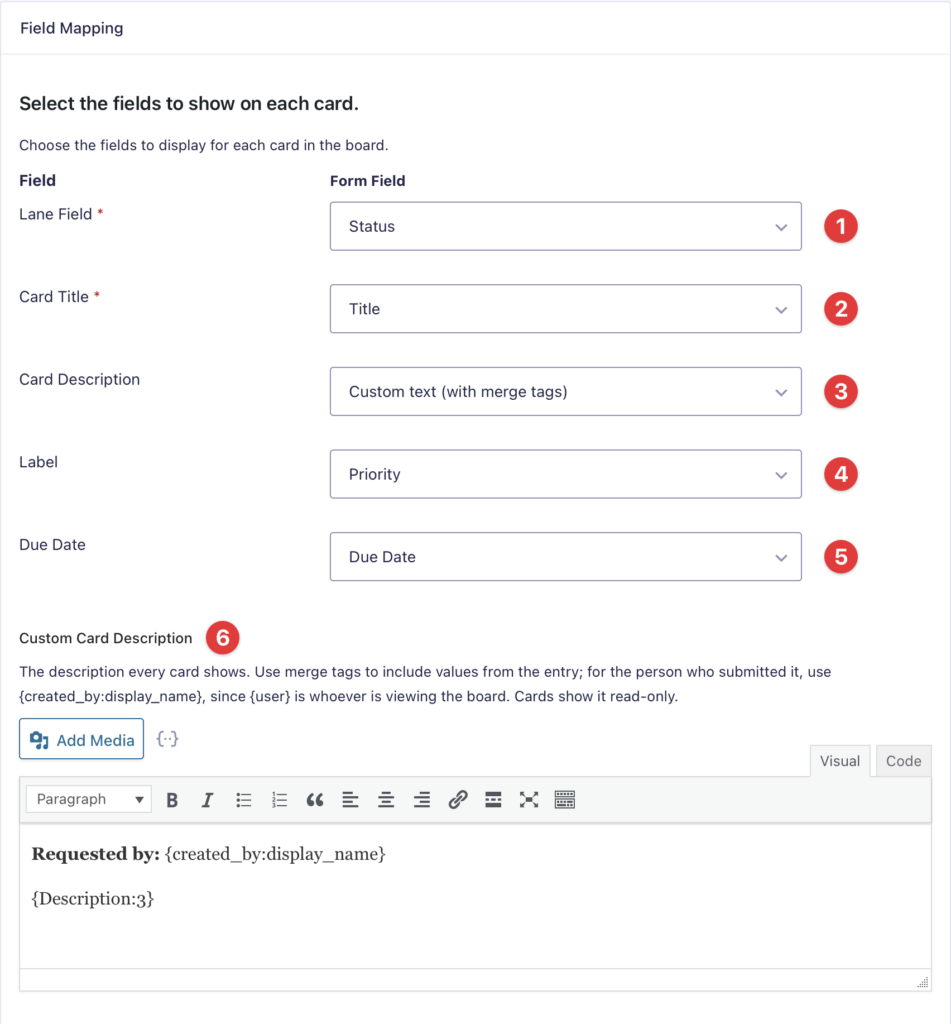
    Field labels with dropdowns to map them to existing form fields. The fields are Lane Field, Card Title, Card Description, Label and Due Date

    Enable additional features:

    • Assignees: Enable user assignment and define eligible roles
    • Attachments: Allow file attachments on cards
    • Entry Notes: Let users add and view notes/comments on each card

    Notifications

    • Trigger Form Notifications: Enable Gravity Forms notifications to be sent when actions are performed on the board (you’ll need to configure these inside the Gravity Forms)
    • Mention Notifications: Set up a custom email notification that sends when users are mentioned on a card. You can customize both the email subject and body using rich text and merge tags for personalized messages.

    Permissions

    • Set user permissions required to interact with the board, such as editing, deleting or adding lanes, cards, attachments, notes and assignees

    Appearance

    • Set the board background color or image
    • Set a unique background color for each board lane

    Advanced

    • Feed Conditions: Add conditional logic to control which entries show up on the board
    • Choose what happens when a card is deleted from a board
    • Enable debug mode

    Step 4: Display your GravityBoard #

    After configuring your board, you can access it directly within the WordPress admin dashboard, or embed it on a page or post using a shortcode or a block.

    Accessing your board via the admin dashboard

    GravityBoard settings showing active boards, shortcodes, and view options

    On the GravityBoard feed page you’ll see a button labeled “View Board”. Clicking this will open your board inside the WordPress admin dashboard.

    A GravityBoard displayed inside the WordPress admin dashboard; you can see the admin bar at the top and the admin menu on the left

    Embedding your board on a page/post

    You can embed your board using a shortcode like the one below. Be sure to replace the ID with your board’s feed ID. Alternatively, check the feed page for your board’s shortcode and simply click to copy it.

    [gravityboard id="1"]

    GravityBoard also integrates with the WordPress block editor (Gutenberg). To embed your board using a block, create a new page, add a “GravityBoard” block and select your board from the dropdown menu.

    Step 5: Manage and collaborate #

    Now that your board is live, user with the required permissions can:

    • Add, remove and reorder lanes and cards
    • Drag cards between lanes to update their status
    • Click on a card to view/edit details
    • Assign users to cards
    • Leave internal notes via entry comments
    • Add notifications for card updates or user mentions

    GravityBoard automatically syncs all changes you make back to Gravity Forms. For example, if you update a card from your board, the corresponding form entry in Gravity Forms will also be updated. To learn more about how data is shared between the two plugins, read How GravityBoard syncs to Gravity Forms.

    Youโ€™re all set! #

    In this article, we covered instaling GravityBoard, creating a form for entry management and configuring a new board. If you need more help getting set up, feel free to contact our expert support team.


    Still stuck? How can we help?

    How can we help?

    "*" indicates required fields

    This field is for validation purposes and should be left unchanged.
    Replies will go to this email.
    How can we help?*
    My pre-sale question is related to...*
    My WordPress skills are....*
    My Gravity Forms skills are...*
    You will be shown articles from our documentation.
    Vous pouvez nous รฉcrire dans votre langue maternelle si cโ€™est plus facile pour vousโ€”nous nous occuperons de la traduction!
    Puedes escribirnos en tu idioma nativo si te resulta mรกs fรกcil; ยกnosotros nos encargamos de la traducciรณn!
    Sie kรถnnen uns in Ihrer Muttersprache schreiben, wenn das fรผr Sie einfacher ist โ€“ wir kรผmmern uns um die รœbersetzung!
    U kunt ons in uw moedertaal schrijven als dat gemakkelijker voor u is โ€” wij zorgen voor de vertaling!
    Du kan skrive til oss pรฅ ditt morsmรฅl hvis det er enklere for deg โ€” vi tar oss av oversettelsen!
    Du kan skriva till oss pรฅ ditt modersmรฅl om det รคr lรคttare fรถr dig โ€” vi tar hand om รถversรคttningen!
    Vocรช pode nos escrever em seu idioma nativo se for mais fรกcil para vocรช โ€” nรณs cuidaremos da traduรงรฃo!
    Puoi scriverci nella tua lingua madre se ti รจ piรน facile โ€” penseremo noi alla traduzione!
    Please provide as much detail as you're able; this helps us provide you with faster support.
    Drop files here or
    Accepted file types: jpg, jpeg, gif, png, tiff, pdf, bmp, zip, json, csv, xls, xlsx, Max. file size: 256 MB.
      Stay informed?

      Was this page helpful?

      Table Of Contents
      • Table of contents
      • Step 1: Install and activate GravityBoard
      • Step 2: Prepare your form
      • Step 3: Create a new GravityBoard feed
      • Step 4: Display your GravityBoard
      • Step 5: Manage and collaborate
      • Youโ€™re all set!
      GravityKit
      • How to Build It
      • Pricing
      • Products
      • Our Team
      • Our Values
      • Work With Us
      • Coupons
      Support
      • Support
      • Contact
      • Documentation
      • Scope of Support
      • Brand Guidelines
      • Privacy Policy
      • Terms of Service (โ€œTermsโ€)
      About Us
      • GravityKit on Mastodon
      • GravityKit on Twitter
      • GravityKit Training Courses
      • GravityKit on Facebook
      • Join our Facebook Group
      • Facebook
      • Twitter
      Get notified of updates.

      Weโ€™re constantly improving GravityKit. Fill out your email below and weโ€™ll notify you anytime major updates drop.

      GravityKit is a Gravity Forms Certified Developer.

      Copyright ยฉ 2026, Katz Web Services, Inc.

      GravityKit and GravityView are registered trademarks of Katz Web Services, Inc.