
GravityBoard filtering guide
Learn how to filter and search your GravityBoard to quickly find the cards you need.
Table of contents #
- Overview
- Quick search
- Advanced filtering
- Filter types
- Combining filters
- Sharing filtered views
- Keyboard shortcuts
- Troubleshooting
Overview #
GravityBoard’s filtering system helps you focus on specific cards by hiding those that don’t match your criteria. Filters work across all lanes and can be combined for powerful searches.
Key features
- Multiple filter types: Keyword, assignee, label, date, and checklist filters
- Real-time filtering: Results update instantly as you type
- URL persistence: Share filtered views with team members
- Visual indicators: See how many filters are active
- Quick clear: Remove all filters with one click or keyboard shortcut
Quick Search #
The fastest way to filter cards is using the search box:
- Click the search box in the toolbar or press
/ - Type your keywords
- Cards are filtered in real-time as you type
What gets searched
- Card titles
- Card descriptions
- Any text visible on the card face
Search tips
- Case-insensitive: Searches ignore case
- Partial matches: “proj” matches “project” and “projection”
- Multiple words: All words must be present (AND logic)
- No special syntax: Just type naturally
Advanced filtering #
For more control, use the filter popover:
- Click the filter button (funnel icon) in the toolbar
- The filter popover appears with all options
- Set your criteria (see Filter Types below)
- Click outside to apply filters
Filter popover sections
- Keyword: Text search across cards
- Assignees: Filter by assigned users
- Labels: Filter by label field values
- Due Date: Filter by date ranges
- Checklists: Filter by checklist completion
Filter types #
Keyword filter
Search for text within cards:
- Location: Top of filter popover
- Searches: Titles and descriptions
- Behavior: Case-insensitive partial matching
- Example: “urgent” finds all cards containing “urgent” anywhere
Assignee filter
Filter by assigned users:
- Click “Select assignees” dropdown
- Check users to include
- Multiple selection: Cards with ANY selected user appear
- Unassigned option: Find cards with no assignees
Tips:
- Select multiple users to see cards assigned to any of them
- Combine with other filters to narrow results
- User avatars help identify assignees quickly
Due date filter
Filter by when cards are due:
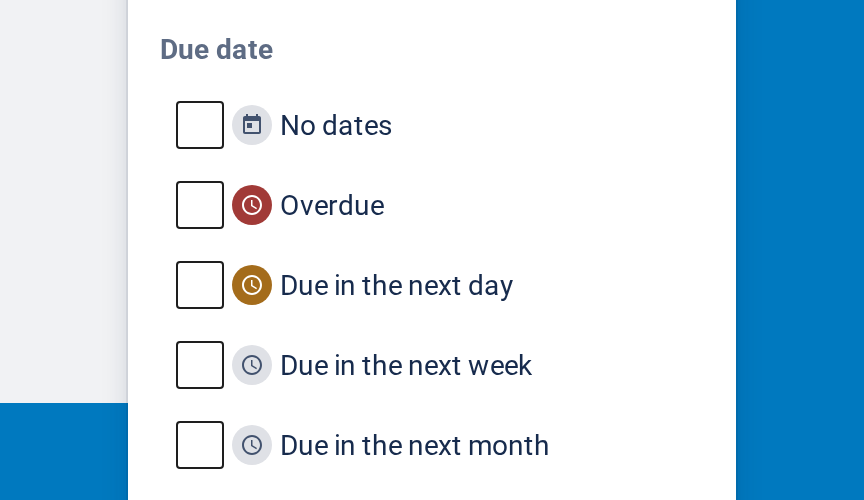
- No dates: cards without a due date
- Overdue: cards due before today
- Due in the next day: cards due today or tomorrow
- Due in the next week: cards due today through seven days from now
- Due in the next month: cards due today through thirty days from now
Selecting more than one option shows the cards that match any of them. The days are counted in your own time zone, so a card due today stays out of Overdue until tomorrow.
Checklist Filter
Filter by checklist status:
- Toggle completion filters:
- Show only cards with completed checklists
- Show only cards with incomplete checklists
- Show all (default)
- Keyword search: Find cards with specific checklist items
- Combined: Use both completion status and keywords
Examples:
- “Show incomplete” + keyword “design” = Cards with incomplete checklists containing “design”
- “Show completed” only = All cards with 100% complete checklists
Combining filters #
Filters work together using AND logic.
Example combinations
Project manager view:
- Assignee: “John Doe”
- Label: “High Priority”
- Due Date: “Due in the next week”
- Result: John’s high-priority cards due in the next seven days
Sprint planning:
- Keyword: “sprint”
- Checklist: “Incomplete”
- Label: “Development”
- Result: Development cards mentioning “sprint” with incomplete tasks
Client review:
- Keyword: “client name”
- Due Date: “Due in the next week”
- Assignee: “Any team member”
- Result: All client cards due soon assigned to anyone
Sharing filtered Views #
Filters are automatically saved in the URL, making it easy to share views.
How it works
- Apply your filters
- Copy the URL from your browser
- Share the link with team members
- They see the exact same filtered view
URL Parameters
Example URL with filters:
https://yoursite.com/board/#keyword=urgent&assignees=1,4&labels=highUse cases
- Daily Standup: Share “My tasks today” view
- Sprint Review: Share “Completed this sprint” view
- Client Updates: Share filtered view of their projects
- Team Focus: Share “Urgent items” view
Keyboard shortcuts #
Speed up filtering with keyboard shortcuts:
| Shortcut | Action |
|---|---|
/ | Focus search box |
Shift+Esc | Clear all filters |
Escape | Close filter popover |
Tab | Navigate filter fields |
Note: Shortcuts work when the board has focus, or when nothing else on the page does, such as right after the page loads. They don’t fire while you’re typing in a field or while focus is in another part of the page. On GravityBoard 1.4 and earlier, you need to click the board first.
Troubleshooting #
Filters not working
No results showing:
- Check if filters are too restrictive
- Try removing filters one by one
- Ensure cards actually match criteria
All cards still showing:
- Verify filters are applied (check URL)
- Refresh the page
- Check filter indicator shows active count
Need help with specific filtering scenarios? Check our other guides or contact support.

