
Published
•
Updated
How to create a Gravity Forms login form (all you need to know)
Did you know that Gravity Forms can handle user login and registration on WordPress? Creating a user-friendly login experience is essential for any website, especially if you’re managing multiple users. In this guide, I’m going to walk you through the process of creating a...

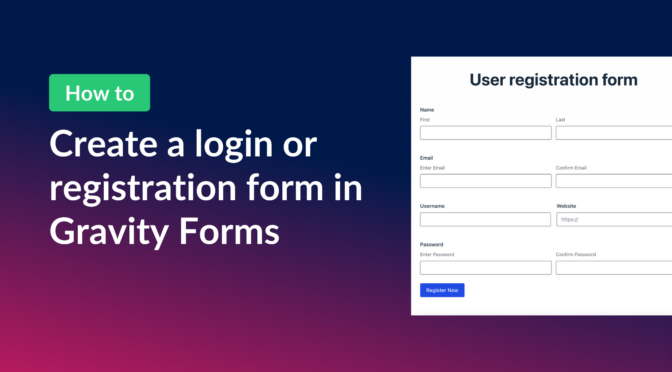
Did you know that Gravity Forms can handle user login and registration on WordPress? Creating a user-friendly login experience is essential for any website, especially if you’re managing multiple users.
In this guide, I’m going to walk you through the process of creating a Gravity Forms login form! I’ll also show you how to register new users and create user profile pages.
Let’s dive in!
Key takeaways
- Gravity Forms does not include a built-in login form. To accept logins on the front end you need the User Registration add-on, which is included with the Gravity Forms Elite ($259 a year) and Nonprofit ($129 a year) licenses.
- The login is rendered with the
[gravityform action="login" /]shortcode and supports parameters for login and logout redirects, the registration link, the forgot password link, and the logged-in message. - Gravity Forms does not offer social login. Users authenticate with their WordPress username or email address and password.
- If you also need logged-in users to view, edit, or browse the data they submit, pair Gravity Forms with GravityView from GravityKit. GravityView turns Gravity Forms entries into front-end profile pages, member directories, and dashboards.
Download the free user registration form template now!
Import the template into Gravity Forms and customize as necessary.

What this guide covers (and what it does not)
This guide is a step-by-step walkthrough of building a Gravity Forms login form using the User Registration add-on. It assumes you have, or are willing to buy, a Gravity Forms Elite or Nonprofit license.
Covered in this guide:
- Installing the Gravity Forms User Registration add-on
- Embedding a login form with the
[gravityform action="login"]shortcode - Redirecting users after login or logout
- Changing the login form title with the
gform_user_registration_login_form_titlefilter - Building a matching registration form for new users
- Showing user profile data on the front end with GravityView from GravityKit
Not covered here:
- Restricting content by role or membership level (use a plugin like Members or Restrict Content Pro)
- Adding social login or single sign-on (Gravity Forms does not support either natively)
- Two-factor authentication (use a dedicated security plugin)
- Building a login form without the User Registration add-on (the shortcode requires it)
- Customizing the default WordPress
wp-login.phppage (covered by WordPress documentation)
Creating a new login form
In Gravity Forms, you can make a login form using a special shortcode. However, you’ll need to have the User Registration Add-On installed on your site first. Here are the steps to follow:
- Install and activate the Gravity Forms User Registration add-on
- Embed a login form on your site using the login form shortcode
- Create a user registration form (optional)
- Configure the shortcode parameters
Let’s go through each step in detail!
Installing the User Registration add-on
To access the User Registration add-on, you’ll need a Gravity Forms Elite license.
If you already have an elite license, log in to your WordPress site, hover over “Forms” and click “Add-Ons”. Now scroll down to the User Registration add-on, click “Install” and then “Activate”.

Now that you have installed the add-on, you can create forms to register new users or log in existing users!
Creating a new Gravity Forms login form
If you already have a way to register new users on your site, and you’re only looking to add a login form, then you can do so using the login form shortcode.
The Gravity Forms login form shortcode enables you to embed a login form anywhere on your site! The form includes a username and password field.
Here’s an example of a basic login shortcode:
[gravityform action="login" description="false" logged_in_message="You are already logged in"/]The shortcode accepts several parameters, allowing you to customize most aspects of the form. We’ll go through these a bit later. Here’s what the login form looks like on the front end:

As you can see, unlike other Gravity Forms shortcodes, you do not have it pass it a form id. Instead, simply include action="login".
Redirect users after login
Using the Gravity Forms login form shortcode, you can redirect users after logging in or out. To do this, simply include the login_redirect or logout_redirect parameters with a URL of your choice.
login_redirect: The URL that the user is redirected to after they have logged in.logout_redirect: The URL that the user is redirected to after they have logged out.
Here’s an example:
[gravityform action="login" description="false" logged_in_message="You are already logged in" login_redirect="https://www.mydomain/account" logout_redirect="https://www.mydomain/home" /]In this example, users will be redirected to the account page when logging in, and they will be redirected to the home page when logging out.
Pro tipLearn more about the Gravity Forms login form shortcode and see a full list of supported parameters here.
Customizing the login form using PHP code
When I was adding a new login form to my website, I wanted to change the title of it, but I realized there was no parameter for this! The default title is always “Login Form”, and the only way to change it is to use a filter. Luckily, it’s not that complicated, even for less technical folks!
Here’s how to do it:
add_filter( 'gform_user_registration_login_form_title', 'change_title', 10, 1 );
function change_title( $login_form_title ){
    return 'This is my new title';
}
You can learn more about this filter on the Gravity Forms docs page.
If you want to customize the login form further, you’ll need to use additional PHP code. Gravity Forms has some helpful docs on this, with examples for implementing specific customizations.
Logging in with social media
Gravity Forms does not support social login. This means that users will need to log in using their username/email and password. Users will not be able to log in using their Google or Facebook accounts, for example.
Creating a registration form for new users
So now you have a way for existing users to log in through Gravity Forms, but what about new users?
To allow new users to register for an account on your site, you can create a user registration form.
Hover over “Forms” and click “New Form”. Now you’ll see a list of preset form templates. Scroll down to the “User Registration Form” template, hover over it and click “Use Template”

You’ll be taken to the Gravity Forms editor, where you can view the form and customize it if you wish to do so. The default user registration form template includes the following fields:
- Name
- Username
- Password
However, if you would like include additional fields, or enable payments, you can do that by adding the relevant form fields.

When you’re finished creating your form, you’ll need to configure the user registration feed. To do this, click on “Settings”, then “User Registration”, and then “Add New”

After adding a new User Registration feed, the next step is to select an action. This defines what happens when a user submits your form. To create a new user, select “Create User”.

Now be sure to configure the remaining options. When you’re done, save the feed settings. As long as the feed is active, new users can register for an account on your site by submitting the form.
Here’s an example of a Gravity Forms user registration form on the front end:

Bonus: Creating and displaying user profile pages
If you’re registering new users on your site using Gravity Forms, you may need a way to display user profiles. This is easy to do using GravityView!
GravityView is an add-on for Gravity Forms that enables you to display form submission data on the front end of your site. A popular use case for GravityView is creating editable user profile pages.

Pro tipFind out how you can create powerful web apps using GravityView, including directories, membership sites, job boards, and more!
Comparing three approaches to a Gravity Forms login form
Three common ways to handle WordPress login when you already use Gravity Forms. Each fits a different need.
| Approach | Cost | Complexity | Customization | When to use it |
|---|---|---|---|---|
| Gravity Forms User Registration add-on (the approach in this guide) | Included with Gravity Forms Elite ($259 a year) or Nonprofit ($129 a year) | Low. Install the add-on, drop in the [gravityform action="login"] shortcode. | Medium. Shortcode parameters cover redirects, the registration link, the forgot password link, and the logged-in message. Title and copy can be filtered with PHP. | You already use Gravity Forms and want a front-end login that matches your site styling, with redirects and a registration link built in. |
| Custom Gravity Form combined with GravityView entry display | A Gravity Forms license, plus GravityView from GravityKit (from $119 a year for one site) | Medium. Build a registration form, configure a User Registration feed, then use GravityView to display profiles, member directories, or dashboards. | High. Full control over what logged-in users see, including profile pages, search, and inline editing. | You need more than authentication. Logged-in users should be able to view, edit, or browse the data they submit. |
WordPress default login (wp-login.php) | Free | Lowest. Already exists at /wp-login.php. | Low. Limited to WordPress filters and CSS overrides. | You only need basic authentication, do not mind the WordPress-branded login page, and have no need for custom redirects, profile pages, or front-end design. |
Frequently asked questions
Does Gravity Forms have a built-in login form?
No. Gravity Forms does not include a login form on its own. The login form is provided by the User Registration add-on, which is included with the Gravity Forms Elite and Nonprofit licenses.
Can I use Gravity Forms for user registration?
Yes. The User Registration add-on lets you create a Gravity Form that registers new WordPress users on submission. You can collect any fields you want and assign a default user role per form.
Which Gravity Forms license includes the User Registration add-on?
The User Registration add-on is included with the Gravity Forms Elite license ($259 a year) and the Nonprofit license ($129 a year). It is not included with the Basic or Pro licenses.
Does the Gravity Forms login form support social login?
No. Gravity Forms does not support social login. Users sign in with a WordPress username or email address and a password. If you need social sign-in, you will need a dedicated plugin alongside Gravity Forms.
Can I redirect users to a custom page after they log in?
Yes. The login shortcode accepts a login_redirect parameter for the post-login URL and a logout_redirect parameter for the post-logout URL. Both accept any valid URL on your site.
How do I show logged-in users their profile or submissions?
Gravity Forms stores the data users submit, but it does not display that data on the front end. To show logged-in users their submissions, profile, or a directory of other users, pair Gravity Forms with GravityView from GravityKit. GravityView turns Gravity Forms entries into front-end pages with search, filtering, and inline editing.
Take control of user management with Gravity Forms
In this post, I showed you how to create a Gravity Forms login form using the User Registration add-on. With this powerful add-on, you can also register new users on your site and update existing users when a form is submitted.
If you want to take things further, integrate GravityView to display user profile pages, or create powerful directories and other dynamic web applications.

Helpful tips right in your inbox.
Subscribe to get the latest articles, information on releases and helpful Gravity Forms tips!
More articles
GravityView 3.0 beta is here: what’s changing and how to try it
GravityView 3.0 is a structural rewrite. Here’s what’s new, how to opt in to the beta, and what to test to help us get it over the line.

Our docs just moved (and got a lot better!)
GravityKit documentation has a new home at gravitykit.com/docs — with faster search, a sticky table of contents on every article, and easier filtering by product.

How to build a Canny alternative on WordPress with GravityBoard voting
Build a Canny alternative on WordPress with GravityBoard’s new card voting — collect, rank, and manage feature requests without leaving your site.