
Published
•
Updated
Gravity Forms AJAX: The complete guide to smoother submissions
Did you know that Gravity Forms supports AJAX? Enabling AJAX means that your forms no longer require a page reload to validate and submit entries. If you’ve installed Gravity Forms on your website, you may have a number of questions related to AJAX functionality....


Did you know that Gravity Forms supports AJAX? Enabling AJAX means that your forms no longer require a page reload to validate and submit entries.
If you’ve installed Gravity Forms on your website, you may have a number of questions related to AJAX functionality. You may be wondering how to enable AJAX submission and validation for new forms, or you may have encountered an AJAX error, and you’re not sure what to do about it.
I’m going to answer all of these questions (and more) in this post. Keep reading to find out everything you need to know about Gravity Forms AJAX submissions!
Key takeaways
- Gravity Forms AJAX submits forms without a full page reload, keeping users on the page.
- AJAX is disabled by default. Enable it with the AJAX toggle on the Gravity Forms block, or by adding
ajax="true"to the shortcode:[gravityform id="1" ajax="true"]. - The cleanest fix for most “AJAX not working” reports is a plugin/theme conflict test plus a quick console check for
gform is not defined. - AJAX is required for some advanced patterns: in-place page transitions on multi-page forms, inline confirmation messages, and add-ons that update the form without a reload.
- If you’re building dynamic apps on top of Gravity Forms (entry views, frontend edit screens, dashboards), GravityKit’s GravityView and GravityEdit pair well with AJAX-enabled forms.
AJAX vs. non-AJAX submissions: at a glance
| Behavior | Without AJAX (default) | With AJAX (ajax="true") |
|---|---|---|
| Page reload on submit | Yes. The browser navigates and resets scroll. | No. The form area updates in place. |
| User experience | Standard HTTP post. The page repaints and scroll position resets. | Inline confirmation or validation. The user stays on the page. |
| Common errors readers hit | Server-side validation messages render only after a reload. | gform is not defined, a stuck spinner, or a 400 from admin-ajax.php. |
| Multi-page forms | Each step triggers a full page reload. | Pages swap in place. Scroll position is preserved. |
| When to choose this | One-off contact forms or pages where a reload is fine. | Multi-page forms, forms in modals, single-page contexts, or any form where smoother UX matters. |
How to enable Gravity Forms AJAX submission on existing forms
AJAX is disabled by default on new Gravity Forms. However, you can enable AJAX on new or existing forms in just a few clicks. Here’s how to do it.
The process for enabling AJAX on your existing forms is different depending on which editor you’re using (either the WordPress “Classic” editor or the newer Gutenberg “Block” editor). Let’s take a look at how to enable AJAX for existing forms in both editors.
Start by editing the page where your form is embedded. Next, locate the “Gravity Forms” block and click on it to open the Block Settings in the right-hand panel. Now open the “Advanced” settings panel and toggle “AJAX” on.
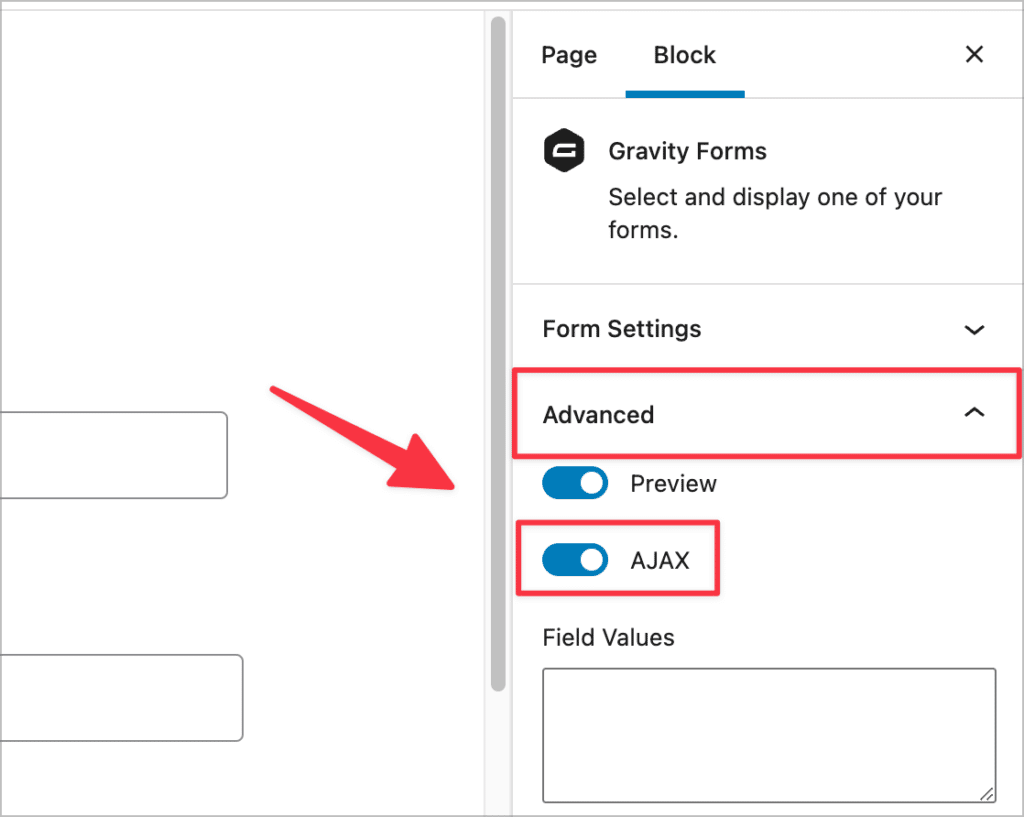
Still using the WordPress Classic editor? In this case, you’ll need to add a shortcode parameter to enable the AJAX submit functionality.
Start by editing the page where your form is embedded. Now, locate the Gravity Forms shortcode. The shortcode will look something like this (give or take a few parameters):
[[gravityform id="34" title="true" description="true"]]To enable AJAX, all you need to do is add ajax="true" before the closing bracket, like this:
[[gravityform id="34" title="true" description="true" ajax="true"]]It doesn’t matter what order you place place ajax="true"; it can be the first or last attribute in your shortcode.
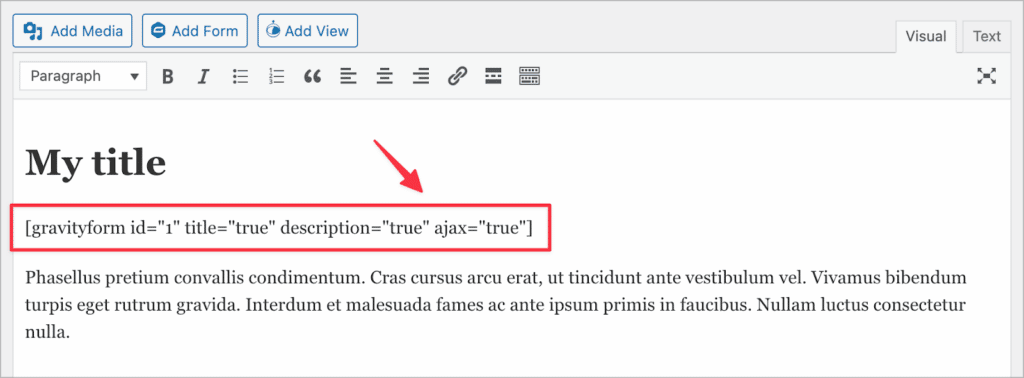
That’s it! As you can see, enabling AJAX for existing forms in Gravity Forms is simple. Now let’s take a look at enabling AJAX on new forms when adding them to a page or post.
Enabling AJAX submission on new forms
Now let’s look at how to enable AJAX submission when adding a new Gravity Form to a page or post.
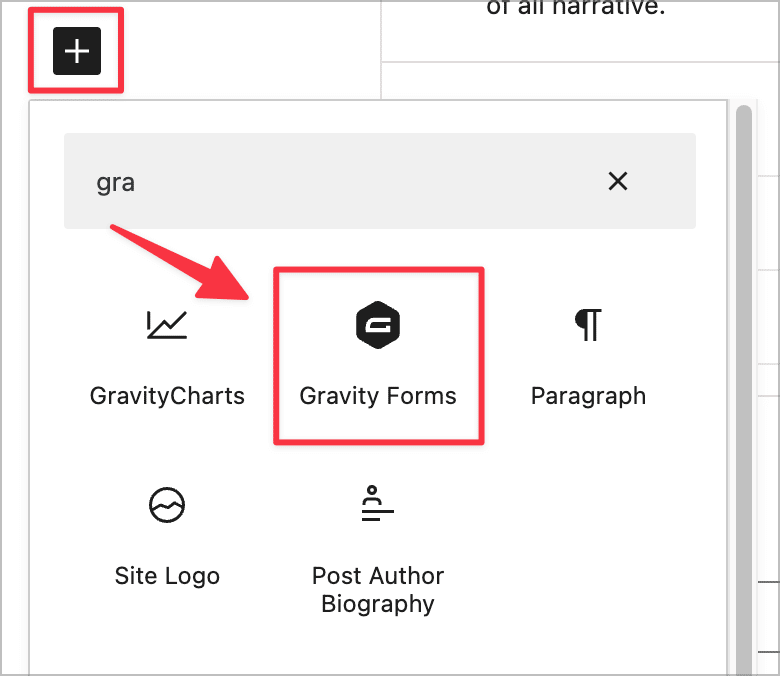
Start by navigating to an existing page/post, or simply create a new one. Next, click the ‘+’ icon to add a new block to your page and select the “Gravity Forms” block. If you can’t find it in the block picker, type “Gravity Forms” into the search bar.
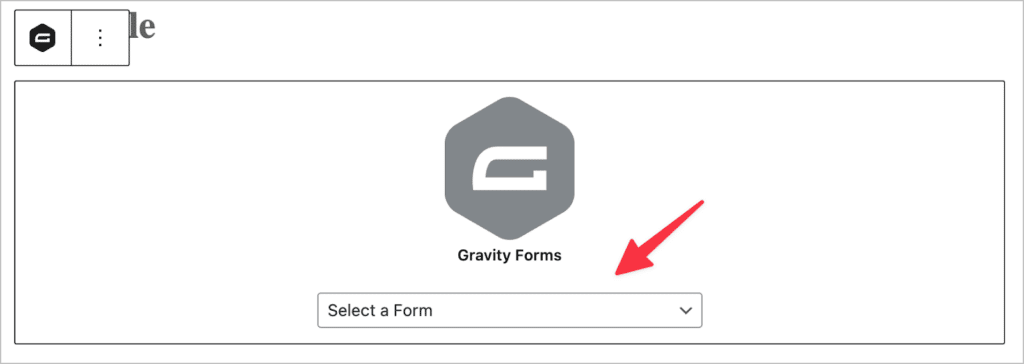
After adding the Gravity Forms block to your page layout, select the form you want to embed from the dropdown menu.
Next, open the “Advanced” settings panel on the right and toggle “AJAX” on.
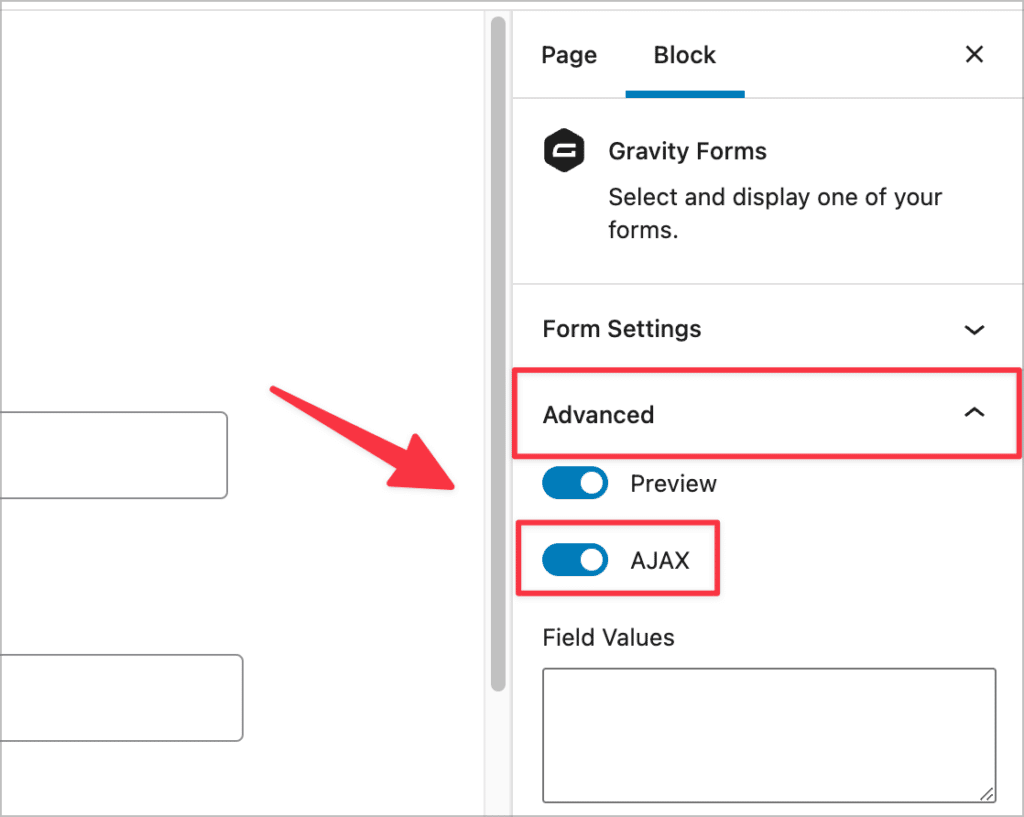
That’s it! Now save the post or page, and you’re done.
If you’re using the Classic editor, start by navigating to an existing page/post, or simply create a new one. Next, click on the “Add Form” button above the editor.
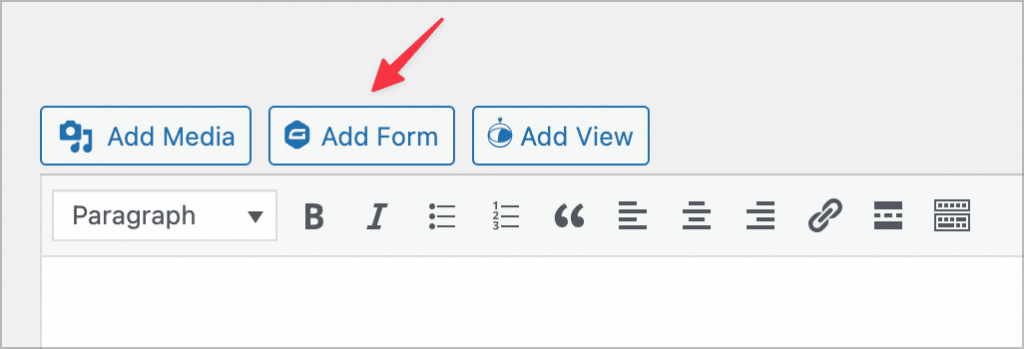
Now, select the form you want to embed from the dropdown menu and check the box that says “Enable AJAX”.
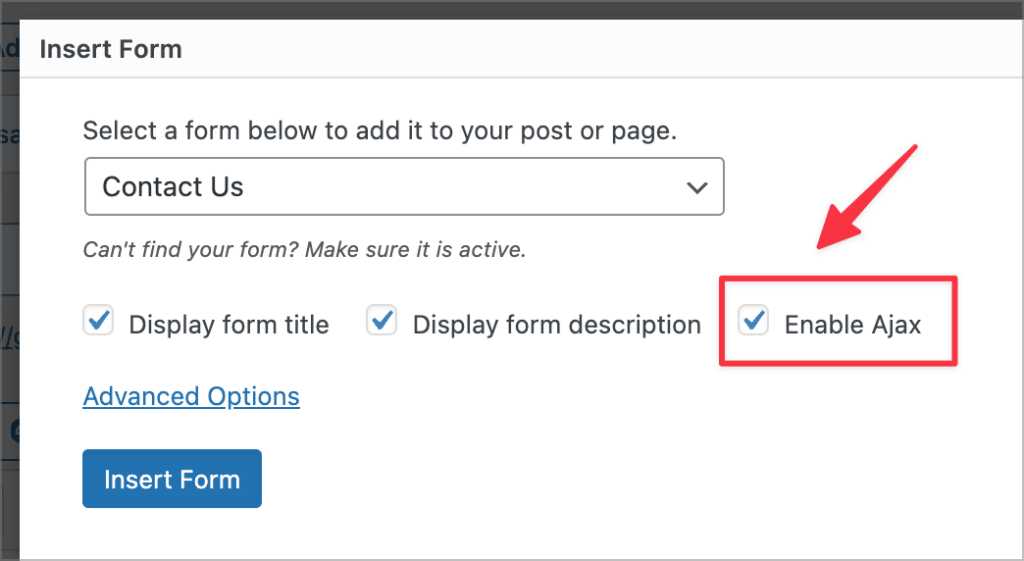
Finally, click “Insert Form” and save your post or page.
As you can see, it’s quick and easy to enable AJAX on new or existing forms!
Pro tipAre you looking to build dynamic web applications with Gravity Forms? Check out our kit of powerful add-ons!
Gravity Forms AJAX not working? Here’s what to do
Are you running into problems when trying to submit a Gravity Form using AJAX? It’s not common to encounter errors with AJAX submit, but it can happen due to conflicts or configuration issues with your site or form. Here are a few things that may be causing problems with AJAX submission and how to fix them.
Check your shortcode for errors
If your form is embedded using the Gravity Forms shortcode, double check that there are no mistakes, such as a missing double quote, or misspelled words.
Try disabling Google reCAPTCHA
In the past, Google reCAPTCHA was incompatible with AJAX. Many people would enable reCAPTCHA and then discover that their form wasn’t working properly with AJAX enabled.
This problem was fixed in 2019 when Google released an update that made reCAPTCHA compatible with AJAX. However, it might still be worth disabling it and submitting the form again just to see what happens. If it works when reCAPTCHA is disabled, try using the honeypot field as an alternative anti-spam measure.
Check for JavaScript errors
If Gravity Forms AJAX submit simply isn’t working, check the console for JavaScript errors. If you see an error such as “gform is not defined”, then there’s a high chance that scripts are not being enqueued correctly. This may be due to your theme or plugins causing conflicts.
If you’re not able to debug the issue yourself, enlist the help of a developer or contact Gravity Forms support.
Embed your form using the WordPress editor
If you’ve embedded your forms using a third-party solution, this may cause problems with AJAX submit. Try embedding the form again using the default WordPress editor instead.
Disable caching plugins
If you’re using aggressive caching to speed up your site, this may cause problems with Gravity Forms AJAX submit. Try disabling any caching plugins and testing the form again. If it works, you may need to adjust your caching settings or try a different caching plugin altogether.
Check for plugin or theme conflicts
One of the most common causes of errors in WordPress is different plugins interfering with each other. If none of the solutions above have worked for you, try disabling all plugins except Gravity Forms and switching to one of the default themes. Test your form again and if it works, then you know the problem was due to a plugin or theme conflict.

Forcing AJAX on all forms
If you have a website with multiple forms set up and you have forgetten to enable AJAX on each of them individually, you can use the gform_form_args filter to force AJAX on all forms across your site! Here’s an example:
add_filter( 'gform_form_args', function ( $args ) {
    GFCommon::log_debug( __METHOD__ . '(): Enabling new Ajax submission method...' );
    $args['submission_method'] = GFFormDisplay::SUBMISSION_METHOD_AJAX;

    return $args;
} );Understanding AJAX
AJAX stands for Asynchronous JavaScript And XML; it’s a programming technique that allows you to access information from a web server after a page has already loaded.
AJAX allows applications to exchange data with a web server in the background using the built-in XMLHttpRequest object. Using AJAX, it’s possible to update parts of a web page without reloading the entire page.
Enabling AJAX form submission in Gravity Forms is sleek and improves the user experience by not requiring a page refresh.
Gravity Forms AJAX for multi-page forms
Gravity Forms allows you to create multi-page forms (also called multi-step forms). After creating a multi step form, you can embed it on your site and enable AJAX just as you would with a regular form: simply open the block settings, click on the “Advanced” tab and toggle “AJAX” on. Enabling AJAX ensures that no page reloads occur when the user navigates to a new page in the form.
AJAX troubleshooting at a glance
Use this quick checklist to rule out the most common causes when AJAX submission silently fails. Each item maps to a section of the detailed walkthrough above.
- Shortcode is
[gravityform id="X" ajax="true"]with no typos and matching quote marks. - Form is embedded with the WordPress editor or the Gravity Forms block, not a third-party plugin or page builder that bypasses the shortcode.
- Browser console shows no
gform is not definedorgformsinitspinner is undefinederrors. - jQuery is enqueued normally and not deregistered or moved to the footer in a way that breaks load order.
- Caching plugins exclude the form’s page or have been temporarily disabled.
- Gravity Forms reCAPTCHA add-on is on its current version (most pre-2019 conflicts are resolved there).
- Plugin and theme conflict test passes (default theme + Gravity Forms only).
- If the form is loaded into the page via AJAX from a page builder or ACF flexible content, it has been re-initialized after insertion.
Start using AJAX with your Gravity Forms today!
AJAX is a powerful programming technique that enables applications to read data from a web server without reloading the page. Gravity Forms supports AJAX, which means you can validate and submit form entries on your site without reloading the whole page.
Turning on AJAX submission is a straightforward process and can improve your website from a UX perspective, so why not try it out?
To learn more about Gravity Forms, read How to Use Gravity Forms: The Ultimate Guide, or subscribe to our newsletter below!
Frequently asked questions
In the block editor, add the Gravity Forms block, pick your form, then toggle AJAX on under Advanced. With the shortcode, add ajax="true" to the [gravityform] shortcode like this: [gravityform id="1" ajax="true"]. AJAX is off by default on new forms.
It tells Gravity Forms to submit the form via XMLHttpRequest to admin-ajax.php instead of a standard HTTP form post. The form area updates in place with validation messages or the confirmation, with no full page reload.
Yes, and it’s especially useful on multi-page forms. Each page transition swaps in place rather than triggering a full page reload, so the user keeps their scroll position and any conditional logic state.
Yes, on current versions of the Gravity Forms reCAPTCHA add-on. The 2019 update fixed the legacy conflict, and hCaptcha and other CAPTCHA add-ons work as well. Cloudflare Turnstile is the known exception: community reports show that with ajax="true" enabled, Turnstile can fail to re-render after a validation error. If you rely on Turnstile, test thoroughly with AJAX enabled or fall back to honeypot or the standard reCAPTCHA add-on.
Yes. The [gravityform id="1" ajax="true"] shortcode works inside Elementor’s Shortcode widget, Beaver Builder’s HTML or shortcode modules, and Divi’s Code module. Some page builders also offer dedicated Gravity Forms widgets that expose AJAX as a single checkbox, including the free Gravity Forms Widget for Elementor from GravityKit and PowerPack for Beaver Builder. If a form fails inside a builder, the most common cause is the builder duplicating or stripping the AJAX shortcode parameter, which a quick view source check on the rendered page will reveal.
By default, an AJAX-submitted Gravity Form is replaced with the confirmation message and stays that way until the page is reloaded. The simplest off-the-shelf solution is the Reload Form perk from Gravity Wiz, which adds a special link to your AJAX confirmation that reloads the form in place. Developers can also rebuild the form using the gform_confirmation_loaded JavaScript event, or set the form’s confirmation type to Page and send users to a thank-you page that contains the form again.
When AJAX is enabled, the redirect happens via JavaScript after the form returns the confirmation, not via a server-side header. If a caching plugin, security plugin, or page builder strips or alters the AJAX response, the redirect can be silently swallowed. Test with caching disabled and watch the browser console for JavaScript errors during submission. You can also temporarily switch AJAX off to confirm whether the server-side redirect itself works, which isolates the issue to the AJAX layer rather than your confirmation settings.
This is almost always a server-level block, not a Gravity Forms bug. Common culprits include host-installed ModSecurity rules that flag form POSTs to admin-ajax.php as suspicious (Bluehost, SiteGround, and managed WordPress hosts are frequent offenders), gzip compression applied to admin-ajax.php on certain hosts, and CDN or firewall rules (Cloudflare WAF, Sucuri) that rate-limit POSTs to wp-admin paths. Ask your host to whitelist /wp-admin/admin-ajax.php, and check the browser Network tab to see the exact response body. A 504 specifically means a slow server-side process, often a heavy add-on pulling a large dataset within the request timeout.
The most common causes are a typo in the shortcode, a JavaScript error (gform is not defined is the classic one), an aggressive caching plugin, a third-party embed that bypasses Gravity Forms’ script enqueue, or a plugin/theme conflict. Open the browser console first; most AJAX failures surface as a JS error there.
Bind to the gform_confirmation_loaded jQuery event for code that should run after the AJAX confirmation appears (analytics, animations, lead handoff). For code that must re-initialize on every form render, including page transitions in multi-step AJAX forms, use gform_post_render instead, which fires on initial load, validation re-renders, and each page change. On Gravity Forms 2.9.0 and newer, the canonical name for that event is gform/postRender. To modify the AJAX response on the server side, use the gform/ajax/post_ajax_submission PHP filter.

Helpful tips right in your inbox.
Subscribe to get the latest articles, information on releases and helpful Gravity Forms tips!
More articles

Launch Log: Edit Entry title customization, conditional logic hotfixes across the suite
A meaningful Save feed enhancement in GravityExport, new Edit Entry and Search Bar options in GravityView, plus coordinated hotfixes that restore conditional logic controls across GravityBoard, GravityCalendar, GravityCharts, and the Advanced Filter Extension.
GravityImport vs GravityMigrate: which add-on do you actually need?
Confused between GravityImport and GravityMigrate? GravityImport handles CSVs into entries; GravityMigrate moves entire Gravity Forms setups between sites.

GravityView 3.0 beta is here: what’s changing and how to try it
GravityView 3.0 is a structural rewrite. Here’s what’s new, how to opt in to the beta, and what to test to help us get it over the line.