
Published
•
Updated
Announcing account connections: activate GravityKit licenses without copying keys
Connect your WordPress site to your GravityKit account and activate licenses without copying and pasting keys. Agencies can manage every client site from one place.

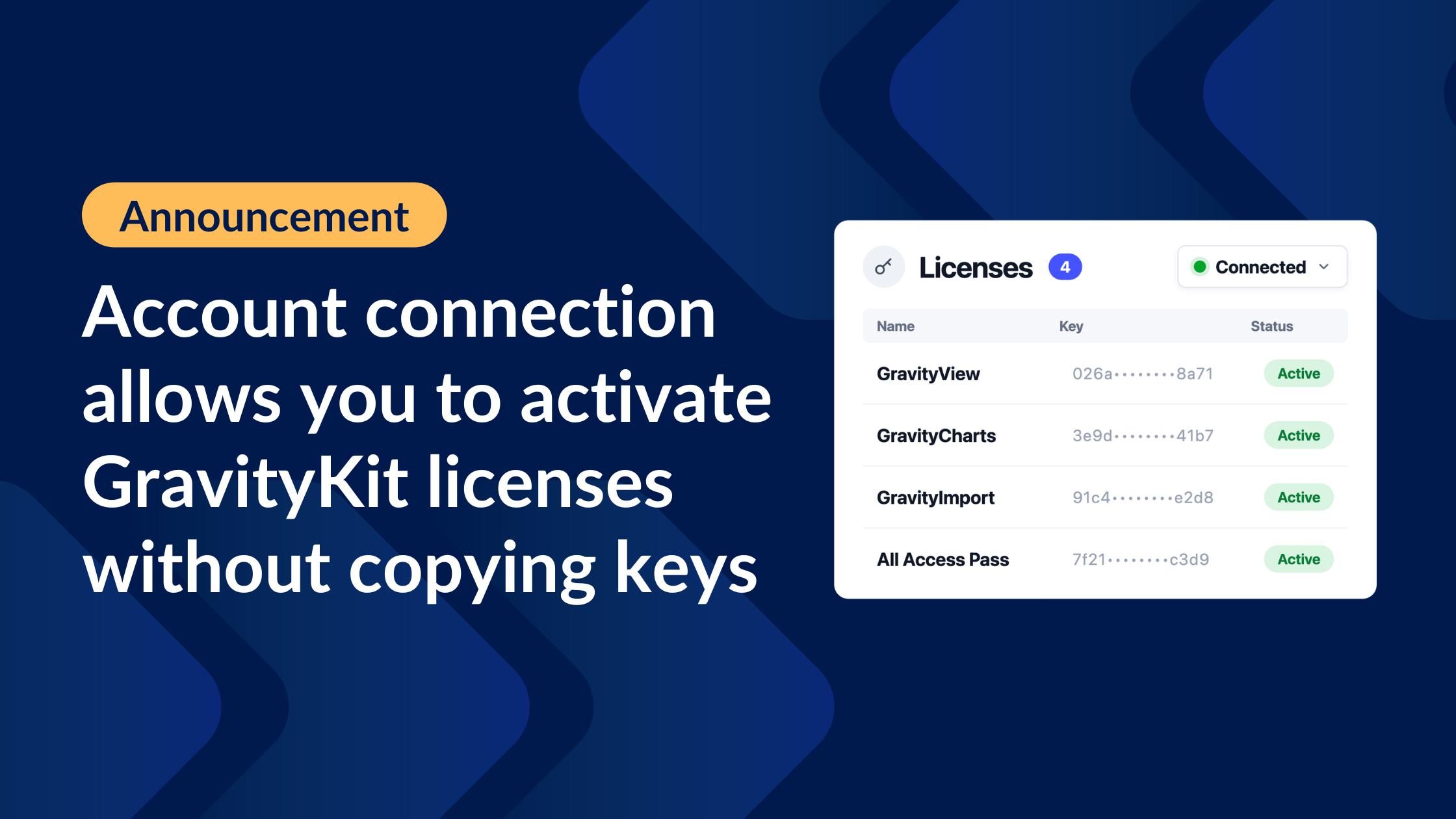
Copying and pasting license keys is nobody’s favorite part of setting up a WordPress site. Find the email, open your account page, copy the key, paste it into wp-admin, repeat for every product and every site.
Account connections put an end to that. Now you can link a WordPress site to your GravityKit account, and your licenses appear on the site, ready to activate with a click. No keys required. The feature is part of Foundation, the framework that powers GravityKit plugins, and it’s live now, starting with GravityView 3.1.1.
Here’s how it works.
Connect once, activate everything
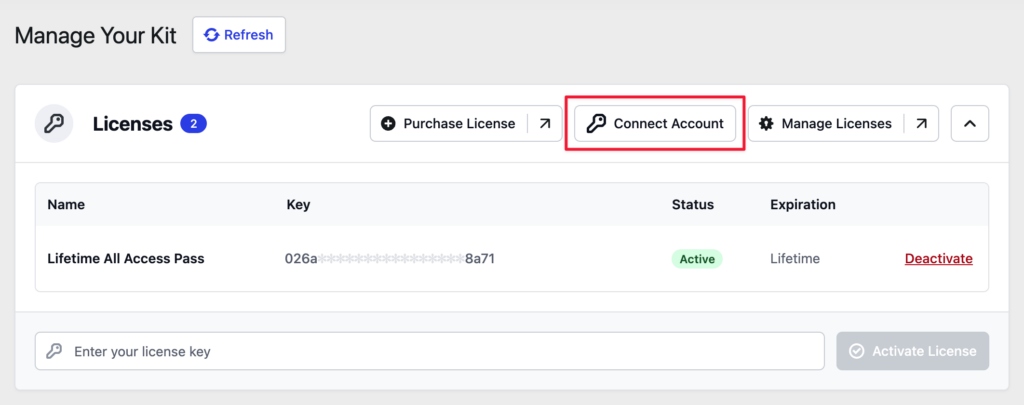
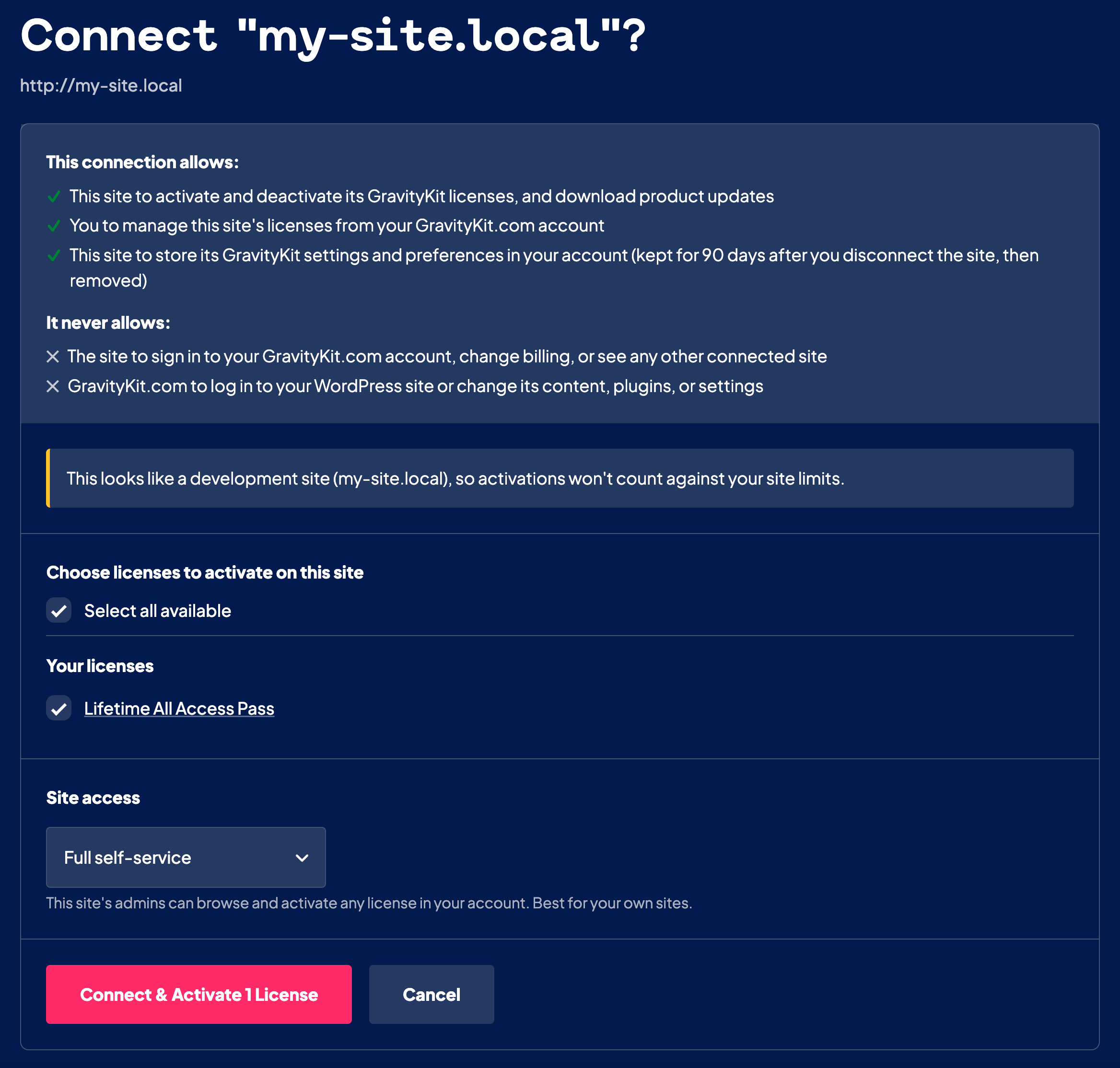
On the site you want to connect, go to GravityKit, then Manage Your Kit, and click Connect Account. You’ll be taken to GravityKit.com to approve the connection: sign in, review what the site is requesting, and select the licenses you want to activate.
Click Connect & Activate Licenses (the button shows how many licenses you’ve selected) and you’re returned to WordPress with everything active. The selected licenses are activated automatically, without you ever touching a key.
Already activated a license on the site the old way? If it belongs to your account, the connection adopts it without using a second activation. And if you prefer entering keys manually, that option isn’t going anywhere.
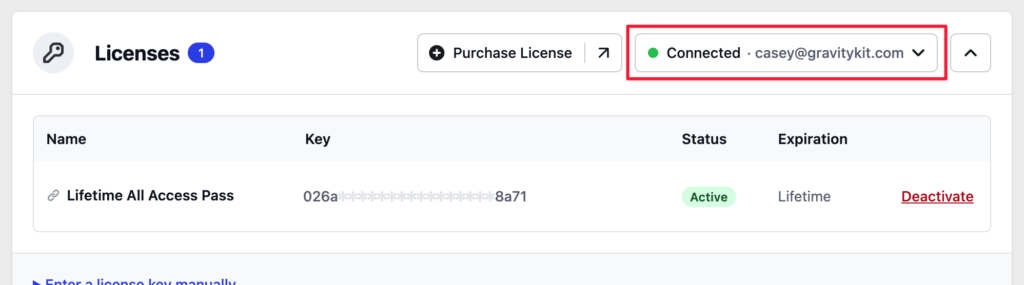
Read Managing your licenses for the full walkthrough.
Manage every site from your GravityKit account
Connecting works in both directions. The new Connected Sites page in your GravityKit account lists every site linked to your account, and for each one you can:
- See at a glance whether the site is live, idle, or disconnected
- Activate or deactivate licenses remotely, without logging in to the site
- Change the site’s access level
- Disconnect the site when a project wraps up
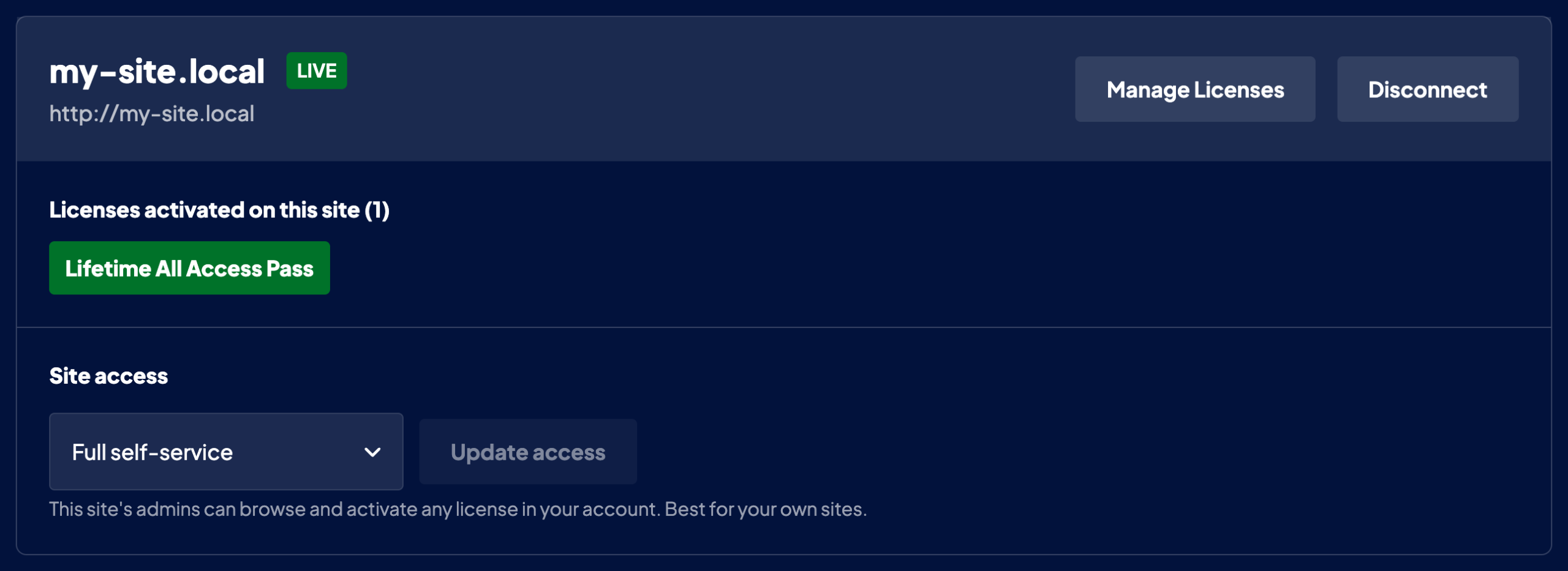
If you manage more than a couple of sites, account connection saves you time by giving you one page where you can see and control the licenses on every site you’ve connected.
Read Managing connected sites to learn more.
Give client sites exactly the right level of access
If you run client sites on your agency’s licenses, you used to have two options: hand clients your license keys and lose control over where they end up, or keep the keys to yourself and handle every activation for them. Account connections replace both with a Site access setting on each connection:
- View only – The site uses the licenses you assign to it. Its admins cannot manage or deactivate the licenses.
- Manage assigned licenses – Site admins can activate and deactivate the licenses you’ve assigned, but can’t browse the rest of your account.
- Full self-service – Site admins can activate any available license in your account. Best for sites you own or fully manage.
You choose the access level when connecting and can update it any time from your GravityKit account page (under Connected Sites).
Migrate sites without touching a license key
Moving a site to a new domain or server used to mean reactivating every license by hand. On a connected site, you click Reconnect, approve the connection, and every license managed through your account is restored together.
The same goes for disconnecting: one action deactivates the licenses managed through the connection and frees them for use elsewhere. Licenses you entered manually and didn’t adopt into the connection stay untouched.

Pro Tip
Account connections work on WordPress Multisite too. A network administrator can connect the whole network at once, while individual subsites can maintain their own separate connections. See Multisite and GravityKit licenses for details.
Secure by design
A connection is a secure link between one WordPress site and your account, and the authorization screen spells out exactly what it allows and what it doesn’t before you approve anything. Licenses activated through the connection never expose their keys to the site, connecting doesn’t consume an extra activation, and you can disconnect at any time from either side.
What’s next
Account connections are the foundation for a smarter GravityKit experience. We’re building more on top of them, including making new purchases activate on your site automatically, and making it easier for agencies to manage client licenses. More on this soon.
How to get account connections
Account connections arrive with Foundation 1.26.0, which ships with GravityView 3.1.1 and newer and is rolling out to the rest of the Kit with each product’s next update. Your site always runs the newest Foundation among your installed GravityKit plugins, so one up-to-date plugin is enough: update GravityView from Manage Your Kit, and you’ll see the new Connect Account option appear.
New to GravityKit? Browse the Kit and start building today!
Get better at Gravity Forms, one email a week
New GravityKit releases, practical Gravity Forms tutorials, and subscriber-only discounts. One short email every week, unsubscribe anytime.
More articles

Launch Log: AI-assisted migrations and a stronger Prevent Direct Access setting
GravityMigrate can now hand a whole migration to an AI assistant, GravityKit MCP installs into Claude Desktop in one click, and GravityView tightens the Prevent Direct Access setting.
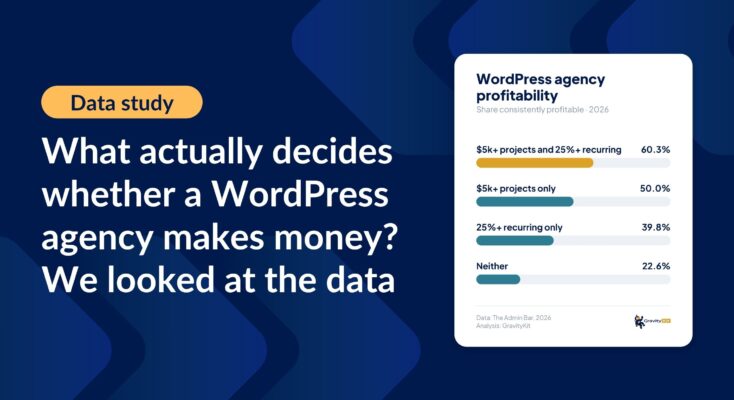
What actually decides whether a WordPress agency makes money? We looked at the data
Two 2026 surveys of 832 WordPress agencies, plus our own analysis of the raw data. What separates the profitable agencies from the rest, and what does not.

GravityMigrate 2.0: No-sweat WordPress form plugin migrations
Nobody wants to move forms between plugins. They want the site launched, the client onboarded, the referrals to stop falling through the cracks. GravityMigrate 2.0 makes moving forms effortless.