
Published
•
Updated
How to get your Gravity Forms data into external tools
Learn 6 ways to get Gravity Forms data into external tools—from scheduled exports to REST API and Zapier. Covers CRMs, spreadsheets, and more.

Gravity Forms is excellent at capturing data. But once entries start flowing in, you often need that data in spreadsheets, CRMs, project management platforms, or custom applications.
The challenge is figuring out which integration method fits your situation. Do you need a scheduled CSV export for your accounting team, a real-time sync to Google Sheets, or a full REST API connection for a custom app?
This guide covers six methods for getting your Gravity Forms entry data into external tools, ranked from zero-code to developer-friendly. Whether you’re evaluating integration options before buying or looking to connect your existing stack, we’ve got you covered!
Wanna try it?
Spin up a demo
See GravityExport in action on its live demo site.
Method 1: Scheduled file exports
The simplest way to get Gravity Forms data into external tools is to export it as a file (CSV, Excel, or PDF) and import it into the destination tool.
Built-in Gravity Forms export
Every Gravity Forms installation includes a basic CSV export tool. Go to Forms, then Import/Export, then Export Entries. Select a form, choose the fields you want, set an optional date range, and download the CSV.
This works for one-off data pulls, but it has limitations. There’s no scheduling, no Excel or PDF format options, and it requires WordPress admin access. If you need to share data with someone who doesn’t have a WordPress login, you’ll need another approach.
GravityExport for automated exports
GravityExport fills the gaps that the built-in export leaves open. It adds scheduled exports to CSV, Excel (.xlsx), or PDF, with automatic delivery to Dropbox, Box, FTP/SFTP, or local server storage. It can also send entries straight to a Google Sheets spreadsheet (more on that in Method 2). And it generates secure download links that you can share with anyone (no WordPress account required).
The secure download URLs are bookmarkable and scriptable, which makes them a lightweight alternative to building a full API integration. If your accounting team needs a weekly Excel report or your operations manager wants a Dropbox folder that always has the latest data, GravityExport handles it without any code.
When to use file exports: Periodic reporting, feeding data into tools that accept file imports (Smartsheet, Excel, or anything with a CSV import), and sharing entry data with stakeholders who don’t have WordPress access.

Pro Tip
For a deep dive on export formats and configuration, see our complete guide to exporting data from Gravity Forms.
Method 2: Google Sheets integration
If your team lives in Google Workspace, syncing form entries directly to a spreadsheet is often the most practical approach. There are several ways to connect Gravity Forms to Google Sheets, and since GravityExport 1.15.0 the most direct one is built into GravityExport itself.
GravityExport Google Sheets export
GravityExport writes your entries straight to a Google Sheets spreadsheet, with no CSV and no middleman. On any form with a GravityExport download enabled, add a GravityExport Save feed, choose Google Sheets on its Storage tab, and either let GravityExport create a spreadsheet named after the form or pick an existing one from Google Drive.
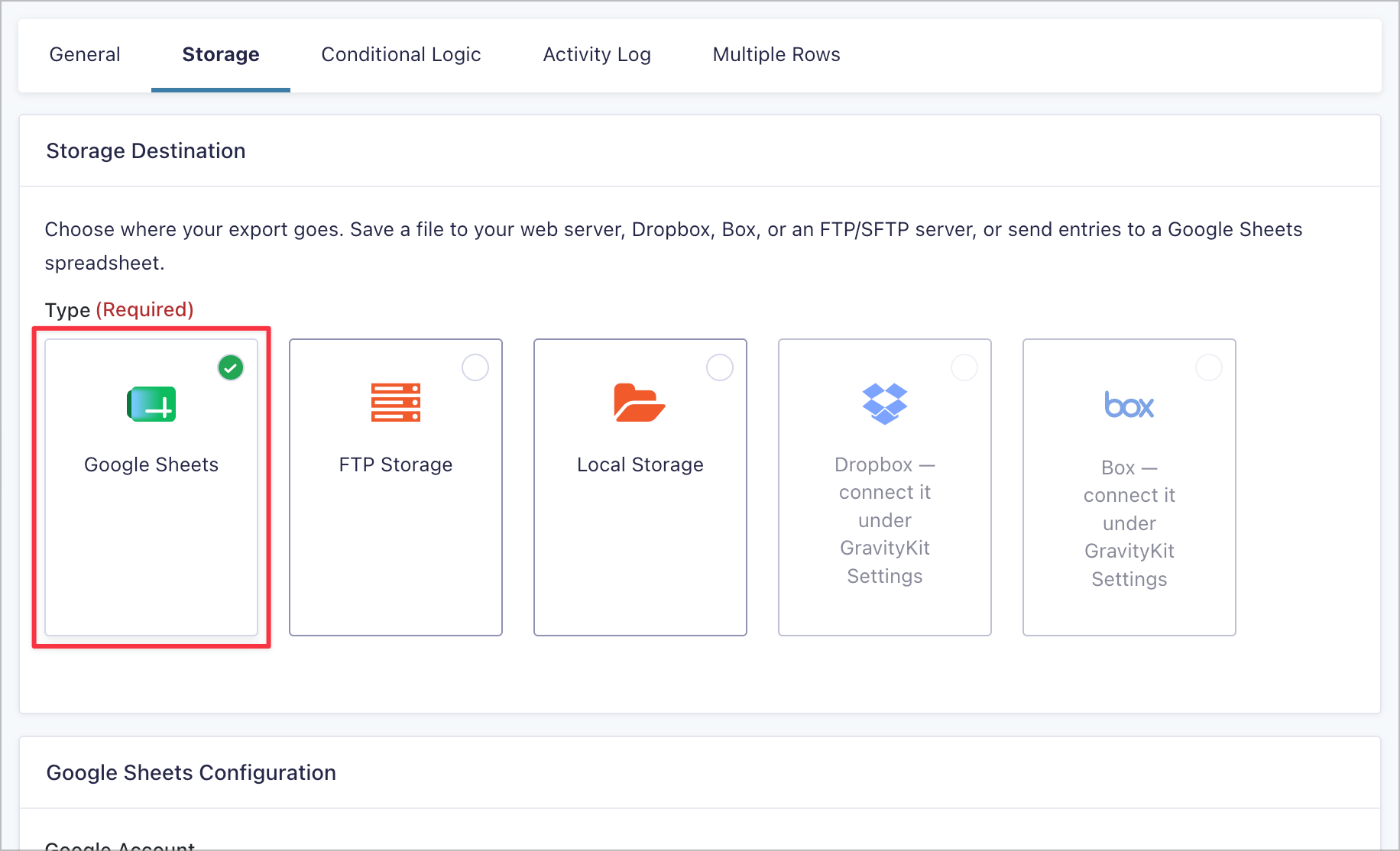
The sheet is a mirror of your form, not a growing log. Each export rewrites the feed’s tab, so new entries, edits, and deletions all reach the spreadsheet, and numbers, dates, and currency arrive as real values you can sort, filter, and chart straight away. Set the feed’s Export Trigger to update on every submission, on a schedule (hourly, daily, weekly, every 30 days, or a custom interval), or when a webhook URL is called.
For setup steps, see Export Gravity Forms entries to Google Sheets. For a side-by-side look at every route into Sheets, including the free ones, read How to export Gravity Forms entries to Google Sheets.
Gravity Connect Google Sheets
Gravity Connect by Gravity Wiz offers a dedicated Google Sheets connector that adds a row to your spreadsheet each time a form is submitted. You map form fields to spreadsheet columns yourself, which makes it the better fit when the sheet already has a layout you need to keep, and its Update & Delete Rows option keeps edited and deleted entries in step. Paired with GP Populate Anything (Gravity Wiz), it can also read from a sheet to pre-fill fields or populate dropdown choices, which GravityExport doesn’t do. Licenses start at $59/year.
Prefer to route entries through an automation platform? A Zapier or Make scenario can add a Google Sheets row on each new entry. It adds a middleman and per-task billing, but you get their filtering and formatting steps along the way (see Method 4).
When to use Google Sheets: Teams that collaborate in Google Workspace, lightweight dashboards, and sharing data with non-technical collaborators. Google Sheets can also serve as a bridge to other tools. For example, Google Looker Studio (formerly Data Studio), the Sheets API, and Google Apps Script all connect natively.
Method 3: Gravity Connect (direct integrations)
Gravity Connect by Gravity Wiz is a suite of dedicated connectors that push Gravity Forms data directly into external tools without Zapier or other middleware. Each connector is purpose-built for a specific platform, which means fewer moving parts and no per-task billing.
Available connectors
- Google Sheets – Row-per-submission sync to spreadsheets (covered above, alongside GravityExport’s built-in Sheets export).
- Google Calendar – Automatically create calendar events from form submissions.
- Airtable – Push entries to Airtable databases for flexible project management and tracking.
- Notion – Sync form data to Notion databases and workspaces.
- Drip – Marketing automation and email campaign integration.
- MailPoet – Subscriber management and lead generation.
- OpenAI – Generate text, images, and audio from form data using AI.
- API Alchemist – A flexible bidirectional connector for any API endpoint (push, pull, and populate live data).
API Alchemist is particularly notable. Unlike the other connectors, which target specific platforms, API Alchemist connects to any API endpoint you configure. This makes it a developer-lite alternative to building custom REST API integrations.
Pricing
Gravity Connect starts at $59/year for one connection on one site, $169/year for three connections on up to three sites, and $349/year for unlimited connections and sites.
When to use Gravity Connect: When you need a direct, real-time connection to a specific tool (especially Airtable, Notion, or Google Calendar) without the overhead or per-task cost of Zapier. The pricing is predictable regardless of form submission volume. If Google Sheets is the only destination you need, compare it with GravityExport’s built-in export first (Method 2).
Method 4: Zapier and automation platforms
Automation platforms act as middleware between Gravity Forms and thousands of external tools. They don’t require code, and they handle the real-time event routing automatically.
Gravity Forms + Zapier
The official Gravity Forms Zapier add-on triggers a Zap whenever a new entry is submitted. From there, you can route the data to any of Zapier’s 9,000+ app integrations.
Common workflows include:
- New entry → CRM record (HubSpot, Salesforce, Pipedrive)
- New entry → Slack notification
- New entry → Trello or Asana card
- New entry → Google Sheets row
- New entry → Email via Mailchimp or ActiveCampaign
Alternatives to Zapier
- Make (formerly Integromat) – Handles more complex multi-step workflows with conditional logic, data transformation, and branching. Pricing is based on operations rather than tasks, which can be more cost-effective for high-volume forms.
- Uncanny Automator – A WordPress-native automation plugin that triggers on Gravity Forms events and connects to 90+ WordPress plugins and external services. Because it runs inside WordPress, it doesn’t rely on an external API, which can reduce latency and cost.
When to use automation platforms: Connecting to SaaS tools that don’t have a dedicated Gravity Forms integration, building multi-step workflows with conditional logic, and routing entries to multiple destinations simultaneously.
Pro Tip
For high-volume forms, check Zapier’s task limits on your plan. Each form submission consumes one task. If you process 500 submissions per month, that’s 500 Zapier tasks, which may push you into a higher pricing tier. Make and Uncanny Automator can be more economical at scale.
Method 5: CRM integrations
If your primary goal is getting form submissions into a CRM for sales follow-up or contact management, there are dedicated integration paths that handle field mapping, lead scoring, and record creation automatically.
Native Gravity Forms CRM add-ons
Gravity Forms offers official add-ons for several popular CRMs:
- HubSpot – Create or update contacts, deals, and tickets from form submissions.
- Zoho CRM – Map form fields to Zoho modules (leads, contacts, accounts).
- Salesforce – Route entries to Salesforce objects via third-party plugins like CRM Perks.
- Capsule CRM and Agile CRM – Community add-ons for smaller CRM platforms.
These add-ons use Gravity Forms’ feed system: when a user submits a form, the feed automatically creates or updates a record in the connected CRM.
Third-party CRM plugins
For CRMs without an official add-on, plugins from developers like CRM Perks and GravityWP provide deeper mapping options, including support for custom fields, conditional feed logic, and multi-object creation.
The Zapier or Gravity Connect route
If no native integration exists for your CRM, Zapier or Gravity Connect’s API Alchemist can bridge the gap. Zapier supports hundreds of CRM platforms out of the box. API Alchemist can connect to any CRM with a REST API, though it requires more configuration.
When to use CRM integrations: Sales teams using lead capture forms, agencies managing client inquiries, and any workflow where form submissions need to become CRM records automatically.
Key consideration: Field mapping complexity can trip up simple integrations. Multi-select fields, file uploads, and forms with conditional logic may need extra configuration to map correctly to CRM objects. Test your mapping with a few entries before going live.
Pro Tip
For a detailed breakdown of CRM options, see our guide to Gravity Forms CRM integrations.
Method 6: REST API Access
For developers building custom integrations, mobile apps, or proprietary systems, direct API access provides the most flexibility.
Gravity Forms REST API
The Gravity Forms REST API provides full CRUD access to forms, entries, and fields. It uses API key authentication and supports creating, reading, updating, and deleting entries programmatically.
This is the right choice when you need write access: creating entries from an external system, updating entry values, or managing forms programmatically.
Authentication uses a consumer key and secret pair, generated under Forms, then Settings, then REST API. Pass them as query parameters or via basic auth:
GET https://yoursite.com/wp-json/gf/v2/entries?consumer_key=ck_xxxx&consumer_secret=cs_xxxx
Fetching entries for a specific form:
GET /wp-json/gf/v2/forms/{form_id}/entriesReturns a JSON array of entry objects with field values keyed by field ID:
{
  "entries": [
    {
      "id": "142",
      "form_id": "1",
      "1": "Jane Smith",
      "2": "jane@example.com",
      "3": "I'd like a demo of GravityView",
      "date_created": "2026-04-10 14:23:00"
    }
  ]
}
Creating an entry from an external system:
POST /wp-json/gf/v2/forms/{form_id}/entries
Content-Type: application/json

{
  "1": "John Doe",
  "2": "john@example.com",
  "3": "Submitted via external app"
}
Filtering entries by field value or date range:
GET /wp-json/gf/v2/forms/1/entries?search={"field_filters":[{"key":"2","value":"@example.com","operator":"contains"}]}
The API also supports pagination (paging[page_size], paging[current_page]), sorting (sorting[key], sorting[direction]), and date filtering (search[start_date], search[end_date]).
When to choose the Gravity Forms API: Use the Gravity Forms API when you need write access (creating or updating entries), access to all form fields, or administrative operations like managing forms and fields.
Webhooks
The Gravity Forms Webhooks add-on pushes entry data to any URL on submission. This is ideal for triggering serverless functions (AWS Lambda, Cloudflare Workers), custom endpoints, or third-party APIs that accept webhook payloads.
Unlike the REST API (which is pull-based), webhooks are push-based. The data is sent automatically when a form is submitted, without your external system needing to poll for new entries.
When to use API access: Custom integrations, mobile apps, single-page applications, syncing to proprietary internal systems, and any scenario where you need programmatic control over the data flow.
Pro Tip
The Webhooks add-on requires a Gravity Forms Elite license. If you’re on a lower tier, Zapier or Uncanny Automator can achieve similar push-based behavior without the Elite requirement.
Choosing the right method
The best method depends on your technical resources, budget, and how quickly data needs to reach the destination.
| Method | Technical skill | Real-time? | Cost | Best for |
|---|---|---|---|---|
| File exports | None | On submission or scheduled | GravityExport (starts at $99/year) | Periodic reporting, file-based tools |
| Google Sheets | None | Yes (on submission) or scheduled | GravityExport (from $99/year), Gravity Connect (from $59/year), or Zapier | Google Workspace teams |
| Gravity Connect | None | Real-time | From $59/year | Direct integrations (Sheets, Airtable, Notion, Calendar) |
| Zapier / Make | Low | Real-time | Zapier/Make subscription | SaaS tool connections, multi-step workflows |
| CRM add-ons | Low | Real-time | Varies by add-on | Sales teams, lead capture |
| REST API | Developer | On-demand | Included with Gravity Forms | Custom apps, proprietary systems |
| Webhooks | Developer | Real-time | Gravity Forms Elite license ($259/year) | Custom apps, proprietary systems |
If you’re not sure where to start: Most teams begin with file exports or Google Sheets, then add Zapier or Gravity Connect as their needs grow. The REST API is there when you outgrow no-code options or need to build something custom.
Next steps
No single method is universally best. The right answer depends on who needs the data, where they need it, and how often. Start with the simplest approach that meets your requirements, and scale up as your workflows evolve!

Get better at Gravity Forms, one email a week
New GravityKit releases, practical Gravity Forms tutorials, and subscriber-only discounts. One short email every week, unsubscribe anytime.
More articles

Launch Log: A range slider for search, AI-managed calendars, and security updates in ten products
GravityView adds a Slider search input, GravityCalendar lets AI assistants manage calendars, and ten GravityKit products get security fixes. Here’s what shipped.

9 nonprofit apps you can build with Gravity Forms and GravityKit
Nine apps nonprofits build on WordPress from Gravity Forms data: volunteer databases, member directories, client portals, donation pages, grant review and more.
How to migrate from Fluent Forms to Gravity Forms without rebuilding your forms
Move your Fluent Forms forms into Gravity Forms with GravityMigrate, then bring your entries across with GravityImport. Every step was tested on the free version of Fluent Forms.