
Working with timezones in GravityCalendar
GravityCalendar shows the times entered in your form to every visitor exactly as entered, whatever time zone the visitor is in. Your site’s time zone matters for events from another calendar feed and for calendar subscriptions, so set it to the city where your events take place.
What visitors see on the calendar #
The time a visitor sees depends on where the event comes from.
| Where the event comes from | What visitors see |
|---|---|
| Date and Time fields in your form | The date and time as entered. A concert entered for 7:30 pm shows at 7:30 pm in every visitor’s browser. |
| An Event field | The start and end times as entered, the same for every visitor. The field’s Timezone input is used only for calendar subscriptions and downloaded calendar files. |
| Display Events from Another Calendar Feed, such as a Google Calendar or Outlook feed | Timed events are converted to your site’s time zone. On a site set to Denver, every visitor sees a 6:00 pm New York event at 4:00 pm. All-day events stay on their date. |
The calendar does not show a time zone next to event times, and it has no setting to convert times to each visitor’s own time zone. If your visitors are spread across time zones, name the time zone in the event’s description.
Set your site’s time zone #
GravityCalendar uses your site’s time zone to convert events from another calendar feed and to set each event’s time in calendar subscriptions. Choose the city where your events take place. A city follows daylight saving time. A UTC offset such as UTC-7 stays the same all year, so feed events and subscribed events end up an hour off for part of the year.
- In your WordPress dashboard, go to Settings, then General.
- Under Timezone, select the city where your events take place, such as Denver. If your city is not in the list, choose another city in the same time zone.
- Click Save Changes.
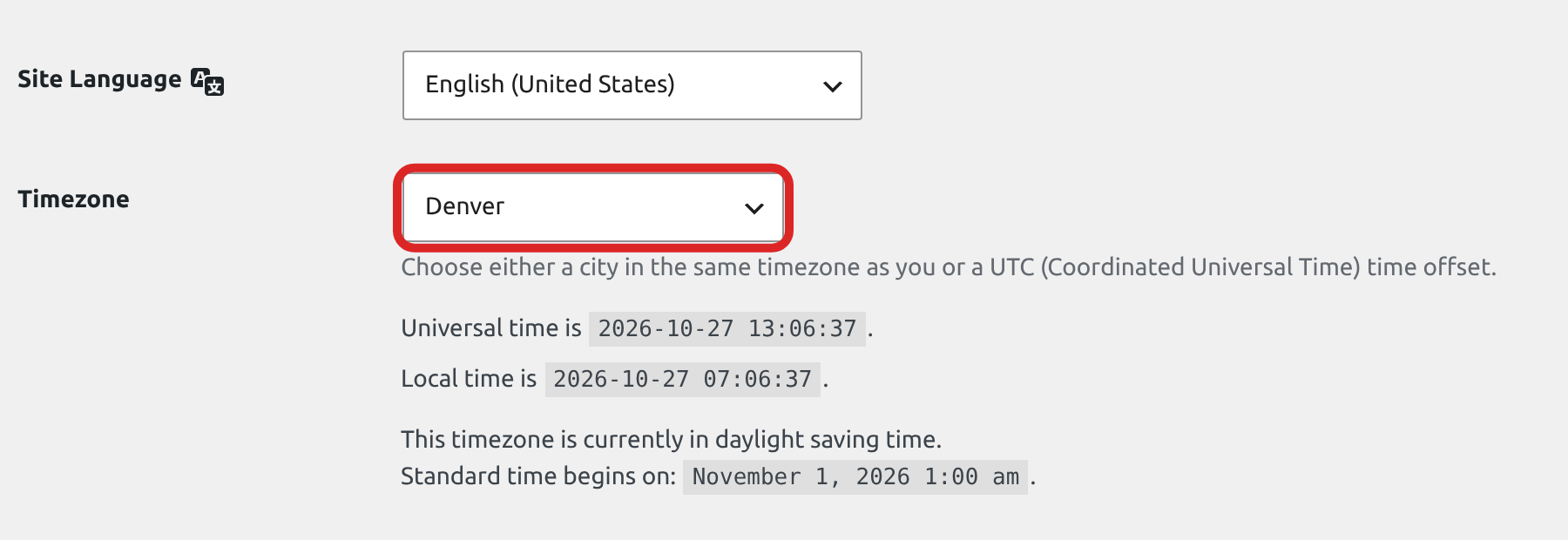
When the calendar has a subscription link, open the calendar’s settings and click Save Settings so the subscription is rebuilt with the new time zone. Otherwise it is rebuilt within the hour. Sites with a page caching plugin need its cache cleared too.
Calendar subscriptions and downloaded calendar files #
Calendar subscriptions and downloaded calendar files (.ics) hold the exact moment of each event in universal time (UTC). Calendar apps such as Google Calendar and Apple Calendar then show each event in the subscriber’s own time zone. A concert at 7:30 pm in Denver appears at 3:30 am the next day in a calendar app set to Rome.
To work out that moment, GravityCalendar reads Date and Time field values in your site’s time zone. Event field values are read in the time zone chosen in the field’s Timezone input, or in the site’s time zone when the input is empty. If your events happen somewhere other than your site’s time zone, use an Event field and choose the event’s city in its Timezone input.
The difference between subscribing to a calendar and downloading calendar events explains how subscriptions stay up to date.
When event times look wrong #
| What you see | What to do |
|---|---|
| Visitors in different time zones see different times for the same Event field event. | Update GravityCalendar. Before version 2.24.0, Event field events were shown in each visitor’s own time zone. |
| Events from another calendar feed show at the time in the feed’s own time zone. | Update GravityCalendar. Before version 2.25.0, timed events from a feed were not converted to your site’s time zone. |
| Feed events, or events in a subscribed calendar app, are an hour off for part of the year. | Your site’s Timezone is a UTC offset. Choose a city instead, as shown above. |
| Every event in a subscribed calendar app is off by the same number of hours. | Your site’s Timezone, or the Event field’s Timezone input, is not where the events happen. Correct it, then save the calendar’s settings so the subscription is rebuilt. |