
Attaching an event into a notification
GravityCalendar can attach an entry’s event to the notification emails Gravity Forms sends when that entry is submitted. The attachment is an .ics file, so the recipient can add the event to Google Calendar, Apple Calendar, or Outlook in one click, without visiting your site.
Note: This requires GravityCalendar 2.4 or later, and the form needs at least one active notification. If it has none, create one under the form’s Settings, then Notifications (see Configuring notifications in Gravity Forms).
Turn on the event attachment #
- Edit the form, click Settings, then click GravityCalendar.
- Open the calendar feed you want to send events from (or create one).
- Scroll to the Notifications section.
- Under Send events as an email attachment for the selected notification(s), tick each notification that should include the event.
- Click Save Settings.
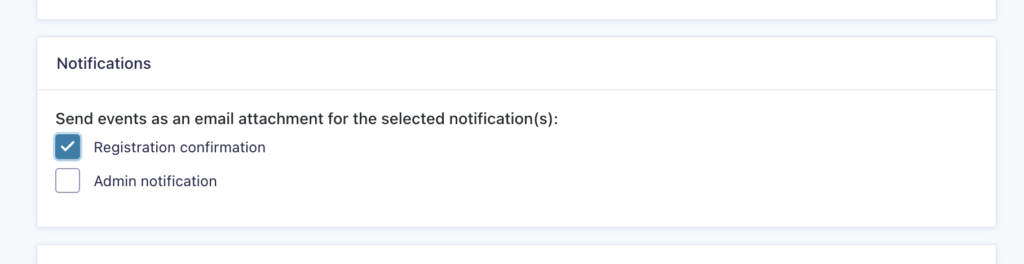
From then on, every time one of the selected notifications is sent for a new entry, the entry’s event is attached to it. The list only shows the form’s active notifications; if you see “This form has no active notifications”, add one first.
What the recipient receives #
The attachment is the same single-event .ics file you get from a single event download, built from the feed’s event settings: the start and end date and time, the event title, description, and location you mapped in the feed. Opening it adds that one event to the recipient’s calendar. It is a snapshot, so later edits to the entry are not pushed to their calendar; for a feed that stays in sync, point them to a calendar subscription instead.
Since GravityCalendar 2.21.0, building the attachment no longer generates the entire calendar first, so notifications with an event attached send quickly even on forms with thousands of entries.

