
Published
•
Updated
Gravity Forms image upload plugins: a full review of file uploaders 2025
Compare the best Gravity Forms image upload plugins for 2025. Side-by-side review of File Upload Pro and Image Hopper covering features, pricing, and front-end performance.


Need better image upload capabilities for your Gravity Forms? While Gravity Forms includes a basic file upload field, it lacks advanced features like cropping, resizing, and previews. If you’re looking to enhance your image upload workflow, third-party plugins are the way to go.
In this updated guide, we’ll compare the best Gravity Forms image upload plugins: File Upload Pro and Image Hopper. You’ll learn about their features, pricing, installation process, and how they perform on the frontend.
Read the full article below, or check out the video review:
Configure the native Gravity Forms File Upload field for images
Before reaching for a plugin, it’s worth knowing exactly what the built-in File Upload field can do on its own. For many image-collection workflows (a profile photo, an attached receipt, an event submission) the native field is enough once you lock it down to images.
Where to find the field
The File Upload field lives under Advanced Fields in the form editor. Drag it onto the form canvas, then open the field’s General settings to configure it.
Image-specific settings
| Setting | What to enter for image uploads |
| Allowed file extensions | A comma-separated list with no leading dots, e.g. jpg, jpeg, png, gif, webp. If left blank, users can upload any file type WordPress permits. |
| Maximum File Size | A value in megabytes, e.g. 5. If left blank, the server’s maximum upload size applies. |
| Enable Multi-File Upload | Check this if users need to upload more than one image per submission. |
| Maximum Number of Files | Only appears after enabling multi-file upload. Cap it to stop runaway submissions. |
For the full list of settings and validation rules, see the official File Upload field documentation.
Important: Even when you don’t restrict extensions at the field level, uploads are still validated against WordPress’s core list of permitted file types, and—unless the gform_file_upload_whitelisting_disabled filter has been used to disable it—against a check that verifies the file’s actual MIME type matches its extension. A renamed executable with a .jpg extension will be rejected.

Pro Tip
Always fill in “Allowed file extensions” rather than leaving it blank. It’s the simplest way to reject non-image uploads up front and surface a clear error to the user if they try to submit the wrong format.
When the native field isn’t enough
The built-in field handles collection and validation, but it doesn’t resize, crop, preview, or edit images. If your form collects photos that need consistent dimensions, live previews, or an in-browser crop step, that’s where the plugins below come in. For a deeper tour of the native field, including styling, changing the upload location, and displaying uploads to admins, see our Gravity Forms file uploads guide.
Overview of contenders
Here’s an overview of the two plugins we’re going to review in this article:
| Plugin | Developer | Price | Key features |
| GF File Upload Pro | Gravity Wiz (Gravity Forms Certified Developer) | $59/year (as part of Gravity Perks) | Resizing, cropping, preview, multiple images |
| Image Hopper | Gravity PDF (Gravity Forms Certified Developer) | $59/year (for basic features), $99/year (for advanced image editing) | Resizing, cropping, preview, multiple images, advanced editing tools |
Adding the field to a form
File Upload Pro modifies the standard Gravity Forms File Upload field. To enable the advanced features, simply open the “Perks” tab in the field settings and check Enable File Upload Pro.
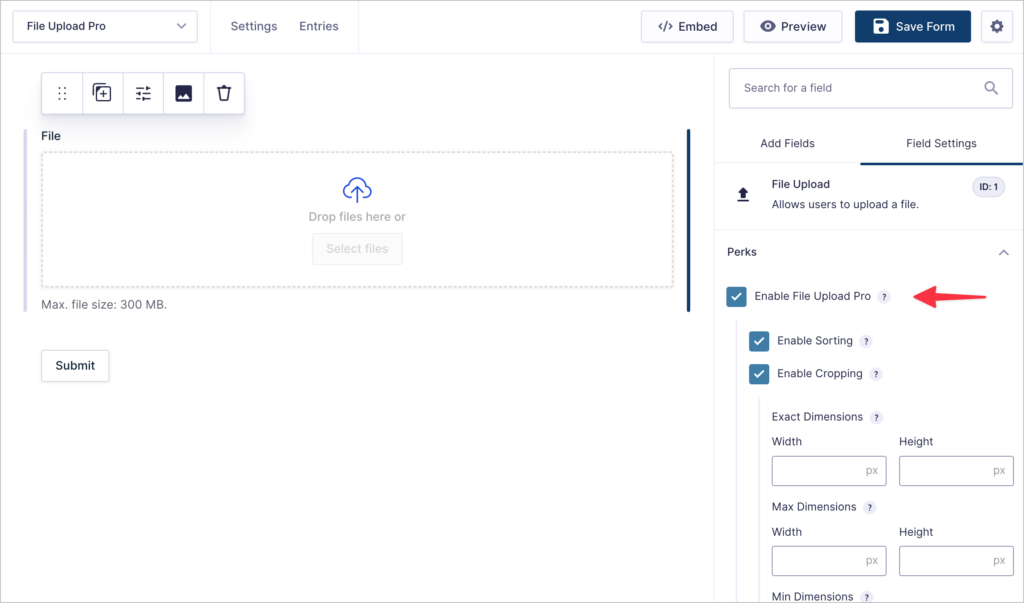
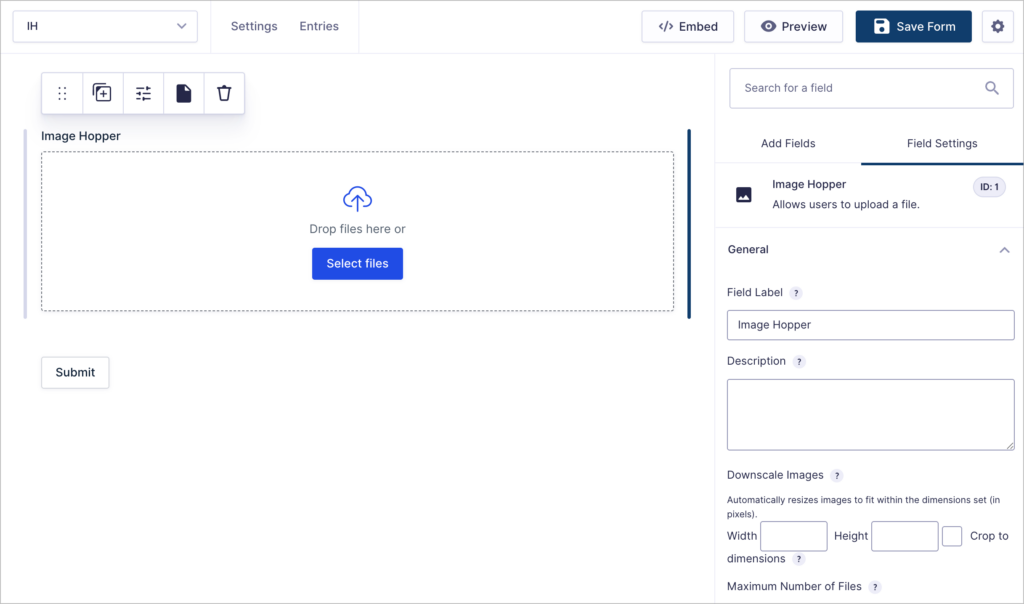
Image Hopper adds a new “Image Hopper” field type to Gravity Forms, so it’s completely separate from the default File Upload field. You can find this new field under “Advanced”. Image Hopper also adds a second field called “IH Post Image” which is a more advanced version of the Gravity Forms Post Image field.
Frontend user experience
With File Upload Pro, users are presented with an upgraded drag-and-drop file upload field that closely resembles the default Gravity Forms interface but adds advanced behavior. If sorting is enabled, you can drag and drop images to reorder them.
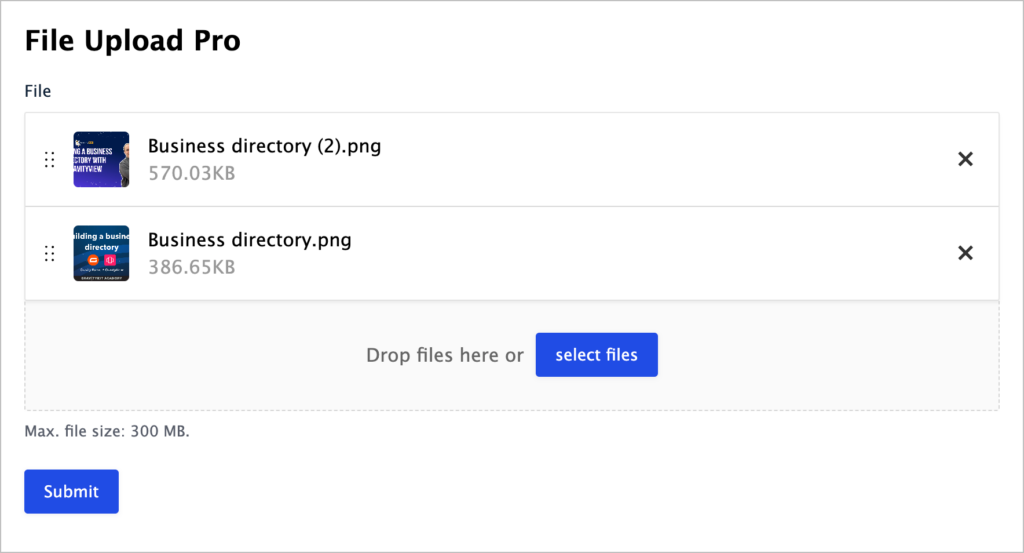
Image Hopper renders its own custom upload field, offering a sleek interface with a clean drop zone, and a loading icon indicating upload progress. A large preview of each image is shown beneath the field.

Image resizing and cropping functionality
Once you’ve checked the box to enable File Upload Pro, you will see additional options to enable sorting and enable cropping. If you check to enable cropping, you will see additional options for image resizing.
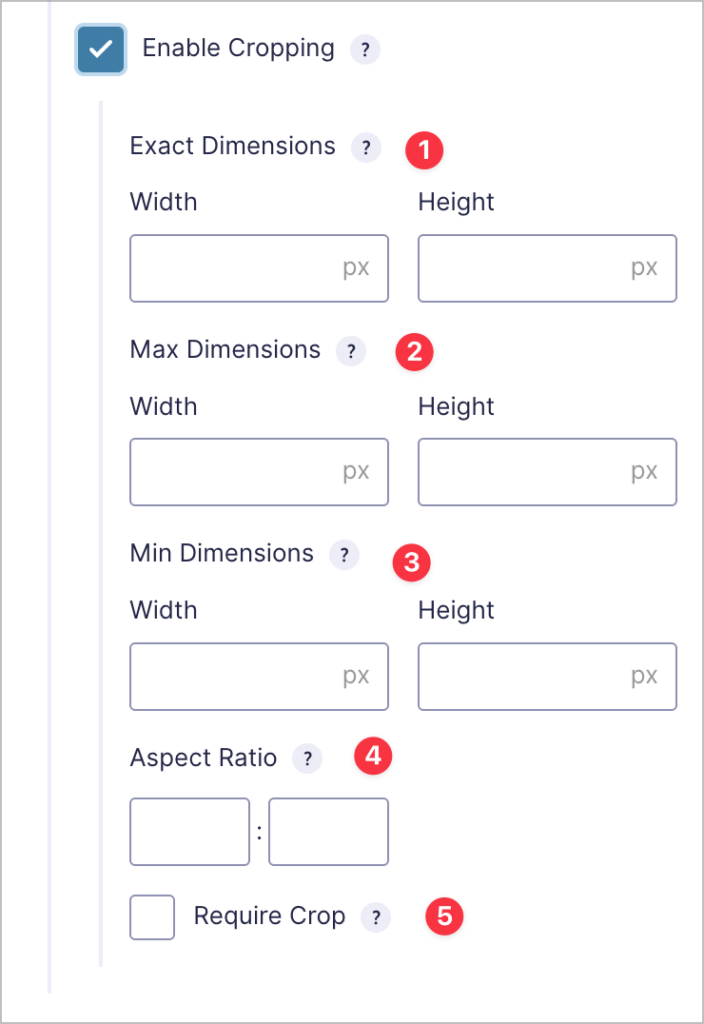
- Exact dimensions: Set exact dimensions in pixels. Images will automatically be resized to fit these dimensions.
- Max dimensions: Large images will automatically be downscaled to the dimensions set.
- Min dimensions: Require images to meet a minimum width and height.
- Aspect ratio: Restrict the crop tool to a specific aspect ratio.
- Require crop: Crop tool is automatically opened on upload.
After uploading an image, users can hover over the image preview and click on the pencil icon to open the crop tool.

File Upload Pro can also be used in conjunction with GF Media Library (another Gravity Wiz Perk) to create multiple sizes of images based on your WordPress settings.
Image Hopper also includes the ability to resize and crop images. However, this functionality differs depending on which license you have.
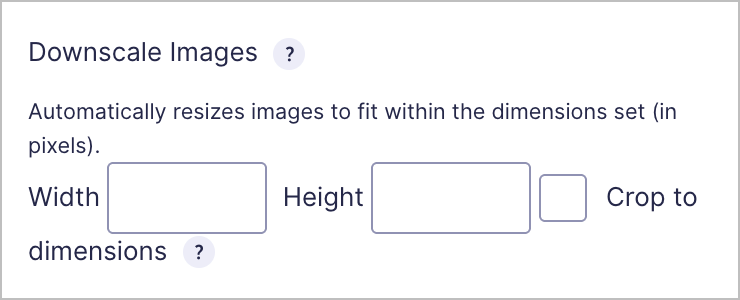
With an Image Hopper Basic license, you can:
- Automatically resize images to fit within the dimensions you set (without cropping them)
- Automatically crop images to the dimensions you set
With an Image Hopper Single Site license, which includes advanced image editing, users can click the pencil icon on the image preview to open the image crop tool.

To save images uploaded via Image Hopper to the WordPress Media Library, you’ll need to use it in conjunction with GF Media Library or the Gravity Forms Advanced Post Creation Add-On.
Image editing features
File Upload Pro includes limited options for editing images. While you can crop and rotate images at 90-degree increments, you cannot adjust the image’s brightness or colors, for example.
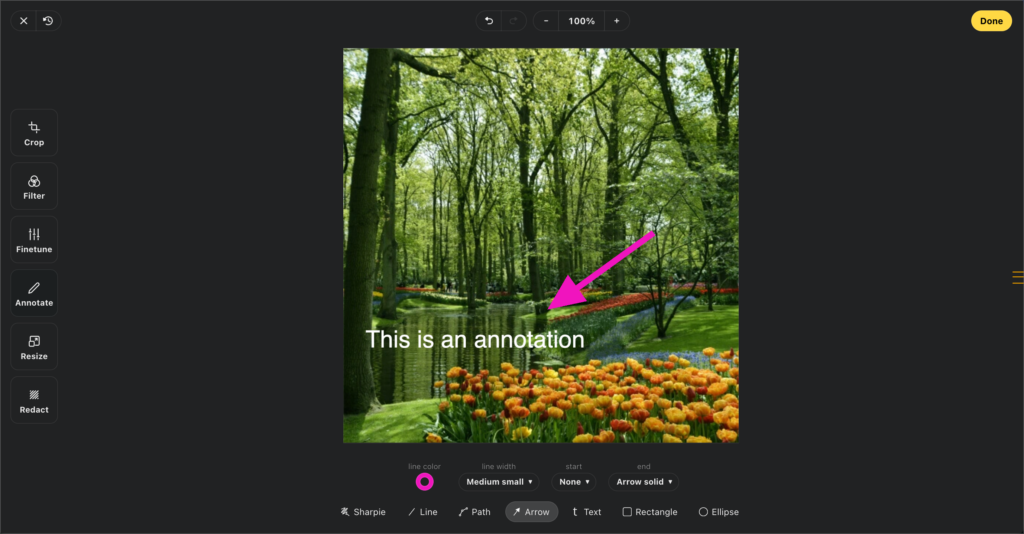
Image Hopper, on the other hand, supports advanced image editing features in its Single Site license. Not only can you adjust image orientation by rotating or flipping horizontally or vertically, you can also:
- Filter: Choose from several different filters to change the look of your image.
- Finetune: Adjust the brightness, contrast, saturation, exposure, temperature gamma, clarity, and vignette.
- Annotate: Add text to the image. You can also draw shapes on the image including lines, arrows, rectangles, and circles.
- Redact: Blur out parts of the image.
Which plugin should you choose?
Here’s a quick summary:
| Feature | File Upload Pro | Image Hopper |
| Resizing | ✅ | ✅ |
| Cropping | ✅ | ✅ |
| Image preview | ✅ | ✅ |
| Image reordering | ✅ | ✅ |
| Upload multiple images | ✅ | ✅ |
| Advanced image editing | ❌ | ✅ (Requires a Single Site license) |
| Save to Media Library | Requires additional add-on. | Requires additional add-on. |
- Choose File Upload Pro if you want a lightweight, native Gravity Forms experience that allows users to upload images as well as other files.
- Choose Image Hopper if advanced image editing is your priority.
Bonus: Displaying uploaded images in Gravity Forms
The best way to display uploaded images on the frontend is by using GravityView. Simply:
- Install GravityView and create a new View
- Add either the File Upload Pro field or Image Hopper field to the View
- Customize display settings for layout, field visibility, and image size

Pro tipCheck out our step-by-step guide on how to run a photography contest using Gravity Forms and GravityView.
Wanna try it?
Spin up a demo
See what you can build with GravityView — explore the live demo.

Get started with Gravity Forms image upload plugins
Whether you need a streamlined image upload experience or full-featured editing tools, both File Upload Pro and Image Hopper offer powerful ways to upgrade Gravity Forms’ image handling.
File Upload Pro is ideal if you’re looking for a native, no-fuss solution that enhances the default File Upload field with cropping, resizing, and previews.
Image Hopper shines when you need robust editing capabilities, like filters, annotations, and fine-tuning, especially if you’re working in creative or media-heavy workflows.
Start creating better image upload workflows today!

Get better at Gravity Forms, one email a week
New GravityKit releases, practical Gravity Forms tutorials, and subscriber-only discounts. One short email every week, unsubscribe anytime.
More articles

Launch Log: AI-assisted migrations and a stronger Prevent Direct Access setting
GravityMigrate can now hand a whole migration to an AI assistant, GravityKit MCP installs into Claude Desktop in one click, and GravityView tightens the Prevent Direct Access setting.

What actually decides whether a WordPress agency makes money? We looked at the data
Two 2026 surveys of 832 WordPress agencies, plus our own analysis of the raw data. What separates the profitable agencies from the rest, and what does not.

GravityMigrate 2.0: No-sweat WordPress form plugin migrations
Nobody wants to move forms between plugins. They want the site launched, the client onboarded, the referrals to stop falling through the cracks. GravityMigrate 2.0 makes moving forms effortless.