
Included with GravityKit products
Read, edit, and preview merge tags
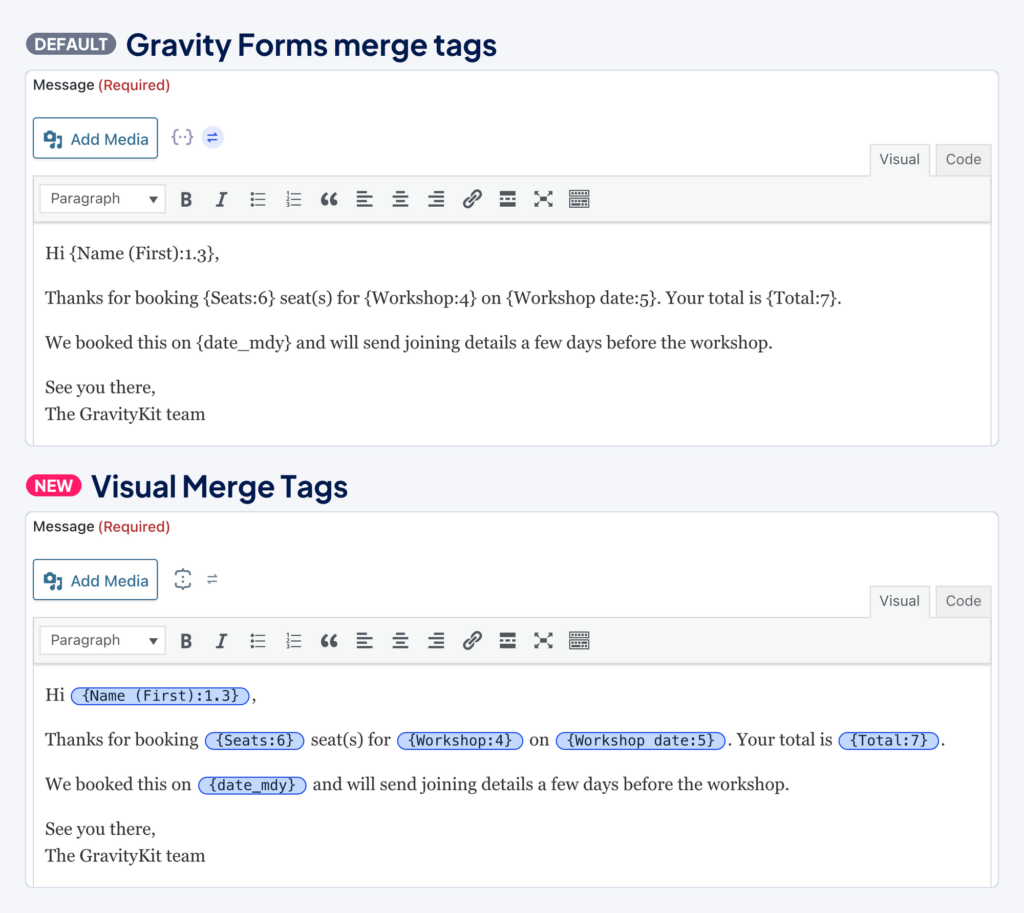
Visual Merge Tags turns Gravity Forms merge tags into clickable chips. Click a chip to change what it shows, and check its value against a real entry before you save.
Merge tags you can read
Every clip on this page was recorded in a real Gravity Forms notification.
Spot every merge tag at a glance
Each merge tag shows as a chip that stands out from the text around it, so you can find every tag in a long notification at a glance. Chips work in plain text fields and in the Visual tab of the message editor.
- A chip moves and deletes as one piece, so a stray keystroke can’t leave half a tag behind.
- Your text and your tags stay where you put them.
- Chips show up in the merge tag fields you already use, with nothing to set up.
Type { to add a merge tag
Type a brace and a list of tags opens where you’re typing. Keep typing to narrow it down, then press Enter to add the tag. You don’t need to look up field numbers.
- Each field shows its name and field number.
- The list only offers tags that work in that field.
- The merge tag picker icon opens the same list, grouped by type and searchable, including tags from other plugins.
Add modifiers without learning the syntax
Click a chip to open its settings. Choose what to show, such as the stored value or the choice label, then add modifiers like UPPERCASE or Make it a URL slug. The panel writes the merge tag for you.
- Only the modifiers that work for that field are offered.
- Modifiers run from top to bottom, and the arrows change the order.
- The finished merge tag shows below the preview, so you can still copy it.
Format dates with a click
Pick a ready-made date format or build your own. Click a token like F for the month name and see the result right away. Visual Merge Tags escapes commas and other special characters for you.
- Every token shows an example next to it.
- Your format becomes a correct merge tag, such as
{Due Date:5:format:l\, F j}. - Relative time and Unix timestamps are one click away.
See real values before you save
Turn on “Preview values in all merge tags”, and every chip shows its value from a real entry. Step through your entries with the arrows to check that the email reads right for each person.
- Previews run through your site, the same way the tag renders when the email is sent.
- Tags that would create a real link or show private data are never previewed, and the panel says why.
- Previews need at least one entry and permission to view entries.


Where it works
Visual Merge Tags is part of GravityKit Foundation, so it comes with your GravityKit products.
Gravity Forms
Notifications and confirmations
Subjects, messages, and confirmation text show each tag as a chip you can click and preview.
Gravity Forms
Calculation formulas
The list offers only the fields Gravity Forms accepts in a formula, and leaves out tags like {all_fields} that a calculation can’t use.
Add-ons
Feeds and add-on settings
Any field where Gravity Forms shows its merge tag picker icon gets chips, including settings from other add-ons.
GravityView
Views
Field labels show chips, and the Custom Content editor lets you insert tags with { or the merge tag picker icon.
GravityKit
GravityKit settings
Merge tag fields in GravityKit products work the same way, such as GravityCalendar feeds.
Other plugins
Tags from other plugins
Tags that other plugins add, such as the PDF tags from Gravity PDF (Blue Liquid Designs), show as chips too.
Visual Merge Tags is on by default. To limit it to GravityKit screens or turn it off, see Choose where Visual Merge Tags appear in the guide.
Try Visual Merge Tags
Visual Merge Tags turns Gravity Forms merge tags into clickable chips you can insert, format, and preview with real entries.
Have any questions?
Here are a few common questions about Visual Merge Tags.