
What you can do with GravitySearch: use cases and examples
Once you’re comfortable with GravitySearch, the filters open up far more than a keyword search. Here are real jobs you can do with it, ordered from quick lookups to precise, combined queries. Each one assumes you know the basics; if not, start with Getting started with GravitySearch.
Keep the two contexts in mind as you read. The Global Search page searches across every form and filters on the properties every entry shares (the date, the status, who submitted it, and which form it came from). A single form’s Entries list adds that form’s own fields. Each example says which one to use.
Find every submission from one person #
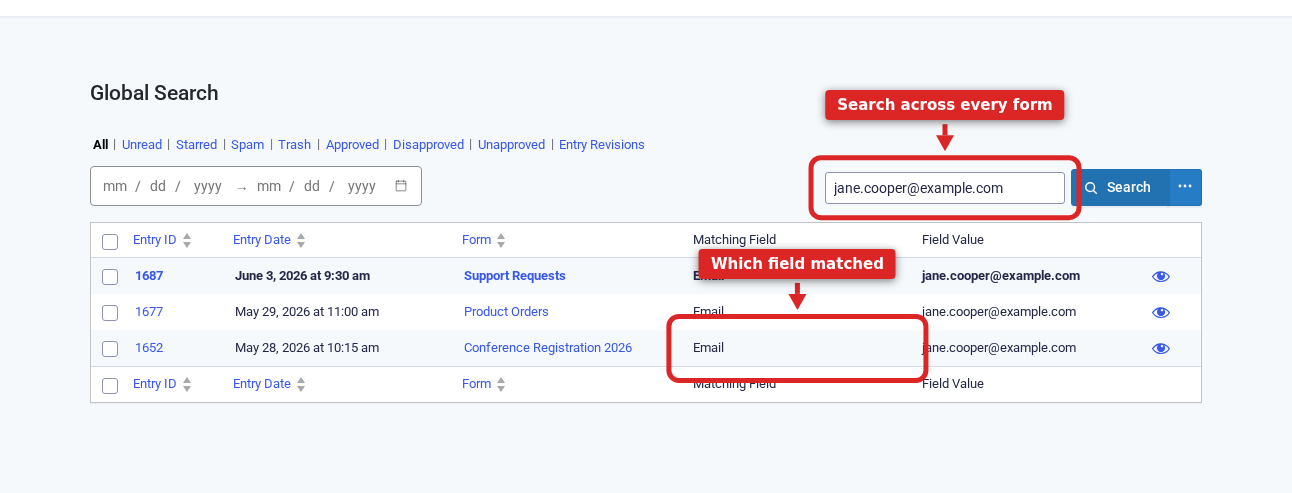
A customer writes in and you want their whole history before you reply. On the Global Search page, search their email address or name. GravitySearch matches it across every form at once and shows which form and field each result came from, so a single search pulls their support requests, their event registration, and their orders into one list.
Pull up everything you flagged for later #
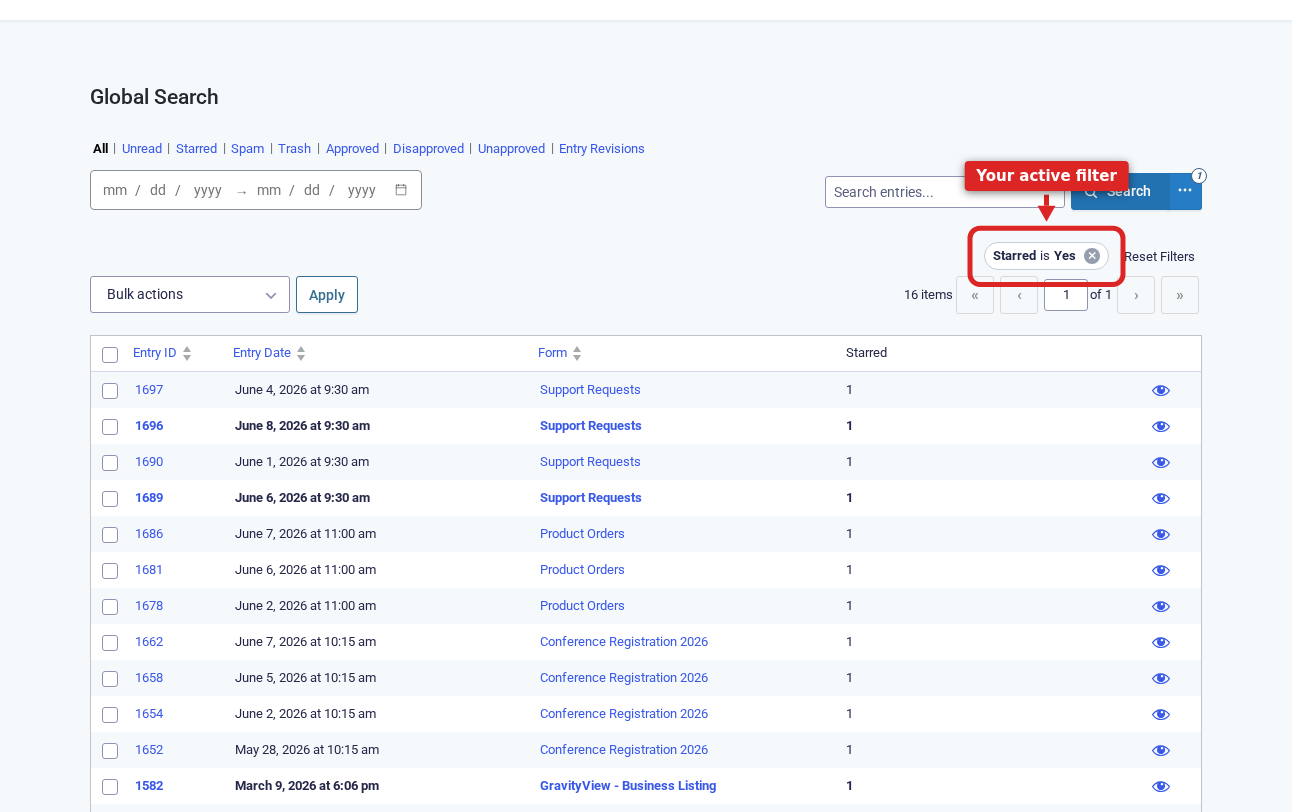
As you work through entries, click the star on the ones worth a second look. When you are ready, open Global Search, click the three-dots Advanced Search button, and add Starred is Yes. Every flagged entry from every form lands in one list, which turns “star it now, deal with it later” into a real workflow.
Triage your support queue #
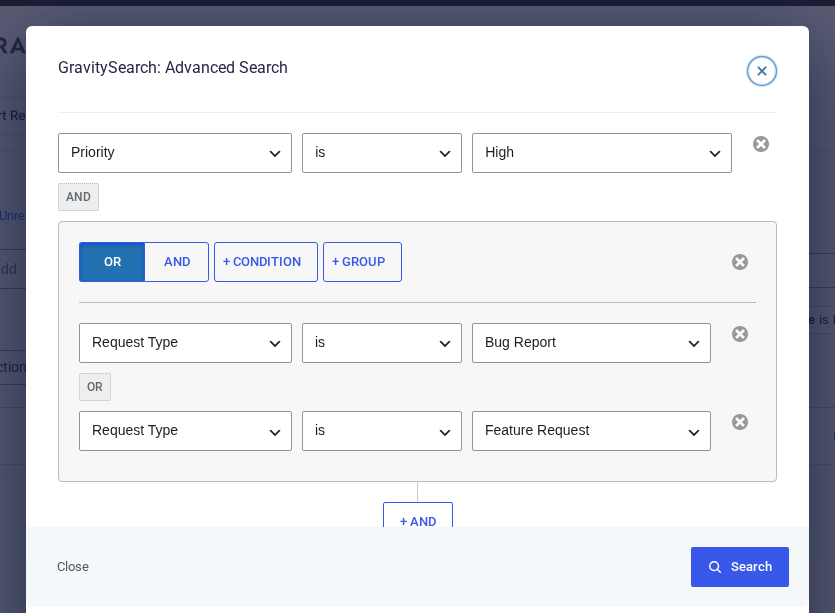
When requests pile up, you want the ones that matter first: high priority, and a certain kind. Filtering on a form’s own fields like these happens on that form’s own entry list, so open your support form’s entries (Forms, hover the form, click Entries), click the three-dots Advanced Search button next to Search, and build a filter with two parts joined by AND:
- Priority is High
- a group set to OR that contains Request Type is Bug Report and Request Type is Feature Request
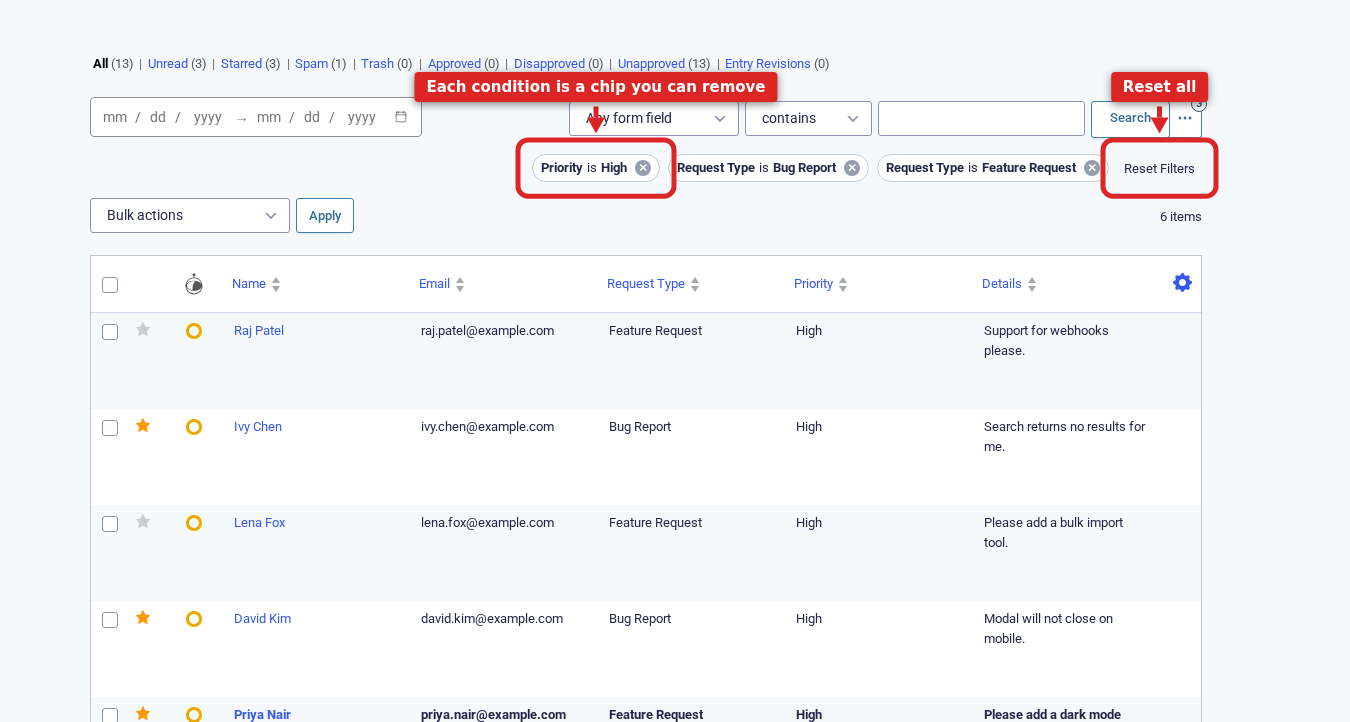
The list narrows to exactly those entries, and every condition appears as a chip you can drop or reset. You can keep nesting and stacking conditions like this, as deep as the question needs.
Find entries that mention a specific word #
Free-text answers hide useful signals. On a form’s Entries list, add a condition like Details contains “error”, using any paragraph or text field and any word you care about. GravitySearch returns every entry where that word appears in that field, which is handy for surfacing complaints, requests, or a recurring topic buried in long answers.
Pull a recent, high-value slice #
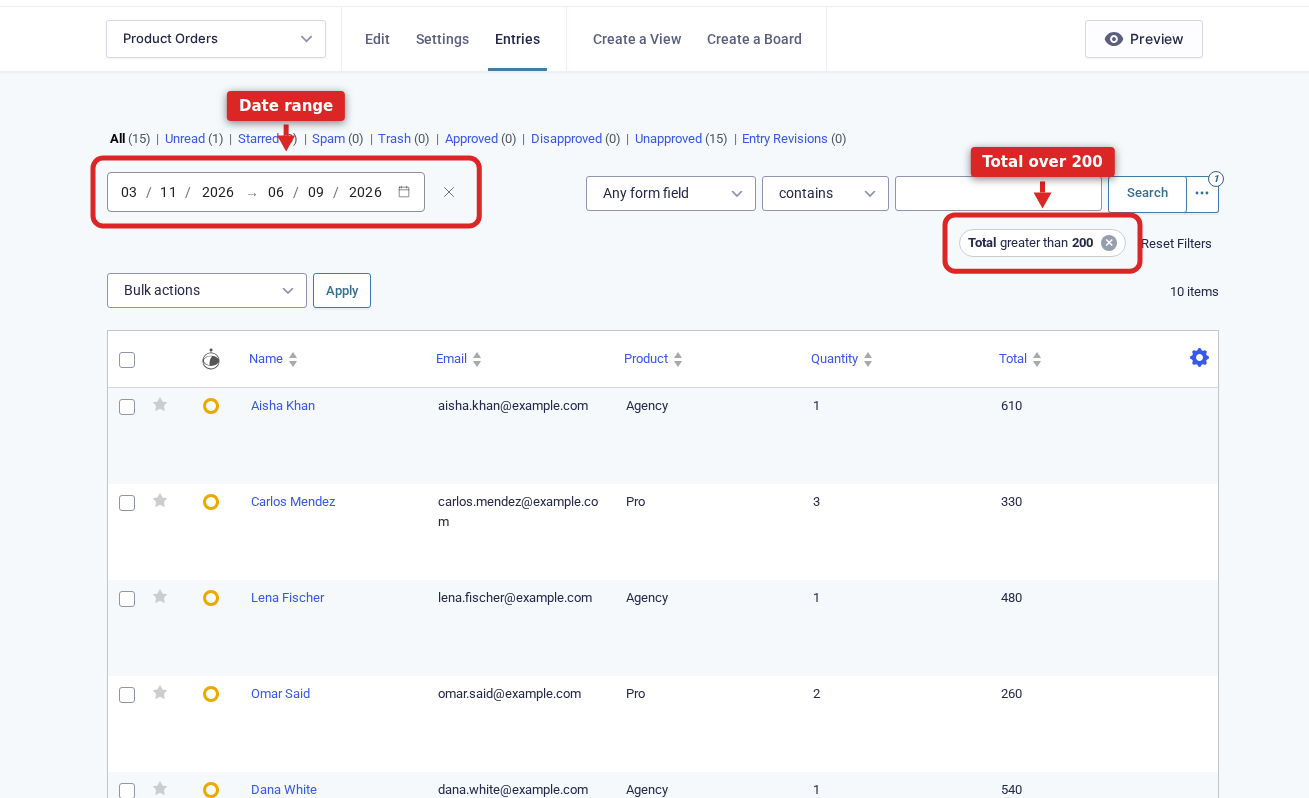
Combine a numeric condition with a date range to focus on what is worth your attention right now. On your orders form’s entries, add Total is greater than 200, then set the date-range picker at the top to the period you care about. You get the larger orders from that window and nothing older, with the running count of matches shown above the list.
See what one teammate submitted #
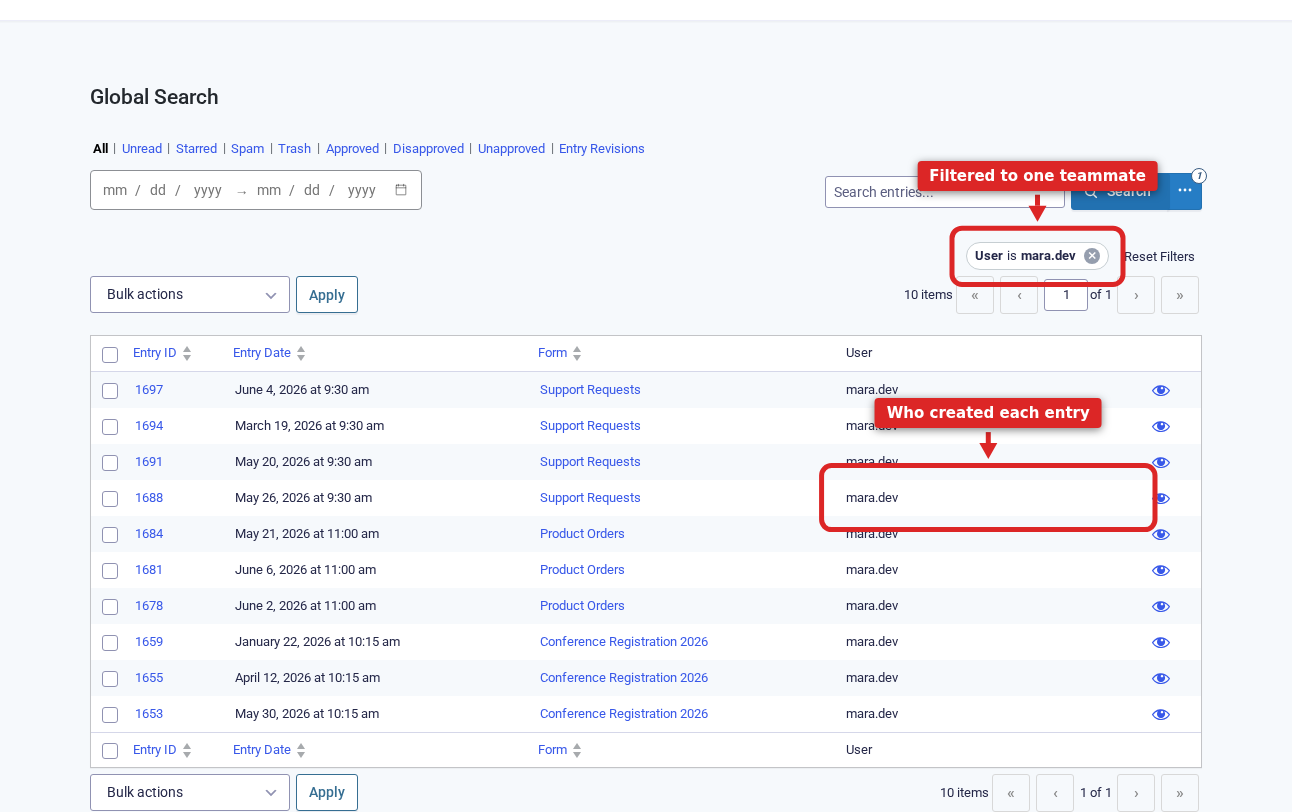
GravitySearch can filter by who created an entry, which Gravity Forms does not do on its own. On the Global Search page, use the User filter and pick a teammate to see everything they submitted across every form. On a single form you also get Created By User Role, so you can pull entries from everyone with the Editor role at once. It is useful for reviewing a colleague’s work or auditing who entered what.
Trace entries back to a page or campaign #
Every entry records the page it was submitted from. On Global Search, filter Source URL contains a path or a campaign tag, like a landing-page slug, to see exactly which submissions came from where. It is a quick way to measure how a specific page or link is performing without leaving the admin.
Review what is waiting for approval #
If you use GravityView, its approval statuses show up as both status tabs and filter conditions. Filter to Approval Status is Unapproved, open each entry in the preview to check it, then bulk Approve the ones that pass. This requires GravityView.
Clear out spam and stale entries in bulk #
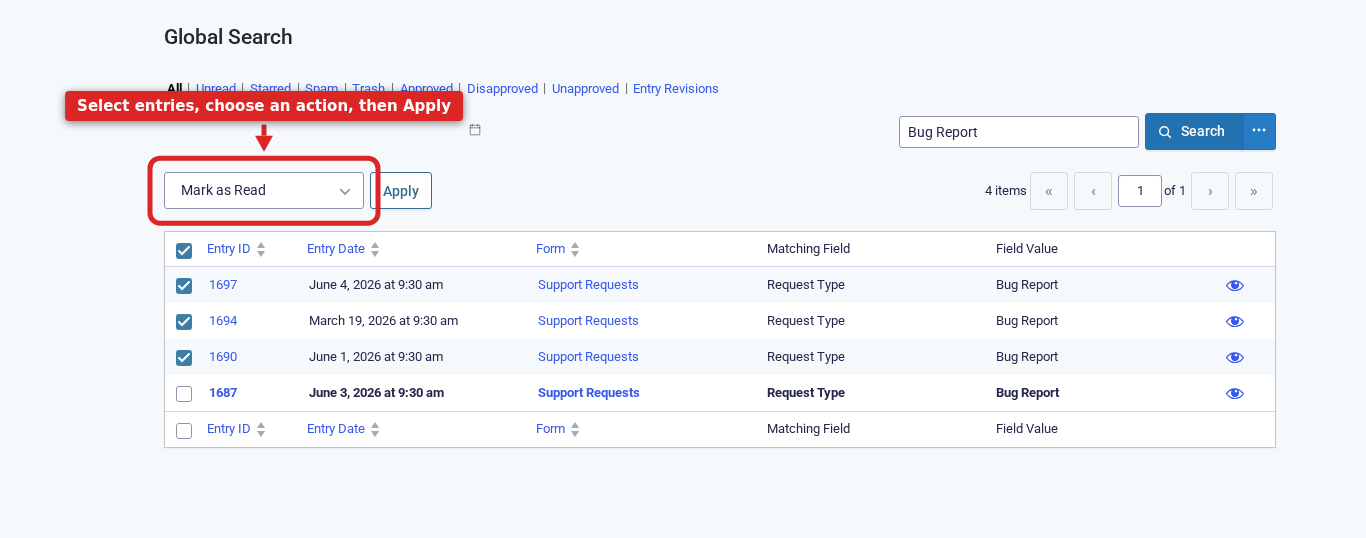
Search or filter down to the entries you want to act on, tick the rows, and choose an action from the Bulk actions menu. Because Global Search spans every form, you can mark a batch as read, trash old entries, or clear spam across your whole site in one pass instead of form by form.
Turn a search into a shareable link #
Every search lives in the page URL, so any view you build is a link. Bookmark your “high-priority bug reports” search to reopen it in one click, or send the link to a teammate so they land on the exact same results. If you write code, you can build the same filters with the gk_search URL parameter, which accepts a filter as JSON or Base64.
Where to go from here #
The thread running through all of these is one idea: search broad across every form, or filter deep inside one. Once that clicks, most questions about your entries become a filter or two. Pick the example closest to what you need, swap in your own fields, and bookmark the searches you reach for often. If the two search contexts are still new, the Getting started with GravitySearch guide walks through them from the beginning.
Was this page helpful?


- Find every submission from one person
- Pull up everything you flagged for later
- Triage your support queue
- Find entries that mention a specific word
- Pull a recent, high-value slice
- See what one teammate submitted
- Trace entries back to a page or campaign
- Review what is waiting for approval
- Clear out spam and stale entries in bulk
- Turn a search into a shareable link
- Where to go from here