
Published
•
Updated
Block MCP is now a free WordPress plugin (and it sets itself up)
Block MCP is now a free WordPress plugin. Connect Claude or any MCP client to your site in minutes and let AI edit your content without breaking blocks.

A few weeks ago, we open-sourced Block MCP, the WordPress MCP server that lets AI agents edit your posts and pages at the block level without breaking them.
The setup, though, was built for developers. Cloning a repo, running npm install, generating an Application Password by hand, and editing a JSON config file is a normal Tuesday for some of us. For everyone else, it’s a wall.
Today that wall comes down. Block MCP is now a free WordPress plugin, available to download from our website. Install it like any other plugin, pick the AI app you use, and the plugin handles the rest. No code, no config files, and (unless you choose the developer path) no terminal!
See Block MCP in action
What’s new in the plugin
Block MCP 2.0.0 wraps everything from the open-source release in a guided setup experience, plus a set of controls that make it safe to hand an AI the keys to your content:
- Guided connect flow – Pick the AI app you use from a list, and the plugin gives you the exact steps for that app. No more hand-editing
claude_desktop_config.json. - One-click install for Claude Desktop – The plugin generates a setup file for your site. Double-click it, click Enable in Claude Desktop, and you’re connected.
- One command for developer tools – Claude Code and Cursor connect with a single command the plugin generates for you. It opens your browser, you click Approve, and the connection finishes automatically.
- A dedicated account for your AI – The AI edits through a limited “Block MCP” account, not your admin login. More on this below.
- Content controls – Choose which content types the AI can work with, and whether it’s allowed to move anything to trash (off by default).
Everything that made Block MCP work in the first place is still here: block-level edits instead of full-page rewrites, persistent block IDs, atomic batch edits, one-click undo through revisions, and built-in Yoast SEO support. If you want the full story (including our benchmark against other WordPress MCPs), it’s in the original announcement.
Connect your AI app in three steps
Here’s the whole setup, start to finish.
Step 1: install the plugin
Download Block MCP for free. In your WordPress admin, go to Plugins, click Add New Plugin, then Upload Plugin, and select the ZIP you downloaded. Activate it.
Step 2: pick your AI app
Go to Settings, then click Block MCP. The connect screen asks one question: which app do you use to chat with AI?
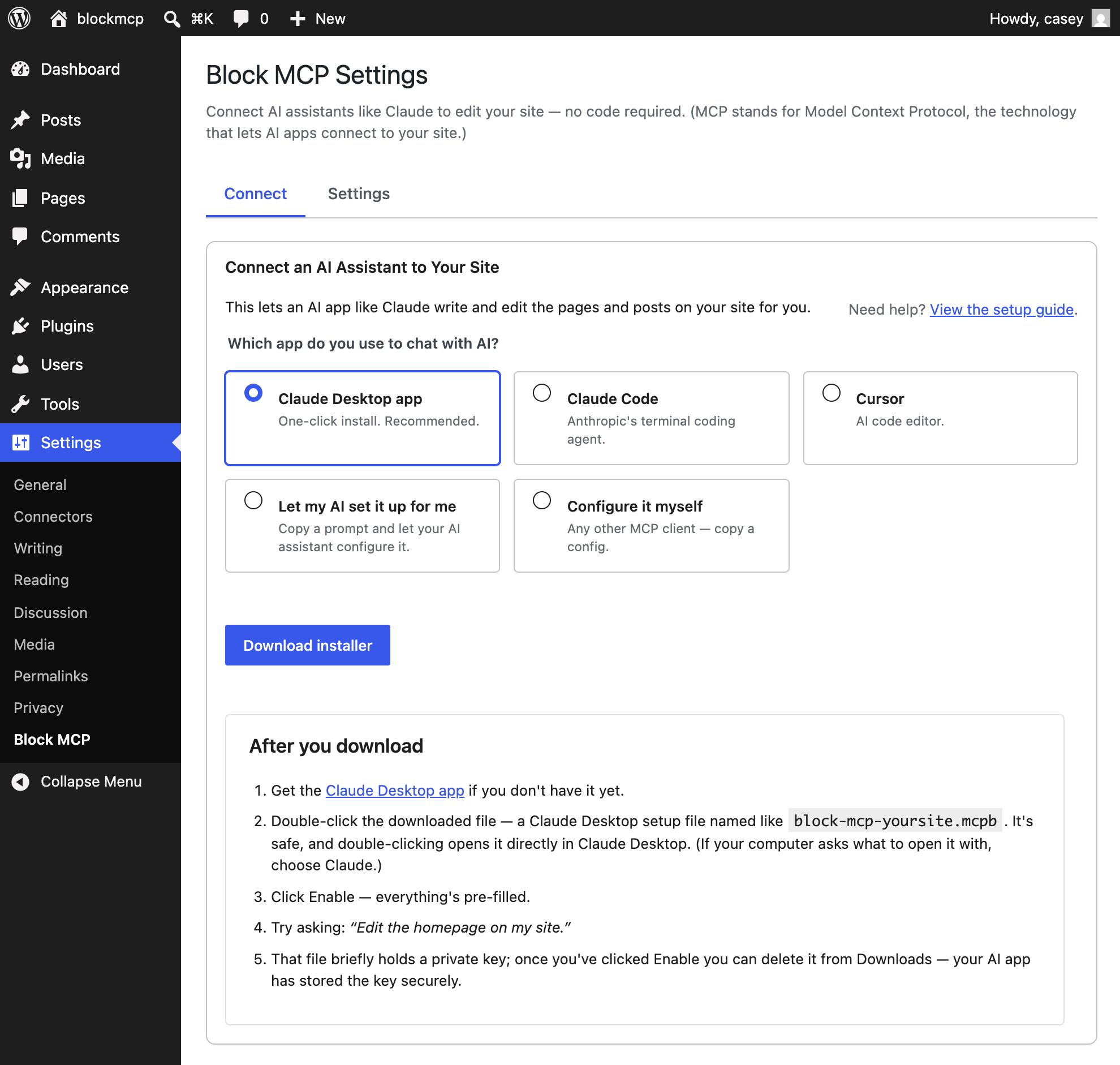
If you use the Claude Desktop app (the recommended option), click Download installer. You’ll get a small setup file named block-mcp-yoursite.mcpb. Double-click it, click Enable in Claude Desktop, and you’re done. Everything is pre-filled.
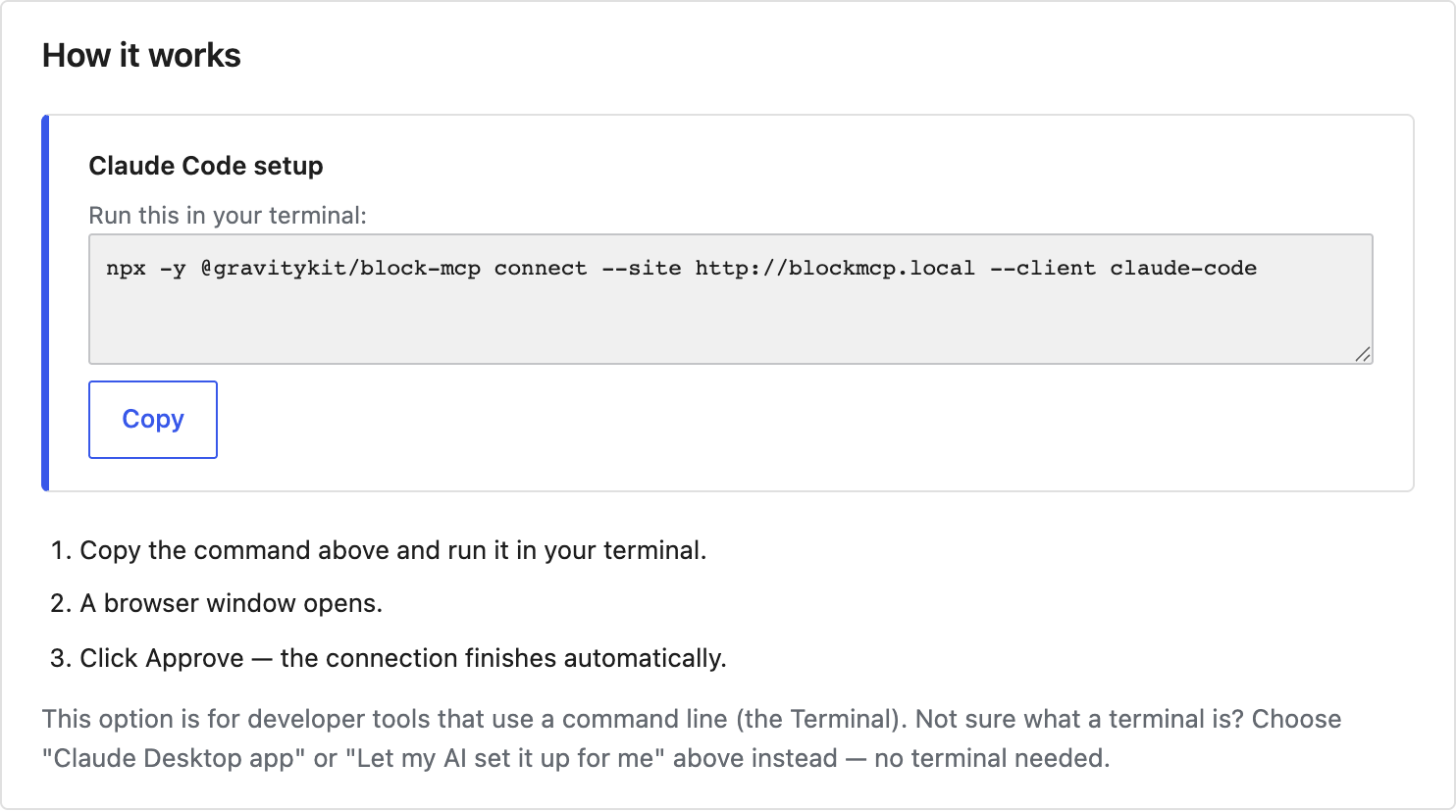
If you use a developer tool like Claude Code or Cursor, the plugin generates a single command for your site instead. Copy it, run it in your terminal, and authenticate through your browser to finish the connection.
What about ChatGPT? You’ll notice ChatGPT isn’t in the list. It connects to AI tools differently from Claude and Cursor: it only works with MCP servers published at a public web address and set up from inside ChatGPT’s own settings. Block MCP runs on your own computer and connects straight to your site, which keeps your content and login details private, but it also means ChatGPT can’t reach it the way Claude and Cursor can. We’re keeping an eye on how ChatGPT’s connection options evolve.
Step 3: approve the connection
Before anything connects, WordPress asks for your permission, and this screen is worth a close look because it’s where Block MCP’s security model shows up.
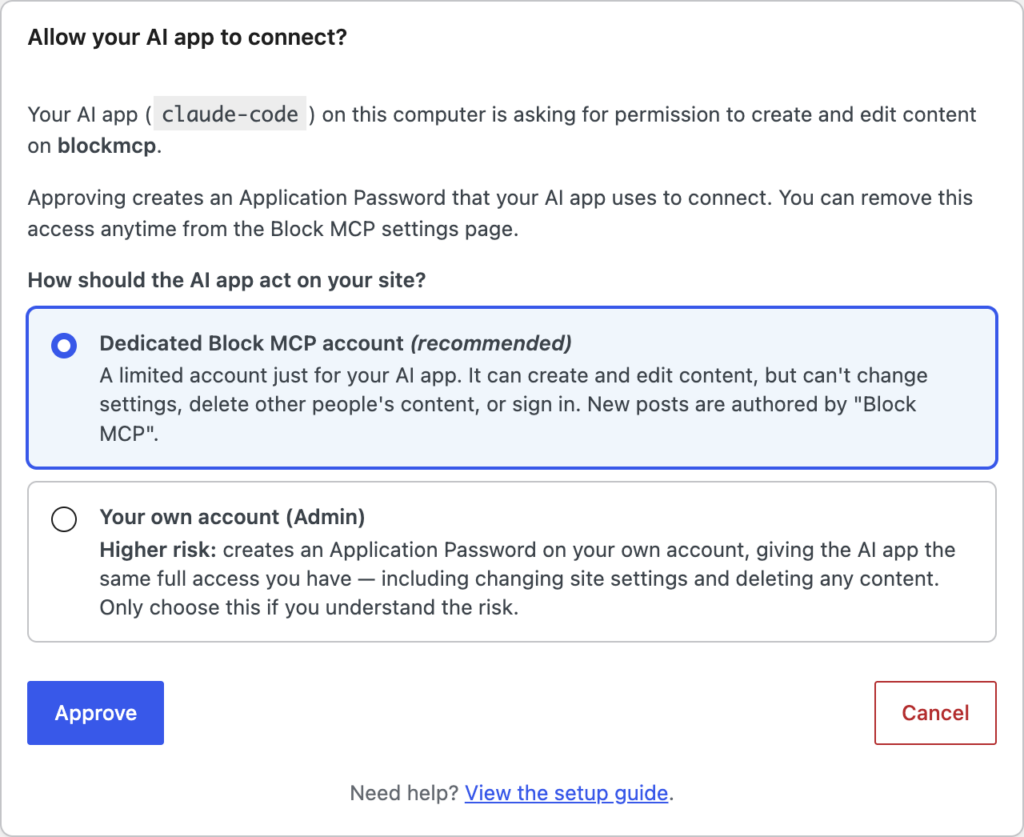
By default, your AI connects through a dedicated Block MCP account. It can create and edit content, but it can’t sign in to your dashboard, change your settings, or delete other people’s content. New posts it creates are clearly authored by “Block MCP”, so you always know which changes came from the AI. You can disconnect any client at any time from the settings page, which immediately revokes its access.
Click Approve, and you’re connected. To confirm the connection, open your AI app and try asking: “Do you have access to my WordPress blocks?”
One assistant, all your sites
Run more than one site? Connect them all. Each site registers in your AI app under its own name, based on the site’s address, with its own dedicated account and credentials. Repeat the same setup on every site you manage, and your assistant can work across all of them: update the homepage on your portfolio, then fix a typo on a client’s site, from the same chat. Disconnecting one site never affects the others.
What to try first
A few prompts that show off what block-level editing feels like:
- “Change the headline on my pricing page to…” – One block changes. Nothing else on the page is touched.
- “Fix the typos across this post in one go” – Batched into a single revision, so undo is one click.
- “Update the SEO title and meta description for this page” – Yoast support is built in.
- “Add a testimonial section to my About page using one of my existing patterns” – Block MCP knows about the patterns your theme provides.
And if anything ever goes sideways, every edit is revision-backed. Open the post’s revision history and roll it back.
Get started with Block MCP today
Block MCP is free, MIT-licensed, and available now:
- Download the plugin from GravityKit
- Read the setup guide for a detailed walkthrough
- Developers: the source lives on GitHub, where issues and pull requests are always welcome
We built Block MCP because we needed it for our own site, and we use it on gravitykit.com every day. Now it’s a two-minute install for yours too!

Get better at Gravity Forms, one email a week
New GravityKit releases, practical Gravity Forms tutorials, and subscriber-only discounts. One short email every week, unsubscribe anytime.
More articles

GravityMigrate 2.0: No-sweat WordPress form plugin migrations
Nobody wants to move forms between plugins. They want the site launched, the client onboarded, the referrals to stop falling through the cracks. GravityMigrate 2.0 makes moving forms effortless.

Launch Log: Two-way form migrations, a modernized chart block, and tighter board permissions
GravityMigrate 2.0.0 moves forms between Gravity Forms and seven other form plugins, GravityCharts modernizes its block in the WordPress editor, and GravityBoard tightens how board permissions are enforced.

9 ways to automate client work with the GravityKit MCP
Nine client jobs you can hand to the free GravityKit MCP, from auditing broken Views to cloning a finished build. Every one verified on a live site.