
Published
•
Updated
Announcing Google Sheets export for GravityExport: spreadsheets that keep up with your forms
GravityExport now exports Gravity Forms entries straight to Google Sheets and keeps the spreadsheet in step with your form. New entries, edits, and deletions all reach the sheet, and numbers, dates, and currency arrive as real values. Available in GravityExport 1.15.0.

If your Gravity Forms data ends up in a spreadsheet, you know the loop: export a CSV, import it into Google Sheets, fix the columns, and repeat next week when the data is stale again. Or you wire up an integration that pushes each new submission as a row, then watch the sheet drift out of date the first time someone edits or deletes an entry.
GravityExport now sends your Gravity Forms entries straight to Google Sheets and keeps the spreadsheet in sync with Gravity Forms. New entries, edits, and deletions all reach the sheet, and values arrive typed, so numbers add up and dates sort as dates the moment they land. Google Sheets export has been one of the most-requested additions to GravityExport, and it’s available today in GravityExport 1.15.0.
Here’s how it works.
A spreadsheet that mirrors your form
Most form-to-spreadsheet tools append a row per submission and stop there. GravityExport treats the sheet as a mirror of your form instead. Every export rewrites the sheet’s tab in full, so the tab always reflects the current state of your entries: an entry edited in Gravity Forms or through GravityView is updated in the sheet, and an entry you delete drops out of it.
Changes made in a single request are combined into one run, so importing fifty entries updates the tab once, not fifty times.
The data lands the way a spreadsheet expects it:
- Numbers, currency, and dates arrive as real values – Sort, filter, SUM, and chart them without converting anything first.
- Text is written exactly as submitted – Leading zeros and phone numbers keep the form they were entered in.
- A submitted value that looks like a formula is stored as text – Nothing a visitor types can run in your spreadsheet.
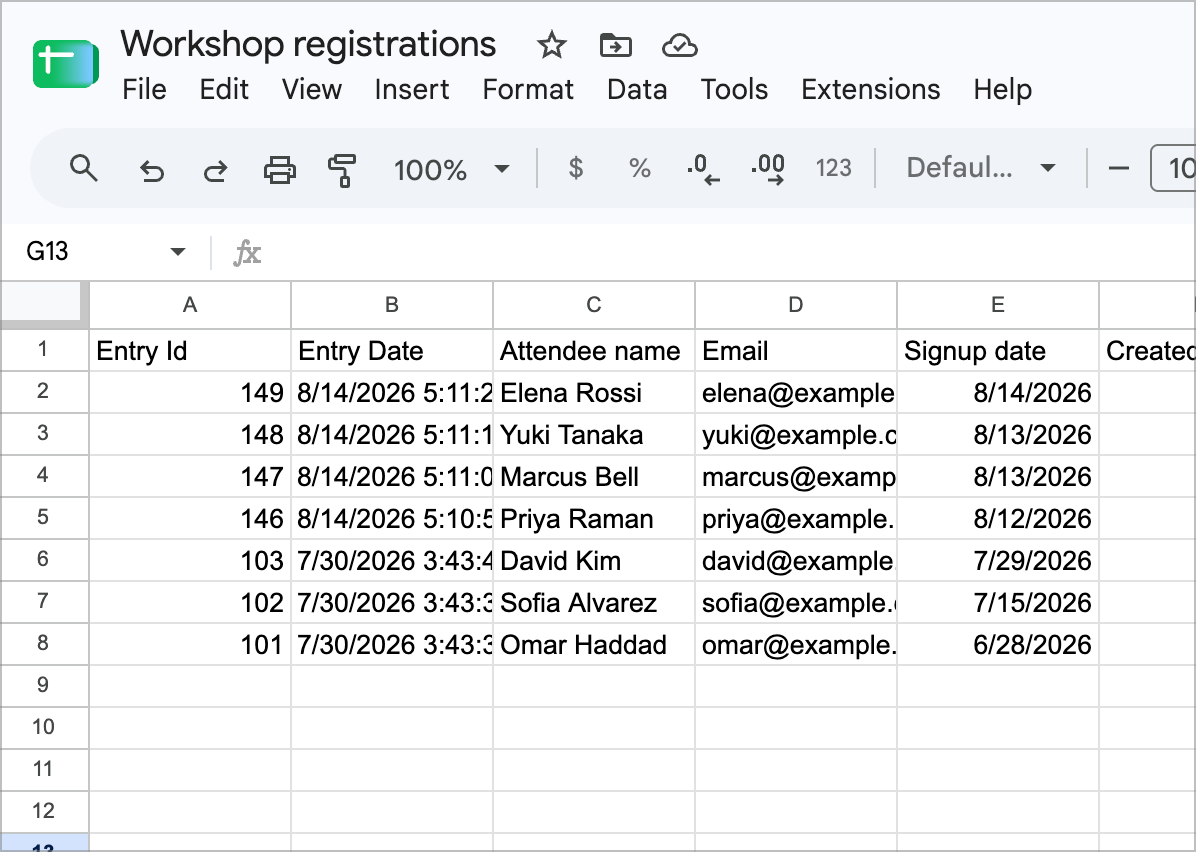
Each entry is one row, the header row comes from the columns you chose, and dates and numbers are stored as dates and numbers
Set it up in a few minutes
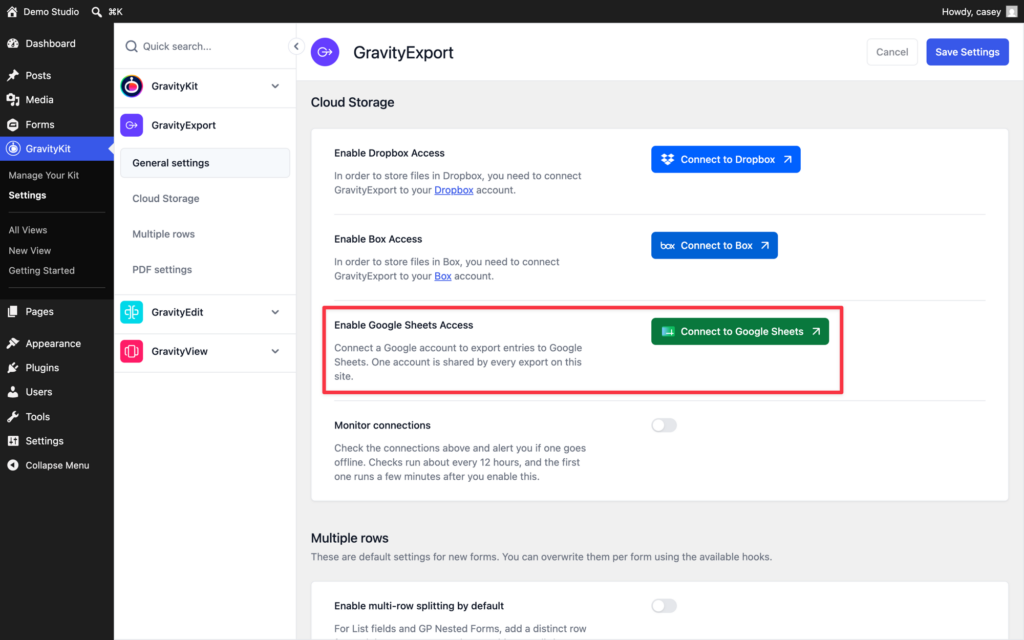
Google Sheets is a new storage destination for GravityExport Save feeds, so if you’ve set up a Dropbox or FTP export before, this will feel familiar. You connect a Google account once for the whole site, under GravityKit, then Settings, on the GravityExport tab. GravityExport only asks for access to spreadsheets you create or pick, not your whole Drive.
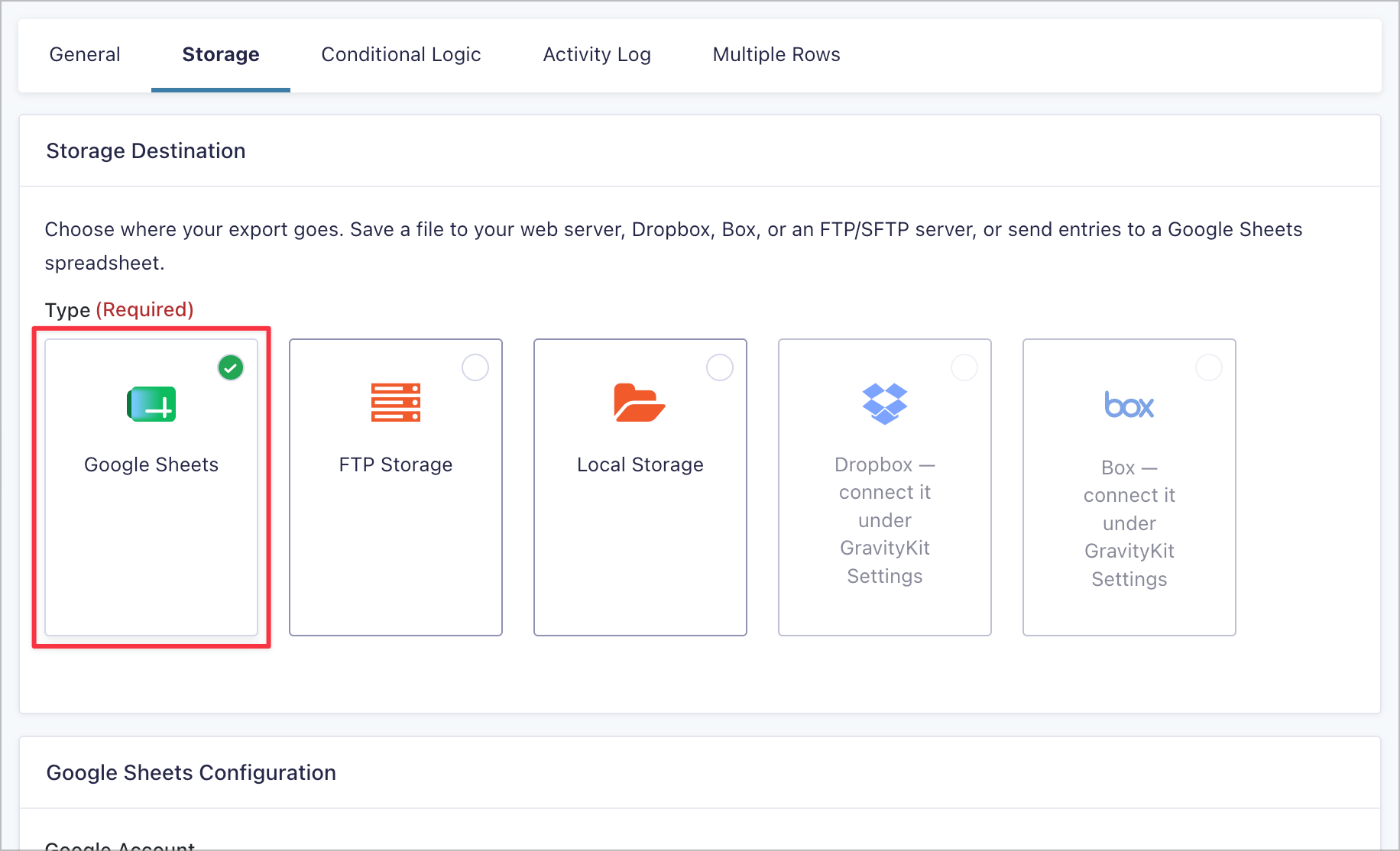
Then, on any form with a GravityExport download enabled, add a GravityExport Save feed and choose Google Sheets on its Storage tab.
From there you pick the spreadsheet: let GravityExport create a new one named after the form on the first export, or choose an existing spreadsheet from Google Drive. The picker opens in Google’s own window, and selecting a file there is what grants GravityExport access to it.
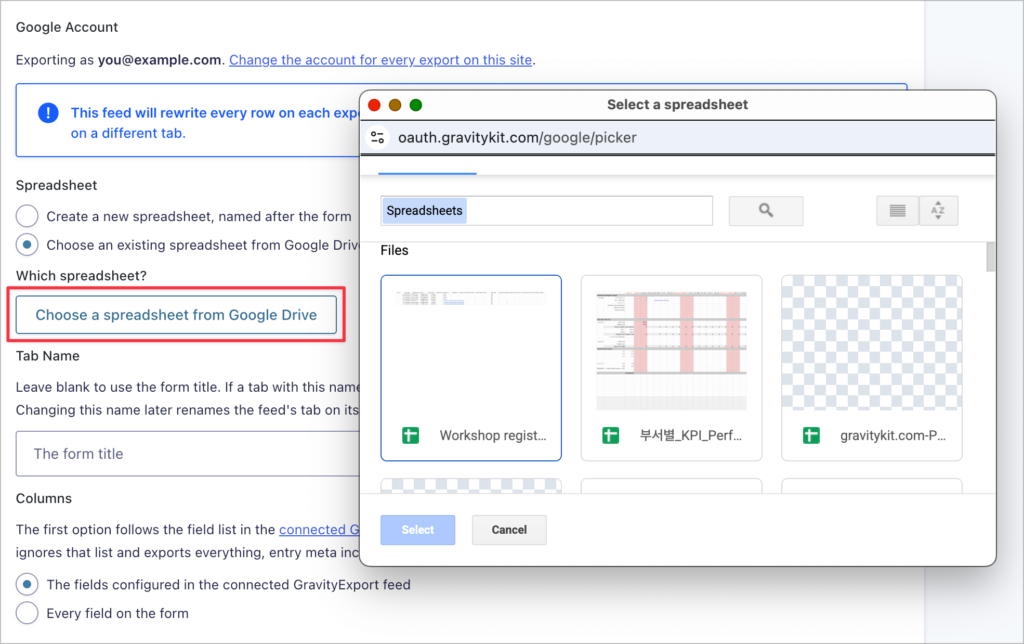
Give the tab a name (or leave it blank to use the form title) and decide which fields become columns. By default they follow the enabled fields on the form’s GravityExport tab, in that order, so the sheet matches your other exports. Alternatively, you can export every field on the form, entry meta included.
For the full walkthrough, read Export Gravity Forms entries to Google Sheets.
Decide when the sheet updates
The feed’s Export Trigger decides what causes a rewrite:
- Automatic – Exports on every new entry. With Export on Update on, edits reach the sheet immediately too, whether they’re made in the entry editor, through GravityView’s Edit Entry, or by another add-on.
- Scheduled – Exports on an interval you choose: hourly, daily, weekly, every 30 days, or a custom number of hours. The first run happens when you save the feed.
- Webhook – Exports when a request hits the feed’s webhook URL, so you can trigger it from your own automations.
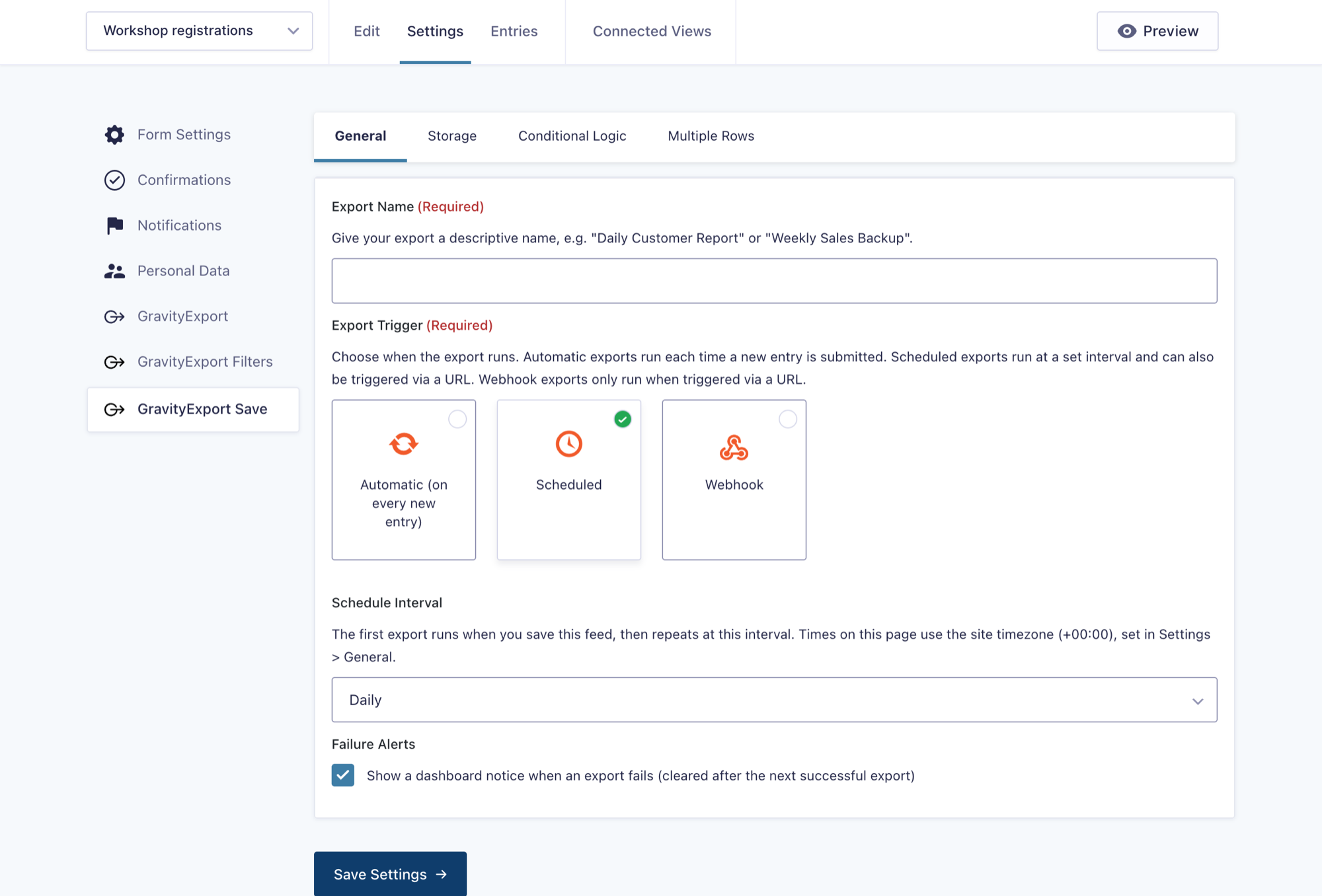
Need the sheet updated right now? Export Now on the feed list writes to it immediately. And because Save feeds support conditional logic, you can keep the sheet to the entries that matter, like approved applications or orders over a certain amount.
Keep your formulas and charts on their own tab
Since the feed’s tab is rewritten on every export, anything you add to it by hand won’t survive the next run. That’s by design, and the pattern for working with it is simple: put your own work on a second tab that reads from the exported one.
Formulas, charts, and pivot tables on your own tab survive every export, and they stay current on their own because the tab they read from does.

Pro Tip
Several feeds can share one spreadsheet. Each feed keeps to its own tab, so a single workbook can collect entries from several forms, with your reporting tab pulling from all of them.
See every export in the Activity Log
Every feed now has an Activity Log tab listing its recent exports: what each one wrote, when, and why any of them failed. The most recent 100 runs are kept, and a failure stays visible even after later exports succeed.
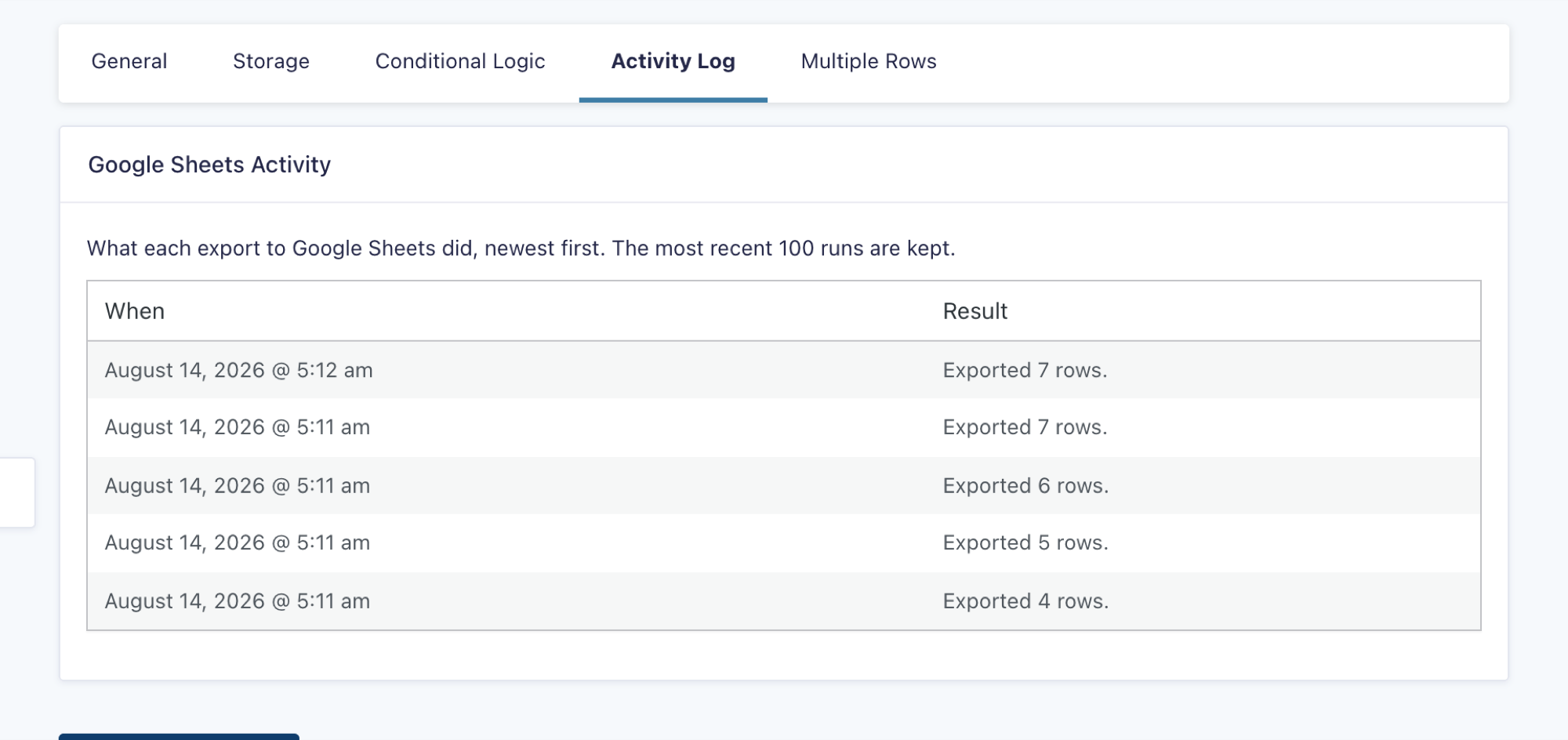
If an export fails, Failure Alerts put a notice in your WordPress dashboard until the next successful run. Enable Monitor connections in the GravityExport settings and your cloud connections are also checked about every twelve hours, so you hear about it if Google stops accepting the connection before your exports quietly stop. Reconnecting is one click on the same settings screen.
Built with guardrails
The Google Sheets connection is built to touch only what you’ve explicitly allowed, and to leave your spreadsheet intact if anything goes wrong:
- Scoped access – GravityExport can only reach spreadsheets you create through it or pick in the Drive picker. There’s no field for pasting a spreadsheet link, because picking a file in Google’s own window is what grants access.
- Never half written – Each export is built in a temporary staging tab and moved into your tab in one step. If a run can’t complete, your spreadsheet is left exactly as it was.
- Connections belong to the site that made them – Clone a site, promote staging to live, or change domains and the connection asks to be reconnected, rather than letting every copy write to your spreadsheets.
Also in GravityExport 1.15.0
Google Sheets export is the headline, but this release carries other changes worth highlighting:
- Activity Log for every destination – Feeds writing to Dropbox, Box, FTP, or local storage get the same log of recent runs.
- Copy to Other Forms – A bulk action that applies one feed’s settings (storage credentials included) to as many forms as you like. Copies run in the background and scheduled exports are staggered so they don’t all reach the destination at once.
- Entries to Include – Scheduled exports to file destinations can send only the entries received since the last successful run, instead of the whole form every time.
There are fixes that matter too. Deleting an entry now removes it from your export, which is important if you delete entries to honor an erasure request. Editing an entry now updates the export as Export on Update always intended (a Gravity Forms change in 2.9.19 had quietly stopped it), and entries created or updated by an import, the REST API, or another add-on now reach the export as well.
To see everything that changed, read the full changelog.
Get Google Sheets export today
Google Sheets export is available in GravityExport 1.15.0 and newer. Update from the GravityKit Manage Your Kit screen in WordPress, then look for Connect to Google Sheets in the GravityKit settings. You’ll need a site served over HTTPS, a Google account with access to Google Drive, and an active GravityKit license that covers GravityExport to make the connection.
If you’re not yet a GravityExport customer, learn more about the add-on today.

Get better at Gravity Forms, one email a week
New GravityKit releases, practical Gravity Forms tutorials, and subscriber-only discounts. One short email every week, unsubscribe anytime.
More articles

Launch Log: AI-built boards, inline Entry Tags editing, and Views kept on uninstall
This week: AI-built GravityBoard boards, inline Entry Tags editing in Views, Views kept when GravityView is deleted, and security fixes we recommend installing.
How to migrate from WPForms to Gravity Forms without rebuilding your forms
Move your WPForms forms into Gravity Forms with GravityMigrate, keeping their fields, conditional logic, confirmations, and notifications. Then bring your entries across with GravityImport.

Launch Log: Search Everything matches what fields show, steadier map searches, and security updates
GravityView’s Search Everything now matches the names fields display, and GravityView, Maps, GravityCalendar, and Dynamic Lookup get important security fixes.