
Finally, a WordPress MCP that doesn’t break your pages
Block MCP gives AI agents block-level access to your Gutenberg pages. Change a single heading without rewriting the page, chain edits across turns, roll back any change with one call. Free and open source. New here? Learn what a WordPress MCP server is.
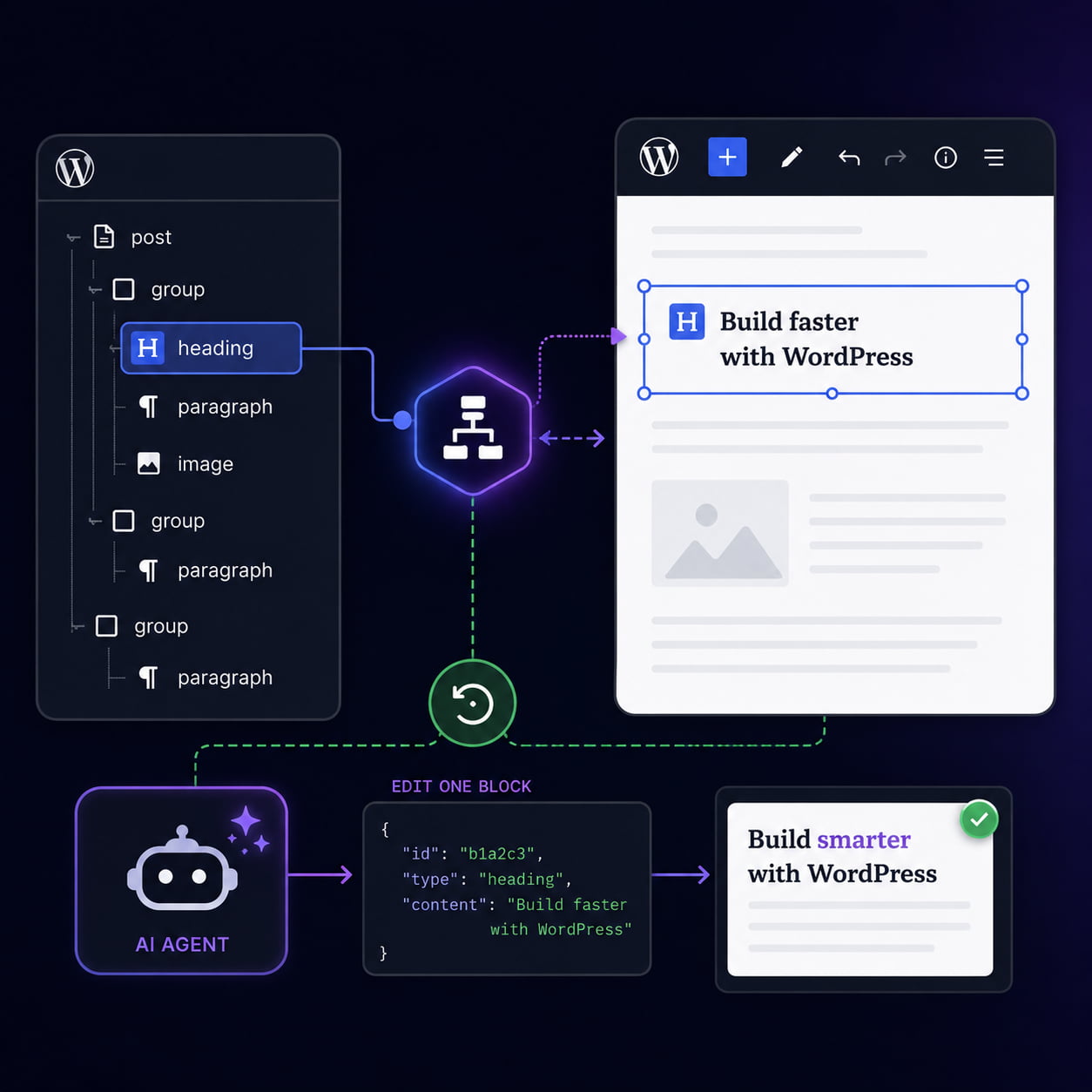
Most WordPress MCPs don’t care about block structure…which breaks your pages!
The standard WordPress REST API was built for posting, not editing. When an AI agent uses it to change one heading, it has to read the full HTML, parse it, mutate it, and write the whole post back.
That round trip is where things break:
<!-- wp:* -->block markers get stripped, so blocks reopen with “this block contains unexpected or invalid content” warnings.- Every multi-step edit re-sends the entire page body, which is slow and expensive.
- Blocks open broken even when the page looks fine — the visible markup updated, the block’s saved settings didn’t, and the editor flags it.
- A simple typo fix becomes a full revision; six small edits leave six revisions in your history.
Automattic ships vip-block-data-api for the same underlying reason: raw post_content strings are the wrong surface when something other than wp-admin needs to consume structured block data. Their plugin solves the headless-CMS case (read-only, frontend rendering). Block MCP solves the AI-editing case — the write side of the same problem.
| Dimension | vip-block-data-api | Block MCP |
|---|---|---|
| Direction | Read-only | Full CRUD + mutation engine |
| Consumer | React/Vue frontends, mobile apps | AI agents |
| Surface | REST + GraphQL (WPGraphQL) | REST + MCP server (stdio) |
| Editing primitives | None | 9 path-based ops, atomic batch (≤50), refs, revisions, ETag |
| Attribute extraction | block.json source selectors via DomCrawler | Raw parse_blocks() |
| Safety | n/a (read-only) | wp_kses, depth cap, ref locking, rate limits, tier policy, SSRF guard |
| Integrations | WPGraphQL | Yoast SEO |
| Auth default | Public read (filterable) | Requires edit_posts capability |

A WordPress MCP that knows your site
Block MCP understands what your WordPress site is made of — the blocks you’ve chosen, the patterns you’ve saved, the layout you’ve shaped. Your AI inherits all of it the moment it connects.
You don’t have to explain what “gallery” means or walk it through your pattern library. You don’t have to teach it your structure. You don’t have to fix the page after. It just works the way you want it.
Three things that change everything
The AI never loses its place
Add a paragraph here, delete one there — the AI still finds the right block when it comes back. Every block on your page has a permanent ID, and the AI uses those IDs to track exactly which block it’s editing across multiple turns and multiple chats. No other WordPress MCP does this.
Many edits, one save
Six typo fixes become one revision, not six. The AI can make up to 50 changes at once and save them as a single revision. If any one of them won’t work, none of them save — no half-finished updates sitting on your page.
Teach the AI your house style
Set your house style once; every new chat already knows it. Brand voice, editorial conventions, blocks you favor, things to avoid — whatever you’d otherwise re-paste into every chat. Every AI tool that connects to your site automatically has mad skills.
Three components, one round trip
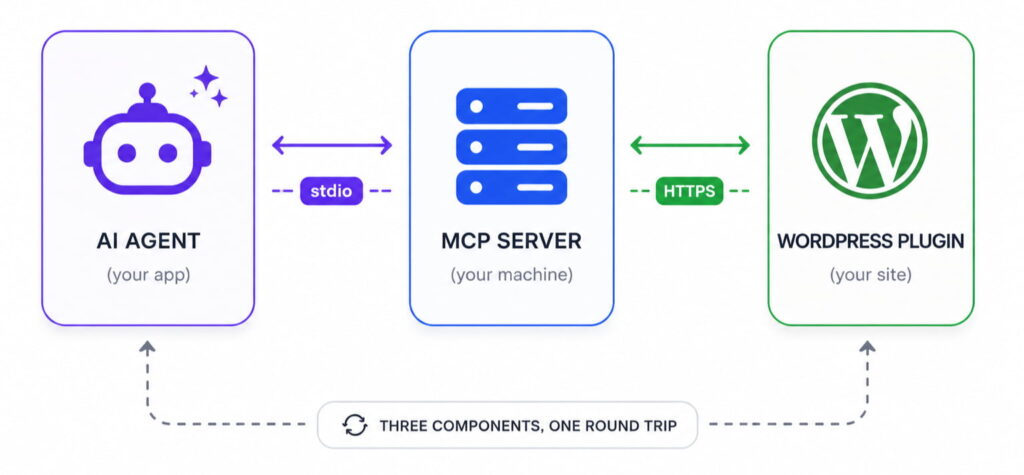
The plugin handles parsing, serialization, safety checks, preference scoring, rate limiting, and revisions. Authentication runs through a normal WordPress Application Password—no special privileges, no direct database access.
For the full tool reference, see the README.
We put Claude in front of three WordPress MCPs and asked it to change a heading
Same instruction across the board: change the H2 heading “Code samples” to H3. Three MCPs, three Claude models, three trials each. 27 runs total. We re-opened each page in the block editor and inspected it.
| Model | Block MCP | AI Engine Pro | InstaWP/mcp-wp |
|---|---|---|---|
| Haiku | 🟢 3 / 3 · 10s avg | 🟡 2 / 3 · 44s avg | 🔴 0 / 3 · 20s avg |
| Sonnet | 🟢 3 / 3 · 9s avg | 🟢 3 / 3 · 14s avg | 🔴 0 / 3 · 36s avg |
| Opus | 🟢 3 / 3 · 9s avg | 🟢 3 / 3 · 13s avg | 🔴 2 / 3 · 38s avg |
| Total | 9 / 9 | 8 / 9 | 2 / 9 |
Three takeaways
- Block MCP works on the cheapest model and finishes fastest. Haiku passes every trial in 10 seconds because the API is shaped exactly like the task.
- InstaWP’s wp/v2 wrapper fails 7 out of 9 times. The agent reports success and the heading text changes, but the round trip strips block markers and the page reopens with editor warnings on most blocks.
- AI Engine Pro is competitive on Sonnet and Opus but stumbles on Haiku, where rendered HTML and declared attributes drift out of sync.
We also ran five harder structural scenarios — moving a block, inserting a paragraph inside a core/group, adding and deleting table rows and columns. Block MCP went 5 for 5 in 13 seconds and two tool calls per scenario on average. InstaWP failed all five.
Built for the people who actually edit WordPress sites
Block MCP is useful anywhere you want an agent to make precise, surgical edits to WordPress content. A few of the workflows it shows up in:
Agencies and consultants
Ship client work faster without giving up control over what ends up on your pages. Decide which blocks AI tools can use, and every chat your team runs against that site stays inside the block library you’ve approved. Edits landing in the wrong place, broken markup, and runaway revisions stop being your problem.
Developers and AI tooling builders
Build agents that edit pages reliably across multi-turn loops. Refs are stable, writes are revisioned, mutations are atomic, and concurrency is guarded by ETag/If-Match. The repo includes a TypeScript SDK, a stdio server, and an end-to-end smoke script for live validation.
Teams running content workflows
Editorial assistants, SEO updates, batch metadata changes, programmatic launch posts. Anywhere a human used to copy-paste through the block editor, an agent can now do the same work with one revision per logical change and a clean rollback path.
Everything you can do with Block MCP
What the AI can do
- ✅ Block-level edits — change one block without rewriting the page
- ✅ Atomic batches — up to 50 edits in one revision, with one-call rollback to any earlier point
- ✅ Prioritized patterns — patterns scored by recency and usage so the AI picks the best fit, with legacy ones flagged
- ✅ Create any post type — posts, pages, docs, products, anything you’ve registered in WordPress
- ✅ Publishing lifecycle — schedule, publish, trash, and restore
- ✅ Media uploads — images, video, and files to the Media Library
What you control
- House style — teach the AI your editorial rules with one WordPress setting
- Block policy — decide which blocks are OK, which to warn on, which to block outright
- Rate limits — per-post caps so a runaway AI can’t hammer your site
- Permissions — follow your existing WordPress users (no special grants)
- No collisions — two AI sessions can’t overwrite each other’s edits
Integrations
- ✅ Yoast SEO — edit titles, descriptions, focus keywords, schema, and social cards
- ✅ Code Block Pro — insert code samples with syntax highlighting, language, and theme
Get set up in 4 simple steps
- Install the WordPress plugin. Download the latest release ZIP from GitHub and upload it via Plugins → Add New, or use WP-CLI:
wp plugin install <release-url> --activate. - Create an Application Password. In WordPress admin: Users → Profile → Application Passwords. The user needs
edit_postsfor any post you want to read or write. - Register the MCP server with your client. Clone the repo, run
npm install, then add the server to your MCP client config with your WordPress URL, username, and Application Password. - Teach the AI your house style (optional). In WordPress admin, open Settings → Block MCP and paste your editing rules into MCP server instructions. Save. Every AI tool that connects to your site uses them from then on.
Example MCP client config
{
  "mcpServers": {
    "block-mcp": {
      "command": "node",
      "args": ["/absolute/path/to/block-mcp/dist/index.cjs"],
      "env": {
        "WORDPRESS_URL": "https://example.com",
        "WORDPRESS_USER": "your-wp-username",
        "WORDPRESS_APP_PASSWORD": "xxxx xxxx xxxx xxxx xxxx xxxx"
      }
    }
  }
}
Where to paste this in your MCP client:
- Claude Desktop:
~/Library/Application Support/Claude/claude_desktop_config.json(macOS) or%APPDATA%\Claude\claude_desktop_config.json(Windows) - Cursor: Settings → MCP → Edit
- Claude Code (CLI): add via
claude mcp addor edit~/.claude.json
Or let your AI install it for you. Paste this into Claude Code, Claude Desktop, Cursor, or any MCP-capable chat:
Set up Block MCP from https://github.com/GravityKit/block-mcp on my computer. Walk me through anything you need from me — WordPress site URL, username, and Application Password.Full setup instructions are in the README.
If you would like to learn more…
We’re working on more content showing how to use the Block MCP. If you’d like to be notified when it’s published, sign up for our newsletter!