
Pro feature
Filters that narrow your entries with every click
Live Filters adds a filter panel to the Views you already have. Visitors narrow your Gravity Forms entries by clicking, and the results change without a page reload. Each option shows how many entries match, so people can see which choices are empty before they pick one.
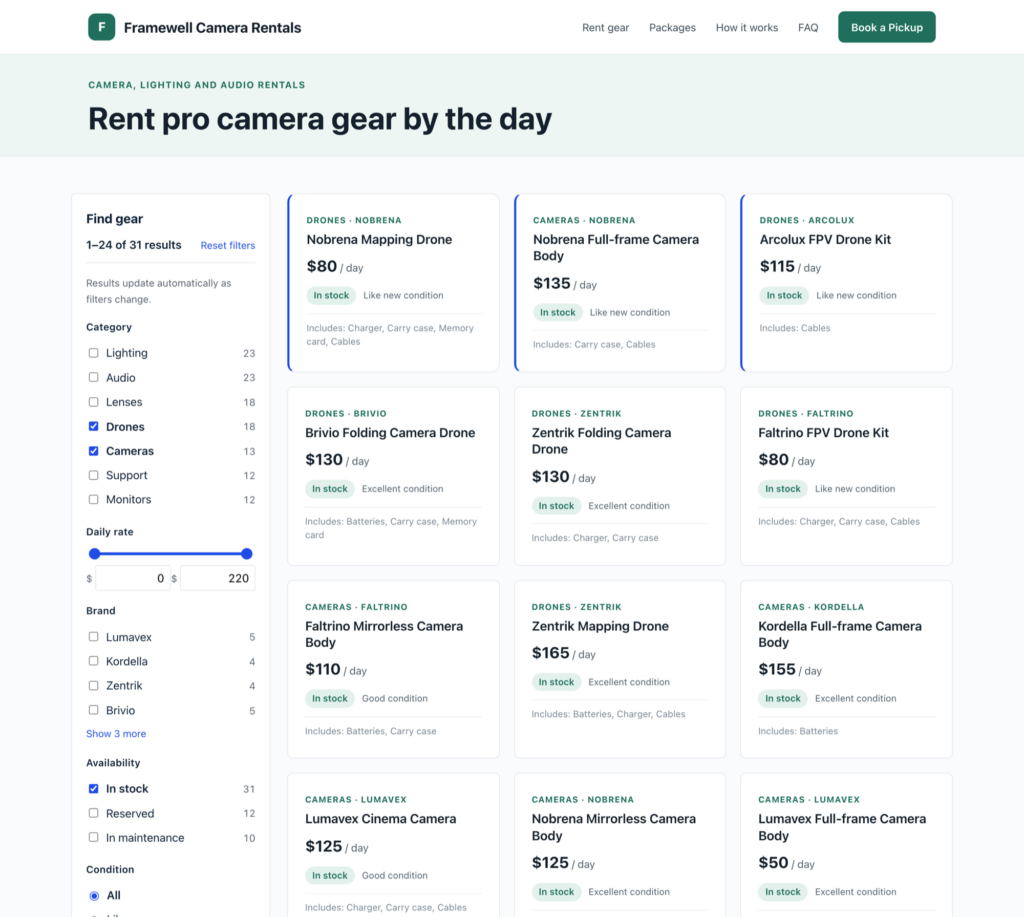
Narrow results without guessing keywords
A search box only helps people who already know what to type. When the rest can’t find what they need, they email you. With Live Filters, they see the options up front and click their way to the right entries. It works like the filters people use on Amazon and Zillow, also called faceted search.
Without Live Filters
- A search box makes people guess a keyword.
- Nobody sees how many entries match until the results load.
- A search that finds nothing means trying again.
With Live Filters
- Visitors pick from filters built on your form’s fields.
- Results update with each choice, without reloading the page.
- Every option shows how many entries match, so empty choices are easy to spot.
Combine filters and watch the results shrink
Each filter narrows what the others left, and the results change as soon as a visitor clicks, with no Search button and no page reload.
- Ticking two boxes in one filter shows entries that match either.
- The panel shows how many results are left as visitors filter.
- Reset filters clears every choice in one click.
Show what’s available before anyone picks
Every option shows how many entries match, and the counts change with each choice. You decide whether options with no matches disappear or stay greyed out.
- Counts follow the other filters and any keyword in the search bar.
- Counts only include entries the View is set to show.
- Filters display as checkboxes, radio buttons, dropdowns, range sliders or star ratings, to suit each field.
Add filters to the View you already have
Turn on Live Filters in the View’s settings, pick the fields to filter by, and click Update. Your entries stay in Gravity Forms and your layout stays as it is, so there’s nothing to rebuild.
- Choose how each filter displays, its order, and what happens to options with no matches.
- Put the panel on the left or right, and keep it in view as visitors scroll.
- Show results as visitors click, or wait for an Apply button.
Maps follow every filter
Live Filters works with your View’s existing configuration. On a Map View, the pins update with the list, so visitors only see the places that match.
- Price and other ranges filter the map and the list together.
Set it up in three steps
It all happens in the View editor.
Step 1
Turn on Live Filters
In your View’s settings, click the Live Filters tab and turn on Enable Live Filters.
Step 2
Add your filters
In the Multiple Entries Layout tab, click Add Filter and choose the fields visitors should filter by.
Step 3
Update the View
The filter panel appears beside your entries, and your layout stays as it is.
Works with your existing apps
Add Live Filters to the Views you’ve already built, whatever their configuration.

Table
Long tables like a roster or a price list narrow as visitors filter, row by row.

Cards and lists
Narrow a directory or catalog to the listings people came for.

DataTables
Filter a DataTables View, then sort and page through what’s left.

Maps
The pins follow the filters, so the map only shows the places that match.

DIY Layout
Filters sit beside the entries you’ve laid out with your own HTML and CSS.

Multiple Forms
Filter Views that join entries from more than one form.
On phones, the filter panel folds away behind a Show filters button.
Simple pricing.
Infinite possibilities.
Live Filters is included in GravityView Pro and the All Access Pass.
Our complete Kit of essential tools for extending and enhancing Gravity Forms—everything you need to build powerful web apps and workflows.
- All GravityKit Add-Ons
- All GravityView Layouts & Features
- Perfect for heavy Gravity Forms users
- Priority support via email
- Save $912 (70%) vs. buying separately
Take GravityView to the next level with every premium layout and feature in one package.
- Standard & premium Layouts + Features
- Integrations with DataTables & Google Maps
- Advanced Elementor integration
- Perfect for advanced web applications
- Expert email support

We proudly offer a 30-day money-back guarantee
We want you to be 100% happy with your purchase, or we’ll make it right.

Try Live Filters
Live Filters adds filters that update results instantly, so visitors find the right entry in a few clicks.
Have any questions?
Here are a few common questions about Live Filters.