
Getting started with Gravity Forms Zero Spam
Gravity Forms Zero Spam is a free plugin that blocks spam on your forms without CAPTCHAs, checkboxes, or anything your visitors have to do. It starts working as soon as you activate it and enable it on a form, and you can layer on extra checks as you need them.
This article covers turning protection on for your forms, switching on the optional checks, and setting up spam summary reports. Each optional check has a full guide of its own, linked from its section below.
What Zero Spam checks #
Zero Spam runs one check out of the box and three more that you turn on. Each works on its own, and you can run any combination of them.
| Check | On by default | Requires |
|---|---|---|
| Invisible token check | Yes, once you enable Zero Spam on a form | Nothing |
| Email rejection rules | No | Nothing |
| AI Spam Review | No | WordPress 7.0 or newer with an AI service connected |
| Shield silentCAPTCHA | No | The free Shield Security plugin |
Zero Spam can also email you a summary of recent spam activity, which is covered at the end of this article.
Enabling anti-spam protection #
After installing and activating the plugin, turn on protection for each form you want to protect:
- Click Forms in your WordPress menu.
- Hover over one of your forms and click Settings.
- Scroll down to Form Options and switch on Prevent spam using Gravity Forms Zero Spam.
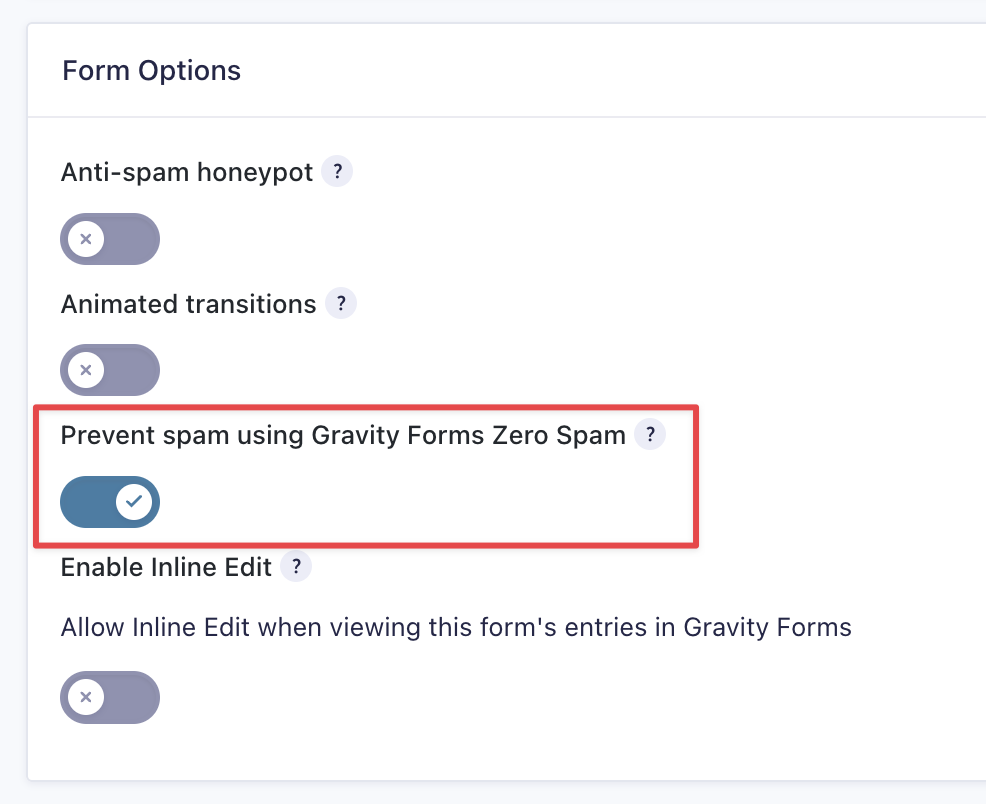
You can also turn this option on by default for all new forms from the Zero Spam global settings on the Gravity Forms “Settings” page.
This setting is the master switch for that form. While it is off, every Zero Spam check is off for the form, including the optional ones below.
Turning on the optional checks #
All three optional checks are configured from the same place: click Forms, click Settings, then click Zero Spam.
Email rejection rules
Email rejection rules reject submissions based on the email address someone enters, either across your whole site or on one specific field. Use them when spam keeps arriving from a particular domain, or when a form should not accept free consumer addresses.
On the Zero Spam settings page, find the Email Rejection Rules section and switch on Enable Email Rejection Rules. A Rules builder appears, where each rule takes a Type (domain, email, wildcard, or regex), a Value, and an Action: block the submission, flag it as spam, or log it without changing anything.
For rule types, per-field rules, and the reasons a rule might not match, see Using Email Rejection Rules with Gravity Forms Zero Spam.
AI Spam Review
AI Spam Review adds two optional tools: one flags spam that the token check missed, and one rescues legitimate submissions that the token check blocked by mistake. Both are off by default, and nothing is sent to an AI service until you turn them on.
This check needs WordPress 7.0 or newer with an AI service connected. WordPress stores those credentials centrally: click Settings, then click Connectors, and connect OpenAI, Anthropic, or Google. Once a connector is in place, scroll to the AI spam protection section of the Zero Spam settings page and turn on either or both tools.
For confidence levels, per-form options, and how to write your own AI instructions, see Using AI Spam Review with Gravity Forms Zero Spam.
Shield silentCAPTCHA
If you use the free Shield Security plugin, Zero Spam can use its silentCAPTCHA bot detection as an additional spam signal. Like the token check, it runs server-side and your visitors see nothing.
With Shield Security installed and activated, turn on Enable Shield silentCAPTCHA by Default on the Zero Spam settings page. Individual forms can override that default from the Spam Detection section of their own settings.
For per-form overrides and what a flagged entry looks like, see Using Shield silentCAPTCHA with Gravity Forms Zero Spam.
Choosing the order checks run in #
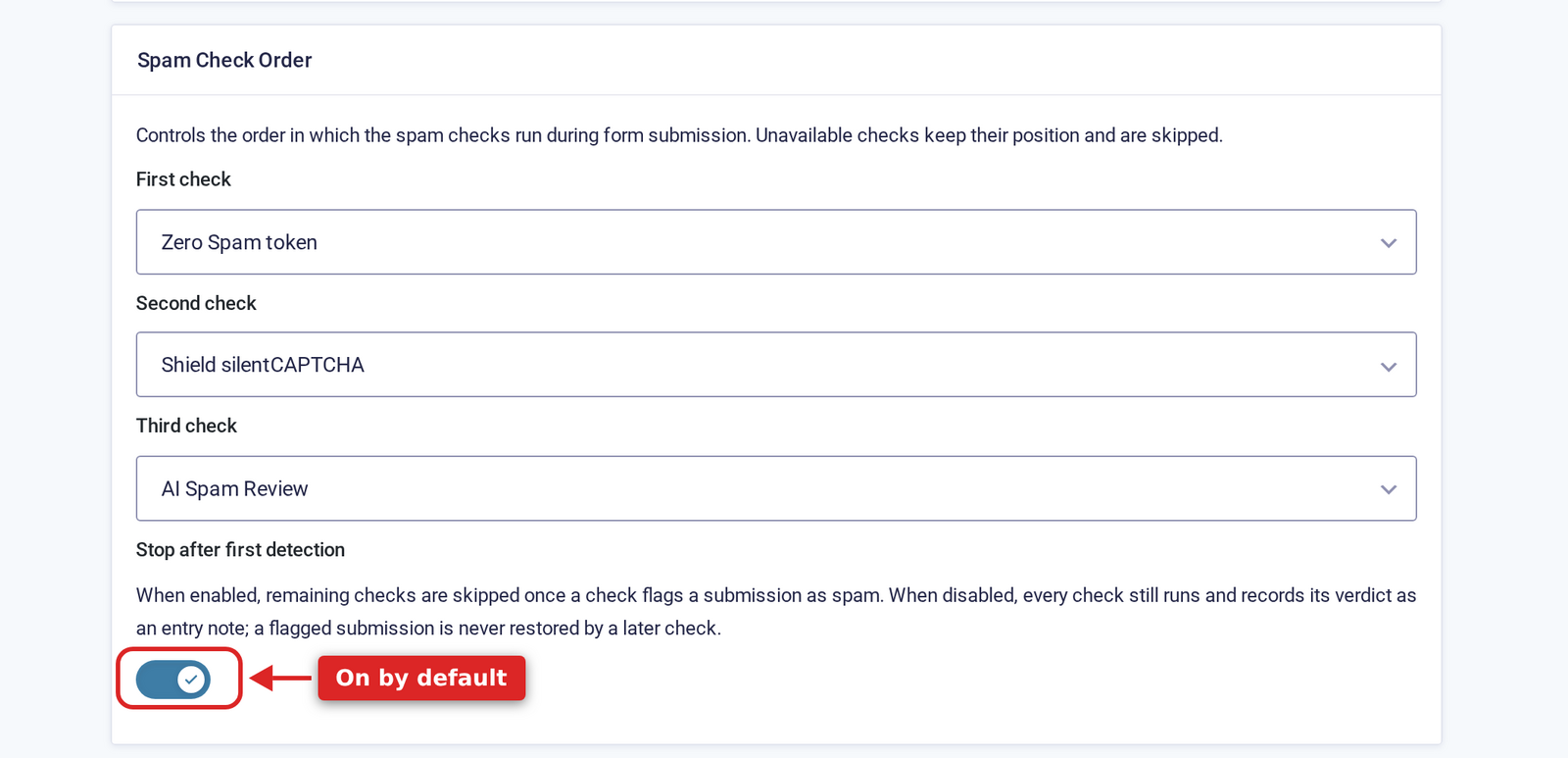
When more than one check is active, the Spam Check Order section of the Zero Spam settings page controls the order they run in. Stop after first detection is on by default, so Zero Spam stops checking as soon as a submission is flagged. Turn it off if you would rather every check run and record its verdict as a note on the entry.
Configuring spam summary email reports #
Gravity Forms Zero Spam can also email you automated spam reports:
- Hover over Forms, click Settings, then click Zero Spam.
- Scroll down to Spam Report Email and choose how often you would like to receive reports.
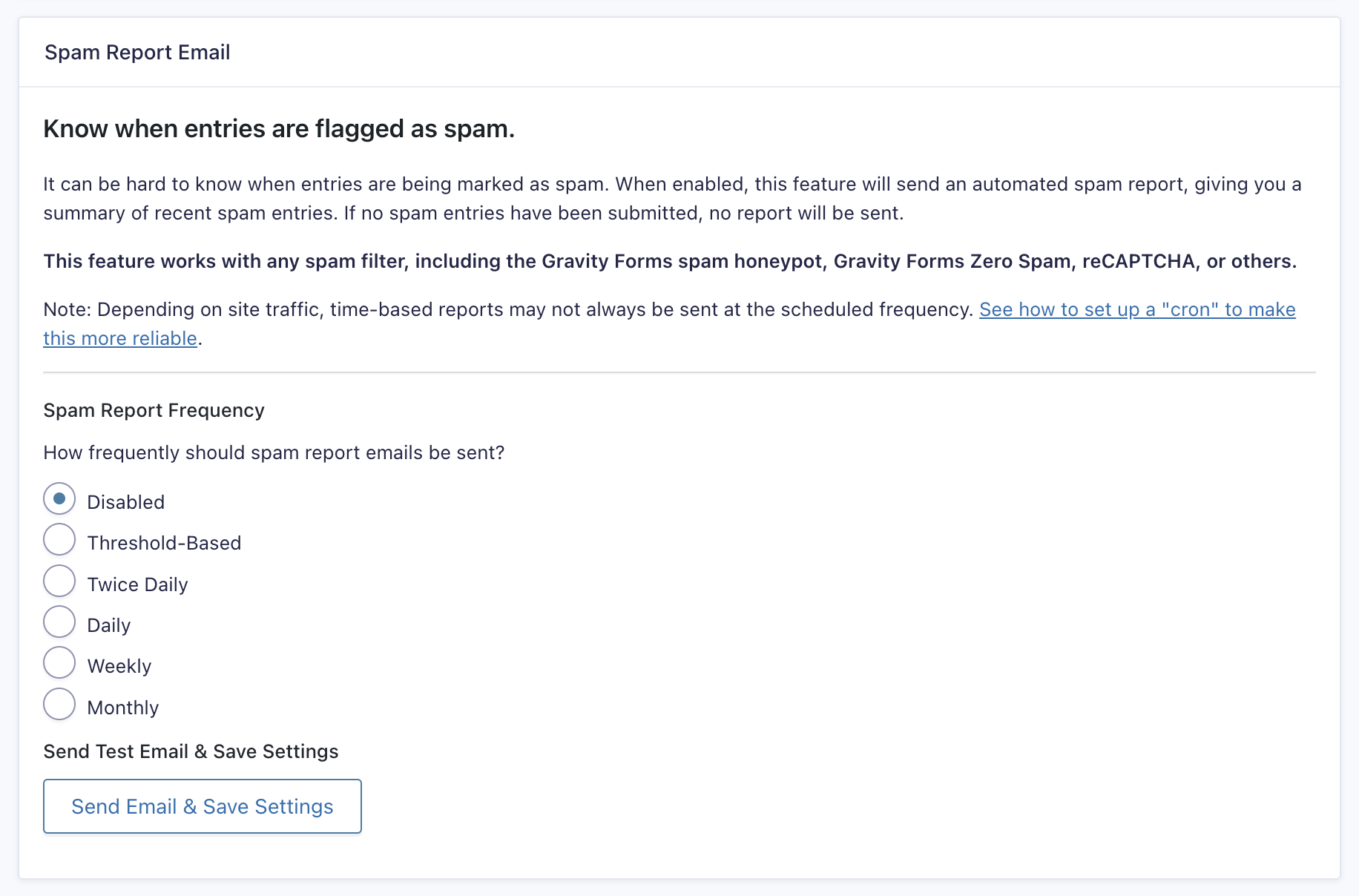
After selecting a frequency, you can configure the email settings, and customize the email body using custom merge tags to pull in dynamic content.
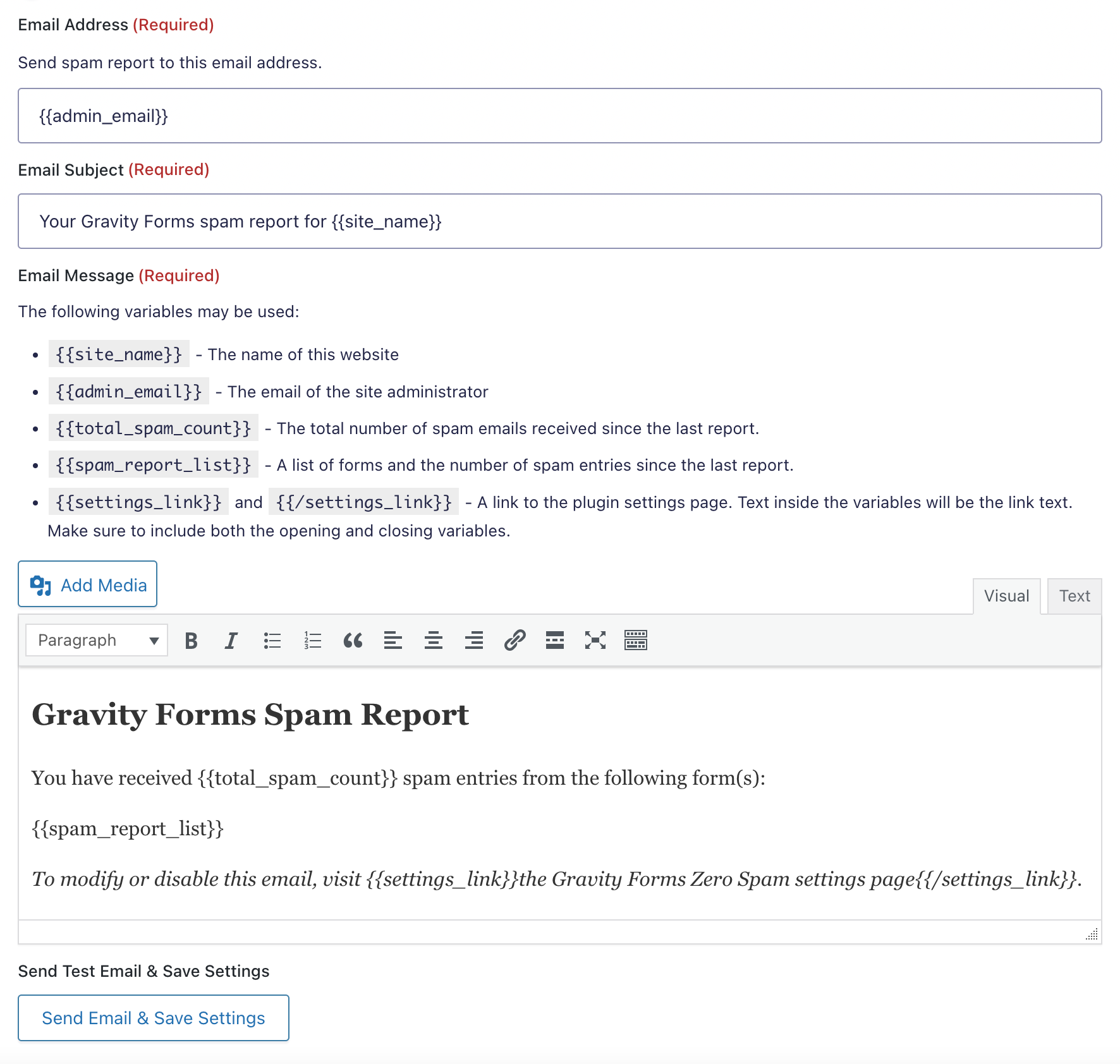
When you’re done, click “Send Email and Save Settings” to send a test email to your chosen email address. Check to ensure your email is set up correctly and then click the “Save Settings” button below.

