
Pro feature
Charge for the top spots in your directory
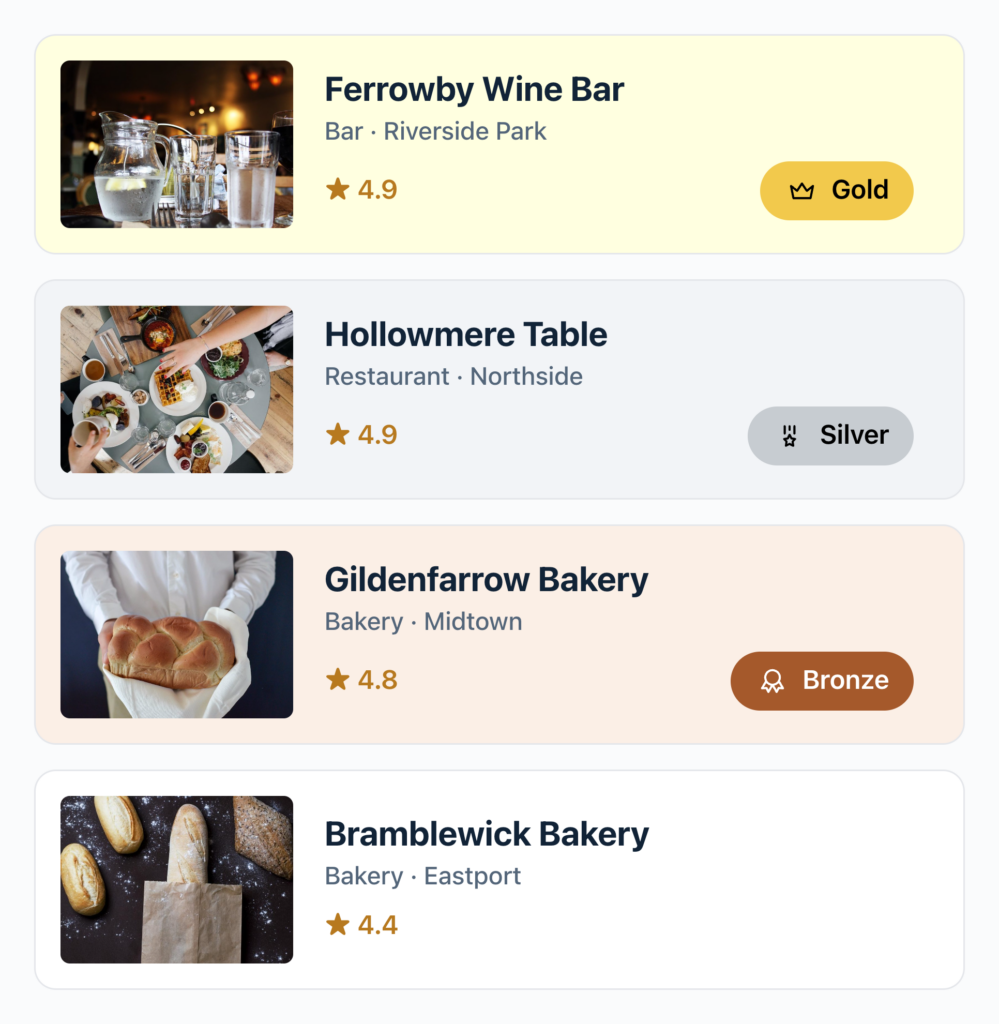
With Featured Tiers, you can sell featured spots in your directory. A business pays on an order form, its listing moves up with a badge, and it goes back to its usual place when its time is up. Rank your plans, such as Gold, Silver and Bronze, so higher levels sit on top.
Sell featured spots without the upkeep
Until now, a paid spot meant someone had to remember to switch it on and off. With Featured Tiers, a paid order features the listing, and the spot ends on its own. Featured Tiers are part of the Featured Entries feature in GravityView Pro.
Without Featured Tiers
- You star paid listings by hand, and remove the star when their time is up.
- Every featured listing looks the same, whatever it paid for.
- Gold and Silver plans need a second View, a sort field or custom code.
With Featured Tiers
- A paid order features the listing, and the spot ends after the days you set.
- Each tier has its own badge, icon and row color.
- Higher tiers sit above lower ones in the same View.
Sell featured spots that end on their own
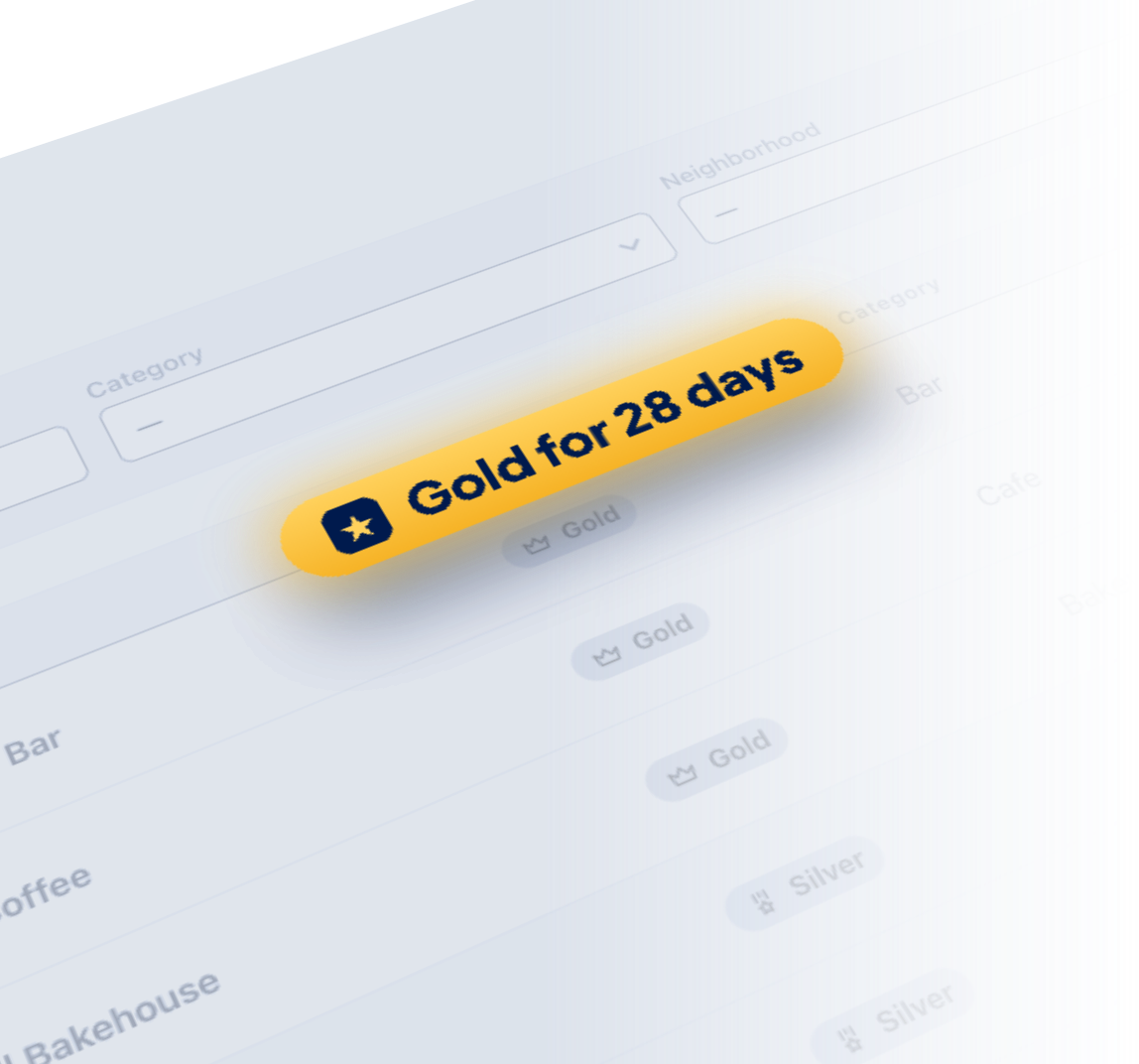
Connect a tier to an order form, and a listing joins the tier as soon as its owner pays. A spot lasts the number of days you choose, such as 28, then the listing goes back to its usual place.
- A refund ends the spot, and a subscription keeps it while active.
- Take payment with Stripe, PayPal or another payment add-on.
- Buyers pick their listing, or follow a link that names it.
Put your top plans above the rest
Pick a Drop Down or Radio Buttons field, and you get one tier for each of its choices, in the order of the choices. A Listing plan field with Silver, Bronze and Free choices, for example, becomes Silver and Bronze tiers in one step, and the free plan stays out.
- Feature listings by a field’s value, conditions or the star.
- Each listing goes in the first tier it matches.
- Every View of the form can use the same tiers.
Show buyers what they paid for
Each tier has a badge with its own text, color and icon, plus a background color for its rows or cards. The preview in the tier’s settings shows the badge as you change it.
- Pick one of the swatches or any color you like.
- Search the icon library for your badge, or use your own image.
- Show the badge with a field or the
{featured_tier}merge tag.
Set it up in three steps
You create tiers on your form, then choose which ones each View shows.
Step 1
Add a tier
In your form’s settings, click Featured Tiers, then click Add Tier.
Step 2
Choose who’s in it
Use a field’s choices, your own conditions or a paid order on an order form.
Step 3
Update the View
Style each badge and click Save Tiers. Then turn on Move Featured Entries to Top in your View and click Update.
Featured listings for any directory
Each of these is one View with Featured Tiers.
Paid spots
Business directories
Local businesses pay for a Gold spot that lasts 28 days.
Field choices
Member directories
Gold and Silver members appear above everyone else, with the badge for their level.
Subscriptions
Job boards
Employers on a monthly plan keep their jobs at the top while the subscription is active.
Conditions
Property listings
Homes marked as an open house get an “Open house” badge.
Starred entries
Event listings
Staff star the events they want to promote, and starred events get a “Staff pick” badge.
Product choices
Classifieds
One order form sells Bronze, Silver and Gold packages, and each package becomes its own tier.
A listing that matches two tiers shows in the higher one.
Simple pricing.
Infinite possibilities.
GravityKit is trusted by agencies, nonprofits, developers, and WordPress users all over the world.
Our complete Kit of essential tools for extending and enhancing Gravity Forms: everything you need to build powerful web apps and workflows.
- All GravityKit Add-Ons
- Every GravityView Pro feature
- Perfect for heavy Gravity Forms users
- Priority support via email
- Save $912 (70%) vs. buying separately
Get Maps, DataTables, the Advanced Elementor Widget and every other Pro feature to build the app your process needs.
- Every GravityView Pro feature
- Integrations with DataTables & Google Maps
- Advanced Elementor integration
- Perfect for advanced web applications
- Expert email support

We proudly offer a 30-day money-back guarantee
We want you to be 100% happy with your purchase, or we’ll make it right.
Try Featured Tiers
Featured Tiers let you sell featured spots that end on their own, and rank listings by plan.
Have any questions?
Here are a few common questions about Featured Tiers.