
Bulk Email with GravityActions
GravityActions allows you to send bulk emails to email addresses that you have captured using Gravity Forms.
Perfer to watch the video?
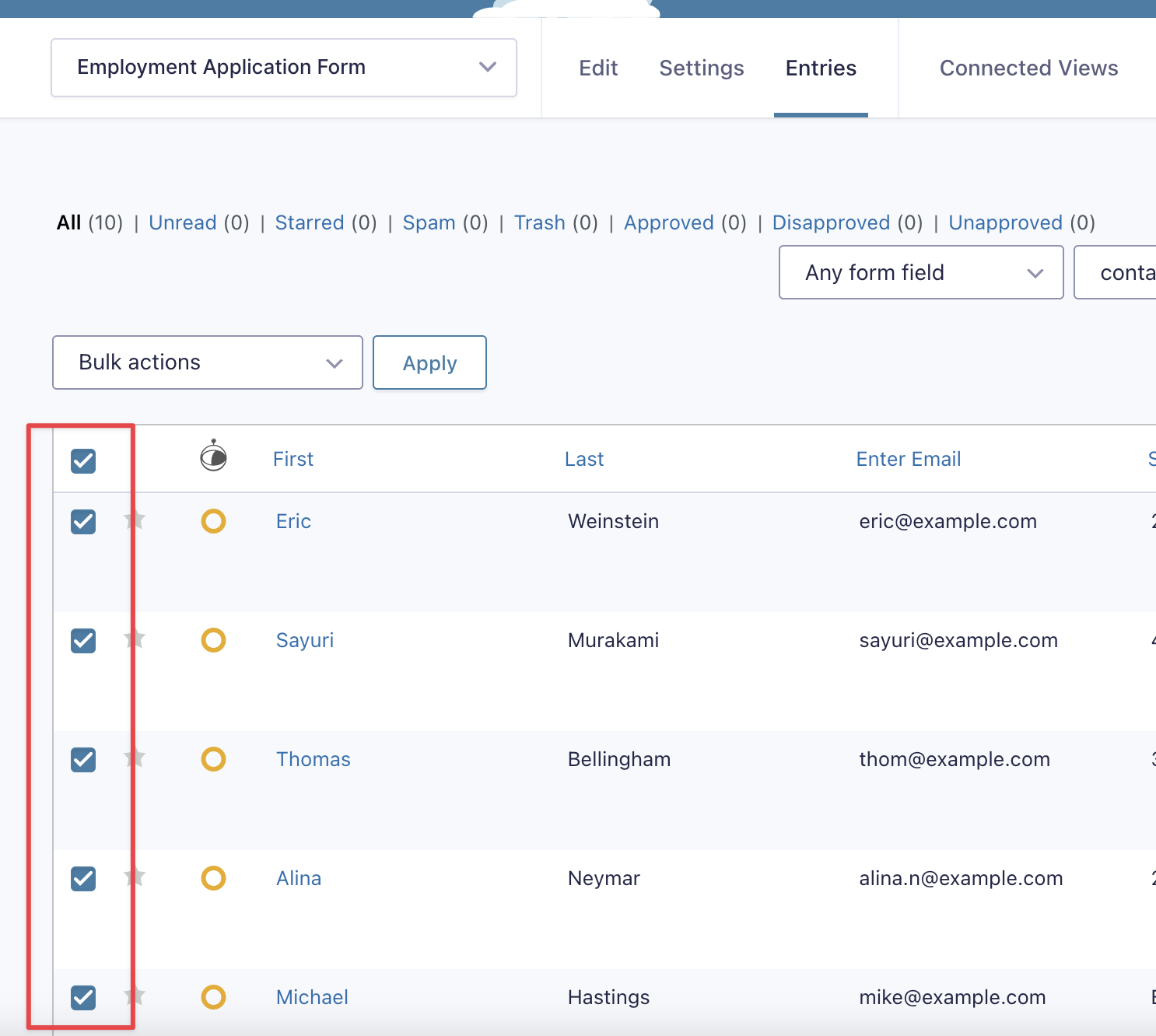
To get started, go to the Gravity Forms “Entries” page and select the entries that you want to bulk email.
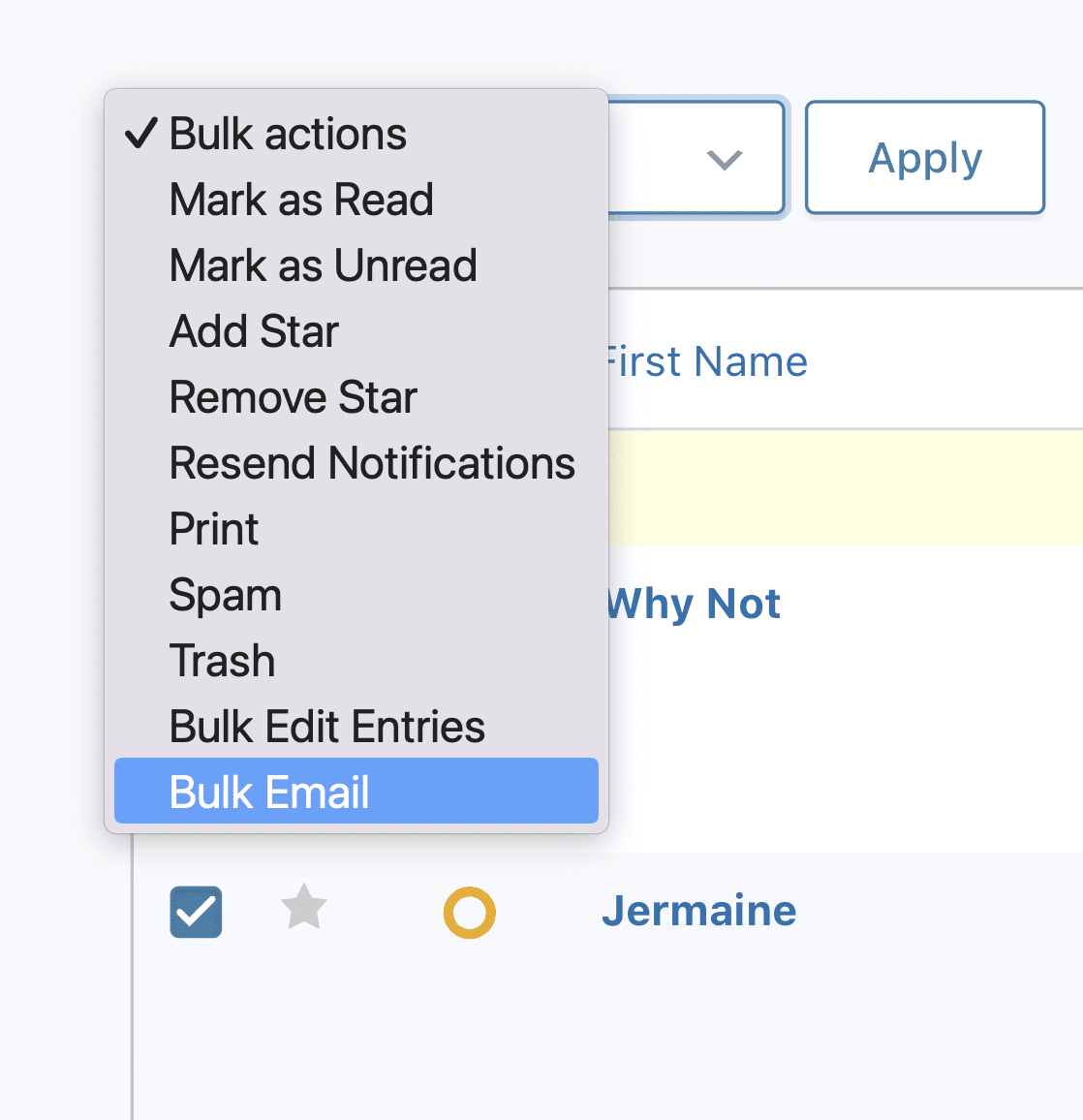
Next, select “Bulk Email” from the Gravity Forms “Bulk actions” dropdown.
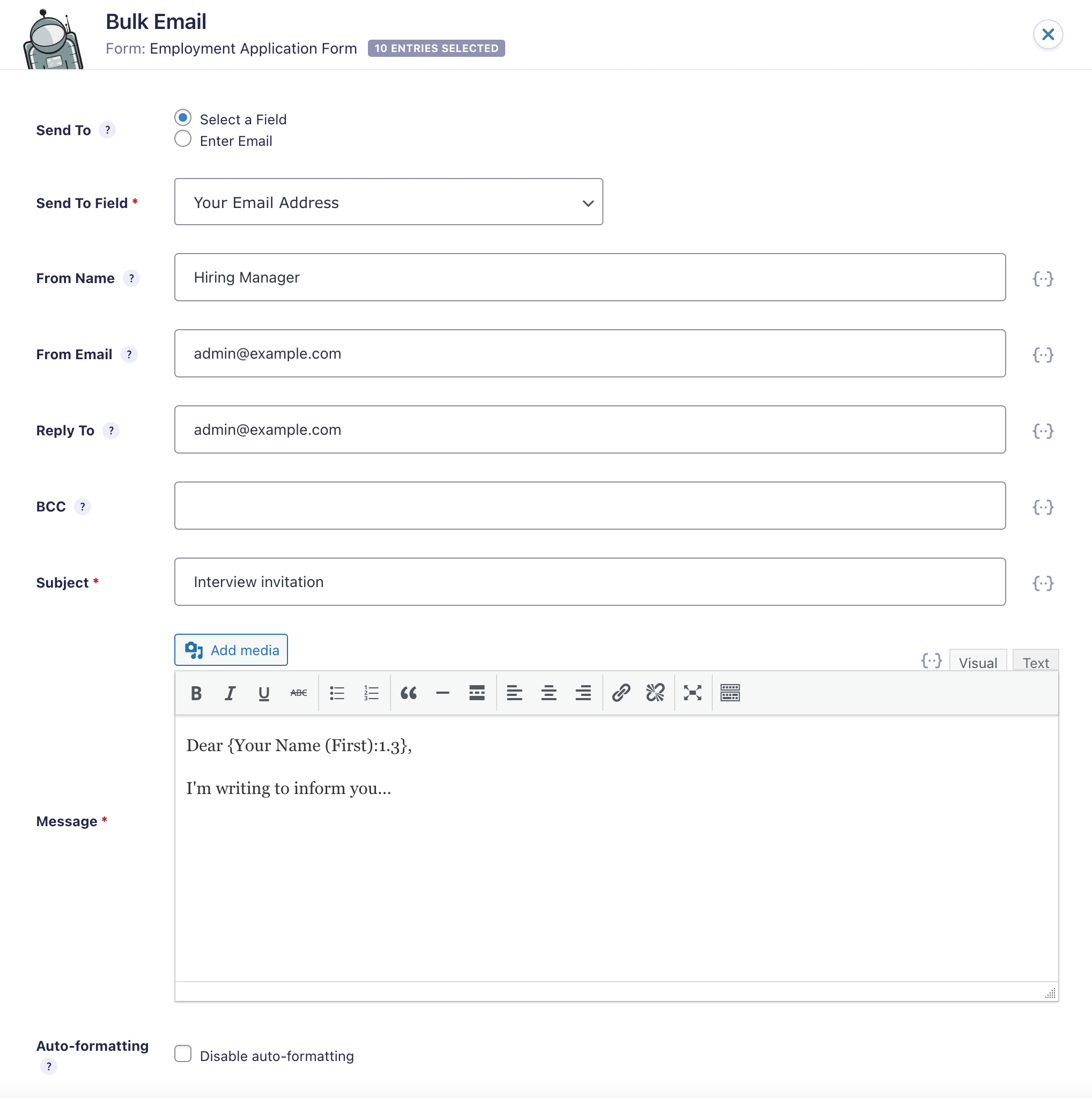
A window will now open where you can prepare your email. The “Send To” address can either be a user-submitted field in your form, or a custom address that you manually input. Gravity Forms merge tags are supported for all input fields, allowing you to add dynamic content to your message! Examples of where you may want to use dynamic content include personalized subject lines, or the user’s name.
GravityActions sends a separate email for each selected entry. When Send To is an email field from your form, each person gets their own message, with merge tags filled in from their own entry, and no one sees the other recipients. When Send To is an address you type in, that address gets one email for each selected entry.
After you’ve composed your message, click “Preview Message” to see what it looks like. If you’re happy, click “Send Message” to send your emails.
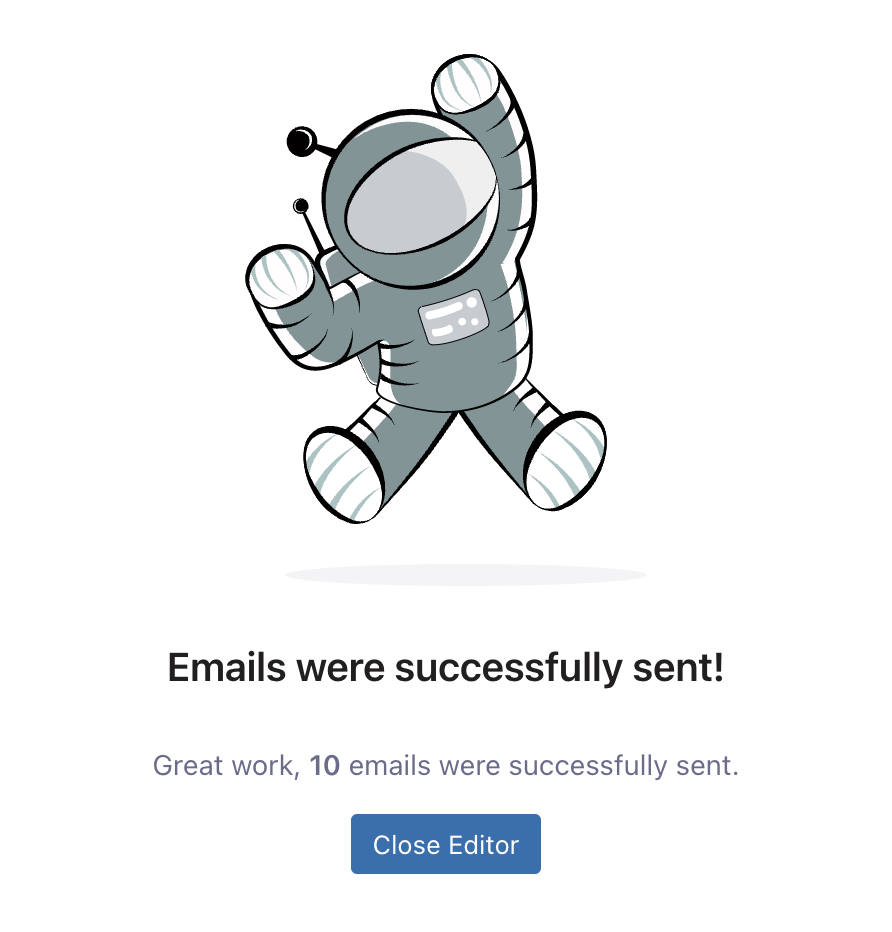
That’s it!

