This week, merge tags got a lot easier to read and use. Visual Merge Tags turns every plain text tag into a clickable chip you can change and preview with a real entry, and it's free for all GravityKit users! Last week we promised you a date for our next livestream, so here it is. And in The Prompt, we explore building a WordPress site with ChatGPT through WebMCP.
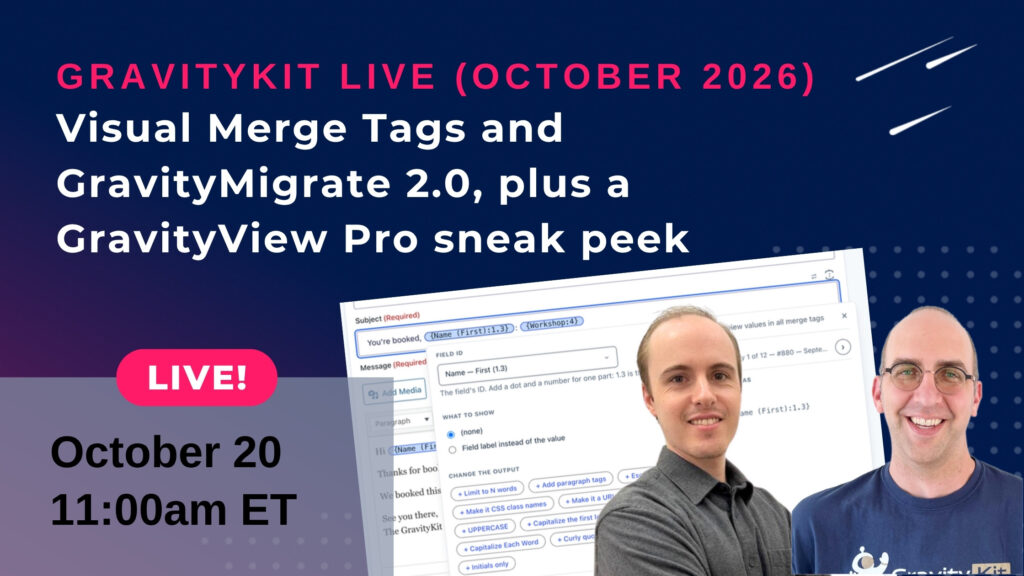
🎙️ GravityKit Live: October 20, with a GravityView Pro sneak peek
🤖 The Prompt: ChatGPT builds a WordPress homepage with WebMCP
✍️ From the blog: 10 school apps you can build with Gravity Forms and GravityKit
🧰 Updates to the ’Kit
🌟 PRODUCT SPOTLIGHT
Visual Merge Tags
Visual Merge Tags turns Gravity Forms merge tags into clickable chips you can insert, format, and preview with real entries.
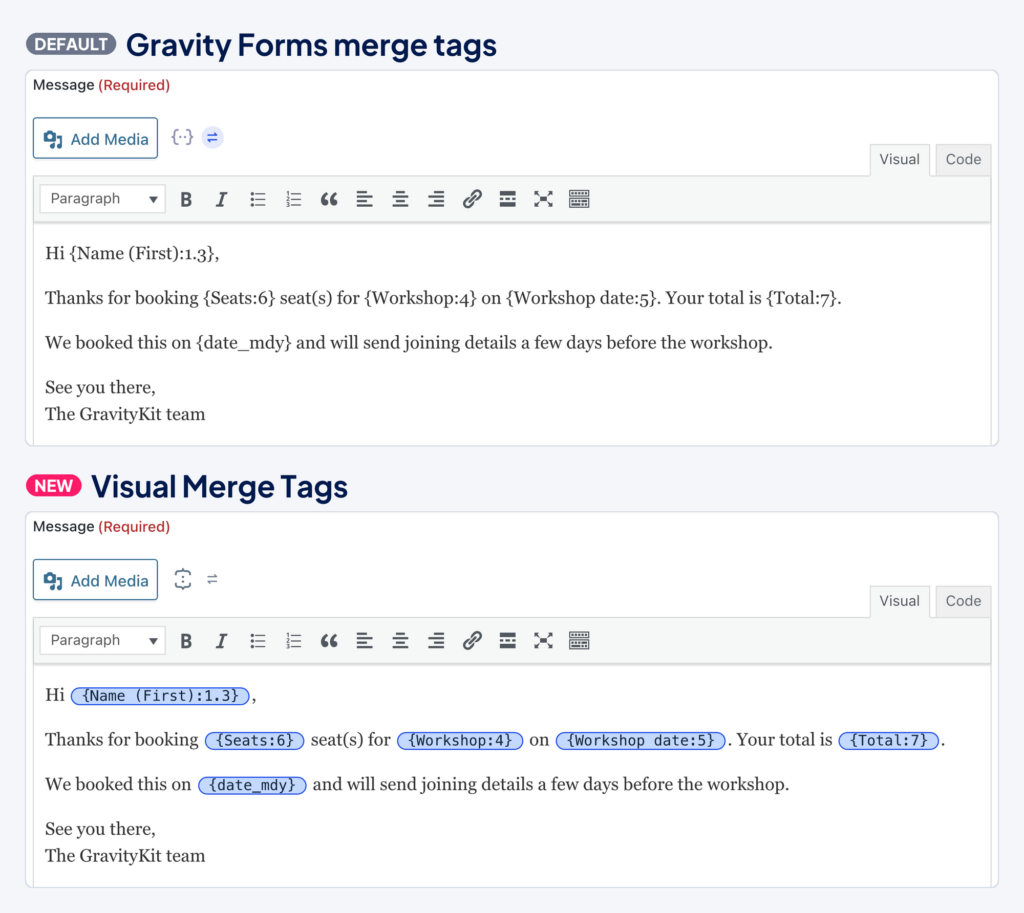
A merge tag is a placeholder, like {Name (First):1.3}, that Gravity Forms replaces with a value from the entry when it sends an email or displays content. In Gravity Forms’ default editor, a merge tag is plain text, and changing the output means adding modifiers from memory or looking them up in the documentation.
Visual Merge Tags shows every merge tag as a clickable chip, on Gravity Forms' own screens as well as GravityKit's. To add one, type { and pick from the list.
The same notification, before and after Visual Merge Tags
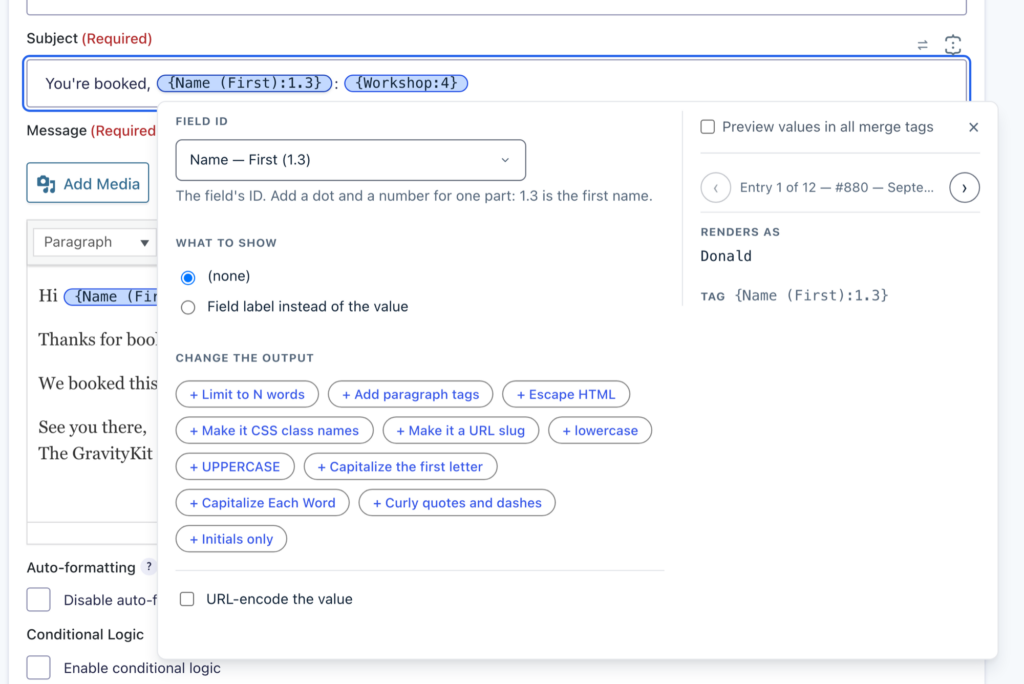
Click a chip to change what it outputs without looking up modifier syntax, like choosing which part of a Name field to show or building a date format. The same panel previews the tag with real entries from your form, so you can check what a notification will say before you save it.
Each chip opens a panel with a preview from a real entry
Visual Merge Tags is free. It's part of Foundation 1.35.0, which rolled out in this week's releases, and every GravityKit product will include it soon. Prefer Gravity Forms' own picker? You can switch back on any field, or choose where Visual Merge Tags appears in GravityKit Settings. Learn more about Visual Merge Tags →
These updates are part of our latest round of releases, which also includes updates to GravityView, Magic Links, the Gravity Forms Widget for Elementor, GravityImport, the GravityKit MCP, and more.
Visual Merge Tags and GravityMigrate 2.0, plus a GravityView Pro sneak peek
Join us on Tuesday, October 20 at 11am ET for another installment of GravityKit Live! Casey and I will demo Visual Merge Tags and show GravityMigrate 2.0 moving forms between WordPress form plugins in both directions.
Why tune in? We'll also give you a first look at something big coming to GravityView Pro: the GravityView feature we've always wanted. Lastly, don't forget to bring your questions for the live Q&A at the end.
Can't make the live show? Register anyway and we'll send you the recording afterward.
After reading Jamie Marsland's Why WebMCP is going to be big for WordPress, we had to try it ourselves! We opened WordPress Playground in the ChatGPT desktop app and gave it one prompt: "build a colourful homepage for a local coffee shop". About five minutes later we had a full homepage with photos, working menu tabs, an "Our story" section, and a design that looked great on desktop and mobile.
Casey's WebMCP demo in ChatGPT
So what's WebMCP? It's a draft web standard that lets a page tell an AI assistant which actions it can take there. Jamie calls it "an instruction manual with working buttons." Most AI assistants that can use a website for you have to take a screenshot, work out where to click, click, then take another screenshot to see whether it worked. That's slow, and it's easy for them to click the wrong thing.
With WebMCP, the page gives the assistant a list of actions it can call by name, such as adding a menu or creating a page, so it skips the screenshot-and-click guesswork. The actions come from the web page you have open, so you and the assistant work in the same browser tab. You see each change as it happens and can edit it yourself.
WordPress Playground already supports WebMCP, so you can try it today on a test site that runs in your browser. WebMCP is still a draft, though, and browser support is still developing.
How to try it: Open the latest ChatGPT desktop app, switch to Work mode, then ask it to "open the browser and go to playground.wordpress.net." Once WordPress loads, ask it to build a site for you: "Use the available site tools to build a colorful homepage for a local coffee shop."
If your school already collects applications, registrations, or staff details with Gravity Forms, you have the data for a working app. This post covers ten apps that schools and universities can build using GravityKit, including an application review dashboard, student portals, report cards, and a library catalog, each linked to a full walkthrough.
🧰 UPDATES TO THE ’KIT
Here are the plugins that got updates since our last newsletter: