"MCP" is the three-letter acronym you can't escape in WordPress right now. This week we published a full explainer covering what a WordPress MCP server actually is, which ones are worth your time, and where things can go sideways if you're not careful. On the product side, we also shipped GravityView 3.0 beta 3 with two new frontend bulk actions!
In this edition:
🌟 Product spotlight: GravityView 3.0 beta 3 sees two new bulk actions
🤖 The prompt: WordPress's official AI plugin just hit v1.0
✍️ From the blog: How to build an internal ops dashboard + what a WordPress MCP server actually is
🧰 Updates to the ’Kit
🌟 PRODUCT SPOTLIGHT
GravityView 3.0 (beta)
Display Gravity Forms entries on the front-end of your site and build powerful web applications.
Beta 3 of GravityView 3.0 just dropped, and it's a big one for anyone who manages entries in bulk. Two new frontend bulk actions: Resend Notifications lets you re-fire Gravity Forms notifications for any group of selected entries, which is gold for recovering from delivery failures or pushing a corrected message to a batch of submitters. Download Attachments packages every file upload from your selected entries into a single ZIP, so you can stop clicking into entries one at a time just to collect files.
Bulk Edit also got an upgrade. You can now apply bulk edits to dropdown, radio, checkbox, and multiselect fields, plus the individual inputs on Name and Address fields. And the background processing toggle has moved off the global Bulk Actions widget config onto each individual action, so you can decide per action whether it runs in the background or inline.
GravityExport
Export Gravity Forms entries to Excel, CSV, or PDF and share them instantly with secure download links.
If your feeds export to Dropbox or Box, GravityExport will now monitor those connections and alert you the moment one goes offline, by email, with a dashboard notice, or both. No more finding out at 2am that a token expired three days ago and a week of exports never made it to the cloud! You'll find the new settings under Cloud Storage on the GravityKit settings page (GravityExport tab).
We also fixed a small UI issue where the copy-to-clipboard button icons were vertically misaligned on the feed settings pages in WordPress 7.0.
These updates are part of our latest round of releases, which also includes updates to GravityImport, GravityView, and the GravityView Maps Layout.
If you run WordPress 7.0, you already have the Connectors screen, where OpenAI, Gemini, or Claude API keys live at the core level. The gap flagged back in March: any plugin on the site could quietly tap that connection. The official AI plugin v1.0 ships two new experiments that close it directly:
Connector Approvals – admins decide which plugins or themes can use the configured AI connectors. Nothing taps your AI quota without you saying so.
AI Request Logging – every AI request gets logged. You finally see what your site is actually doing on the AI side.
That's the headline. But the plugin now ships 13 opt-in experiments worth knowing about as a kit of building blocks for your own (or your clients') AI workflows:
Abilities Explorer · AI Request Logging · Alt Text Generation · Comment Moderation · Connector Approvals · Content Classification · Content Resizing · Content Summarization · Editorial Notes · Editorial Updates · Excerpt Generation · Meta Description Generation · Title Generation.
(Image Generation graduated out of "experimental" status in April and now ships as a built-in feature in the editor and Media Library, no toggle needed.)
To try it: install the AI plugin from the WordPress AI team, set up at least one connector under the Connectors page in Settings, then enable the experiments you want under the AI page in Settings. Everything is opt-in. Nothing fires automatically.
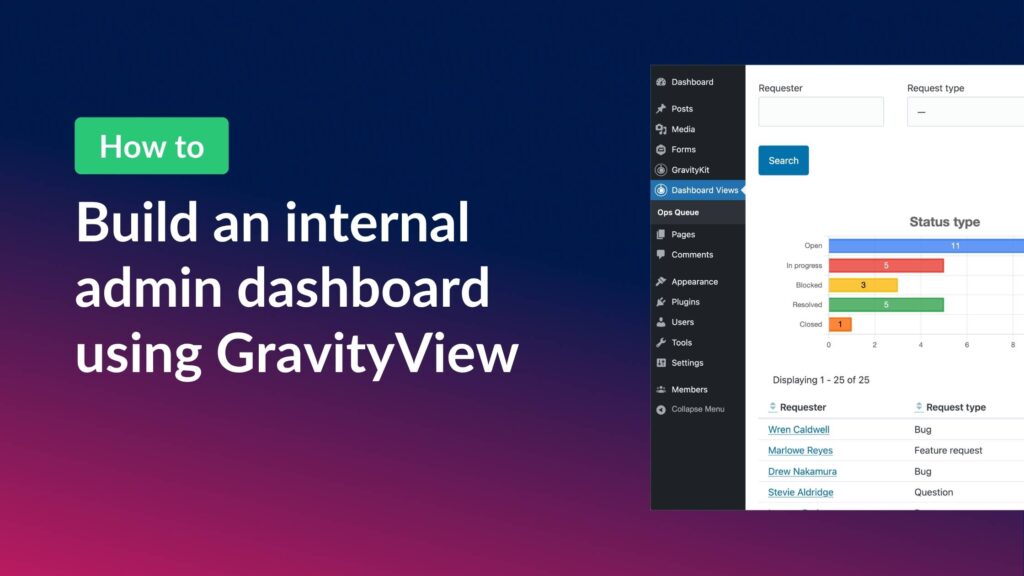
In this tutorial, Casey shows you how to build an operations dashboard inside wp-admin where a small team can triage internal requests: a sortable table of all open items, KPI charts at the top, and an optional kanban view for visual thinkers. Everything stays inside the WordPress admin, behind login, with role-based access.
This guide explains what a WordPress MCP server actually is, why people (including us!) are using them, how the architecture works under the hood, and how six of the most established options compare. By the end you will know which one fits your workflow and which trade-offs you are signing up for.
🧰 UPDATES TO THE ’KIT
Here are the plugins that got updates since our last newsletter: