---
title: "Showing a related post’s featured image in a View"
date: 2026-11-10
updated: 2026-11-10
author: "Rafael Bennemann"
link: "https://www.gravitykit.com/docs/gravityview/customizing-your-views/related-post-featured-image/"
category: "GravityView > Customizing Your Views"
---
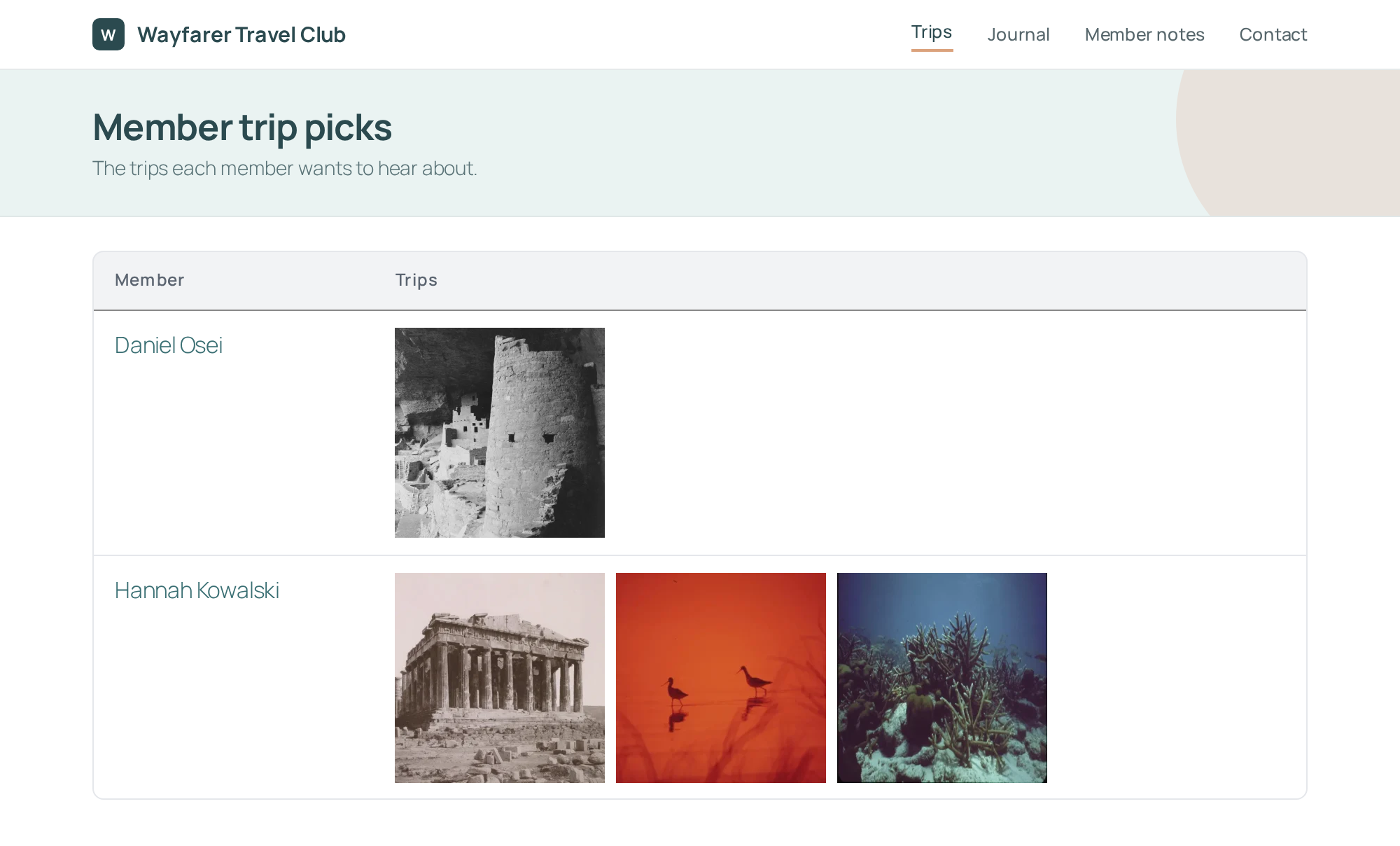
When an entry stores the IDs of WordPress posts, such as the trips a club member picked, you can show each post’s featured image in a View. A Custom Content field shows them with a short shortcode, or with no code at all when the ID comes from a Dynamic Lookup field.
## Fields that store post IDs
You can use the shortcode below with any field that stores one post ID, or several separated by commas. In a Checkboxes field whose choice values are post IDs, each checked choice stores one ID. Its merge tag with the `:value` modifier lists them all, so `{Trips:3:value}` shows `807, 811, 813` for three checked trips.
## Show the images with a shortcode
Add this code to your site. It adds a `[related_image]` shortcode that shows the featured image of each post ID you give it:
```
/**
* Shows the featured image of each post listed in the "id" attribute.
*
* Example: [related_image id="{Trips:3:value}" size="medium"]
*
* @param array $atts Shortcode attributes: "id" holds one post ID or
* several, separated by commas, and "size" an
* image size.
*
* @return string The images, or an empty string.
*/
function gk_related_image_shortcode( $atts ) {
$atts = shortcode_atts(
array(
'id' => '',
'size' => 'medium',
),
$atts
);
$output = '';
foreach ( explode( ',', $atts['id'] ) as $post_id ) {
$post_id = absint( $post_id );
// Skip drafts and private posts, and IDs that match no post.
if ( ! $post_id || 'publish' !== get_post_status( $post_id ) ) {
continue;
}
$output .= get_the_post_thumbnail( $post_id, $atts['size'] );
}
if ( '' === $output ) {
return '';
}
// Lay the images out side by side, wrapping onto new lines.
$style = 'display:flex;flex-wrap:wrap;gap:8px';
return '' . $output . '
';
}
add_shortcode( 'related_image', 'gk_related_image_shortcode' );
```
**Note**: [Adding custom PHP code snippets to your website](https://www.gravitykit.com/docs/gravityview/customizing-your-views/where-to-put-code-samples/) shows where to put this code.
Then add a [Custom Content field](https://www.gravitykit.com/docs/gravityview/view-setup/using-the-custom-content-field/) to the Multiple Entries or Single Entry layout of the View, and put the shortcode in it with your field’s merge tag:
```
[related_image id="{Trips:3:value}" size="thumbnail"]
```
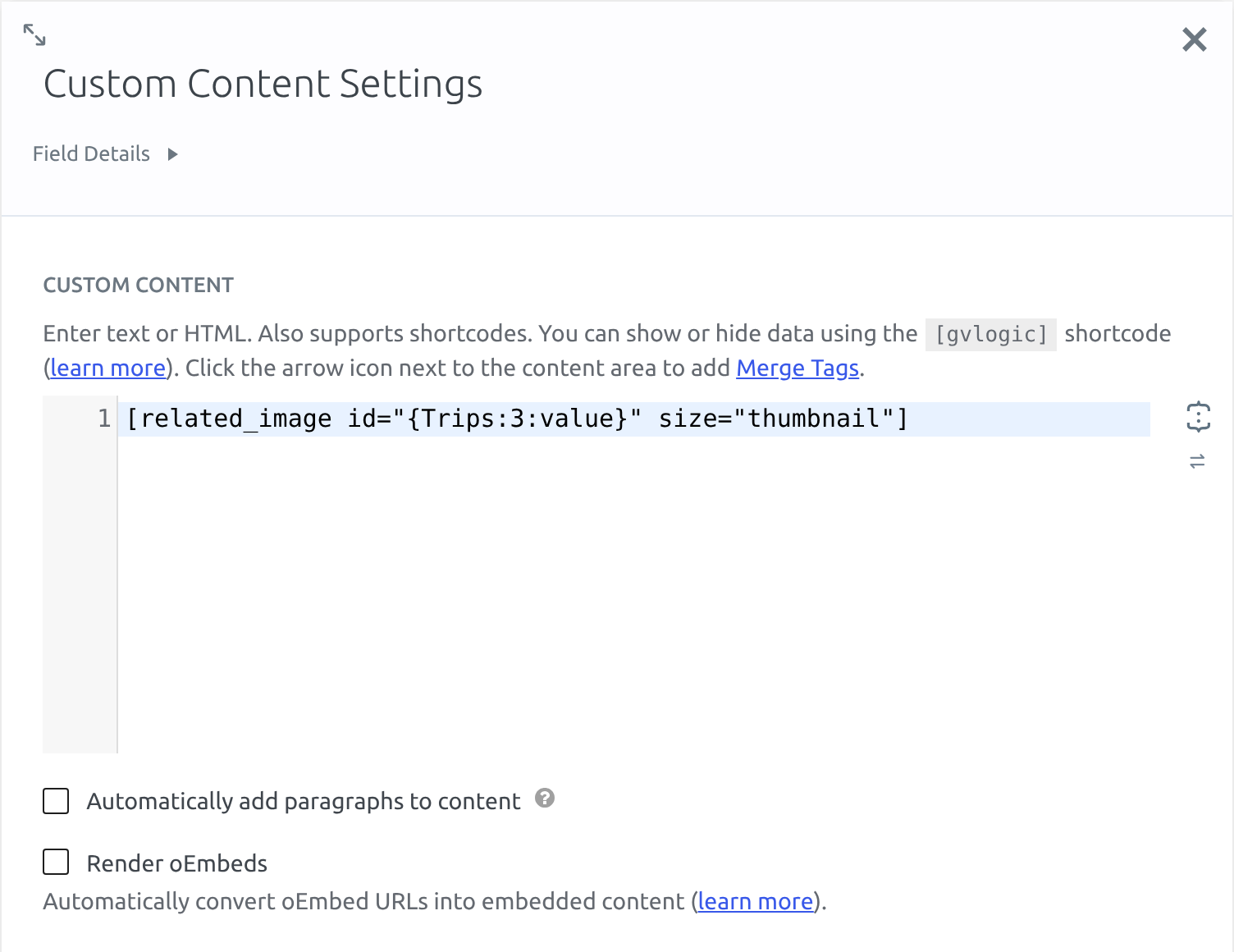Custom Content replaces merge tags before it runs shortcodes, so the shortcode receives the post IDs themselves. For `size`, use an image size your site has, such as `thumbnail` or `medium`. Without it, the shortcode uses `medium`.
The images sit side by side and wrap onto new lines. A post adds nothing when it has no featured image or isn’t published. If the page shows the shortcode as text, the code isn’t running on your site.
## Show the image of a Dynamic Lookup field
A Lookup field from [Dynamic Lookup](https://www.gravitykit.com/docs/gravity-forms-dynamic-lookup/getting-started-with-dynamic-lookup/) that stores a post can show its featured image without any code. The field’s `featured_image` modifier gives the address of the full-size image, so put it in an image tag in a **Custom Content** field:
```
 ```
Replace `Booked trip:4` with your Lookup field’s label and ID. This works for a Lookup field that stores one post. [Using Merge Tag Modifiers with Lookup Fields](https://www.gravitykit.com/docs/gravity-forms-dynamic-lookup/lookup-merge-tag-modifiers/) lists the field’s other modifiers.