---
title: "How to Add a “Clear All Filters” Button for DataTables Column Filters"
url: "https://www.gravitykit.com/docs/gravityview-pro/how-to-add-a-clear-all-filters-button-for-datatables-column-filters/"
updated: "2026-08-28"
category: GravityView Pro
---
# How to Add a “Clear All Filters” Button for DataTables Column Filters
When using [DataTables Field Filters](https://www.gravitykit.com/docs/gravityview-pro/datatables/datatables-field-filters/), users may want to reset all column filters at once. This article shows how to add a “Clear Filters” button that clears all per-column filter inputs with a single click.
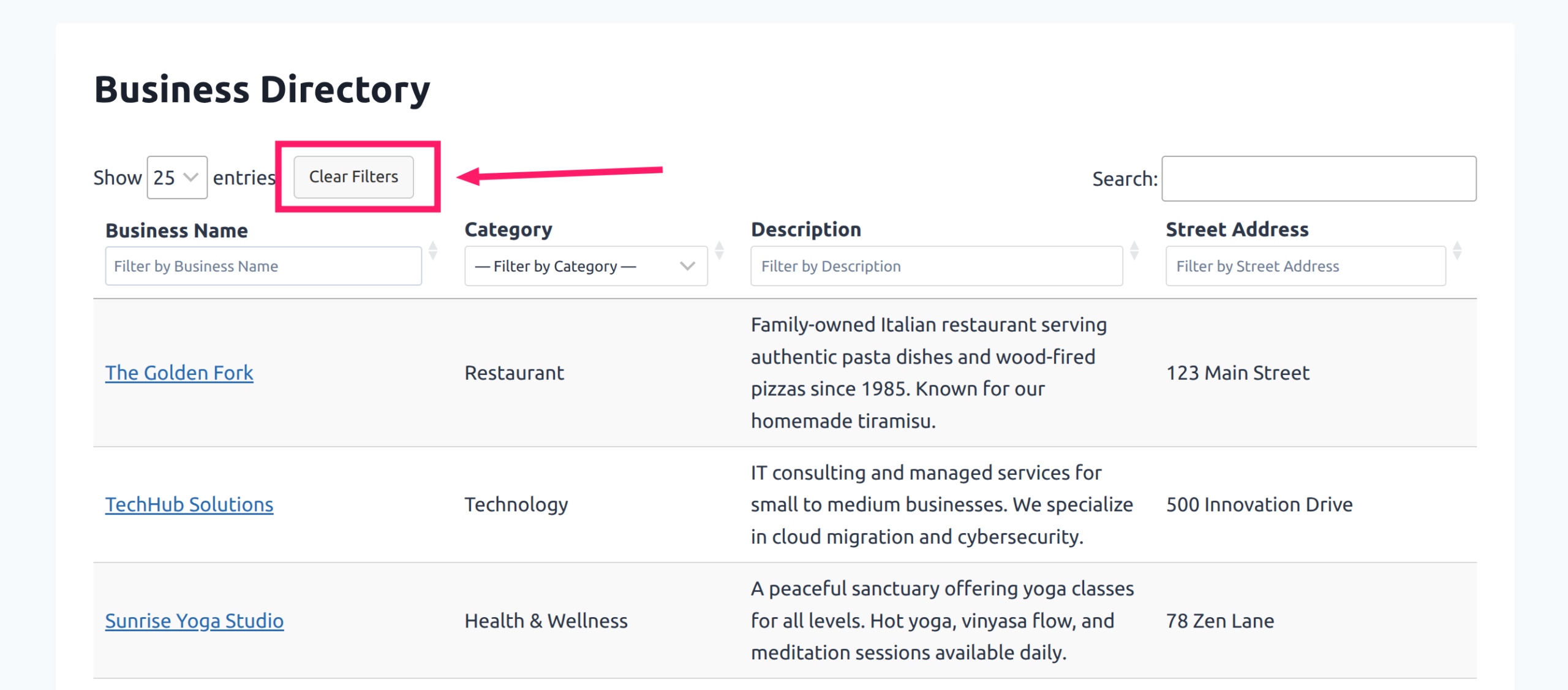
## Adding the Clear Filters Button
Add this JavaScript to your site to create a “Clear Filters” button. The button should automatically appear in the best location based on your View settings:
```
jQuery(document).ready(function($) {
$('.gv-datatables').on('init.dt', function() {
var table = $(this).DataTable();
var $wrapper = $(this).closest('.dataTables_wrapper');
var $button = $('');
var $target = $wrapper.find('.dt-buttons, .dataTables_length, .dataTables_filter').first();
$target.length ? $target.after($button) : $wrapper.prepend($button);
$button.on('click', function() {
$wrapper.find('.gv-dt-field-filter').val('').filter('select').prop('selectedIndex', 0);
table.columns().search('').draw();
});
});
});
```
```
jQuery(document).ready(function($) {
$('.gv-datatables').on('init.dt', function() {
var table = $(this).DataTable();
var $wrapper = $(this).closest('.dataTables_wrapper');
var $button = $('');
var $target = $wrapper.find('.dt-buttons, .dataTables_length, .dataTables_filter').first();
$target.length ? $target.after($button) : $wrapper.prepend($button);
$button.on('click', function() {
$wrapper.find('.gv-dt-field-filter').val('').filter('select').prop('selectedIndex', 0);
table.columns().search('').draw();
});
});
});
```
See [Adding custom JavaScript to your Views](https://www.gravitykit.com/docs/gravityview/customizing-your-views/adding-custom-javascript-or-jquery-code-snippets-to-your-views/) for instructions on where to add this code.
## Styling the Button (Optional)
The button uses the `dt-button` class to match the other DataTables buttons. To further customize its appearance, add this CSS to your site:
```
.clear-column-filters {
background: #f8f8f8;
color: #333;
border: 1px solid #ccc;
padding: 6px 12px;
border-radius: 4px;
cursor: pointer;
margin-left: 15px;
font-size: 14px;
}
.clear-column-filters:hover {
background: #eee;
border-color: #999;
}
```
```
.clear-column-filters {
background: #f8f8f8;
color: #333;
border: 1px solid #ccc;
padding: 6px 12px;
border-radius: 4px;
cursor: pointer;
margin-left: 15px;
font-size: 14px;
}
.clear-column-filters:hover {
background: #eee;
border-color: #999;
}
```
See [Adding custom CSS to your website](https://www.gravitykit.com/docs/gravityview/customizing-your-views/adding-custom-css-to-your-website/) for instructions on where to add CSS.
## How It Works
When clicked, the button:
1. Clears all text input filters (`.gv-dt-field-filter`)
2. Resets all dropdown filters to their first option
3. Clears DataTables’ internal column search state
4. Redraws the table to show unfiltered results
**Coming Soon:** We’re working on adding a built-in “Clear All Filters” button to DataTables, so this workaround won’t be needed in a future release.
## Related Articles
- [DataTables Field Filters](https://www.gravitykit.com/docs/gravityview-pro/datatables/datatables-field-filters/)
- [Getting Started With the DataTables Layout](https://www.gravitykit.com/docs/gravityview-pro/datatables/how-to-install-the-datatables-layout/)